
About Velocity
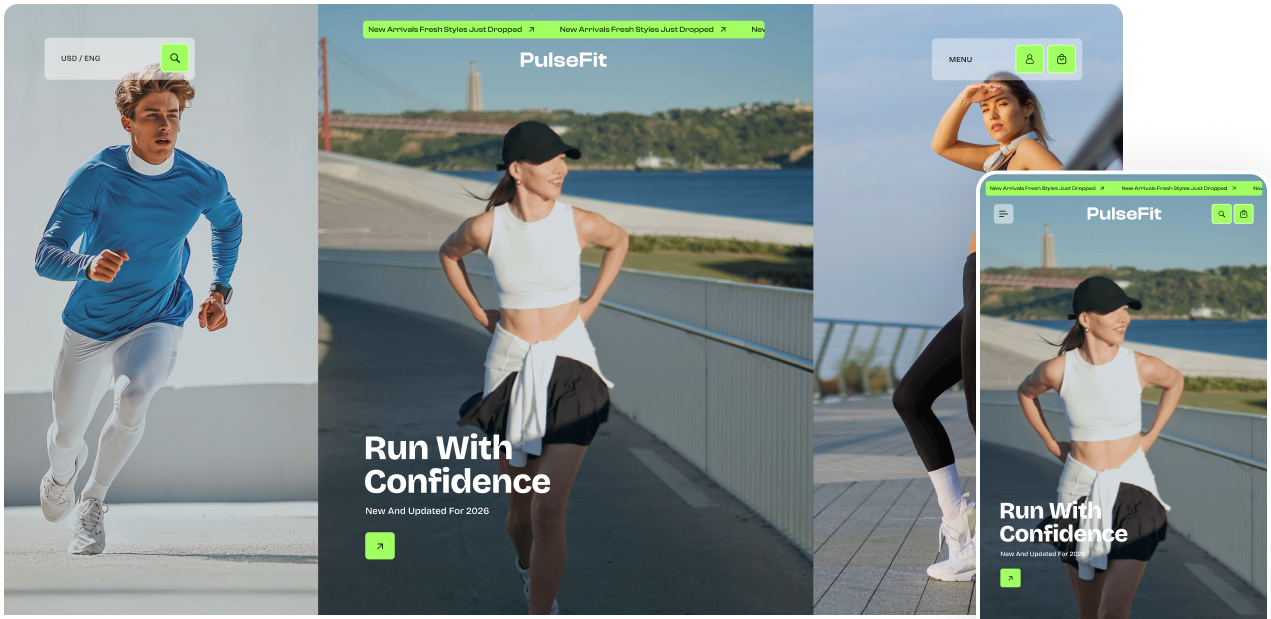
Velocity is a premium Shopify theme designed for sportswear, activewear, fitness, and performance-driven lifestyle brands. Built to create an energetic and visually immersive storefront, Velocity combines modern aesthetics with high-performing functionality to deliver a smooth and engaging shopping experience.
With premium animated sections, interactive product showcases, dynamic card sliders, advanced search features, and conversion-focused layouts, Velocity helps brands present their collections in a bold and impactful way. From highlighting new arrivals and featured products to promoting campaigns and brand stories, every section is designed to keep customers engaged.
Optimized for speed, responsiveness, and seamless navigation across all devices, Velocity ensures a premium shopping journey from discovery to checkout. Whether you're building a sportswear label, fitness brand, or active lifestyle store, Velocity provides a powerful foundation to grow your brand and create a memorable online experience.
Theme Installation
Follow the given steps to install the theme on your Online Store
- Log in to your Shopify admin.
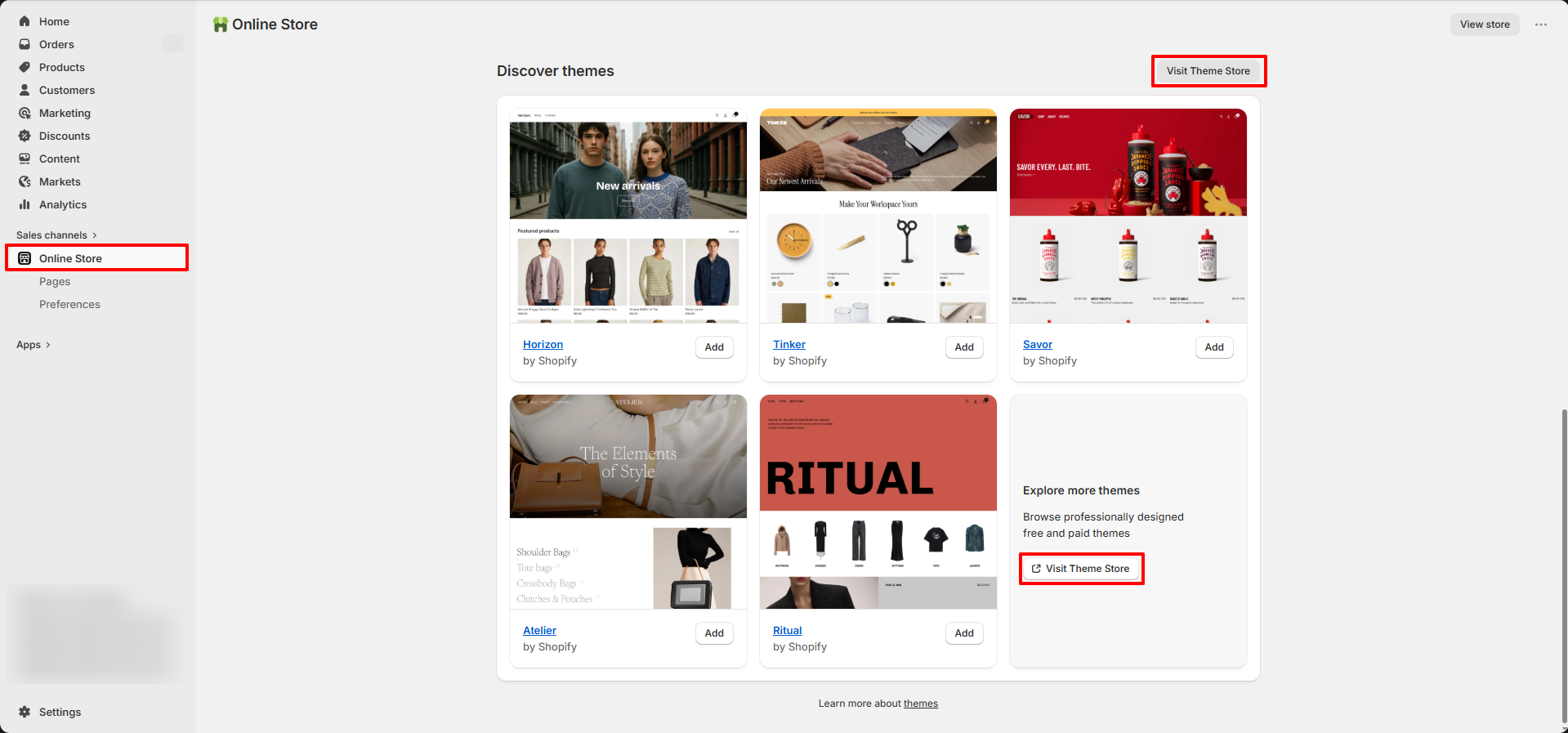
- Go to Online Store from the left sidebar.
- Scroll down to the Discover Themes section.
- Click on Visit Theme Store.
- In the Shopify Theme Store, search for Velocity Theme.
- Open the theme and click Try theme to add it to your store.
- The theme will be added to your store.
- Click Customize to start editing and setting up your store design.
Try Velocity for free from the Shopify Theme Store
Velocity, like all premium themes in the Shopify Theme Store, offers a trial period, allowing you to explore its user-friendly design and quick setup features. During the trial, you can fully customize and configure the theme to create your ideal storefront. When you're ready to launch, purchase the theme to activate it on your live store.
Steps
- Visit the Shopify Theme Store and choose Velocity.
- Click Try theme to add the theme to your online store.
- In your Shopify admin, go to Online Store > Themes.
- In the Theme library section, click the Customize button to open the theme editor or, to preview, use the ... button to open the actions menu, then click Preview.
FAQs
How do I update my theme to a newer version?
Updating your theme to the latest version is simple! Just follow our step-by-step guide on how to update your theme and keep your store looking fresh and functional.
How do I share a preview of my theme with others?
If you're about to launch your store or want to refresh its design, you can easily share a preview of your theme before it's published. This allows you to gather feedback without making any changes live.
Create a preview link that lets others explore your store's design, but without the ability to access checkout. The best part? The preview link stays active for 48 hours, and you can create new links as many times as you need without affecting previous ones.
Steps to Share a Theme Preview:
- From your Shopify admin, navigate to Online Store > Themes.
- For the theme you want to preview, click the ... button, then select Preview from the actions menu.
- In the preview bar at the bottom of the page, click Share preview. A window with your unique share link will appear.
- Click Copy link to copy the link to your clipboard.
- Paste the link into emails, chats, or on social media to share with others.
Can I Get a Refund or Theme Exchange?
When selecting a theme for your Shopify store, we highly recommend taking advantage of Shopify's generous, unlimited free trial for any paid themes you are considering. This trial provides you with the opportunity to thoroughly explore and test the theme, ensuring it meets your needs before making a purchase commitment.
Please keep in mind that Shopify has a clear no-refund policy, which is displayed before you confirm any theme purchase. This policy also applies to exchanges for other themes. Since the theme you've purchased is a digital product, it's very different from returning or exchanging an unopened physical item from a store'there's no way to verify that a digital file hasn't been used or copied.
Even if you no longer wish to use the theme, Shopify has determined that issuing refunds or exchanges could create a loophole that might be easily abused. You are welcome to submit a refund request directly to Shopify Support, but we cannot predict or influence their final decision.