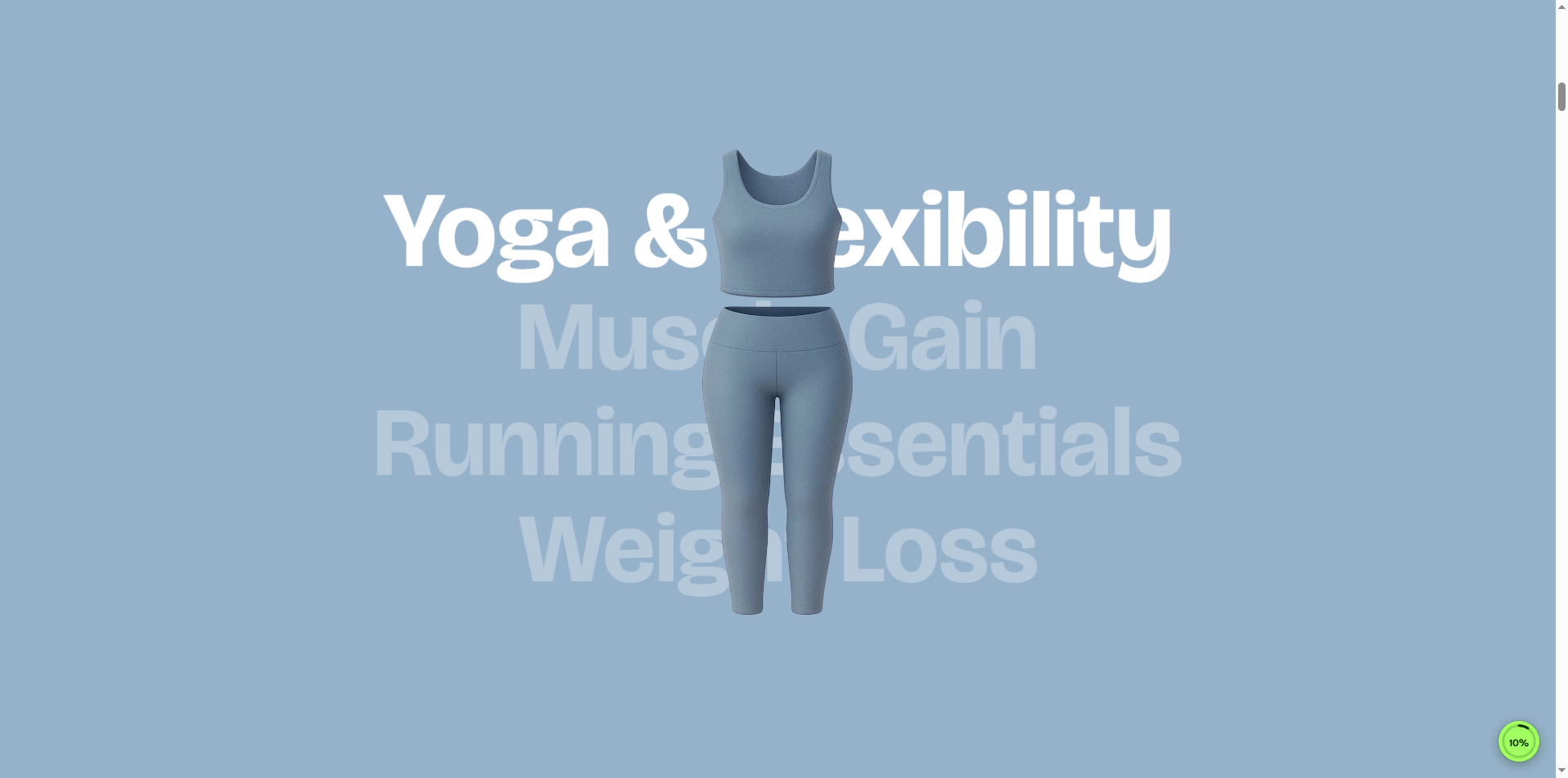
Vertical Collection
The Vertical Collection section helps you present featured collections in an organized vertical layout, making product categories easy to browse and discover. Whether showcasing new arrivals, trending products, featured categories, or seasonal collections, this section creates a smooth navigation experience and helps customers reach relevant products faster. Its clean and structured design keeps important collections visible while enhancing overall store engagement.
How to Add the Vertical Collection Section
The Vertical Collection section allows you to feature specific collections on your homepage or other pages, helping customers explore categories quickly and easily. Follow the steps below to edit and customize it:
- From your Shopify admin, go to Online Store → Themes.
- Click Customize on the Velocity theme.
- In the Theme Editor, use the drop-down selector to choose the page where you want to add or edit the Vertical Collection section.
- Click Add Section (or select an existing Vertical Collection section if already added).
- Click Save to apply your changes.
How To Edit the Vertical Collection section
Here are the steps to configure the options mentioned for the Vertical Collection section in your Velocity Shopify theme:
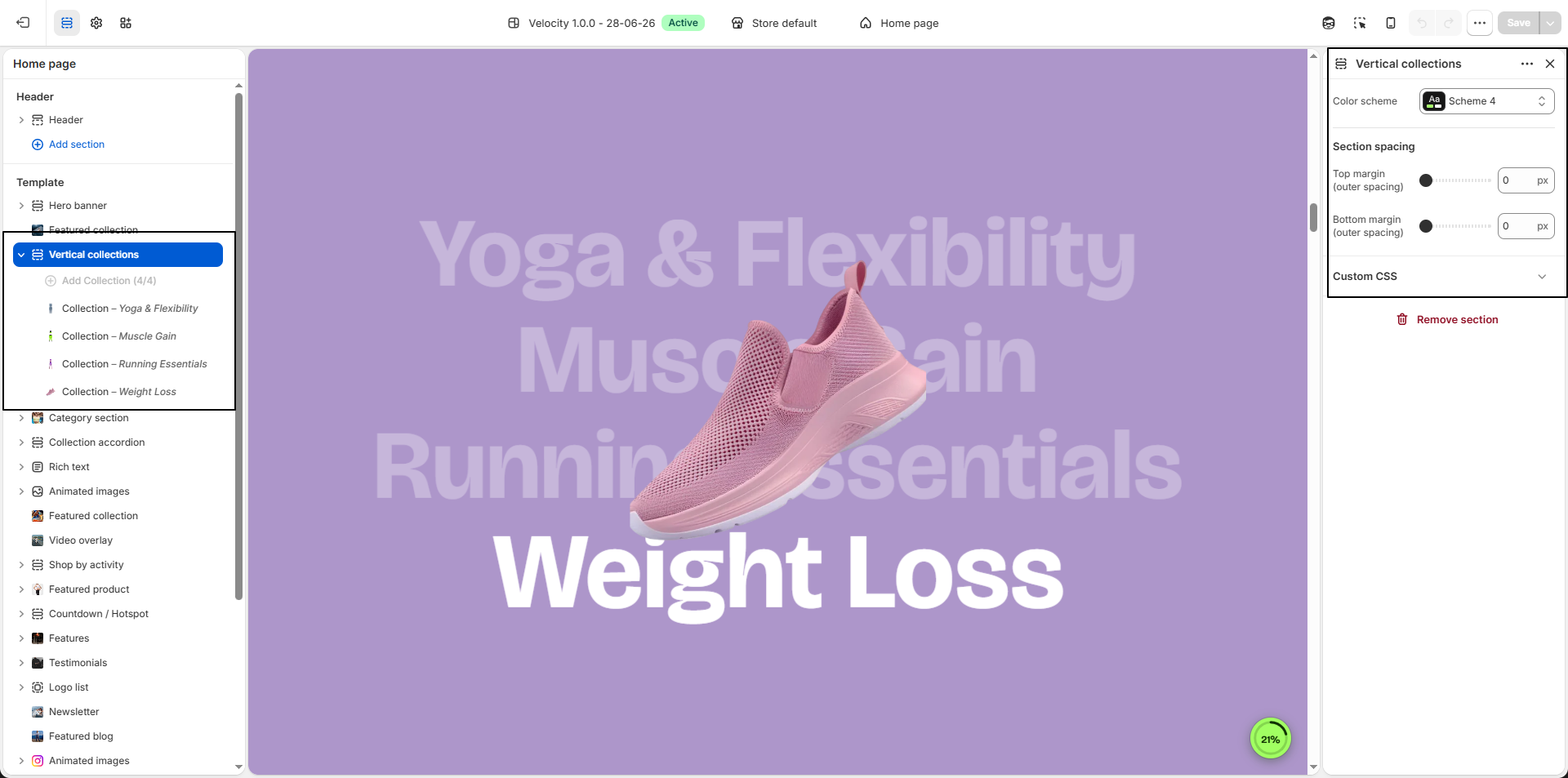
- Select Color: Choose a color scheme for the overall product section background and text styling.
Configure the Collection Block Settings
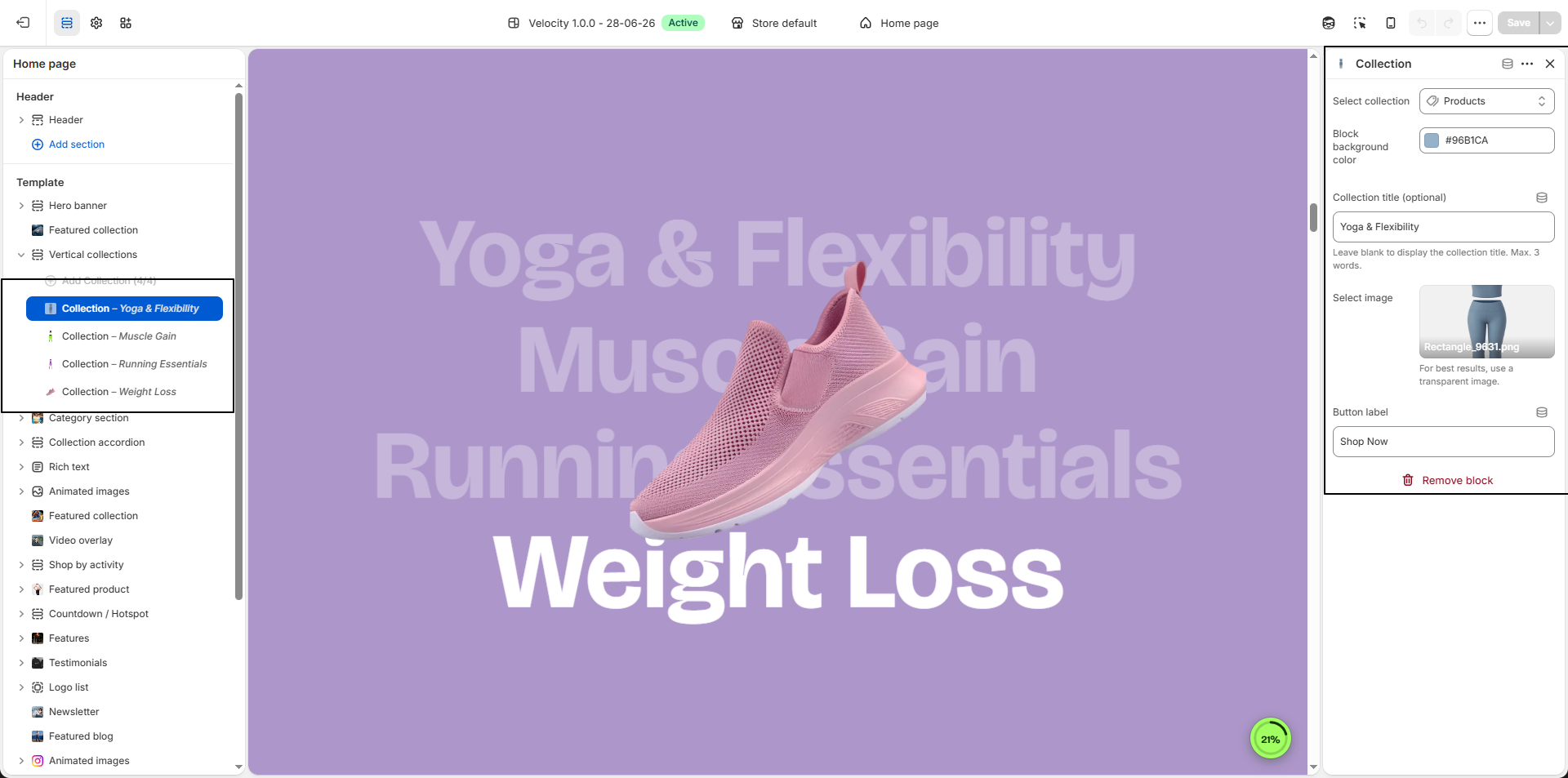
- Add Collection Block: Click Add Collection Block to create a new collection card inside the Vertical Collection List section.
- Select Collection: Choose the collection you want to display. Products and collection details will automatically be linked to the selected collection.
- Block Background Color: Select a background color for the collection block (e.g., #96B1CA) to match your store branding and improve visual appearance.
-
Collection Title (Optional):
Enter a custom title to display instead of the original collection title.
Leave this field blank to automatically show the selected collection name.
Recommended: Maximum 3 words for best appearance. -
Select Image:
Upload a custom image to visually represent the collection block.
- Click Upload images to add the collection image.
- For best results, use transparent PNG images for a cleaner presentation.
- Button Label: Customize the button text displayed on the collection card (e.g., Shop Now).
- Remove Collection Block: Select an existing collection block and click Remove Block to delete it from the section.