
Animated Images
The Animated Images section lets you create eye-catching visual displays by combining images with smooth animation effects. It's perfect for showcasing featured products, promotional campaigns, brand highlights, or lifestyle imagery that captures customer attention. With flexible layout and animation settings, you can create engaging content that adds movement to your storefront while maintaining a clean and modern shopping experience across all devices.
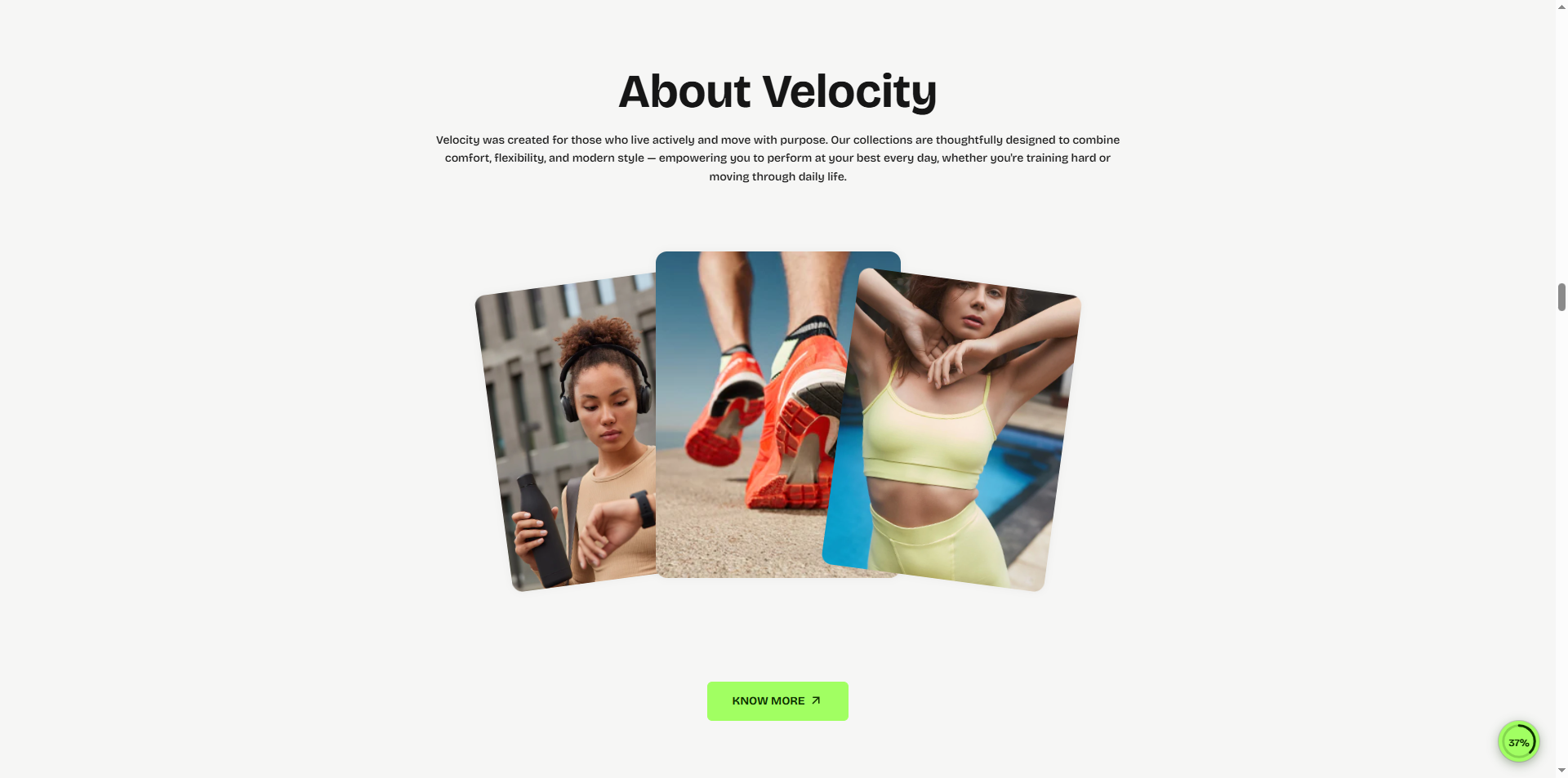
How to Add the Animated Images
- From your Shopify admin, go to Online Store → Themes.
- Click Customize on the Velocity theme.
- In the Theme Editor, use the drop-down selector to choose the page where you want to add or edit the Animated Images section.
- Click Add Section (or select an existing Animated Images if already added).
- Click Save to apply your changes.
How to Edit the Animated Images
Here are the steps to configure the available settings for the Animated Images in your Velocity Shopify theme:
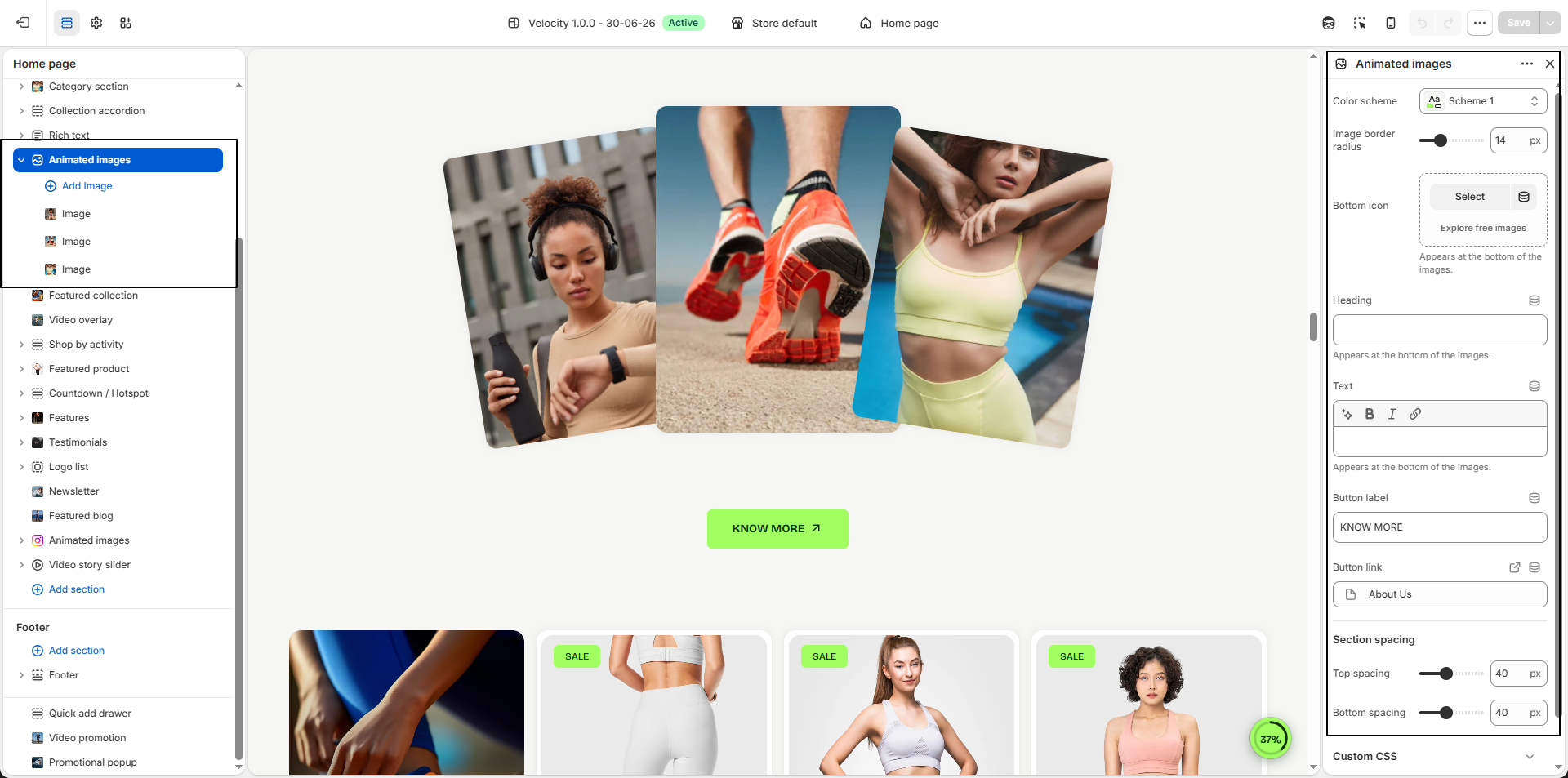
- Color Scheme: Select a predefined color scheme to control the background and text colors used throughout the Animated Images section.
- Image Border Radius: Adjust the corner roundness applied to all images in the section (e.g., 14px) for a softer and more modern appearance.
- Bottom Icon: Upload an icon that appears at the bottom of the animated images to enhance visual appeal and draw attention to the content.
- Heading: Enter a heading displayed at the bottom of the animated images to introduce your featured content or promotion.
- Text: Add supporting text that appears below the heading. Use this area to highlight your brand message, promotional content, or additional information.
- Button Label: Customize the text displayed on the call-to-action button (e.g., KNOW MORE).
- Button Link: Select the destination for the button, such as a page, collection, product, or custom URL.
-
Select Image:
Upload the image you want to display in the Animated Images section.
- Click Upload images to choose an image from your Shopify files.
- Use high-quality images for the best visual appearance.
- Image Link: Select the page, product, collection, or custom URL that customers will be redirected to when they click the image.
- Remove Block: Select an existing image block and click Remove Block to delete it from the Animated Images section.