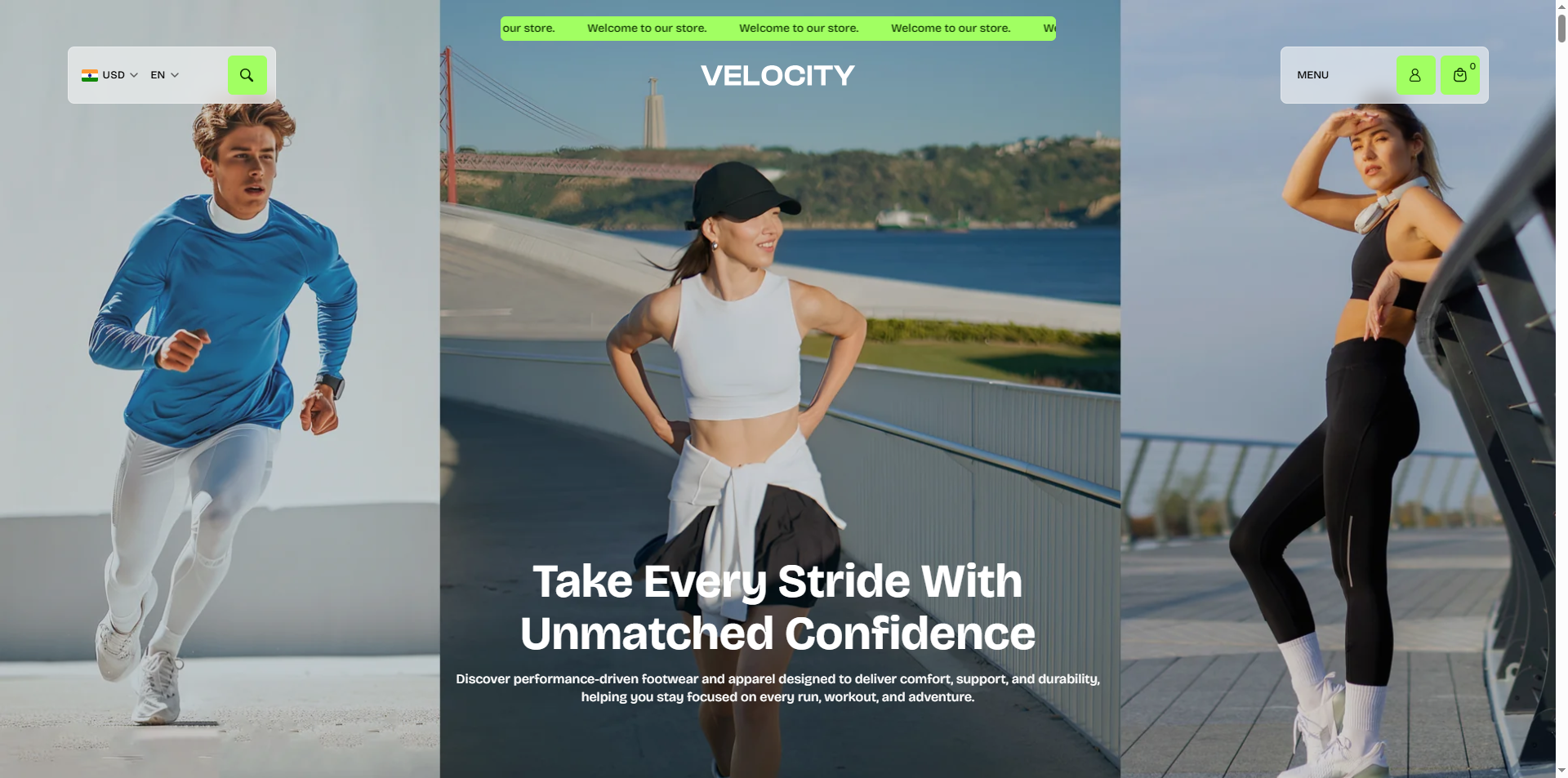
Hero Banner
The Hero Banner section creates a powerful first impression by showcasing featured visuals, promotional messaging, and key actions directly at the top of your store. Designed for the Velocity theme, this section combines immersive imagery, flexible content placement, and clear call-to-action buttons to guide customers toward featured collections and products.
Whether highlighting new arrivals, seasonal campaigns, fitness collections, or brand stories, the Hero Banner helps capture attention instantly while keeping navigation smooth and engaging across desktop and mobile devices.
How to Add the Hero Banner Section
- From your Shopify admin, go to Online Store → Themes.
- Click Customize on the Velocity theme.
- In the Theme Editor, use the drop-down selector to choose the page where you want to add or edit the Hero Banner section.
- Click Add Section (or select an existing Hero Banner section if already added).
- Click Save to apply your changes.
How To Edit the Hero Banner Section
Here are the steps to configure the options mentioned for the Hero Banner section in your Velocity Shopify theme:
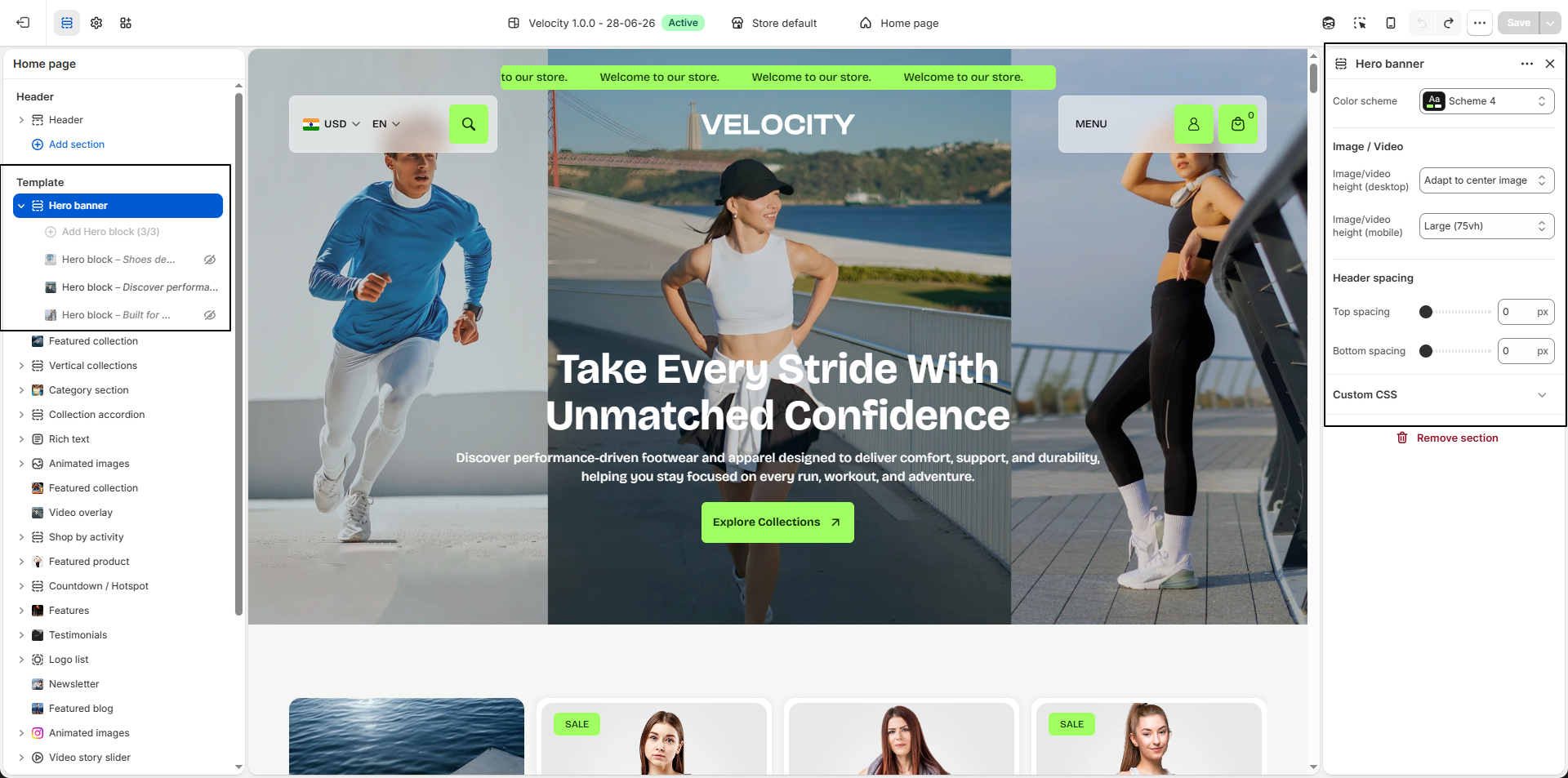
- Color Scheme: Select a predefined color scheme (e.g., Scheme 4) to control the overall appearance of the Hero Banner, including text and content styling.
- Image / Video: Upload images or videos to create an immersive hero section experience and showcase promotions, campaigns, featured collections, or brand visuals.
-
Image / Video Height
Control the height and visual presentation of hero media on desktop screens.
- Adapt to Center Image: Automatically adjusts the section height based on the center media while keeping the focal content visible.
- Medium: Displays the hero section with balanced height for both media visibility and content placement.
- Large: Increases hero section height to create a stronger visual impact.
- Full: Expands the hero section to occupy the full available screen height for an immersive storefront experience.
Configure the Hero Block Settings
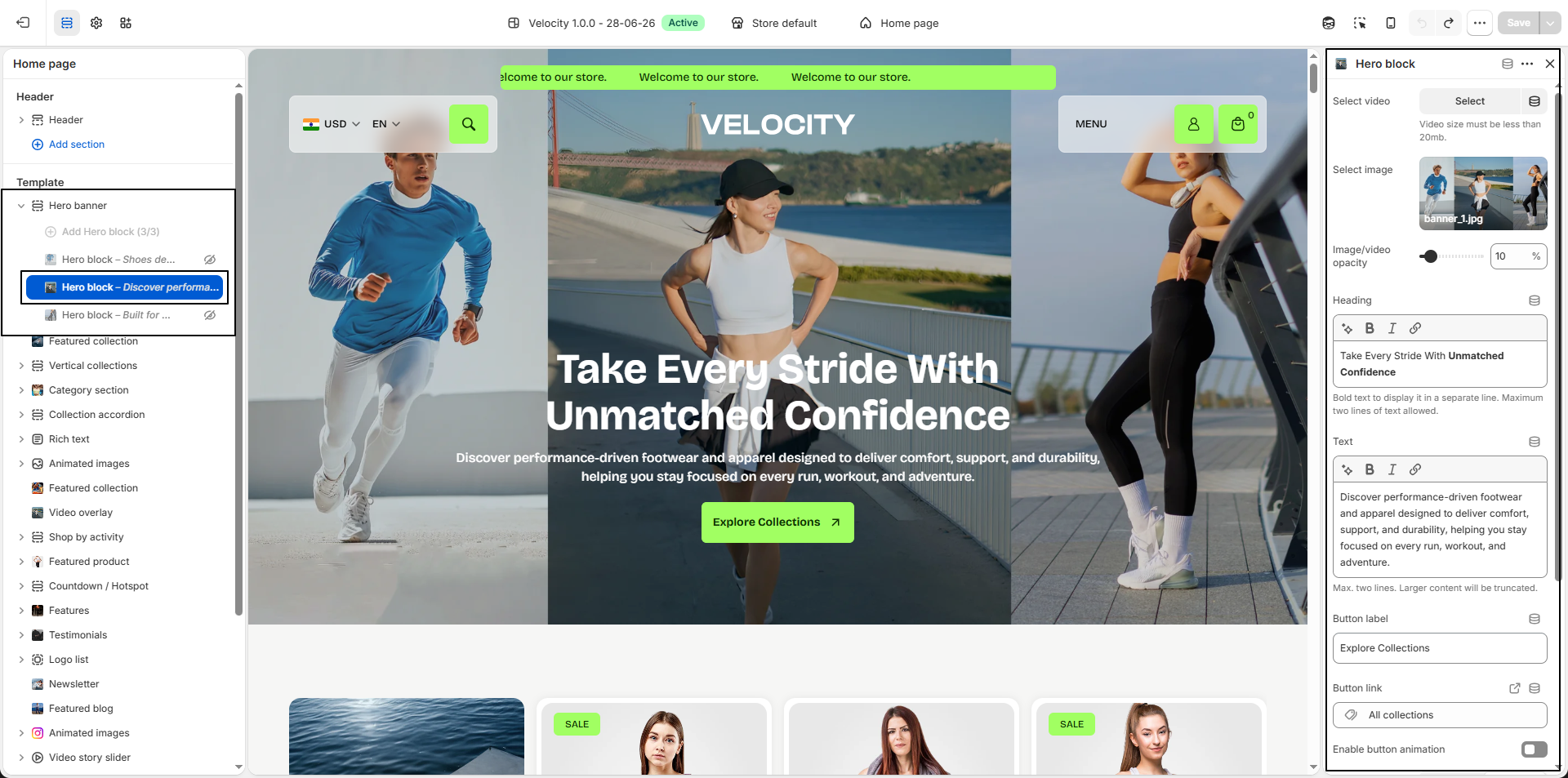
- Add Hero Block: Click Add Hero Block to create a new hero slide inside the Hero Banner section. Each block allows you to showcase a separate image or video with custom content and actions.
-
Select Video:
Upload or select a video to display as the hero media.
- Supported for creating engaging promotional or brand storytelling sections.
- Video size must be less than 20MB.
-
Select Image:
Upload a hero banner image if you prefer static media instead of video.
- Click Upload images to select a banner image.
- Use high-resolution images for the best visual quality.
- Image / Video Opacity: Adjust the overlay opacity applied over media (e.g., 10%) to improve content readability and visual balance.
-
Heading:
Add the main hero title displayed over the media
(e.g., Take Every Stride With Unmatched Confidence).
Use bold text to force content onto a separate line.
Maximum two lines recommended. -
Text:
Add supporting text below the heading to introduce promotions, campaigns, or
featured collections.
Maximum two lines. Longer content will automatically be truncated. - Button Label: Customize the call-to-action button text (e.g., Explore Collections).
- Button Link: Select where the hero button redirects customers, such as a collection, product page, or custom link.
- Enable Button Animation: Enable animated button effects to make call-to-action buttons more noticeable and interactive.
-
Content Position:
Control where content appears over the hero media.
- Center: Displays content centrally for balanced presentation.
- Bottom: Aligns content toward the lower area of the banner.
-
Content Alignment:
Adjust text alignment inside the hero content area.
- Left: Align content to the left.
- Center: Center-align content.
- Right: Align content to the right.
-
Content Max Width:
Set the maximum width of the hero content container (e.g., 800px) to
improve readability.
Works best when displaying a single hero slide. -
Display on Mobile Screens:
Enable this option to display the selected hero slide on mobile devices.
If multiple slides have this option enabled, only the first enabled slide will appear on mobile screens. - Remove Hero Block: Select an existing hero slide and click Remove Block to delete it from the section.