
Footer
The Footer in the Velocity theme provides a consistent space at the bottom of every page for navigation, branding, social links, and optional features like a newsletter signup, localization selectors, and trust icons. It helps improve accessibility, build trust, and keep important information easily available to customers.
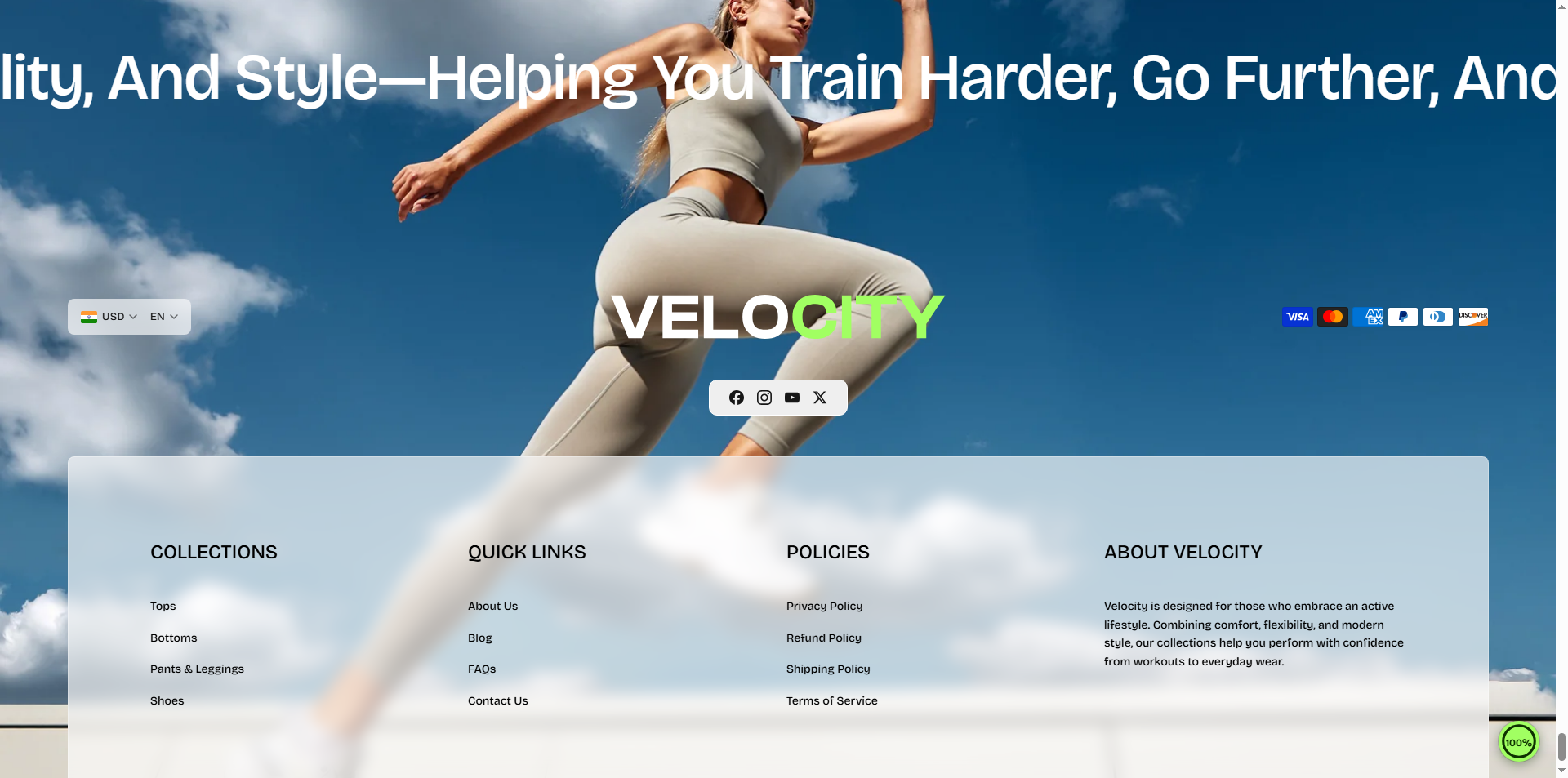
How to Configure the Footer
- From your Shopify admin, go to Online Store → Themes.
- Click Customize on the Velocity theme.
- In the Theme Editor, select the Footer section from the left sidebar.
- Adjust the settings, blocks, and layout options according to your preferences.
- Click Save to apply your changes.
How to Configure the Footer Settings
-
Horizontal Scroll Text:
Enable a continuously scrolling text banner above the footer to highlight
promotions, announcements, or brand messages.
- Enable Horizontal Text: Show or hide the scrolling text.
- Background Color: Choose the background color of the scrolling bar (or set it to transparent).
- Text Color: Select the color of the scrolling text.
- Text: Enter the message you want to continuously scroll across the screen.
- Scroll Speed: Control how fast the text moves (e.g., 80 px/sec).
- Scroll Direction: Choose the scrolling direction (e.g., Right to Left).
- Gap Between Elements: Set the spacing between repeated text elements.
- Text Size: Choose the display size of the scrolling text.
- Color Scheme: Select a predefined color scheme for the footer background and text.
- Select Footer Background Image: Upload a background image to enhance the footer's appearance.
- Background Image Overlay: Adjust the overlay opacity to improve text readability over the background image.
- Select Footer Logo Image: Upload your store logo to display in the footer.
- Logo Width: Adjust the display width of the footer logo.
- Show Country/Language Selectors: Display country and language selectors for stores using Shopify Markets and multiple languages.
- Enable Background: Apply a background behind the country and language selector area.
- Show Payment Icons: Display accepted payment method icons to build customer trust.
- Show Social Media Icons: Display links to your social media profiles configured in Theme Settings → Social Media.
- Apply Background: Applies the secondary background color to supported footer elements for improved visual separation.
- Enable Glass Effect: Apply a modern glassmorphism effect to supported footer elements.
- Newsletter: Enable a newsletter signup form in the footer so customers can subscribe to your mailing list.
-
Enable Follow on Shop:
Allow customers to follow your store through the Shop app.
Note: Shop Pay must be enabled for this feature to work. - Show Policies: Display your store policies such as Privacy Policy, Terms of Service, Refund Policy, and Shipping Policy in the footer.
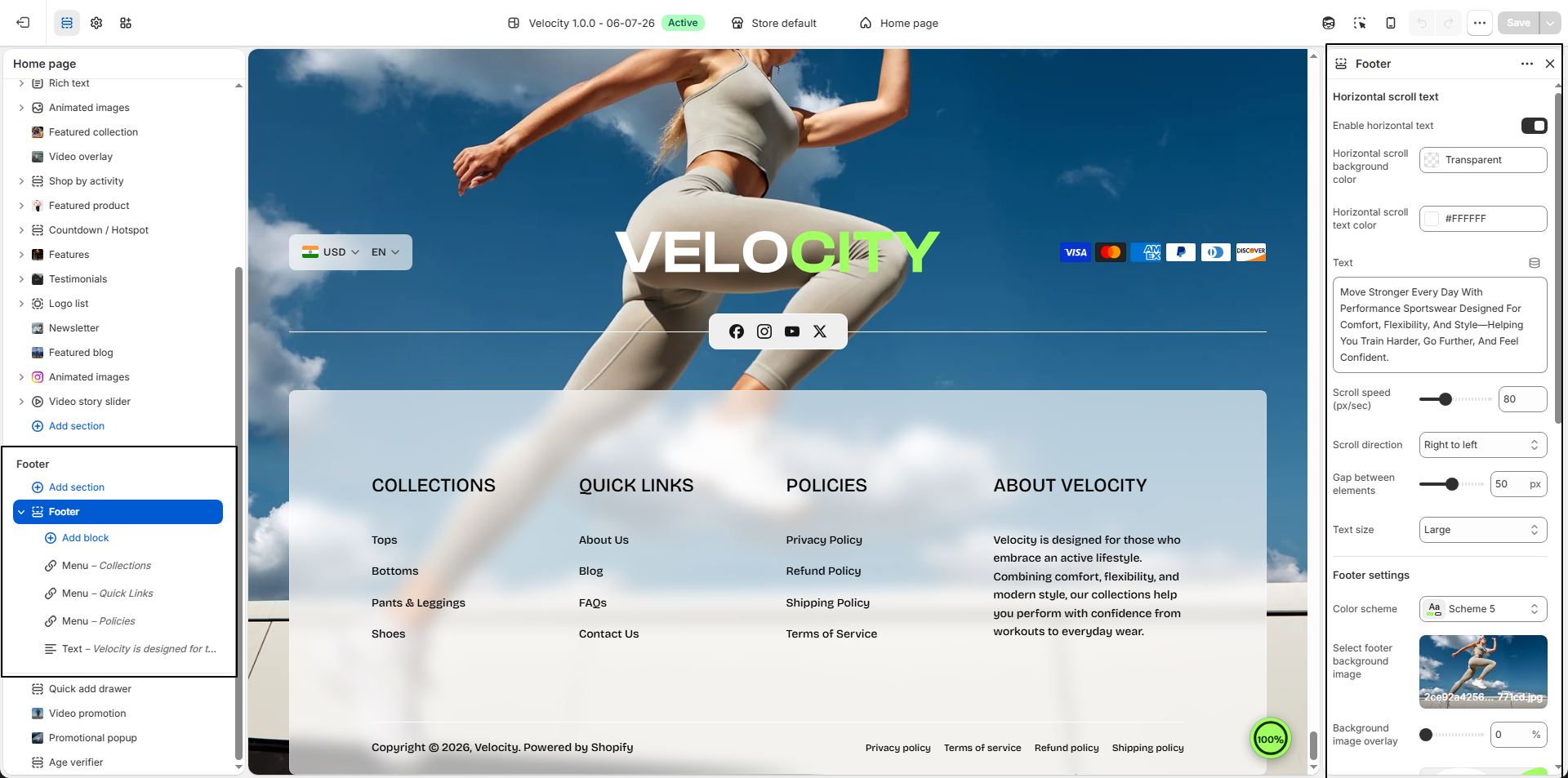
Configure a block within a Footer section
To configure an existing block, select the block from the side menu.
To add a new block, select Add block, choose a block to add, and then select the block you added.
1. Text
- Heading: Enter the title for the text block (e.g., ABOUT VELOCITY).
- Text: Add your brand story, company information, or any descriptive content you want to display in the footer.
- Block Width: Adjust the maximum width of the text block to control how much horizontal space it occupies within the footer layout.
2. Menu
- Heading: Enter the main heading for the text block.
- Select Menu Select a navigation menu to show as a list of links.
- Block Width: Adjust the maximum width of the text block to control how much horizontal space it occupies within the footer layout.
How to Enable the Payment Icons, Enable Follow on Shop and Enable Currency & Language Selector
Payment Icons
- Show accepted payment methods to reassure customers.
- In Theme Settings, locate the Footer section. Enable the Payment Icons option to display available payment methods in the footer.
- Go to Settings > Payments in your Shopify admin.
Enable Follow on Shop
- Make sure Shop Pay is enabled in your Shopify store settings.
- This allows customers to follow your store on the Shop app directly from your storefront.
- Read more about follow on shop
Enable Currency & Language Selector
-
Enable Currency & Language Selector:
Allow users to select their preferred currency and language, refer to the Shopify markets and Shopify languages support docs which will guide you through the process. -
For Currency Settings-
Navigate to Settings > Markets in your Shopify admin.
Add the desired countries or regions to your markets.
This will display a selector in the footer, allowing customers to choose their location. -
For language Settings-
Go to Settings > Languages in your Shopify admin.
Add the languages you wish to support.
Once added, the language selector will appear in the footer, enabling customers to choose their preferred language.
- Read more about countries/regions
FAQs
Can I customize my payment icons?
Unfortunately, no. Payment icons are automatically pulled from the Payment settings in your Shopify admin and cannot be manually adjusted.
Why aren’t my social media icons visible?
To display your social media icons, ensure they’re configured under Theme Settings > Social Media. Once added, they’ll appear in the Social Links block seamlessly.
How do I update the copyright message?
The copyright message can be edited through translations. Go to the Theme Editor, click the ... menu, and select Edit Default Theme Content to make your changes.