
Countdown timer
The Countdown Timer section adds urgency and excitement to your store by displaying a live timer that counts down to a specific date or event. Perfect for flash sales, product launches, or limited-time promotions, it helps encourage quicker customer action and boosts engagement.
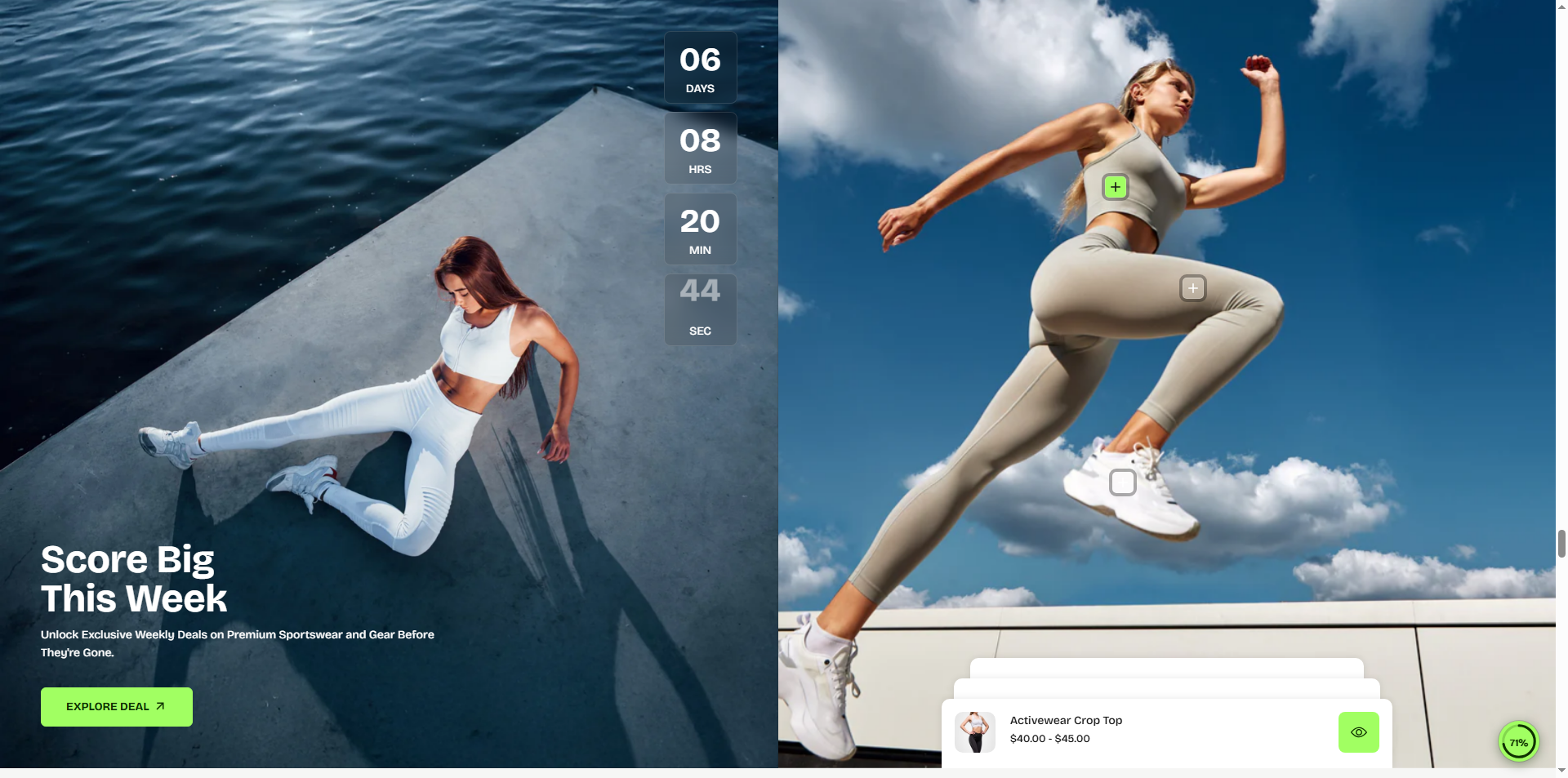
How to Add the Countdown Timer Section
- From your Shopify admin, go to Online Store → Themes.
- Click Customize on the Velocity theme.
- In the Theme Editor, use the drop-down selector to choose the page where you want to add or edit the Countdown Timer section.
- Click Add Section (or select an existing Countdown Timer section if already added).
- Click Save to apply your changes.
How To Edit the Countdown Timer section
Here are the steps to configure the options mentioned for the Countdown Timer section in your Velocity Shopify theme:
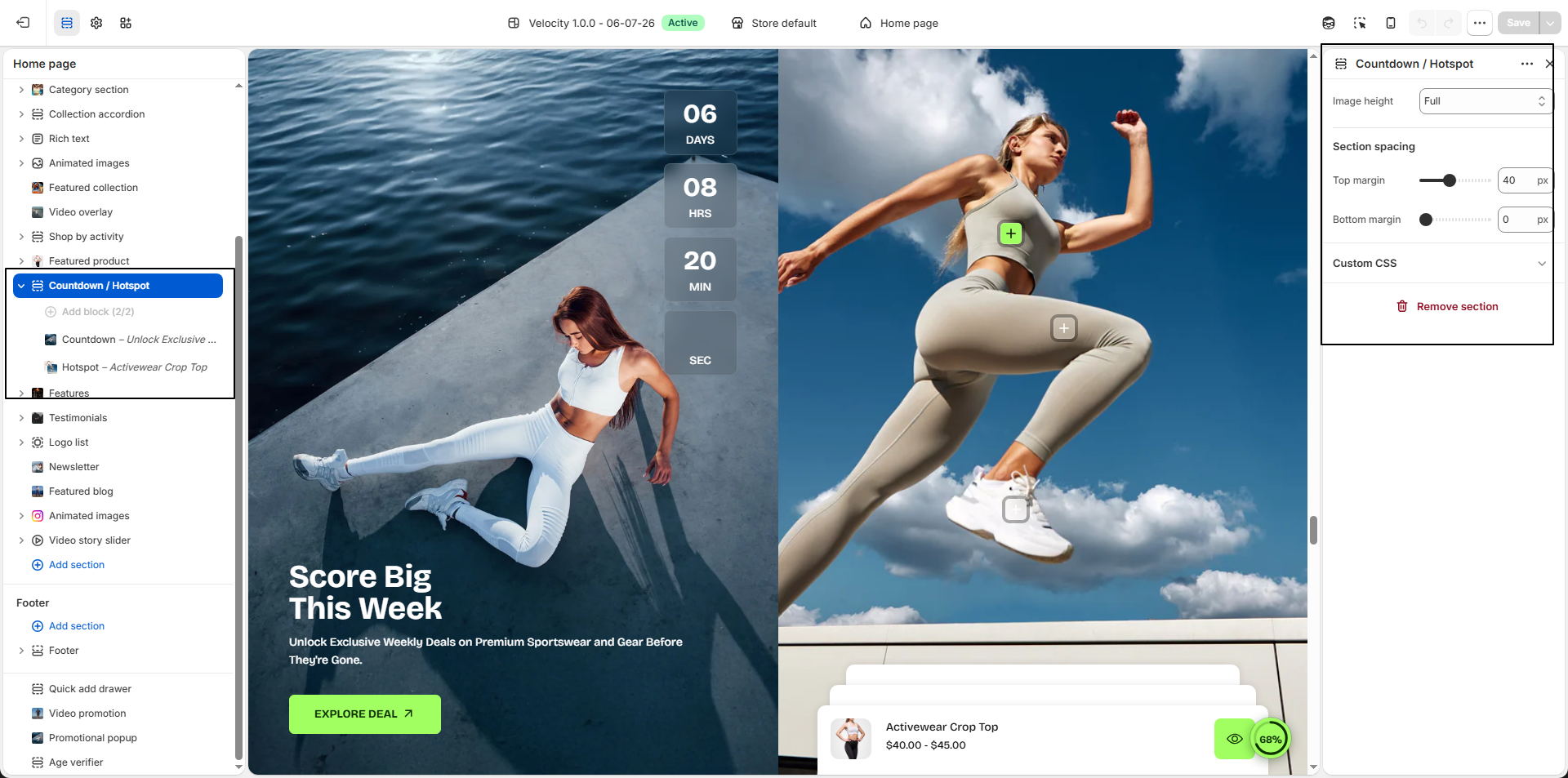
-
Image Height:
Choose how the background image is displayed within the section.
- Full: Expands the image to fill the entire section height for a bold, immersive appearance.
- Large: Displays a tall banner while leaving slightly more space for surrounding content.
- Adapt to Image: Preserves the original proportions of the uploaded image to prevent cropping or distortion.
-
Section Spacing:
Control the spacing around the section to create a balanced page layout.
- Top Spacing: Adjust the space above the section.
- Bottom Spacing: Adjust the space below the section.
How To Edit the Countdown Timer Block
- Color Scheme: Select a predefined color scheme (e.g., Scheme 4) to control the background, text, and button styling of the countdown block.
-
Select Image:
Upload a background image for the countdown block.
- Click Upload images to add a promotional banner.
- Use a high-quality image for the best visual appearance.
-
Countdown Date:
Set the date and time when the countdown will end.
Format: DD-MM-YYYY hh:mm:ss (e.g., 15-07-2026 00:00:00). -
Heading:
Enter the main promotional heading displayed above the countdown timer.
Tip: Use bold text to move content onto the next line. - Text: Add a short promotional description or campaign message.
- Button Label: Customize the call-to-action button text (e.g., EXPLORE DEAL).
- Button Link: Select the collection, product, page, or URL customers will be redirected to when they click the button.
Pro Tips:
Pair your countdown with a special discount or free
shipping offer to boost urgency
Use bold colors and a clear call-to-action button to
increase conversions.
What happens when the timer ends?
The behavior of the timer depends on your settings:
- If you've added End Text, it will replace the timer.
- If you've enabled the Hide Timer option after expiry, only the section content (excluding the timer) will remain visible.
- If no action is taken, the timer will stay displayed as 0:0:0:0.