
Content With Video
The Content With Video section allows you to embed video content within your theme, providing an engaging way to showcase products or services. It is ideal for demonstrating features, sharing tutorials, or highlighting key messages while maintaining a visually appealing layout.
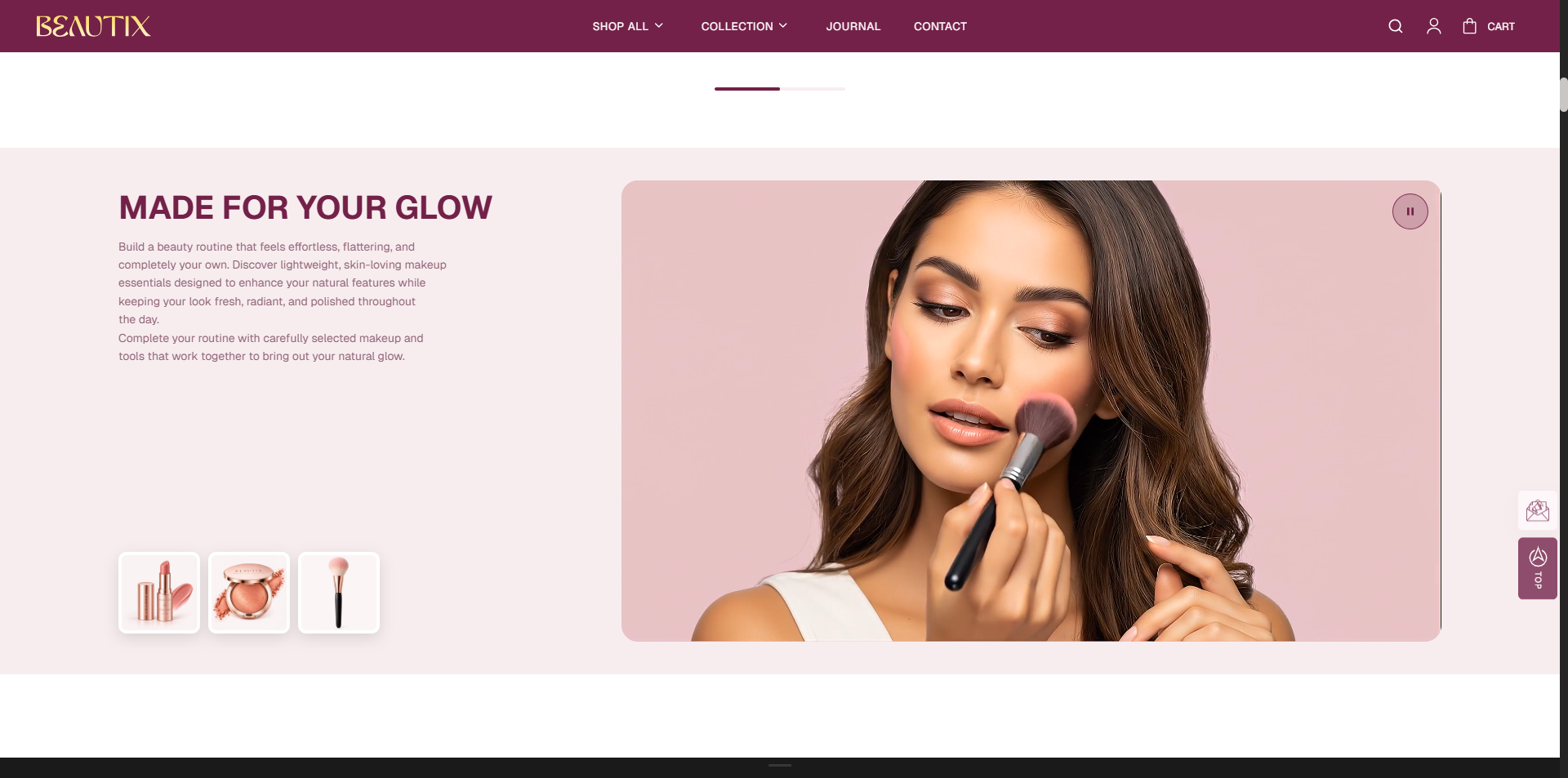
How to Add the Content With Video Section
- From your Shopify admin, go to Online Store → Themes.
- Click Customize on the Voltix theme.
- In the Theme Editor, use the drop-down selector to choose the page where you want to add or edit the Content With Video section.
- Click Add Section (or select an existing Content With Video section if already added).
- Click Save to apply your changes.
How To Edit the Content with Video Section
The Content with Video section allows you to combine promotional content, a video, and selected products in one engaging section. You can customize the text, video, layout, and featured products to create an attractive shopping experience.
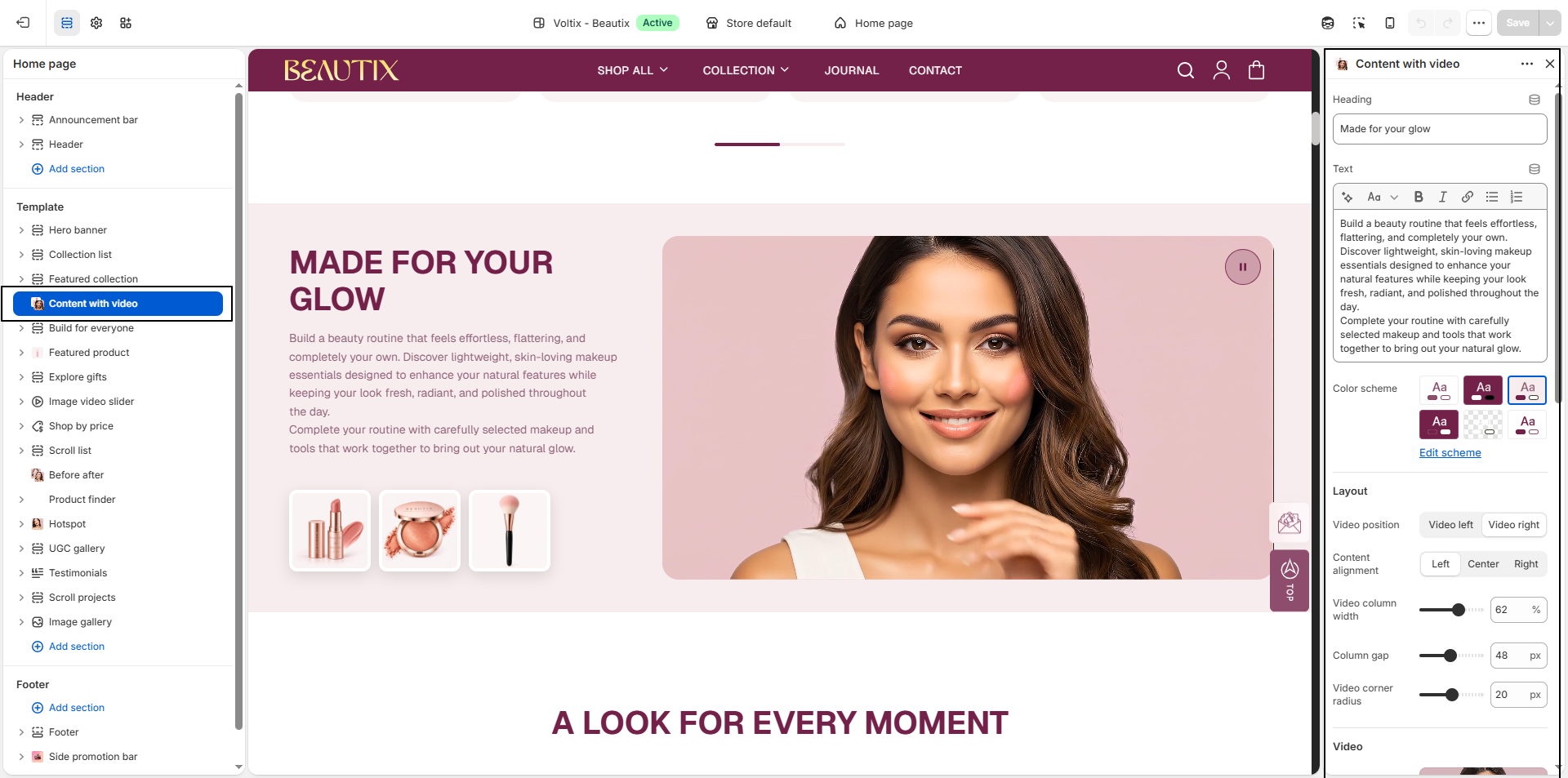
- Heading: Enter the main heading for the section.
- Text: Add a description to introduce your content, products, or collection.
- Color Scheme: Select a color scheme for the section and click Edit scheme to customize its colors.
- Video Position: Choose whether the video appears on the left or right side of the section.
- Content Alignment: Choose how the text content is aligned: Left, Center, or Right.
- Video Column Width: Adjust the width of the video column within the section.
- Column Gap: Adjust the spacing between the video and content columns.
- Video Corner Radius: Adjust the roundness of the video corners.
-
Video:
Upload or select a video to display in the section.
Note: The selected video takes priority over the image. - Image: Upload an image to use when a video is not selected.
- Media Ratio: Select the preferred ratio for the video or image: Landscape (4:3), Wide (16:9), or Square (1:1).
-
Video Playback:
Choose how the video behaves when customers view the section.
- Autoplay: The video automatically plays when it scrolls into view. Videos play muted and loop automatically.
- Play Button: Displays a play button for visitors to start the video manually.
-
Products:
Select up to three products to feature alongside the video.
- Product 1: Select the first featured product.
- Product 2: Select the second featured product.
- Product 3: Select the third featured product.
- Show Product Price: Enable this option to display the price on the featured product cards.
- Product Card Corner Radius: Adjust the corner radius of the featured product cards.