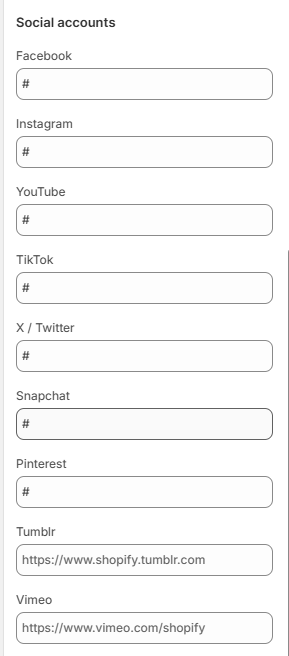
Voltix Theme Settings
Voltix offers a wide range of customization options, giving you full creative control over your store without the need for coding. With Shopify's intuitive theme editor, you can easily adjust colors, typography, layouts, and other design elements to match your brand's identity and create a seamless shopping experience.
1. Favicon
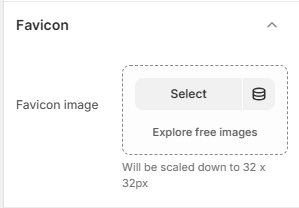
A favicon is a small icon displayed in the browser tab next to your store's title. Adding a custom favicon helps strengthen your brand identity and makes your store easily recognizable across tabs and bookmarks.
How to Add a Favicon
- From your Shopify admin, go to Online Store → Themes.
- Click Customize on the Voltix theme.
- In the Theme Editor, open Theme Settings (bottom-left corner).
- Select the Favicon option.
- Upload your favicon image using the image selector.
- Recommended size: 32 x 32 pixels.
- Tip: Use a lightweight image file to ensure faster loading.
2. Typography
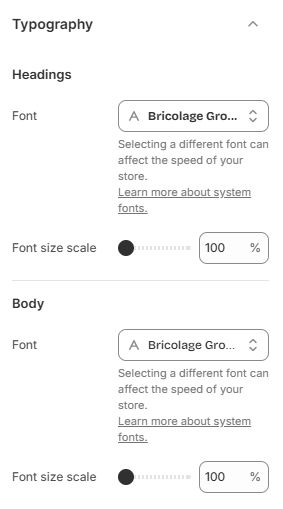
The Voltix theme allows you to fully customize your store's typography to match your brand identity. You can set separate fonts for headings and body text, ensuring a clear visual hierarchy and a consistent design across your store. Choose from Shopify's built-in Google Fonts library and apply your selections instantly for a modern and polished appearance.
- From your Shopify admin, go to Online Store → Themes.
- Click Customize on the Voltix theme.
- In the Theme Editor, open Theme Settings (bottom-left corner).
- Select the Typography option.
3. Colors
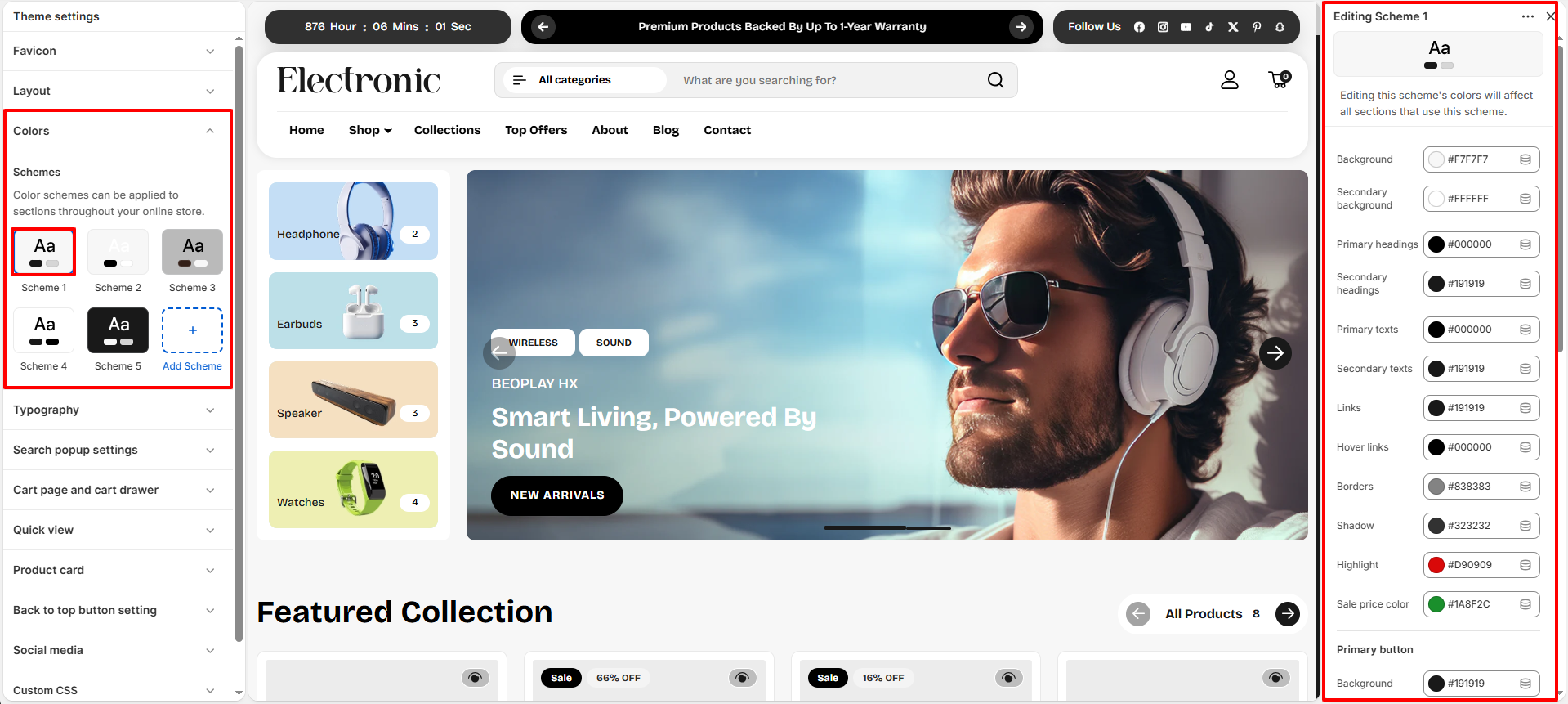
The Voltix theme includes a flexible color system based on color schemes. Each scheme groups together a set of colors that are applied consistently across your store's sections and components. You can create multiple color schemes and assign them to different sections or blocks to maintain a cohesive and visually balanced design.
What is a Color Scheme?
A color scheme is a predefined set of colors that you can reuse throughout your theme. Instead of customizing colors individually for each section, you can simply apply a scheme, which automatically controls elements such as background, text, buttons, and other design components. To learn more about Shopify color schemes, click here .
- From your Shopify admin, go to Online Store → Themes.
- Click Customize on the Voltix theme.
- In the Theme Editor, open Theme Settings (bottom-left corner).
- Select the Colors option.
4. Layout
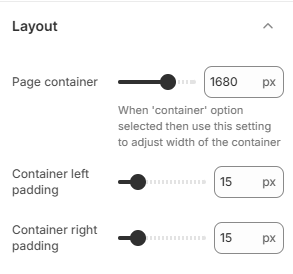
The Voltix theme includes flexible layout settings that allow you to control the overall content width, grid spacing, and corner rounding across your storefront. These settings help create a clean, balanced, and consistent shopping experience across different screen sizes.
Layout Options
- Container Width: Controls the maximum width of the main content area across the storefront. Adjusting this value allows you to create a wider or more compact page layout.
- Column Spacing: Adjusts the horizontal spacing between columns in grid-based layouts. This controls the gap between products, cards, banners, and other content displayed side by side.
- Row Spacing: Controls the vertical spacing between rows of content. Increasing the value adds more space between rows, while decreasing it creates a more compact layout.
Border Radius Options
- Button Border Radius: Controls the roundness of buttons throughout the storefront. A higher value creates more rounded buttons, while a lower value produces a sharper appearance.
- Image Border Radius: Controls the roundness of images displayed across the storefront. Adjust this value to create rounded or squared image corners.
How to Adjust Layout
- From your Shopify admin, go to Online Store → Themes.
- Click Customize on the Voltix theme.
- In the Theme Editor, open Theme Settings using the gear icon.
- Select Layout.
- Adjust the Container Width, Column Spacing, Row Spacing, Button Border Radius, and Image Border Radius according to your preferred storefront appearance.
- Click Save to apply your changes.
5. How to Enable Badges
- From your Shopify admin, go to Online Store → Themes.
- Click Customize on the Voltix theme.
- In the Theme Editor, open Theme Settings using the gear icon.
- Select Badges.
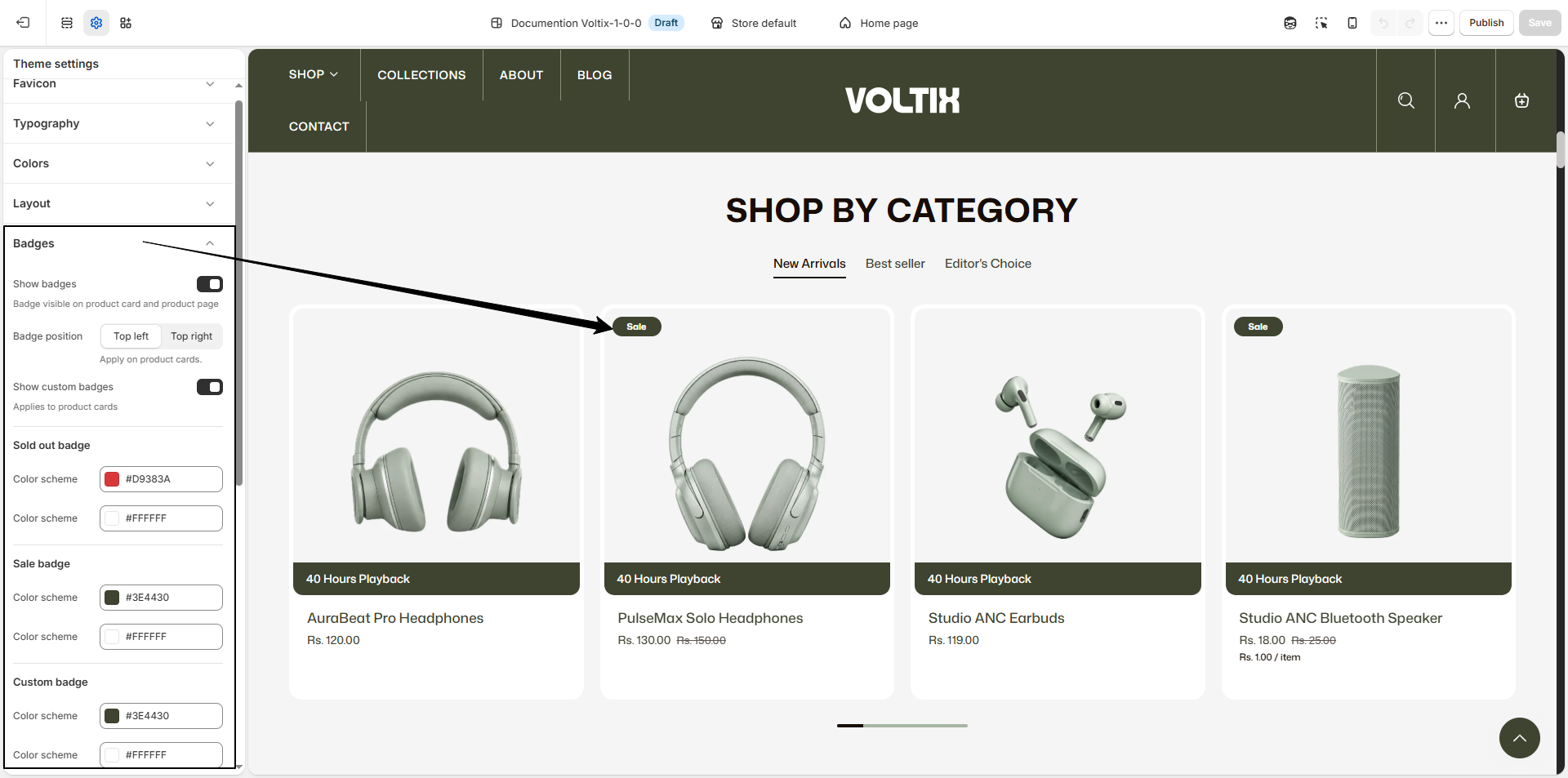
- Enable Show badges to display badges on product cards and product pages.
Configure Badge Settings
- Show badges: Enable this option to display badges on product cards and product pages.
-
Badge position:
Choose where badges are displayed on product cards.
- Top left: Displays the badge in the upper-left corner of the product card.
- Top right: Displays the badge in the upper-right corner of the product card.
- Show custom badges: Enable this option to display custom badges on product cards.
- Sold out badge color scheme: Configure the background and text colors used for the Sold Out badge. For example, the background color can be set to #D9383A and the text color to #FFFFFF.
- Sale badge color scheme: Configure the background and text colors used for the Sale badge. For example, the background color can be set to #3E4430 and the text color to #FFFFFF.
- Custom badge color scheme: Configure the background and text colors used for custom badges. For example, the background color can be set to #3E4430 and the text color to #FFFFFF.
- Badges border radius: Adjust the roundness of the badge corners. Higher values create more rounded badges, while lower values create a sharper appearance.
6. Product Card
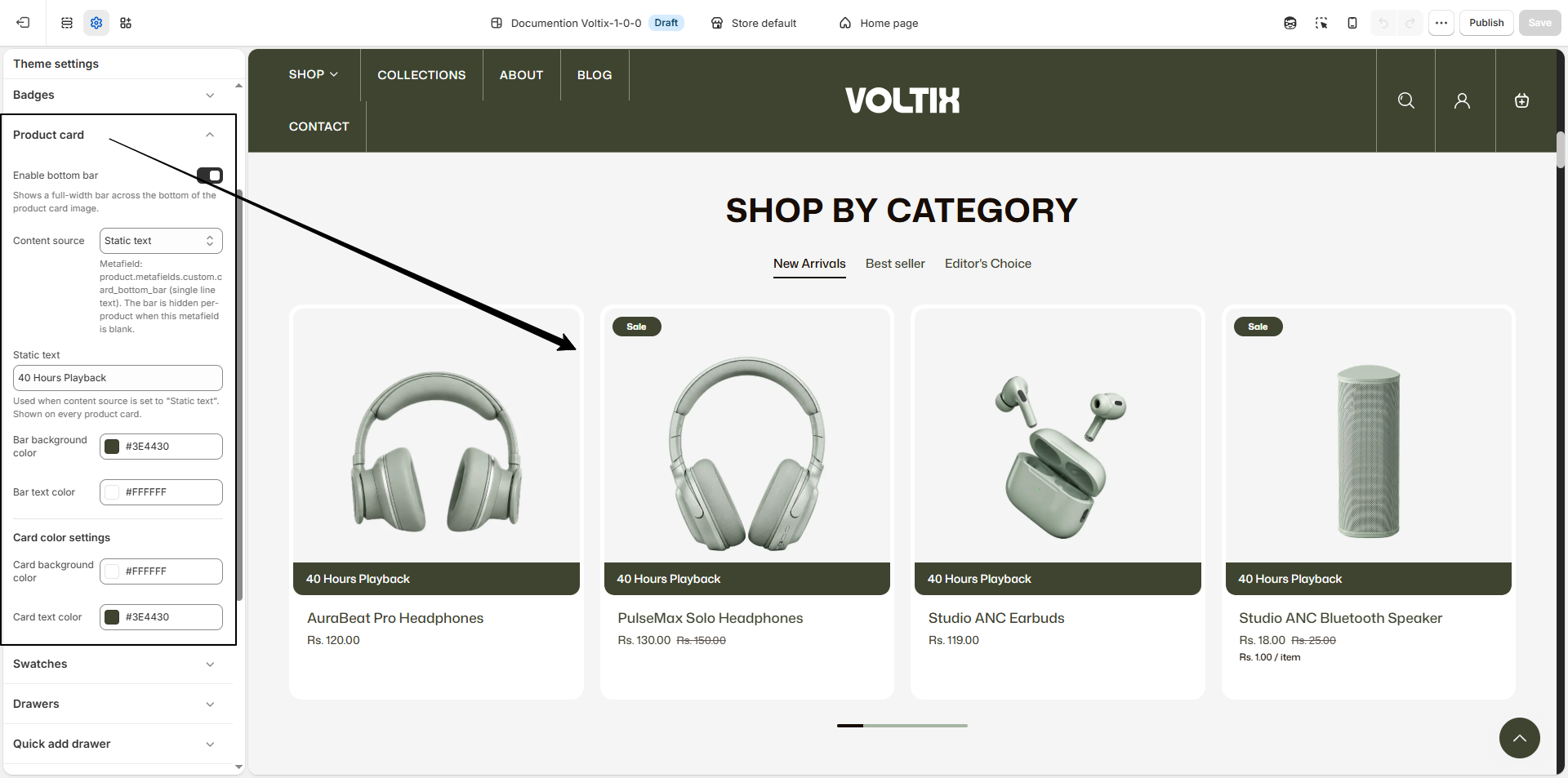
The Voltix theme includes flexible Product Card settings that allow you to customize the appearance and additional information displayed on product cards across your storefront. You can configure the bottom bar, card colors, and text colors to match your store's branding and product presentation.
Product Card Settings
- Enable bottom bar: Enable this option to display a full-width bar across the bottom of the product card image.
- Content source: Choose the source of the content displayed inside the bottom bar. Available options include Product metafield and Static text.
- Product metafield: When Product metafield is selected as the content source, the bottom bar uses the product.metafields.custom.card_bottom_bar single-line text metafield. The bar is hidden for a product when this metafield is blank.
- Static text: When Static text is selected as the content source, enter the text that should be displayed in the bottom bar. This text is shown on every product card.
- Bar background color: Select the background color for the product card bottom bar, such as #3E4430.
- Bar text color: Select the text color displayed inside the product card bottom bar, such as #FFFFFF.
Card Color Settings
- Card background color: Select the background color of the product card, such as #FFFFFF.
- Card text color: Select the primary text color used within the product card, such as #3E4430.
7. Product Swatches
-
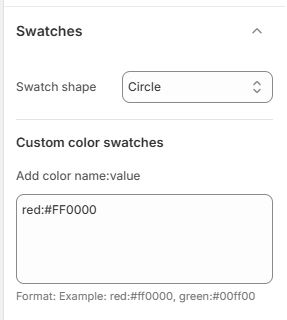
Swatch Shape:
Choose the shape of product option swatches displayed across your storefront.
Available options include:
- Circle: Displays product swatches as circular buttons for a clean and minimal appearance.
- Square: Displays product swatches in a square shape for a structured and modern appearance.
- Default: Uses the theme's default swatch styling.
- Custom Color Swatches: Add custom color values for product option names so that the corresponding colors can be displayed as swatches instead of plain text.
-
Add Color Name and Value:
Enter the color name followed by its color code using the following format:
red:#ff0000
green:#00ff00
Add each color mapping as required using the same format.
8. Quick View
The Voltix theme includes customizable Quick View settings that allow customers to preview product information directly from product cards without leaving the current page. You can configure the media appearance, quick add button, inventory indicators, and variant picker options to create a convenient product browsing experience.
How to Configure Quick View
- From your Shopify admin, go to Online Store → Themes.
- Click Customize on the Voltix theme.
- In the Theme Editor, open Theme Settings.
- Select Quick View.
- Configure the media, Quick Add, inventory, and variant picker settings as required.
- Click Save to apply your changes.
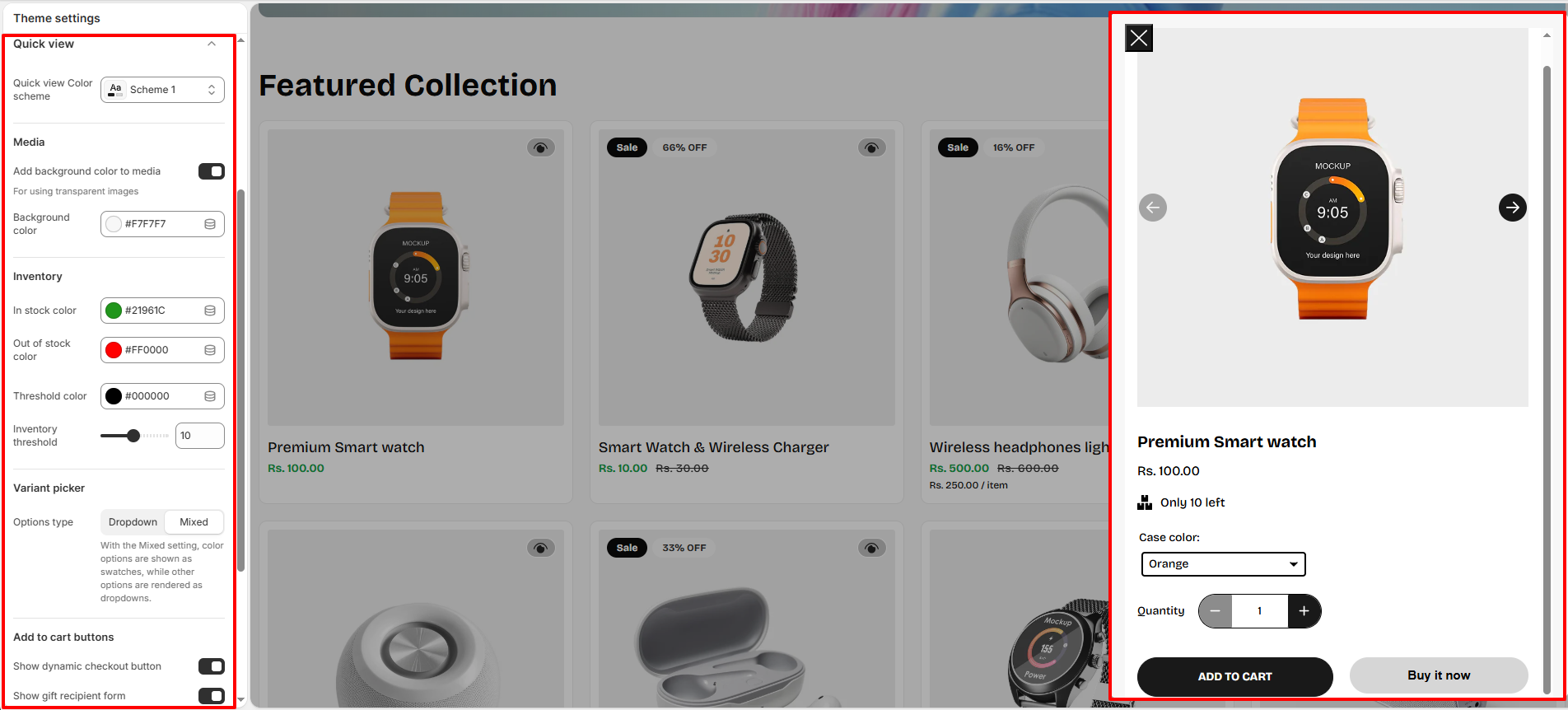
Media Settings
- Add background color to media: Enable this option to add a background color behind product media. This is particularly useful for products with transparent images.
- Background color: Select the background color displayed behind the product media, such as #B3B870.
-
Quick add position:
Choose where the Quick Add button appears on the product card.
Available options include:
- Icon on hover: Displays the Quick Add action as an icon when the customer hovers over the product.
- Besides text: Displays the Quick Add action alongside the product text.
- Button border radius: Adjust the corner roundness of the Quick Add button to match the overall design of your storefront.
Inventory Settings
- In stock color: Select the color used to indicate that a product is in stock, such as #0E9508.
- Out of stock color: Select the color used when a product is unavailable, such as #FF0000.
- Threshold color: Select the color used when product inventory reaches the configured inventory threshold, such as #FFA500.
- Inventory threshold: Set the inventory quantity at which the threshold color is displayed to indicate that stock is running low.
Variant Picker Settings
-
Options type:
Choose how product variants are displayed in the Quick View.
Available options include:
- Dropdown: Displays product variant options using dropdown selectors.
- Button: Displays product variant options as selectable buttons.
- Mixed: Displays color options as swatches while other product options are displayed using dropdown selectors.
9. Search Popup
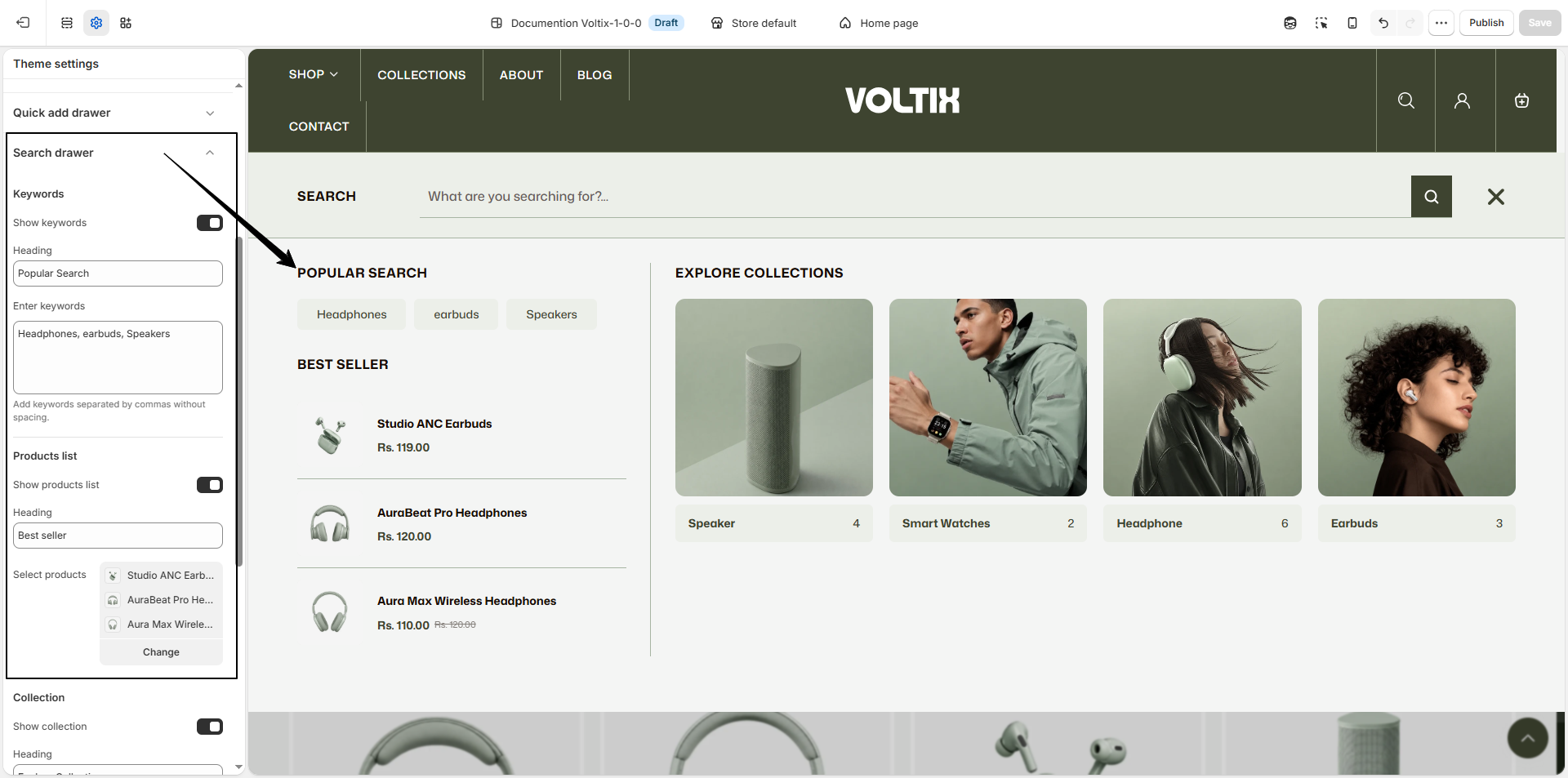
The Voltix theme includes a customizable Search Popup that helps customers quickly discover products and collections while searching your store. You can configure popular keywords, featured products, and collections to make product discovery faster and more convenient.
How to Configure the Search Popup
- From your Shopify admin, go to Online Store → Themes.
- Click Customize on the Voltix theme.
- In the Theme Editor, open Theme Settings.
- Select Search Popup.
- Configure the keywords, products list, and collection settings as required.
- Click Save to apply your changes.
Search Popup Settings
Keywords
- Show keywords: Enable this option to display a list of suggested or popular search keywords inside the Search Popup.
- Heading: Enter the heading displayed above the keyword suggestions.
-
Enter keywords:
Add keywords that you want to display as search suggestions.
Enter multiple keywords separated by commas without spacing.
Example: Training Top,Flex Leggings,Running Shoes
Products List
- Show products list: Enable this option to display selected products inside the Search Drawer. This allows customers to quickly discover featured products while searching.
- Heading: Enter the heading displayed above the featured products list.
- Select products: Select the products that should appear in the Search Drawer. Use Change to modify the selected products.
Collection
- Show collection: Enable this option to display selected collections in the Search Drawer, helping customers quickly browse featured product categories.
- Heading: Enter the heading displayed above the featured collections.
- Select collections: Select the collections that should be highlighted in the Search Drawer. Use Change to modify the selected collections.
10. Cart Page and Cart Drawer
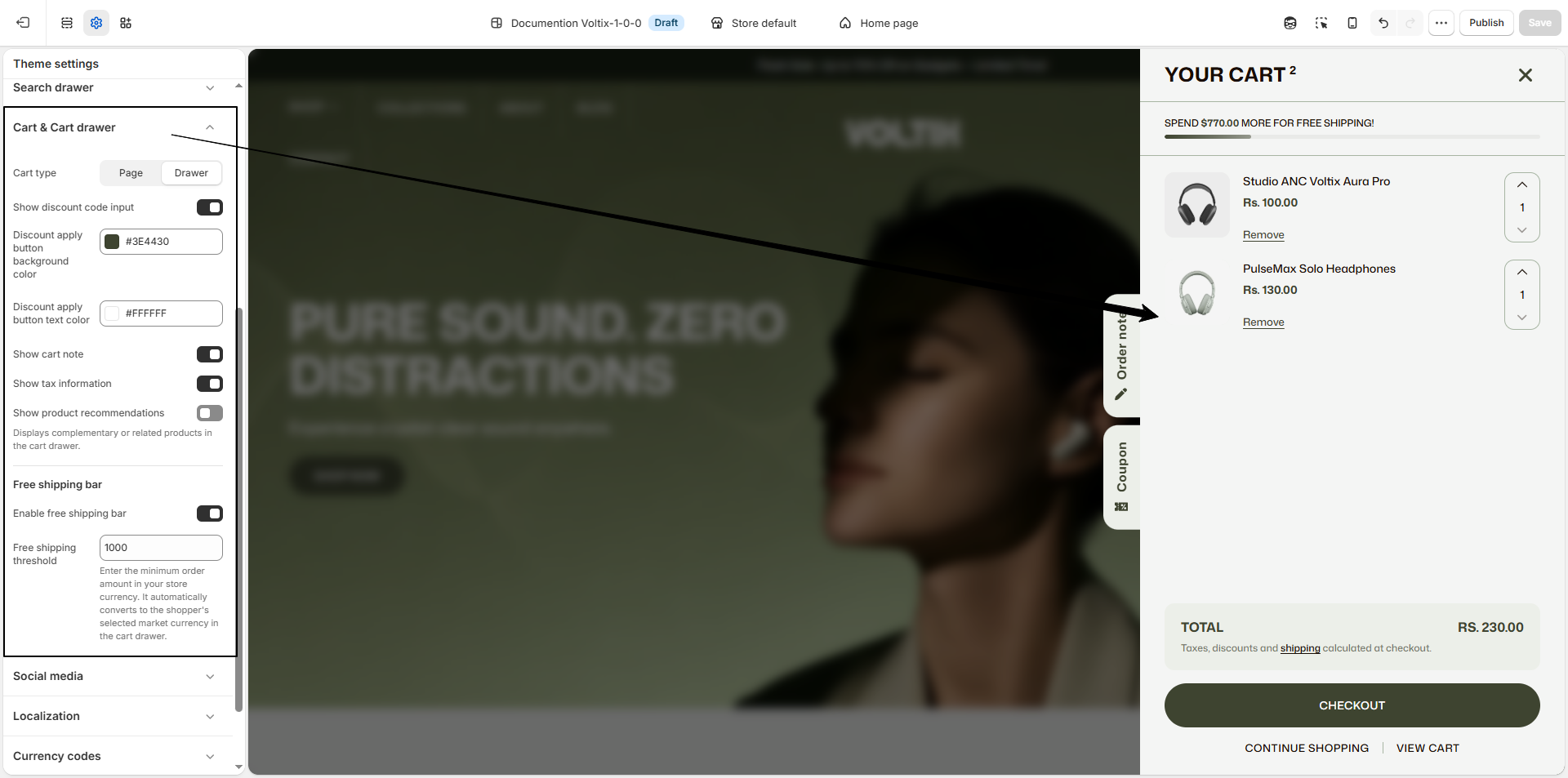
The Voltix theme provides flexible cart settings that allow you to customize how customers review and manage their cart. You can choose between a dedicated cart page or a slide-out cart drawer and enable useful features such as discount codes, cart notes, tax information, product recommendations, and a free shipping progress bar.
How to Configure Cart Settings
- From your Shopify admin, go to Online Store → Themes.
- Click Customize on the Voltix theme.
- In the Theme Editor, open Theme Settings.
- Select Cart Page and Cart Drawer.
- Configure the cart type, discount settings, cart options, product recommendations, and free shipping bar as required.
- Click Save to apply your changes.
Cart Settings
-
Cart Type:
Choose how the cart is displayed to customers.
- Page: Displays the cart on a dedicated cart page where customers can review and manage their order.
- Drawer: Opens the cart in a slide-out drawer, allowing customers to review their items without leaving the current page.
- Show Discount Code Input: Enable this option to allow customers to enter a discount code directly from the cart.
- Discount Apply Button Background Color: Select the background color of the button used to apply a discount code, such as #3E4430.
- Discount Apply Button Text Color: Select the text color of the discount apply button, such as #FFFFFF.
- Show Cart Note: Enable this option to provide customers with a text field where they can add special instructions or notes to their order.
- Show Tax Information: Enable this option to display tax-related information in the cart.
- Show Product Recommendations: Enable this option to display complementary or related products in the cart drawer, helping customers discover additional products before checkout.
Free Shipping Bar
- Enable Free Shipping Bar: Enable this option to display a free shipping progress bar in the cart drawer.
- Free Shipping Threshold: Enter the minimum order amount required to qualify for free shipping. The amount is entered in your store currency and automatically converts to the shopper's selected market currency in the cart drawer.
11. Social media
The Voltix theme allows you to connect your store with various social media platforms, making it easy for visitors to follow and engage with your brand. Social media links appear throughout the theme, including the header, footer, and dedicated social icon sections.
How to Update Social Links
- From your Shopify admin, go to Online Store → Themes.
- Click Customize on the Voltix theme.
- In the Theme Editor, open Theme Settings → Social Media.
- Paste the URLs of your social media accounts in the input fields next to each platform.
- Click Save to apply your changes.
Once added, your social icons will automatically display on your storefront, making it simple for customers to connect with your brand on platforms like Instagram, Facebook, Twitter, and more.