
Featured Collection
The Featured Collection section in the Voltix theme allows you to showcase a selected collection of products directly on your homepage or any page. It helps highlight specific categories, seasonal products, or best-selling items in a visually engaging layout. With flexible display options such as grid or slider view, customizable headings, and optional content blocks, this section makes it easy to guide customers toward key products and improve product discovery.
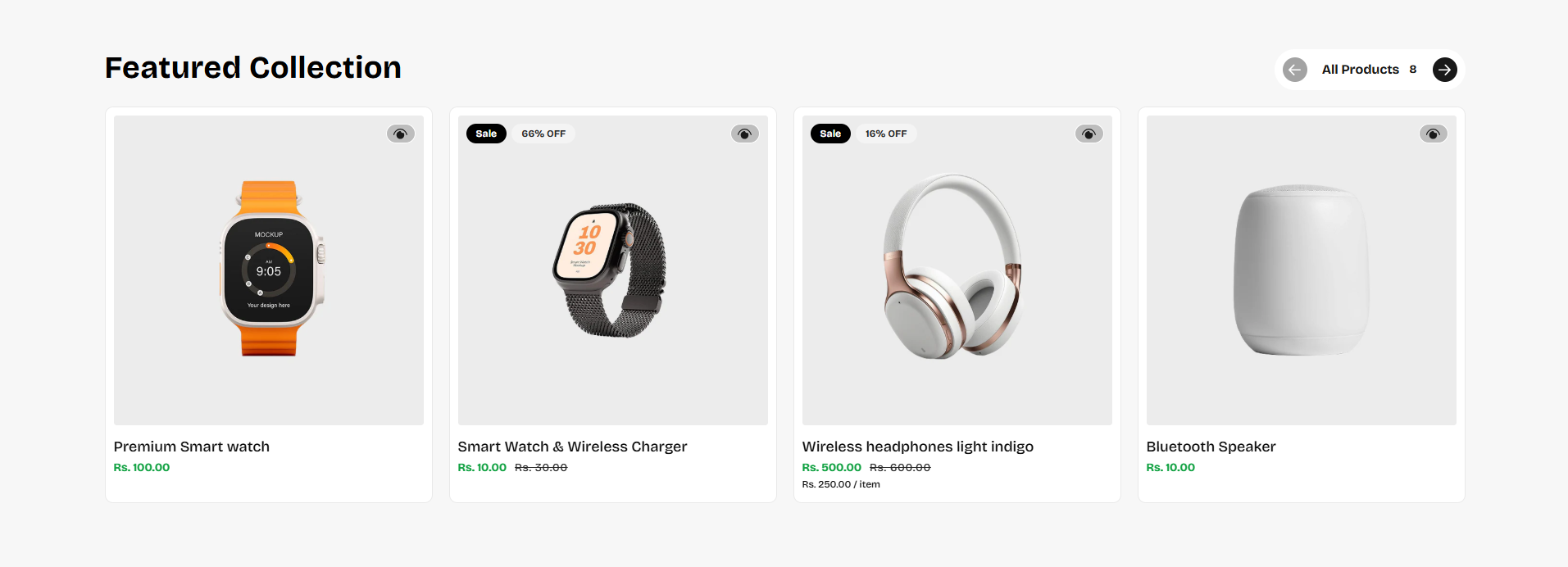
How to Add the Featured Collection Section
- From your Shopify admin, go to Online Store → Themes.
- Click Customize on the Voltix theme.
- In the left-hand editor sidebar, click Add section and select Featured Collection.
- Adjust the settings, blocks, and layout options according to your preferences.
- Click Save to apply your changes.
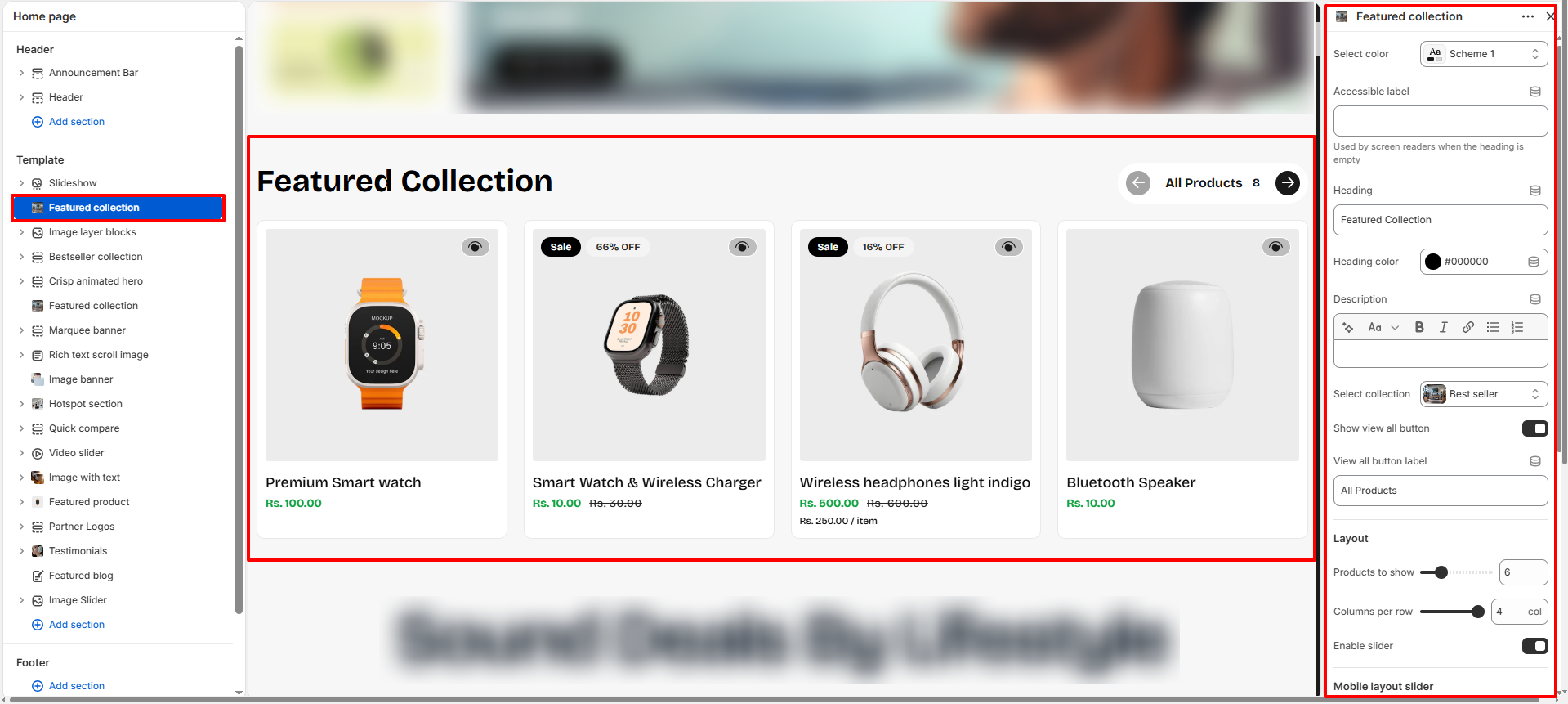
Featured Collection Section Settings
Configure settings that control the overall layout, product display, and appearance of the Featured Collection section.
- Color Scheme: Select a predefined color scheme to control the overall appearance of the Featured Collection section, including background and text colors.
- Heading: Enter the main heading for the section, such as TOP TECH PICKS.
- Subheading: Add supporting text below the main heading to provide additional context for the featured products.
-
Heading Alignment:
Control the alignment of the section heading and subheading:
- Left: Align the heading content to the left.
- Center: Center the heading content.
- Right: Align the heading content to the right.
-
Tabs Alignment:
Control the alignment of the collection tabs:
- Left: Align tabs to the left.
- Center: Center the tabs.
- Right: Align tabs to the right.
- Show Product Count on Tabs: Enable this option to display the number of products available in each collection tab.
- Tab Accent Color: Select the accent color used for the active tab indicator.
- Equal Panel Height: Enable this option to keep the section height stable when switching between tabs. This is recommended when using the grid layout.
-
Products Layout:
Choose how the featured products are displayed:
- Grid: Display products in a structured grid layout.
- Slider: Display products in a horizontal carousel.
- Show Slider Pagination Bar: Enable this option to display a pagination bar when the Slider layout is selected.
- Active Pagination Color: Select the color used for the active slider pagination indicator.
- Columns / Slides per View (Desktop): Set the number of product columns displayed in the grid or the number of slides visible at one time on desktop devices.
- Columns / Slides (Mobile): Choose the number of product columns or slides displayed on mobile devices: One or Two.
-
Image Aspect Ratio:
Select the aspect ratio for product images:
- Square: Display images in an equal-width and height format.
- Portrait: Display images in a vertical format.
- Adapt to Image: Preserve the original image proportions.
-
Card Text Alignment:
Set the alignment of product information within the product cards:
- Left: Align product information to the left.
- Center: Center the product information.
- Right: Align product information to the right.
-
Product Title Size:
Choose the size of product titles displayed on the product cards:
- Small Text: Display product titles in a smaller size.
- Normal Text: Display product titles in the standard size.
- Show Secondary Image on Hover: Enable this option to display the product's secondary image when customers hover over the product card.
- Enable Quick Add / Quick View: Enable quick shopping actions on product cards, allowing customers to quickly add products to the cart or preview product details.
- Show Color Swatches: Enable this option to display available product color options as clickable color swatches on product cards.
Pro Tips:
Use clear and relevant collection tabs to help customers quickly discover featured
products.
Use the Slider layout when you want to showcase more products without increasing the
section height.
Enable product counts on tabs to give customers a quick overview of the available
products.
Use consistent product images and the Adapt to Image option when your products have
different image proportions.
FAQs
How can I change the shape of product card images?
To customize the product card image shape:
- Go to the Customizer.
- Navigate to the Featured Collection section.
- Adjust the Image Aspect Ratio setting to achieve your desired look.
How do I enable the product slider?
To showcase products in a slider format:
- Open the Customizer.
- Locate the Featured Collection section.
- Toggle the Enable Slider option to On.