
Shop By Price
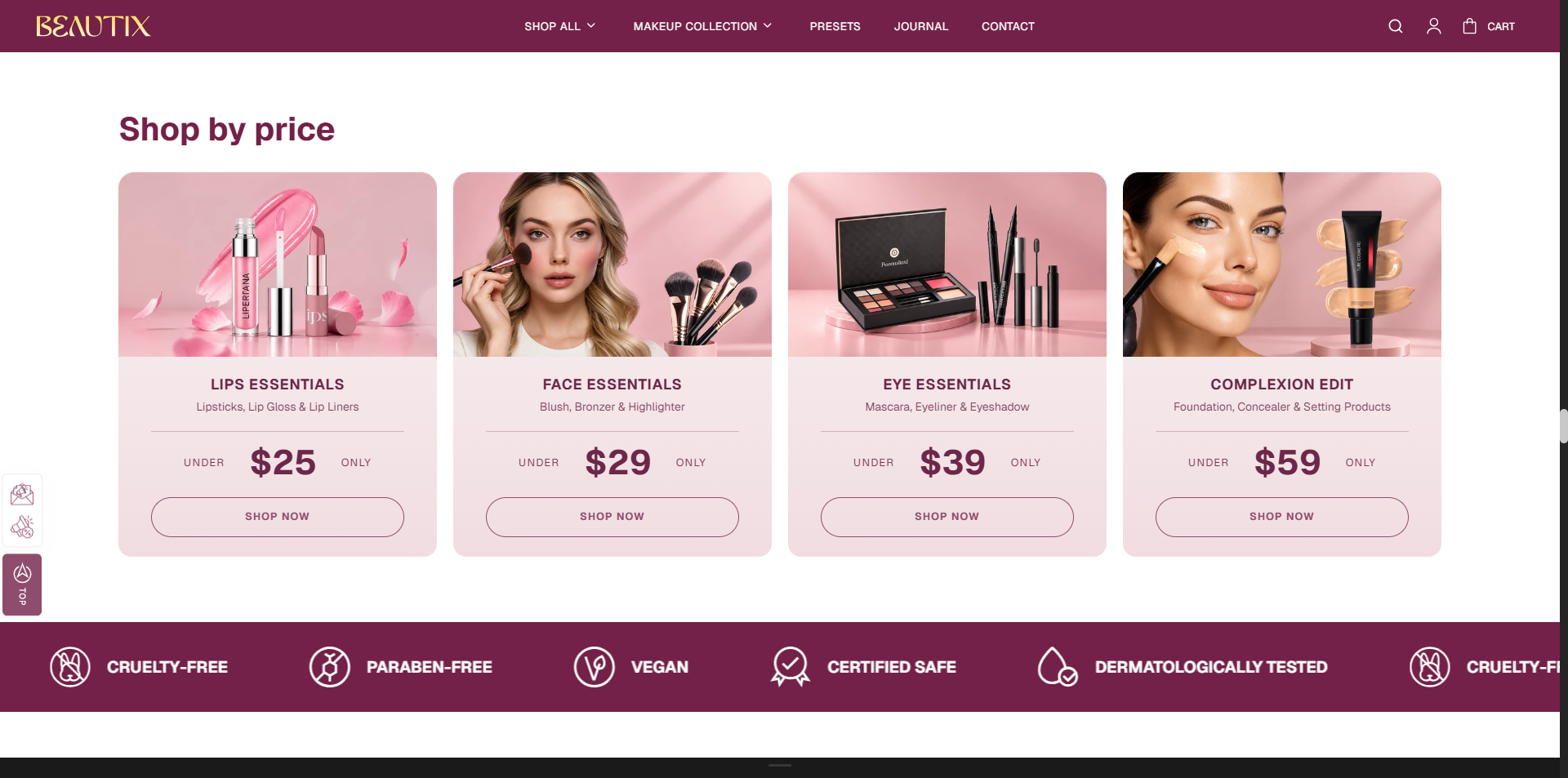
The Shop By Price section allows you to showcase products across different price ranges with engaging images, category descriptions, and call-to-action buttons. It helps customers easily discover products that match their budget and shop directly from each price category.
How to Add the Shop By Price Section
- From your Shopify admin, go to Online Store → Themes.
- Click Customize on the Voltix theme.
- In the Theme Editor, use the drop-down selector to choose the page where you want to add or edit the Shop By Price section.
- Click Add Section (or select an existing Shop By Price Section if already added).
- Click Save to apply your changes.
How To Edit the Shop By Price Section
The Shop By Price section allows you to display products based on their price ranges. You can customize the heading, layout, and product card settings.
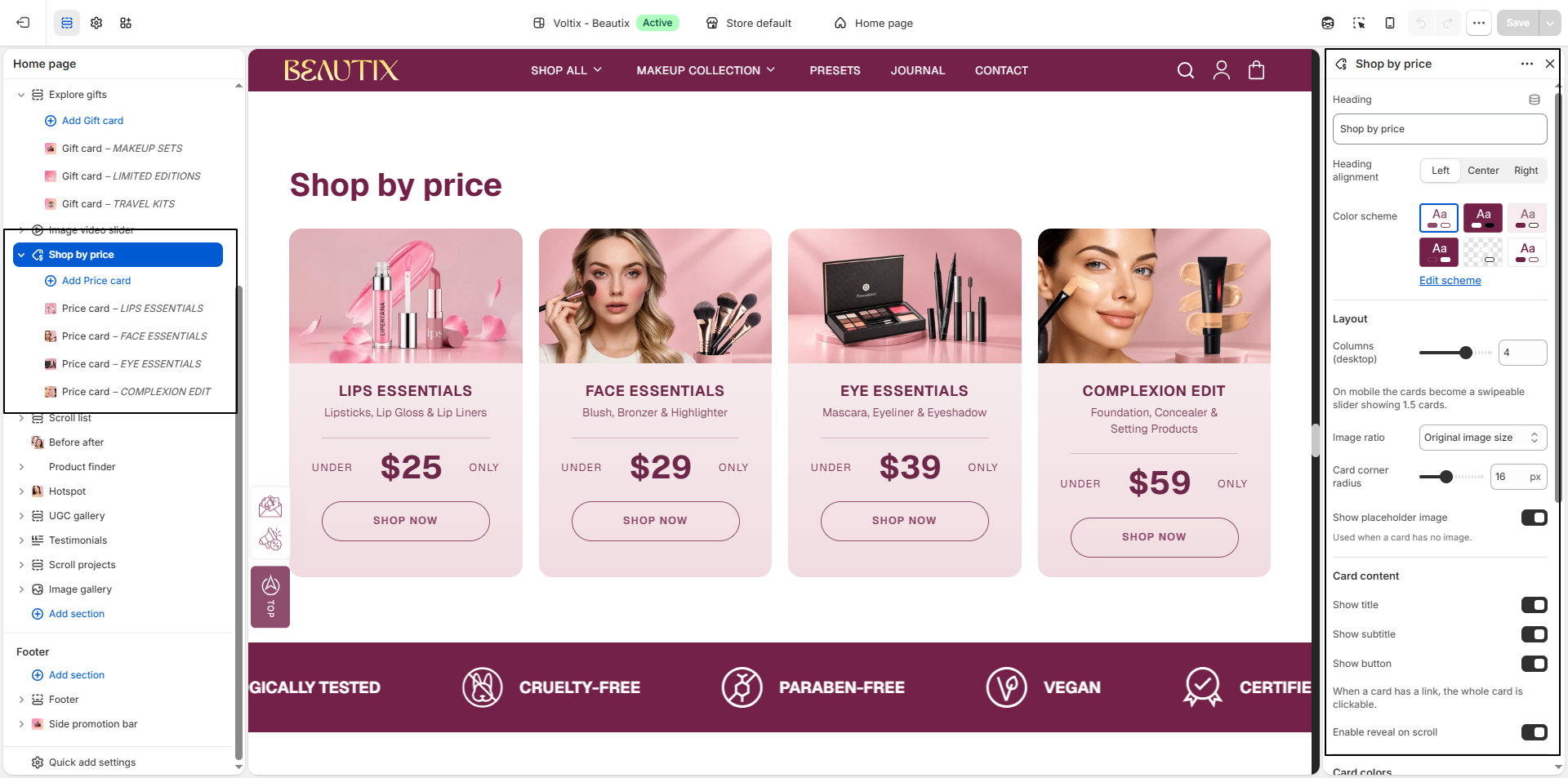
- Heading: Enter the main heading for the Shop By Price section.
- Heading Alignment: Choose the heading alignment: Left, Center, or Right.
- Color Scheme: Select a color scheme for the section. Click Edit scheme to customize the selected color scheme.
- Columns (Desktop): Set the number of price cards displayed in each row on desktop.
- Mobile Layout: On mobile devices, the cards become a swipeable slider displaying approximately 1.5 cards.
- Image Ratio: Select the preferred image ratio for the price cards: Original Image Size, Square (1:1), Portrait (2:3), or Landscape (4:3).
- Card Corner Radius: Adjust the roundness of the price cards.
- Show Placeholder Image: Enable this option to display a placeholder image when a card does not have an image assigned.
-
Card Content:
Control which content is displayed on each price card.
- Show Title: Displays the title of the price category.
- Show Subtitle: Displays the subtitle or supporting text for the price category.
- Show Button: Displays the call-to-action button. When a card has a link, the entire card is clickable.
- Enable Reveal on Scroll: Enable this option to add a reveal animation when the price cards enter the viewport while scrolling.
-
Card Colors:
Customize the appearance of the price cards.
- Card Gradient Start: Set the starting color of the card gradient.
- Card Gradient End: Set the ending color of the card gradient.
- Card Gradient Angle: Adjust the direction of the card gradient.
- Card Text Color: Set the color used for the text displayed on the cards.
How To Edit the Shop By Price Block
The Shop By Price Block allows you to display products based on their price ranges. You can customize the heading, layout, and product card settings.
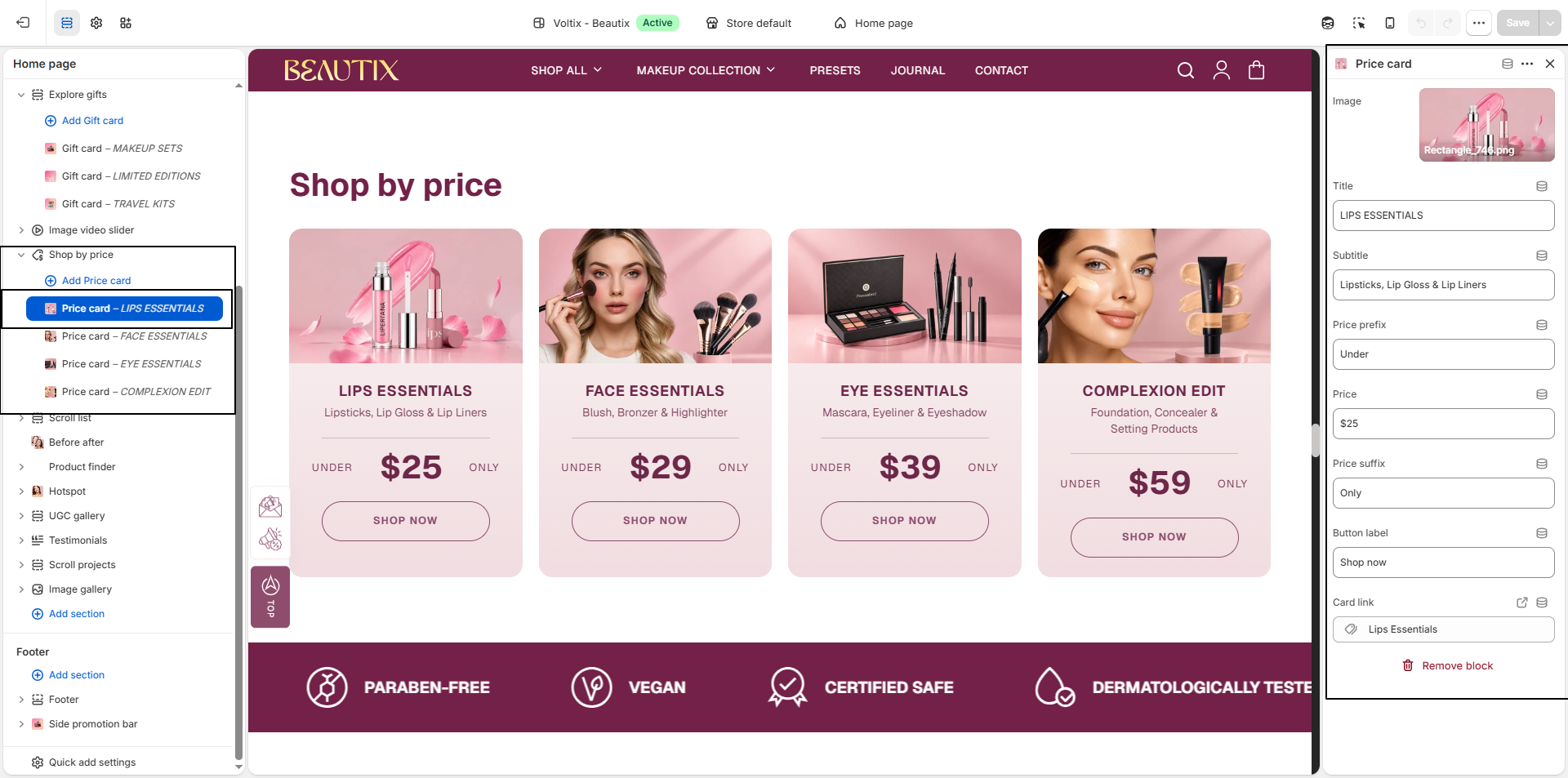
- Image: Upload an image to display on the price card.
- Title: Enter the main title for the price category.
- Subtitle: Add a short description or supporting text for the price category.
- Price Prefix: Enter the text displayed before the price.
- Price: Enter the price or price value you want to display on the card.
- Price Suffix: Enter the text displayed after the price.
- Button Label: Enter the text for the call-to-action button.
- Card Link: Select the collection, product, page, or URL that customers will be redirected to when they click the card.
- Remove Block: Use Remove block to delete the selected price card from the section.