
Category Showcase
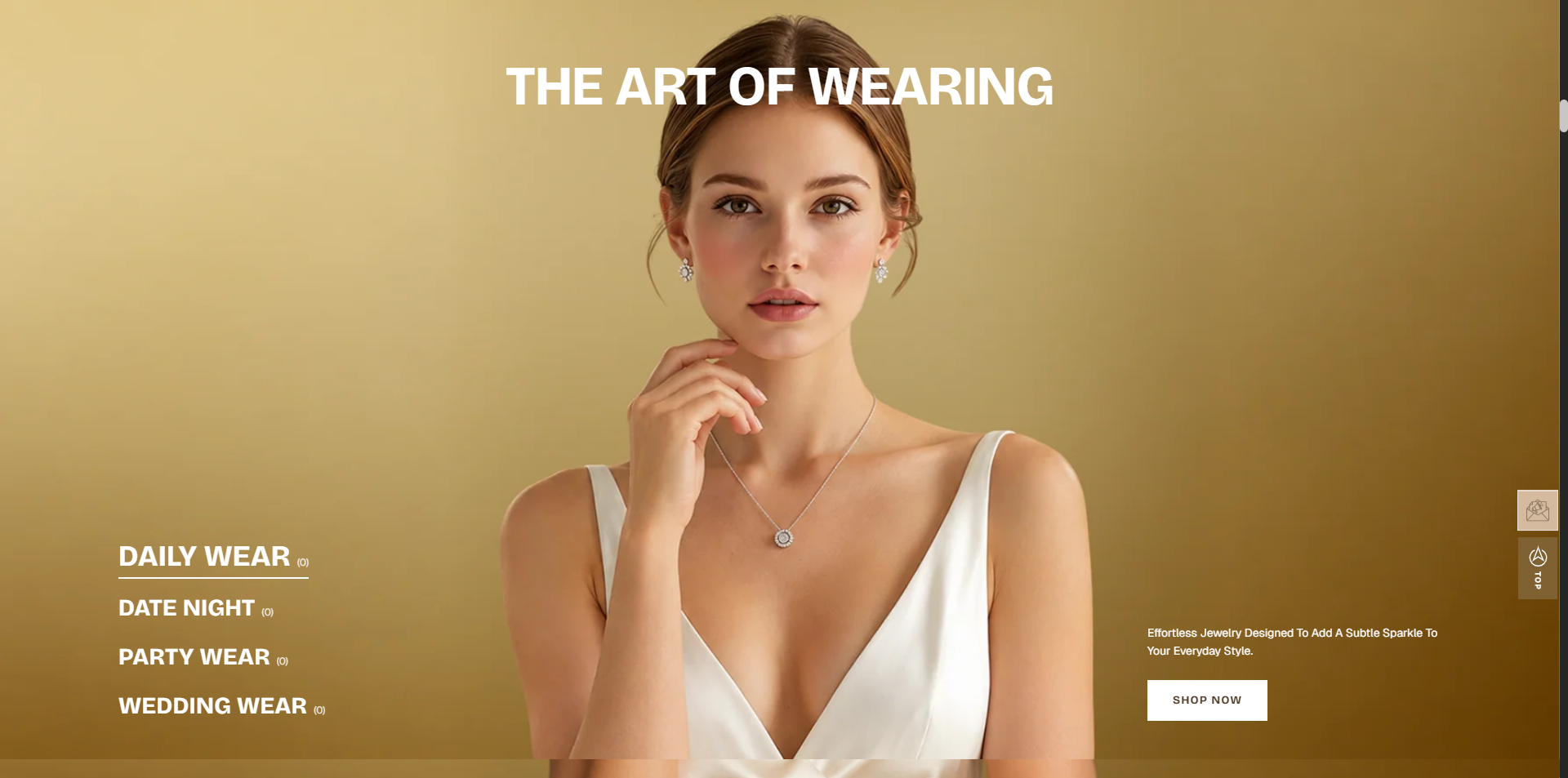
The Category Showcase section allows you to highlight a collection using a visually engaging banner image, collection content, and a call-to-action button. It is ideal for showcasing featured categories, seasonal collections, or specific product ranges while guiding customers directly to the selected collection.
How to Add the Category Showcase Section
- From your Shopify admin, go to Online Store → Themes.
- Click Customize on the Voltix theme.
- In the Theme Editor, use the drop-down selector to choose the page where you want to add or edit the Category Showcase section.
- Click Add Section (or select an existing Category Showcase section if already added).
- Click Save to apply your changes.
How To Edit the Category Showcase Section
The Category Showcase section allows you to highlight a collection using a visually appealing banner image and a call-to-action button.
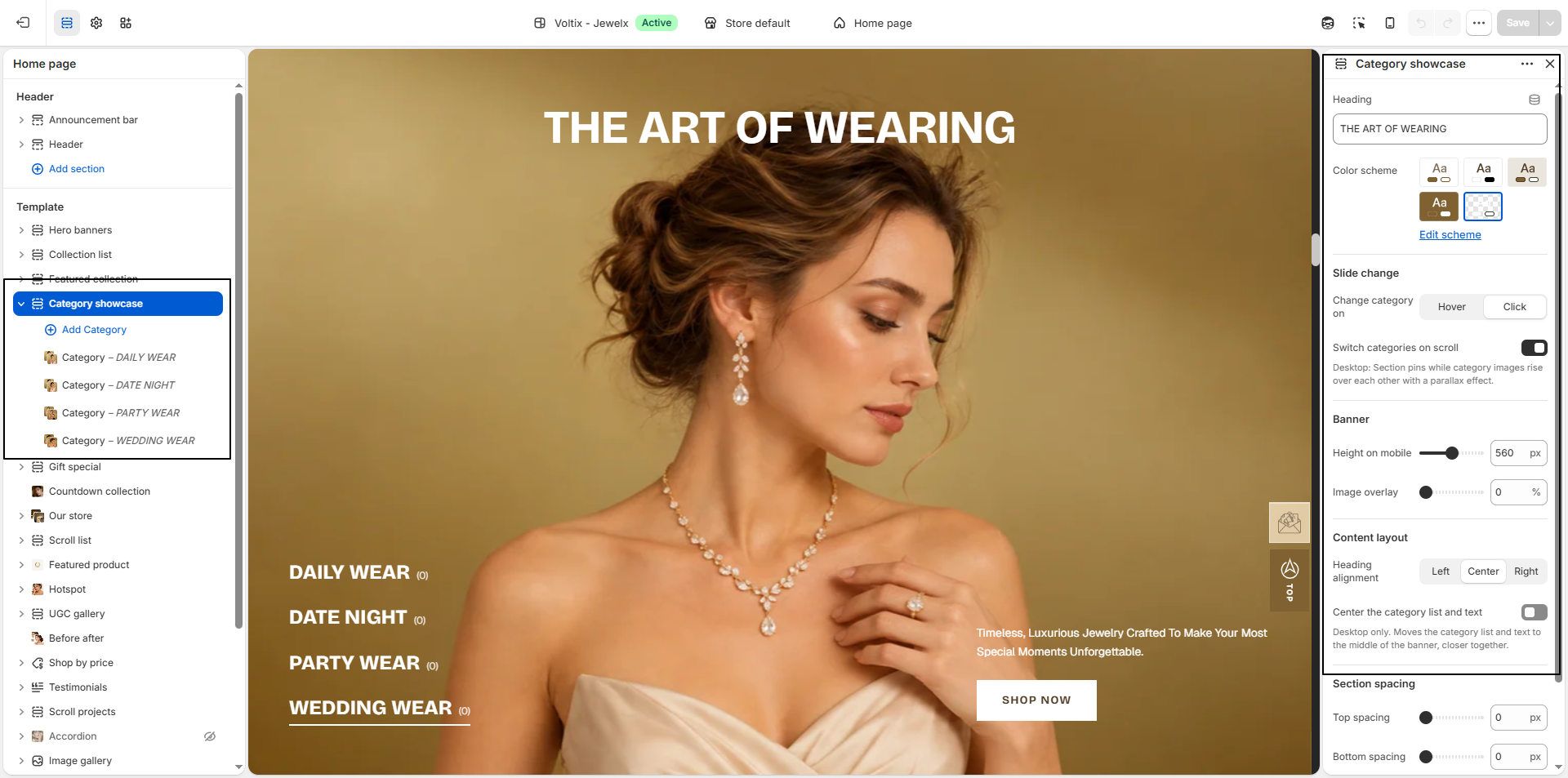
- Heading: Enter the main heading for the section.
- Color Scheme: Select a color scheme to control the overall colors and appearance of the section. Click Edit scheme to customize the selected color scheme.
-
Slide Change:
Choose how customers can switch between categories.
- Hover: Categories change when the customer hovers over them.
- Click: Categories change when the customer clicks on them.
-
Switch Categories on Scroll:
Enable this option to automatically switch between categories as the
customer scrolls through the section.
On desktop, the section stays pinned while the category images rise over each other with a parallax effect. -
Banner:
Configure the appearance of the category banner.
- Height on Mobile: Adjust the height of the banner when viewed on mobile devices.
- Image Overlay: Adjust the overlay applied to the category image to improve text visibility and visual contrast.
-
Content Layout:
Configure how the heading and category content are positioned within
the banner.
- Heading Alignment: Choose whether the heading is aligned to the Left, Center, or Right.
- Center the Category List and Text: Enable this option to move the category list and text toward the center of the banner on desktop and bring them closer together.
How To Edit the Category Block
The Category Block allows you to select a collection and customize its banner image, title, description, product count, and call-to-action button.
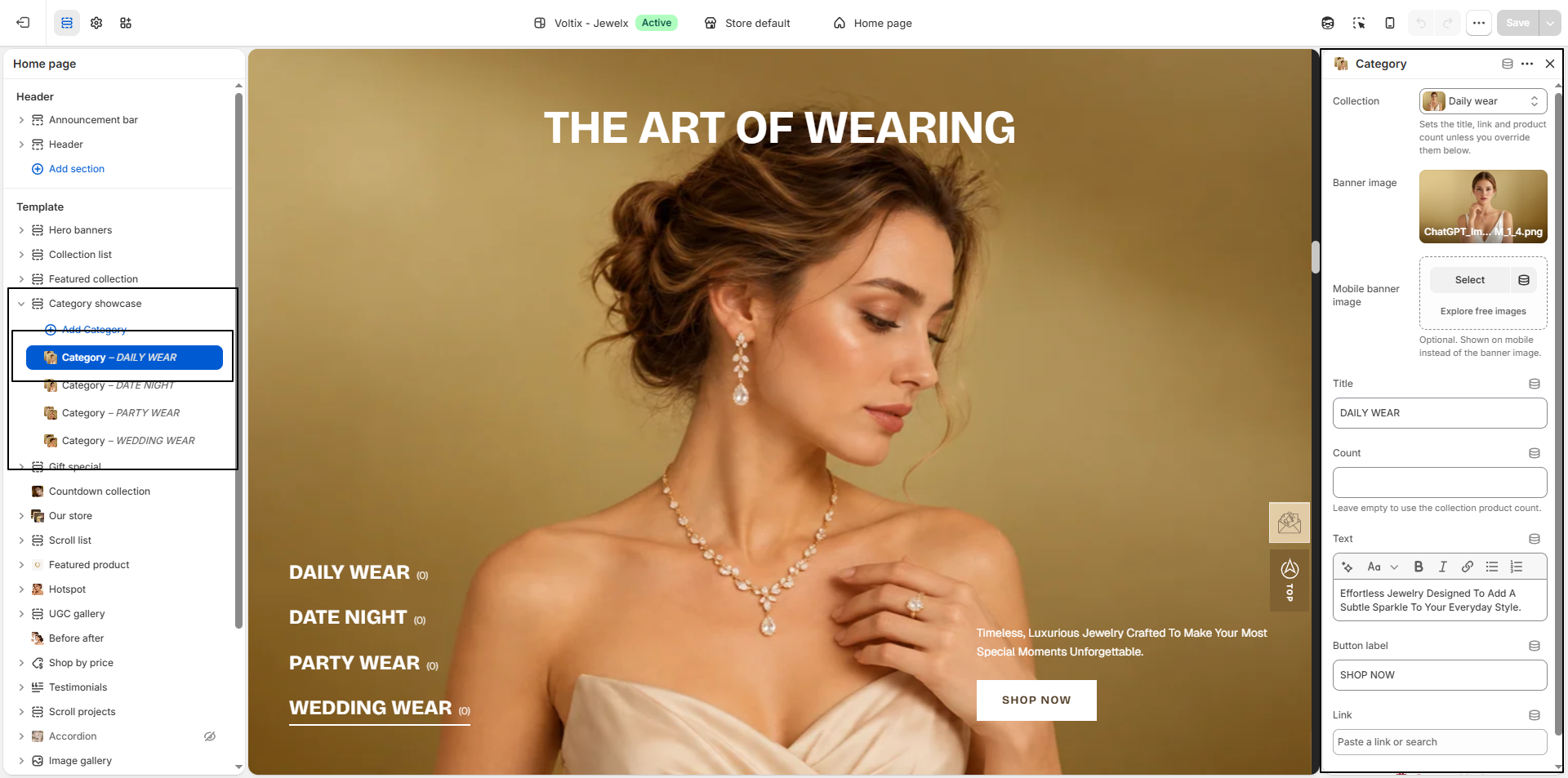
- Collection: Select the collection you want to feature in the category block. The selected collection provides the default title, link, and product count unless you override these settings below.
- Banner Image: Upload an image to display as the main banner image for the selected category.
- Mobile Banner Image: Upload an optional image specifically for mobile devices. If selected, this image will be displayed instead of the main banner image on mobile.
- Title: Enter a custom title for the category. If left unchanged, the collection title can be used.
- Count: Enter the number of products you want to display for the category. Leave this field empty to use the product count from the selected collection.
-
Text:
Add a short description to introduce the selected category or collection.
Example: Effortless Jewelry Designed To Add A Subtle Sparkle To Your Everyday Style. - Button Label: Enter the text that will appear on the call-to-action button.
- Link: Select or enter the destination customers will be taken to when they click the call-to-action button.