
Flash Deals
The Flash Deals section is designed to highlight new deals, special offers, and featured collections in a prominent and visually engaging way. It helps merchants draw customer attention to limited-time promotions and important deals available in the store.
In the Voltix theme, the Flash Deals section can be used to showcase selected products or collections with a strong promotional focus. It highlights current deals and helps customers quickly discover featured offers, making it easier to promote new discounts, seasonal campaigns, and other special promotions while encouraging customers to explore and shop the highlighted deals.
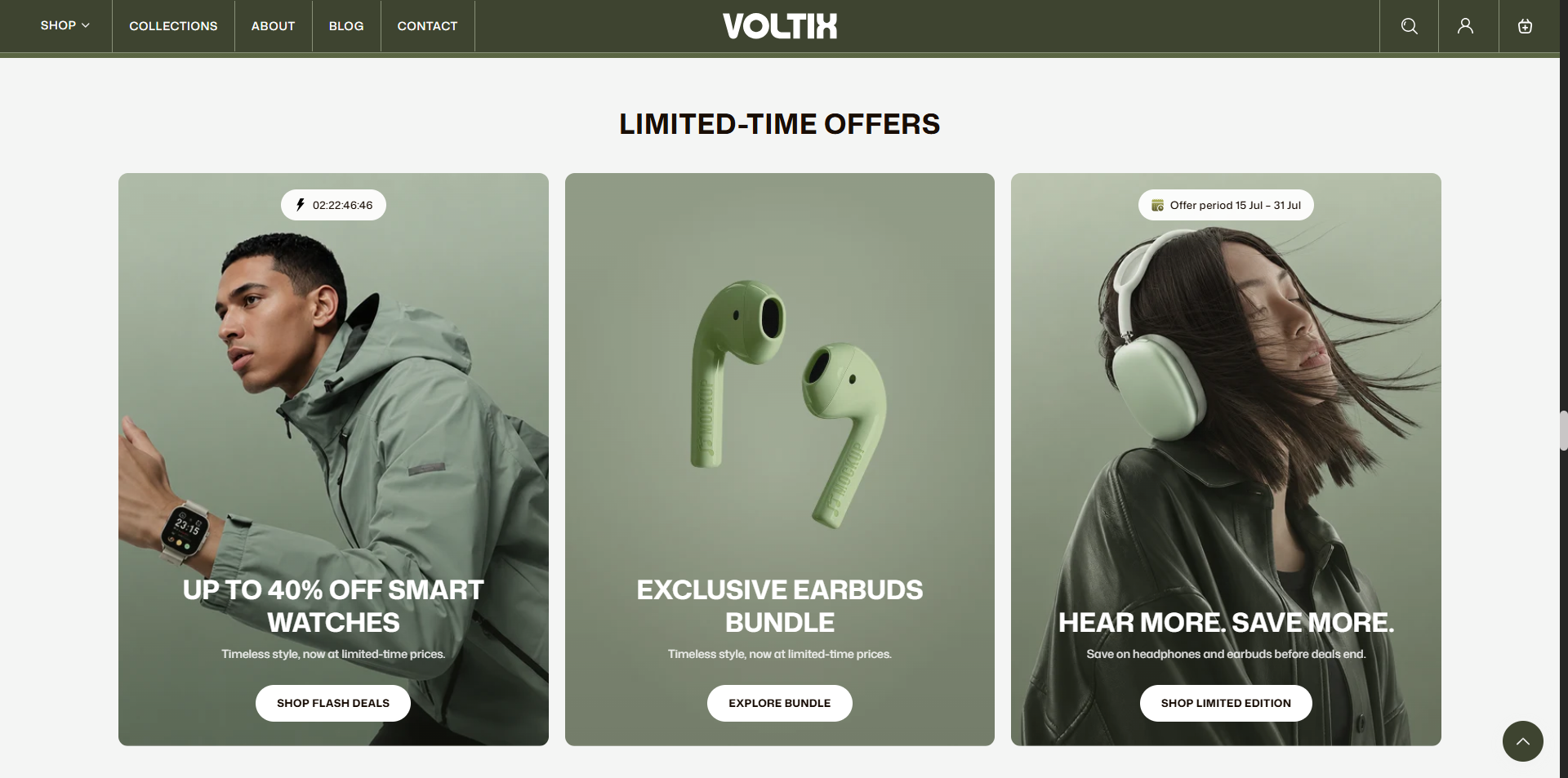
How to Add the Flash Deals Section
- From your Shopify admin, go to Online Store > Themes.
- Click Customize on the Voltix theme.
- In the Theme Editor, select the Flash Deals section from the left sidebar.
- Customize the settings and add and edit block text as per your store requirements.
- Click Save.
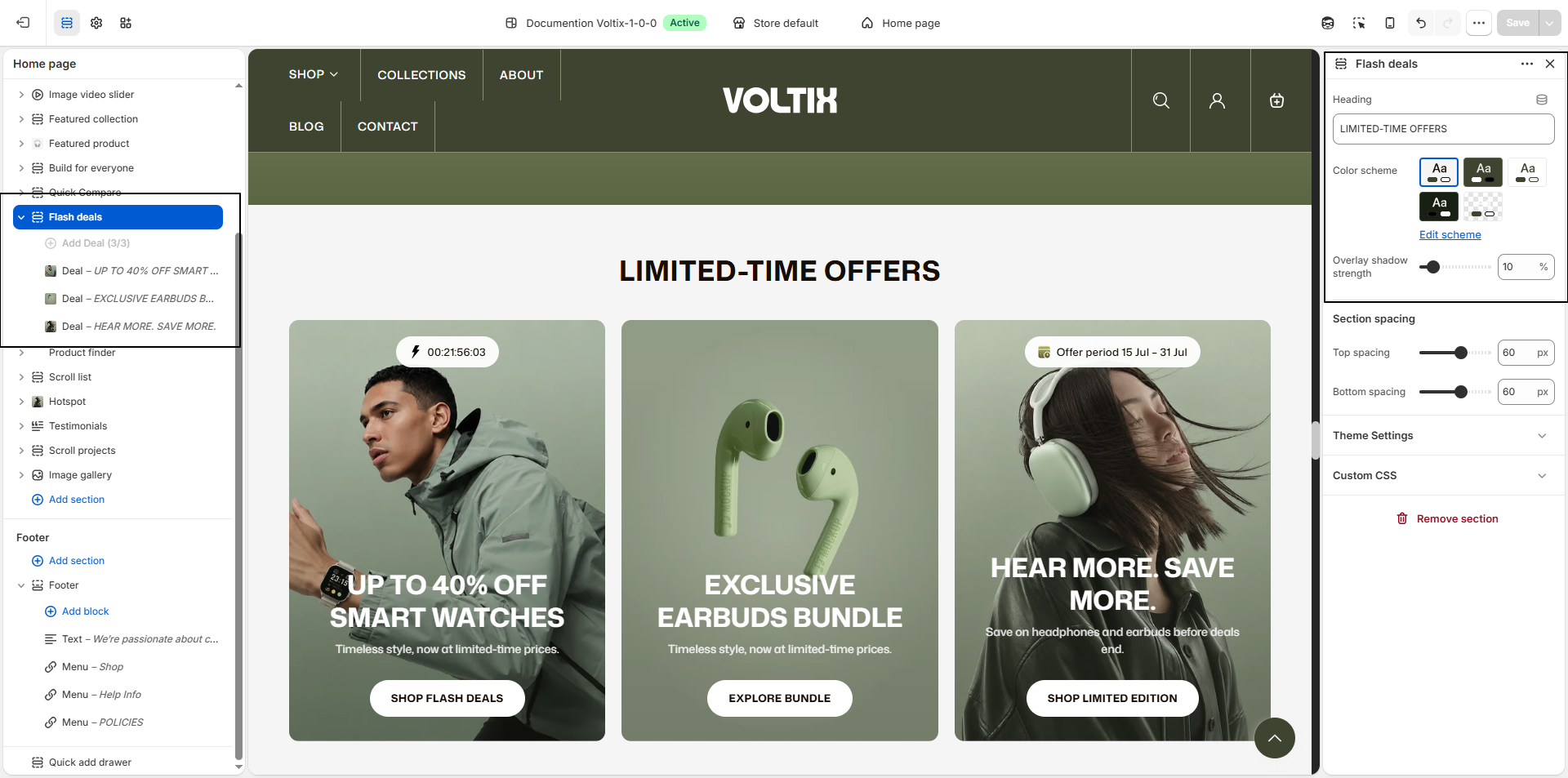
How To Configure The Flash Deals Settings
The section settings allow you to control the overall appearance and presentation of the Flash Deals section, helping you highlight new deals, special offers, and featured collections.
- Heading: Enter the main heading for the Flash Deals section, such as LIMITED-TIME OFFERS. This heading is displayed prominently to draw attention to the featured deals.
- Color Scheme: Select a color scheme for the Flash Deals section. Use Edit scheme to customize the colors used for the section's background, text, and other elements.
- Overlay shadow strength: Adjust the strength of the overlay shadow applied to the Flash Deals content. Use this setting to control the visual depth and contrast of the highlighted deal area.
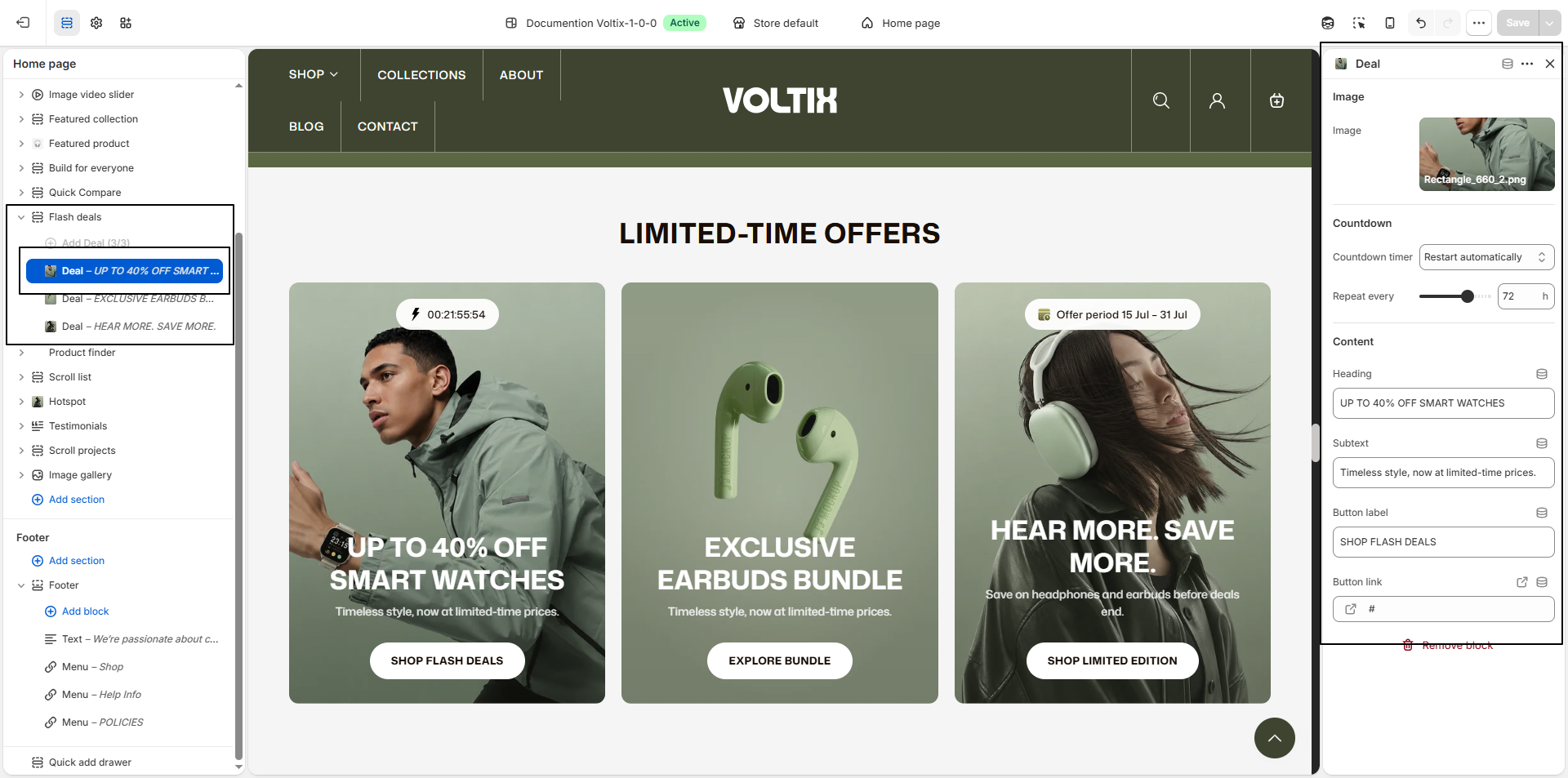
Deal Block Settings
Each Deal block allows you to configure a promotional deal displayed in the Flash Deals section. You can add a promotional image, configure a countdown timer, and provide supporting content and a call-to-action button to highlight limited-time offers.
- Image: Upload an image to represent the featured deal, such as Rectangle_660_2.png.
-
Countdown Timer:
Configure the countdown timer and choose what happens when the timer reaches
its end:
- End timer — Stop the countdown when the offer expires.
- Restart automatically — Automatically restart the countdown after it ends.
- Completely disable — Disable the countdown timer.
- Static Badge Text: Enter the text to display as a static badge for the offer period, such as Offer period 15 Jul – 31 Jul.
- End Date & Time: Set the date and time when the countdown should end. Use the format YYYY-MM-DD HH:MM in 24-hour format. The countdown is based on the visitor's own clock.
- Message Shown Once Ended: Enter the message that should be displayed after the countdown timer has reached its end.
- Repeat Every: Set the repeat interval for the countdown when Restart automatically is selected.
- Heading: Enter the main promotional heading for the deal, such as UP TO 20% OFF SMART WATCHES.
- Heading Color: Select the color for the promotional heading text.
- Subtext: Add supporting text below the heading, such as Timeless Style, Now At Limited-time Prices..
- Subtext Color: Select the color for the promotional subtext.
- Button Label: Enter the text displayed on the promotional button, such as SHOP FLASH DEALS.
- Button Link: Select or enter the destination for the promotional button. Customers are redirected to the specified page when they select the button.