
Image video slider
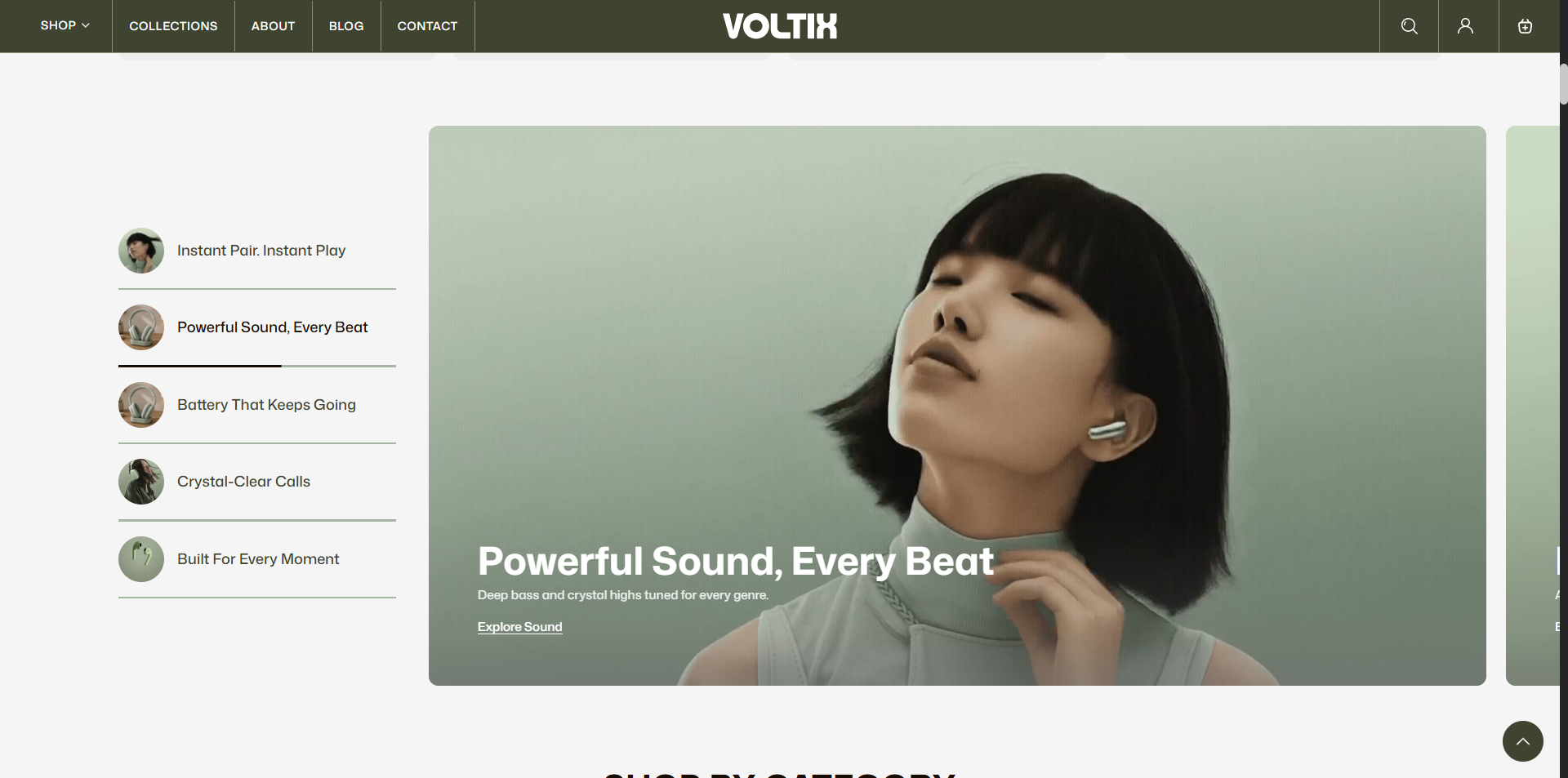
The Image Video Slider is a visually engaging section in the Voltix theme that combines image slides and video content in a single interactive layout. It is ideal for showcasing product highlights, new launches, promotional campaigns, featured collections, and other important visual content.
In the Voltix theme, the Image Video Slider displays the image slider on the left side and a related video on the right side. You can add multiple image slides and display relevant video content alongside them to create an engaging and dynamic shopping experience. This layout helps customers quickly discover featured content while viewing related video information in the same section.
How to Add the Image video slider Section
- From your Shopify admin, go to Online Store > Themes.
- Click Customize on the Voltix theme.
- In the Theme Editor, select the Image video slider section from the left sidebar.
- Customize the settings and add and edit block text as per your store requirements.
- Click Save.
How To Configure The Image video slider Settings
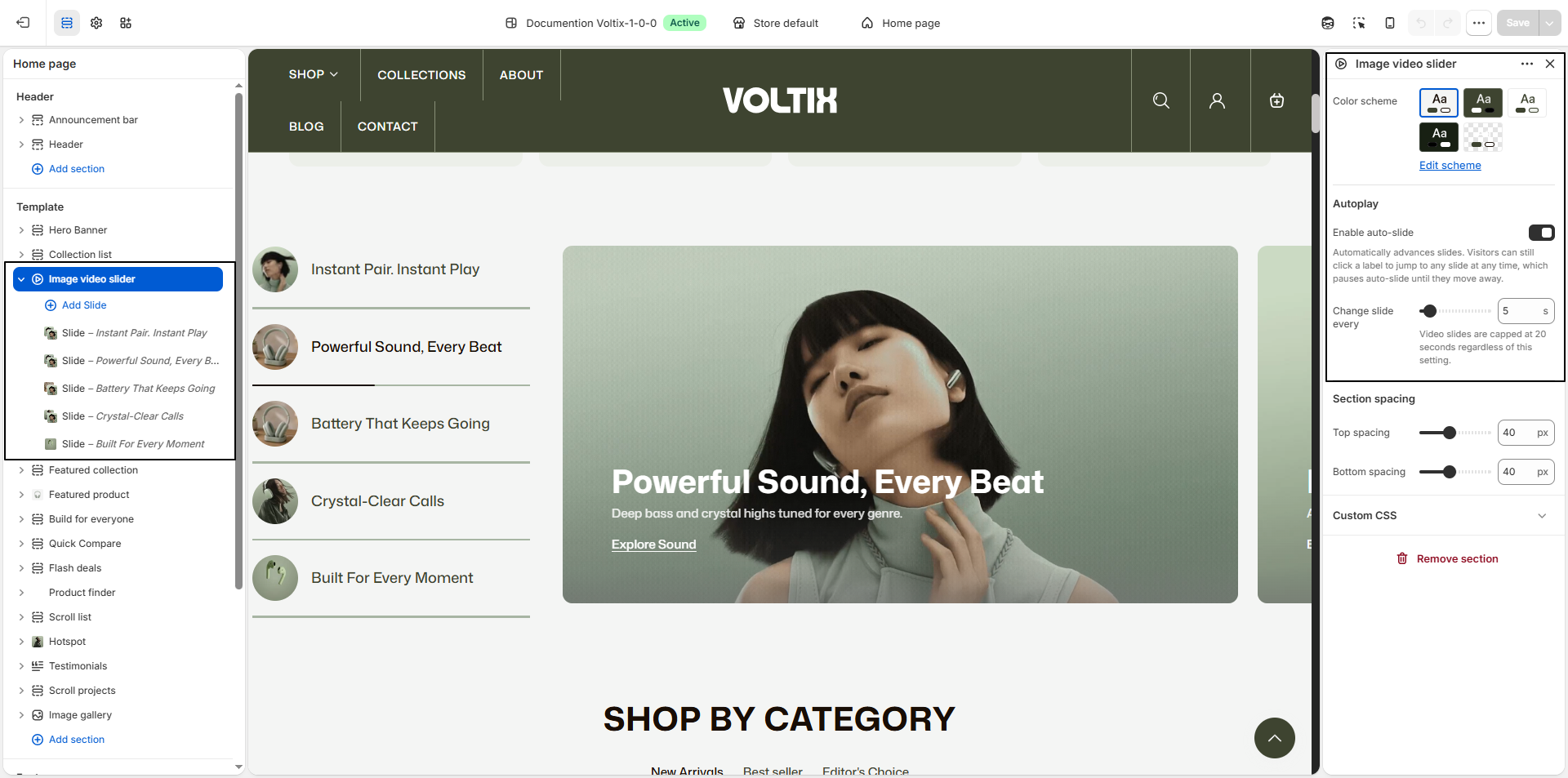
- Color Scheme: Select a color scheme for the Image Video Slider to match your store's overall design and branding. Use Edit scheme to customize the colors associated with the selected scheme.
- Enable auto-slide: Enable this option to automatically advance the image and video slides. Visitors can still select a slide label to jump to a specific slide. Selecting a slide temporarily pauses the automatic rotation until the visitor moves away.
Media Slide Block Settings
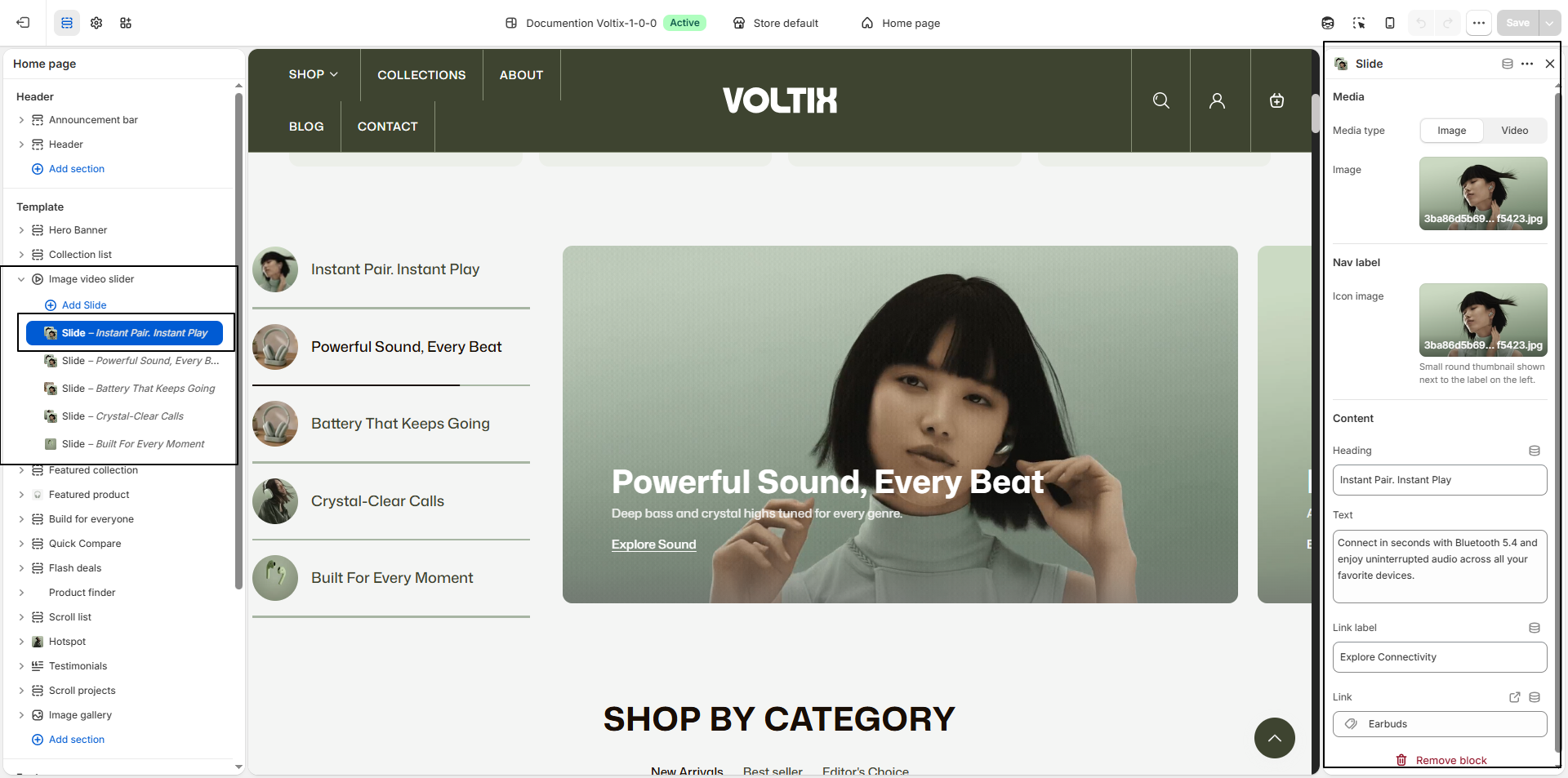
- Media Type: Choose the type of media to display for the slide. Available options are Image and Video.
- Image: Upload or select an image to display as the slide media when Image is selected as the media type.
- Nav Label: Enter a short label to identify the slide in the navigation.
- Icon Image: Upload an image to display as a small round thumbnail next to the navigation label on the left. This helps customers visually identify the slide.
- Heading: Enter the main heading displayed with the slide content, such as Instant Pair. Instant Play.
- Heading Color: Select the color for the slide heading to ensure it is clearly visible against the media background.
- Text: Add supporting content or a short description for the slide. The text is limited to a maximum of two lines; longer content may be truncated.
- Text Color: Select the color used for the supporting text.
- Link Label: Enter the text displayed for the slide link, such as Explore Headphones.
- Link: Select or enter the destination URL for the slide link. Customers will be redirected to the specified page or collection when they click the link.
- Link Label Color: Choose the color of the link label to maintain proper visibility and contrast against the slide background.