
Countdown Collection
The Countdown Collection section combines a promotional countdown, featured banner image, and selected products to create an engaging limited-time shopping experience. Use this section to highlight special offers, seasonal collections, or featured products while encouraging customers to shop before the countdown ends.

How to Add the Countdown Collection Section
- From your Shopify admin, go to Online Store → Themes.
- Click Customize on the Voltix theme.
- In the Theme Editor, use the drop-down selector to choose the page where you want to add or edit the Countdown Collection section.
- Click Add Section (or select an existing Countdown Collection section if already added).
- Click Save to apply your changes.
How To Edit the Countdown Collection Section
The Countdown Collection section allows you to create a time-sensitive promotional section featuring a countdown timer, banner image, and selected products.
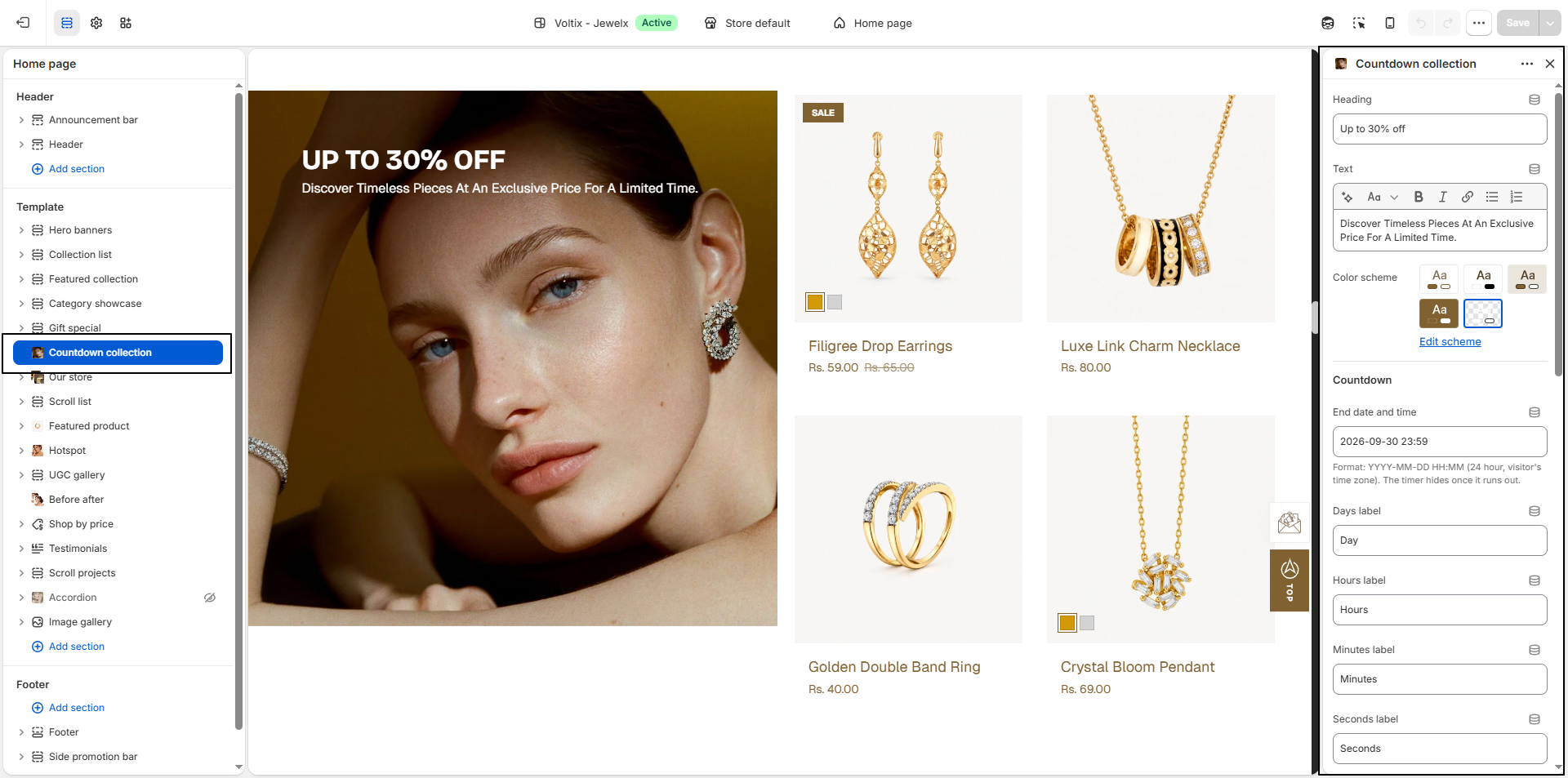
- Heading: Enter the main heading for your promotional section.
- Text: Add a short promotional description to explain the offer or collection.
- Color Scheme: Select a color scheme to control the overall colors and appearance of the section. Click Edit scheme to customize the selected color scheme.
-
Countdown:
Configure the countdown timer for your promotion.
- End Date and Time: Set the date and time when the countdown should end.
- Format: Use YYYY-MM-DD HH:MM in 24-hour format. The timer uses the visitor's time zone.
- Days Label: Customize the label displayed for days.
- Hours Label: Customize the label displayed for hours.
- Minutes Label: Customize the label displayed for minutes.
- Seconds Label: Customize the label displayed for seconds.
The countdown timer automatically hides once the selected end date and time have passed.
-
Banner Image:
Upload an image to display alongside the countdown and products.
- Image: Click Upload images to select or upload your banner image.
- Image Position: Choose whether the banner image appears on the left or right side of the section.
-
Products:
Select the products you want to feature in the countdown collection.
- Click Change to add or replace the selected products.
- Product Image Ratio: Choose the preferred image ratio for the product images.
- Show Color Swatches: Enable this option to display available product color swatches.
- Show Second Image on Hover: Enable this option to display the product's second image when customers hover over the product.
- Mobile Layout: On mobile devices, the selected products are displayed as a swipeable slider above the banner image.
-
Layout:
Configure the overall layout of the Countdown Collection section.
- Section Width: Control the width of the section on the page.
- Column Gap: Adjust the spacing between the banner and product columns.
- Sticky Offset: Set the distance from the top of the screen while the banner image remains pinned on desktop.
Pro Tips:
Use a clear promotional heading and short description to communicate
the offer quickly.
Set the countdown end date carefully so the promotion ends at the
intended time.
Choose high-quality product and banner images for the best visual
presentation.
What happens when the timer ends?
The behavior of the timer depends on your settings:
- If you've added End Text, it will replace the timer.
- If you've enabled the Hide Timer option after expiry, only the section content (excluding the timer) will remain visible.
- If no action is taken, the timer will stay displayed as 0:0:0:0.