Announcement Bar

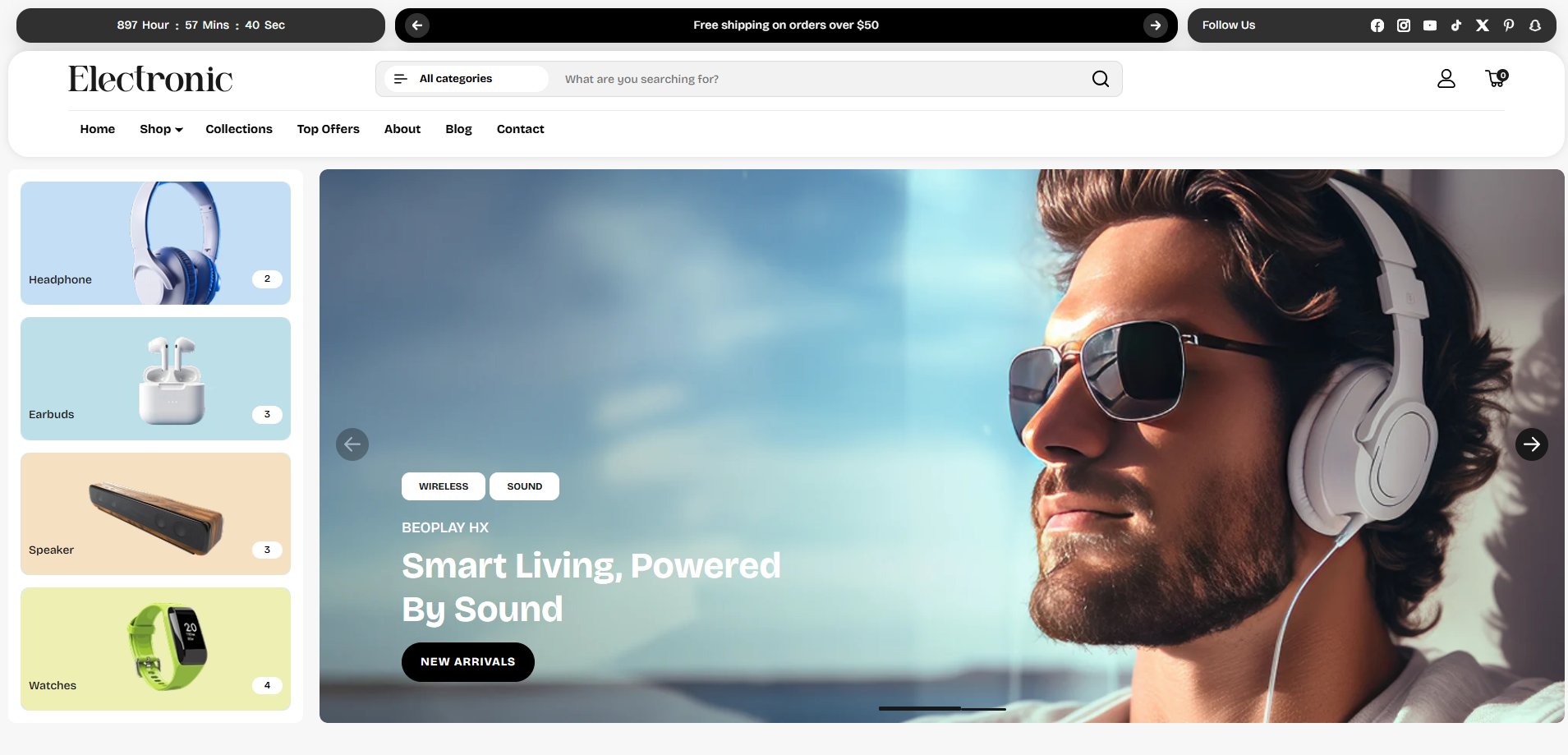
The Announcement Bar is an essential section located at the very top of your Shopify store. It is designed to capture the visitor's attention immediately and communicate key updates, promotions, shipping offers, or time-sensitive discount counters.

In the Voltix theme, the Announcement Bar is highly customizable and versatile. It supports displaying a countdown timer, custom promotional messages, social media icons, and individual controls for colors, layouts, margins, column gaps, and sliding animations.

Voltix Announcement Bar Preview

How to Configure the Announcement Bar

  • From your Shopify admin, go to Online Store > Themes.
  • Click Customize on the Voltix theme.
  • In the Theme Editor, select the Announcement Bar section from the left sidebar.
  • Customize the settings and add, remove, or reorder blocks (such as Countdown timer, Announcement message, or Social icons) as per your store requirements.
  • Click Save.
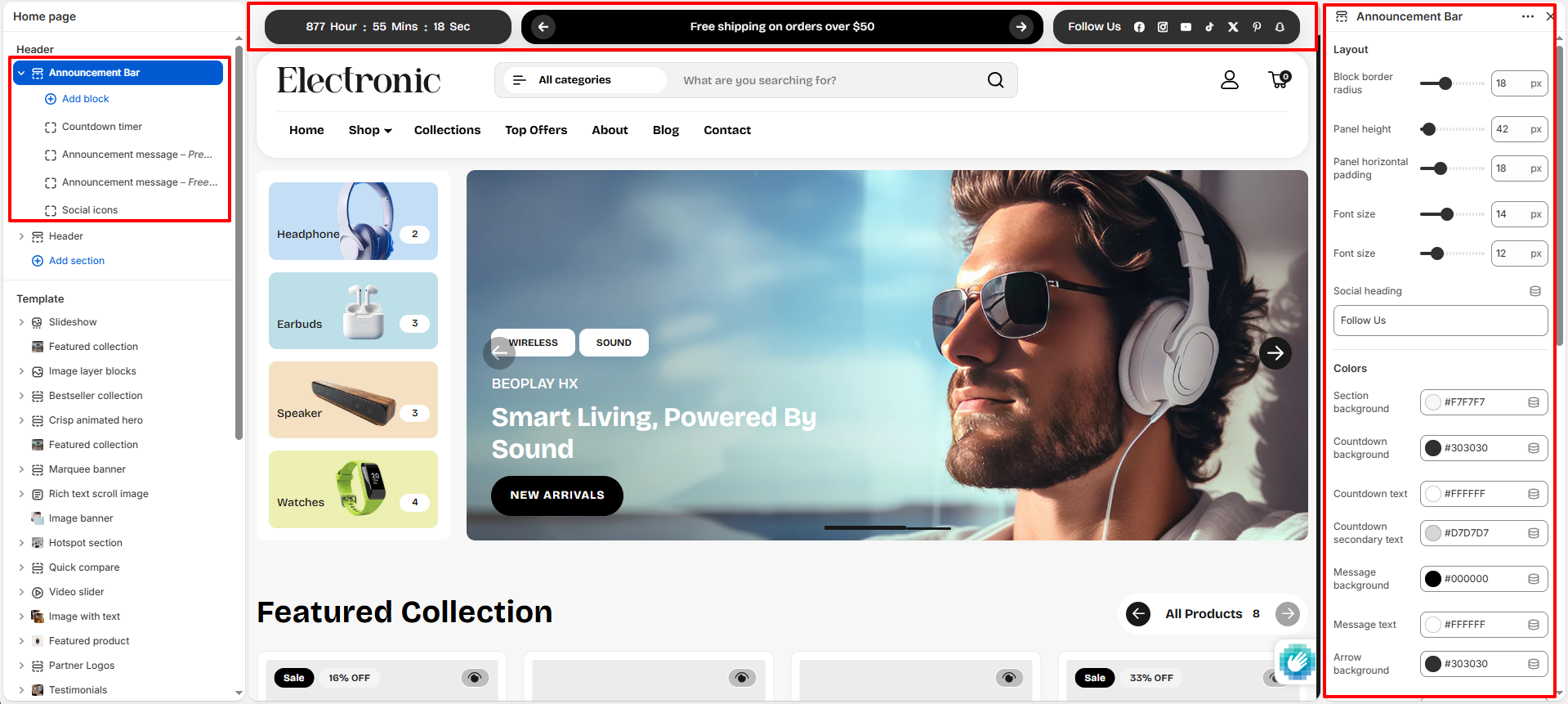
Voltix Announcement Bar Settings

Announcement Bar Settings

  • Block border radius: Adjust the corner roundness of the individual blocks within the announcement bar (e.g., 16px).
  • Panel height: Set the vertical height of the announcement bar panels (e.g., 42px).
  • Panel horizontal padding: Control the horizontal padding inside the panels (e.g., 18px).
  • Font size (first slider): Set the font size for the announcement bar messages and timer content (e.g., 14px).
  • Font size (second slider): Set the secondary font size, typically for the social heading (e.g., 12px).
  • Social heading: Enter the heading text that appears next to the social media icons (e.g., "Follow Us").
  • Section background: Set the background color for the announcement bar section.
  • Countdown background: Choose the background color for the countdown timer capsule.
  • Countdown text: Choose the text color for the countdown timer.
  • Countdown secondary text: Set the secondary text color (e.g. for time labels) inside the countdown.
  • Message background: Choose the background color for the announcement message capsule.
  • Message text: Set the text color for the announcement message.
  • Arrow background: Set the background color for the slide navigation arrows.
  • Arrow border: Set the border color for the slide navigation arrows.
  • Arrow icon: Choose the color of the slide navigation arrow icons.
  • Social background: Set the background color for the social icons capsule.
  • Social text: Set the text color for the social icons section.
  • Social icon color: Choose the color of the social media icons.
  • Auto-rotate slides: Toggle to enable automatic rotation of announcement slides.
  • Change slides every: Adjust the slide rotation duration in seconds (e.g., 4s).
  • Slide transition effect: Select transition effect between Slide and Fade.
  • Show navigation arrows: Toggle to display arrow indicators to let users manually slide messages.
  • Show countdown timer block: Toggle to show or hide the countdown timer block in the bar.
  • Show social icons block: Toggle to show or hide the social icons block in the bar.
  • Enable column gap: Toggle to enable or disable gaps between the columns.
  • Column gap: Adjust the gap width between columns in pixels (e.g., 12px).
  • Padding top: Adjust the top padding of the announcement bar section (e.g., 10px).
  • Padding bottom: Adjust the bottom padding of the announcement bar section (e.g., 10px).

Announcement Bar Blocks

The announcement bar layout is built using three types of modular blocks that can be added, removed, or reordered:

  • 1. Countdown timer Block: Displays a live countdown timer to build urgency for sales and limited-time events.
    • End date & time: Specify the expiration date and time in the format: YYYY-MM-DDTHH:MM:SS (e.g., 2026-06-31T23:59:59).

    Voltix Announcement Countdown Timer Block Settings

  • 2. Announcement message Block: Displays a custom text banner, supporting sliding transitions if multiple message blocks are added.
    • Message: Enter your promotional message text (e.g., "Premium Products Backed By Up To 1-Year Warranty" or "Free shipping on orders over $50").
    • Link: Paste a URL or search for an internal page link to make the message clickable.

    Voltix Announcement Message Block Settings

  • 3. Social icons Block: Displays icons linking to your social media profiles.
    • Note: The social links are automatically pulled from your store's global Theme Settings (under Social Media settings).

    Voltix Announcement Social Icons Block Settings


FAQs

How do I show social icons in the announcement bar?

First, add the Social icons block to the Announcement Bar. Then, ensure you have set up your social media URLs in the global Theme Settings. The icons will automatically display and link to those profiles.

How does slide rotation work?

If you add multiple Announcement message blocks, they will act as slides. You can enable Auto-rotate slides and set the rotation interval (e.g., 4s) to rotate between messages automatically.

Can I change the date format of the Countdown timer?

The countdown timer requires a specific ISO format to function correctly: YYYY-MM-DDTHH:MM:SS. For example, 2026-06-31T23:59:59. Ensure there are no spaces and that the letter 'T' separates the date and time.