
Header Section
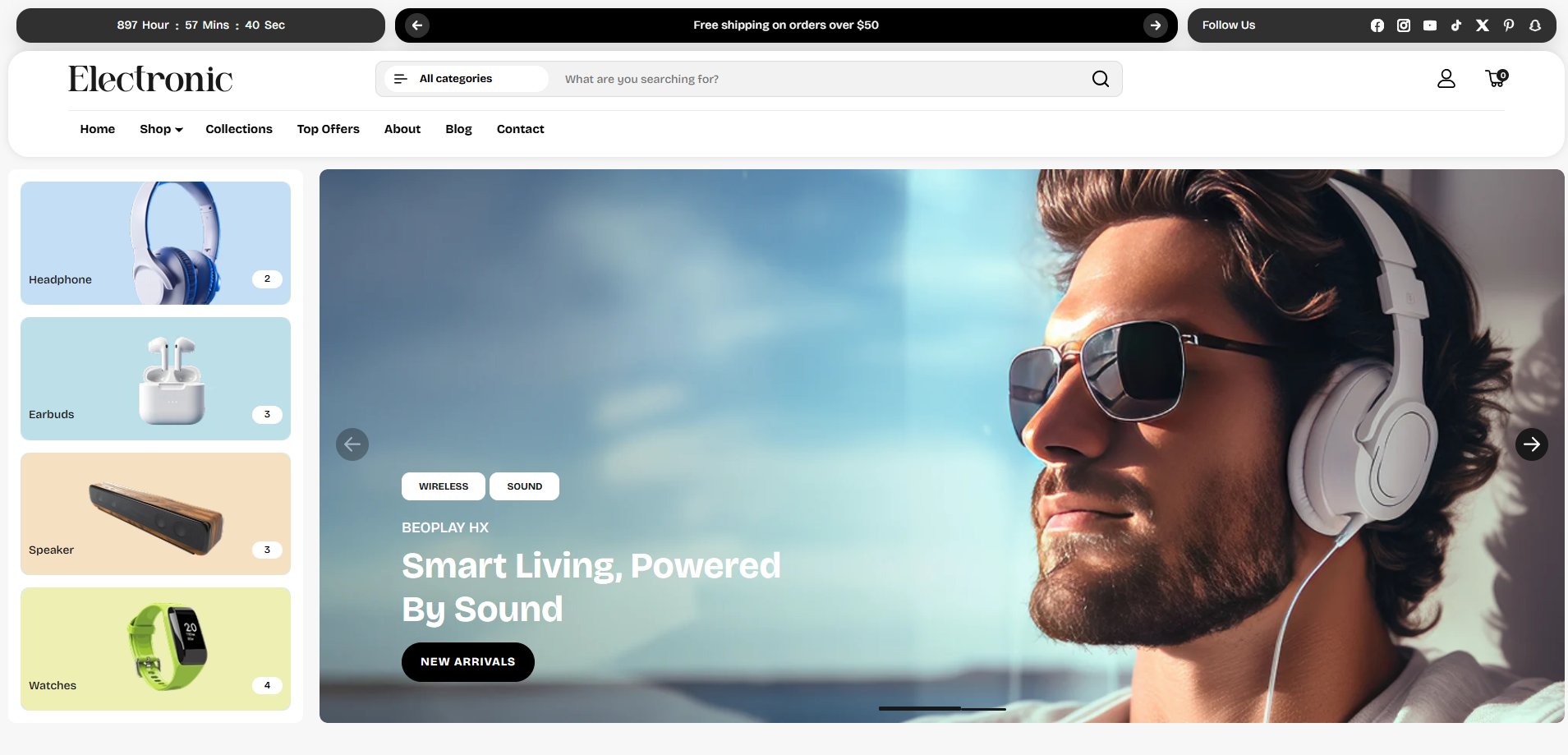
The Header is a key part of the Voltix theme and appears at the top of every page, providing customers with easy access to your store's main navigation and essential shopping features. It includes your brand logo, navigation menu, search, account, and cart options, creating a smooth and intuitive browsing experience.
The Voltix theme offers a flexible and feature-rich header with a dropdown menu and mega menu for organizing your store's navigation. Customers can quickly explore categories and collections through structured menu layouts. The header also includes a convenient search drawer for quickly finding products and a cart drawer that allows customers to review and manage their cart without leaving the current page. Together, these features provide a clean, organized, and user-friendly navigation experience across your store.
How to Configure the Header
- From your Shopify admin, go to Online Store > Themes.
- Click Customize on the Voltix theme.
- In the Theme Editor, select the Header section from the left sidebar.
- Customize the settings as per your store requirements and click Save.
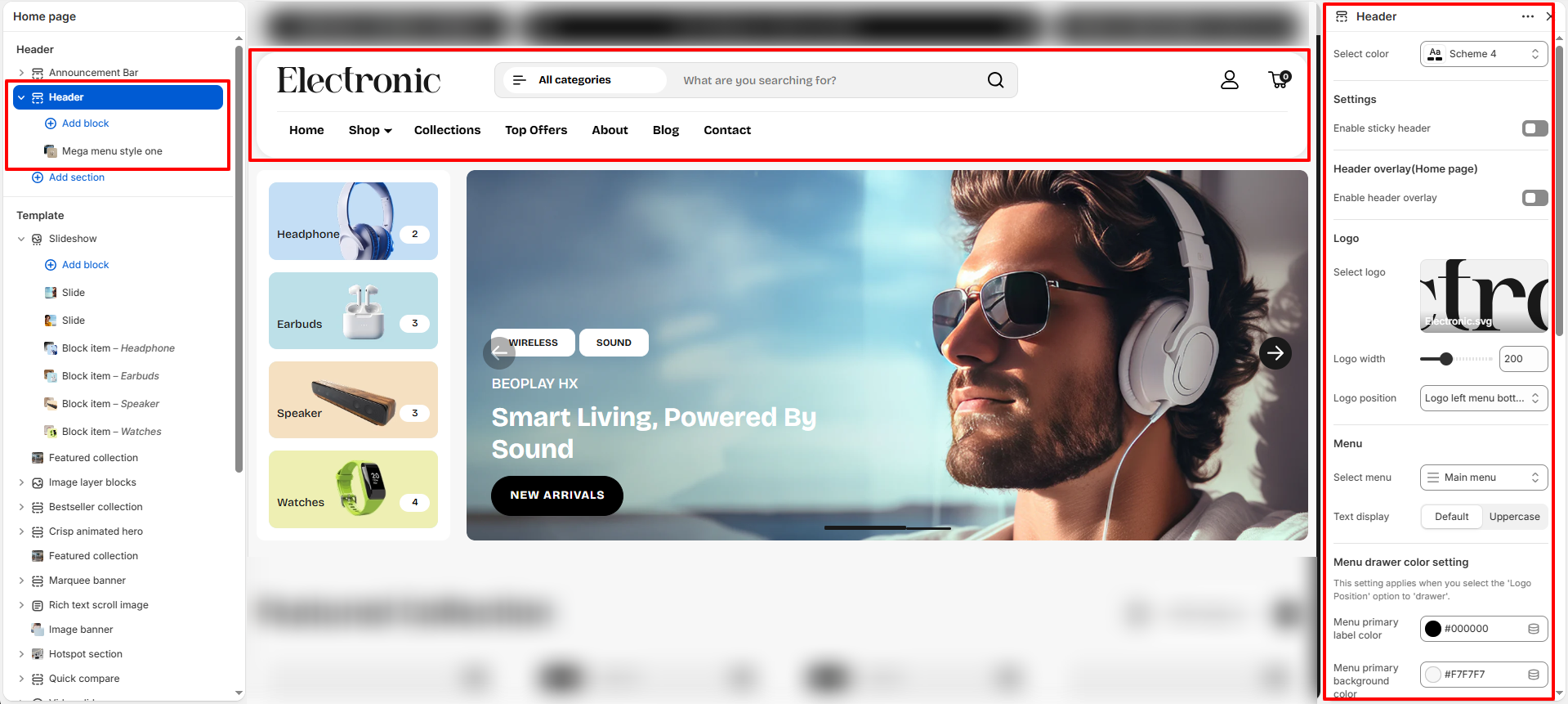
Header Settings
- Color Scheme: Select a color scheme to control the header’s background, text, and icon colors.
-
Header Width:
Choose the width of the header:
- Full Width: Allows the header to extend across the full width of the screen.
- Container Width: Keeps the header content within the theme’s defined container width.
- Divider Line: Enable this option to display a divider line below the header. Use the Divider Line Color setting to customize the divider color.
- Enable Header Overlay: Enable this option to display the header as an overlay on the home page. This is useful when the header needs to appear over a hero or banner image.
- Overlay Logo: Upload a separate logo for the header overlay. The overlay logo is displayed when the header is positioned over the home page content.
- Enable Header Overlay on Collection Pages: Enable this option when using the Page Hero Banner section on collection templates. This allows the header to appear as an overlay on the collection hero banner.
- Enable Header Overlay on Blog Page: Enable this option when using the Page Hero Banner section on the blog template. This allows the header to appear as an overlay on the blog hero banner.
- Select Logo: Upload the primary logo that will be displayed in the header.
- Logo Width: Adjust the width of the logo to control its displayed size within the header.
-
Logo Position:
Choose how the logo and navigation menu are arranged within the header:
- Logo Left: Positions the logo on the left side of the header.
- Logo Center: Centers the logo within the header.
- Logo Center, Menu Bottom: Centers the logo with the navigation menu displayed below it.
- Select Menu: Select the navigation menu you want to display in the header, such as the Main Menu.
- Menu Font Family: Choose the font family used for navigation links: Heading or Body.
- Uppercase Navigation Text: Enable this option to display navigation menu labels in uppercase letters.
- Enable Sticky Header: Enable this option to keep the header fixed at the top of the screen while customers scroll, providing continuous access to the store navigation and header actions.
- Show Text with Action Icons: Enable this option to display text labels alongside the header action icons. These labels can be edited from Theme Content → Header Actions. On mobile devices, only the cart count is displayed.
-
Action Items Position:
Choose how the header action items are aligned:
- Left: Aligns the action items to the left.
- Center: Centers the action items.
- Right: Aligns the action items to the right.
- Space Evenly: Distributes the action items evenly across the available space.
FAQs
How can I set up my navigation and mega menu?
Setting up your navigation and mega menu is easy! Check out our comprehensive Mega Menu Guide for detailed, step-by-step instructions to create a visually stunning and functional menu layout.
Why isn't my mega menu displaying an image?
Make sure an image is properly uploaded and added inside the mega menu block.
Why isn't my mega menu showing?
Enter the name of the parent level menu item to apply the mega menu.