
Build for everyone
The Build for everyone section is a scroll-animated storytelling section in the Voltix theme, designed to highlight products, lifestyle experiences, and key brand messages through a combination of images, text, and visual content. As customers scroll through the section, the content changes dynamically to create an engaging and immersive browsing experience.
In the Voltix theme, you can use this section to highlight different images, product features, text content, and brand messages as the customer scrolls. The scroll-based animation helps bring each piece of content into focus, making it easier to showcase your products and communicate how they fit into different lifestyles while keeping customers engaged with the page.
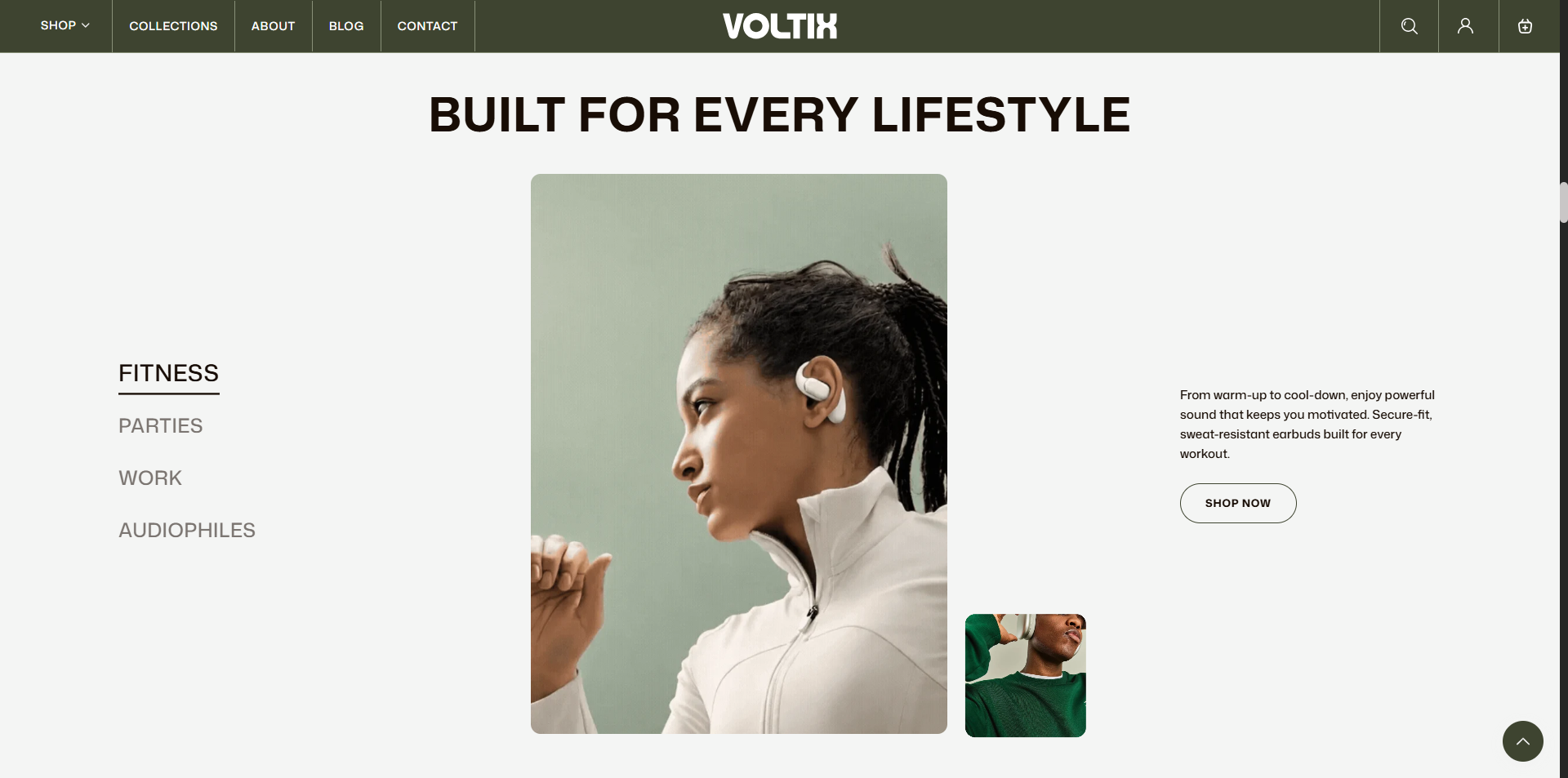
How to Add the Build for everyone Section
- From your Shopify admin, go to Online Store > Themes.
- Click Customize on the Voltix theme.
- In the Theme Editor, select the Build for everyone section from the left sidebar.
- Customize the settings and add and edit block text as per your store requirements.
- Click Save.
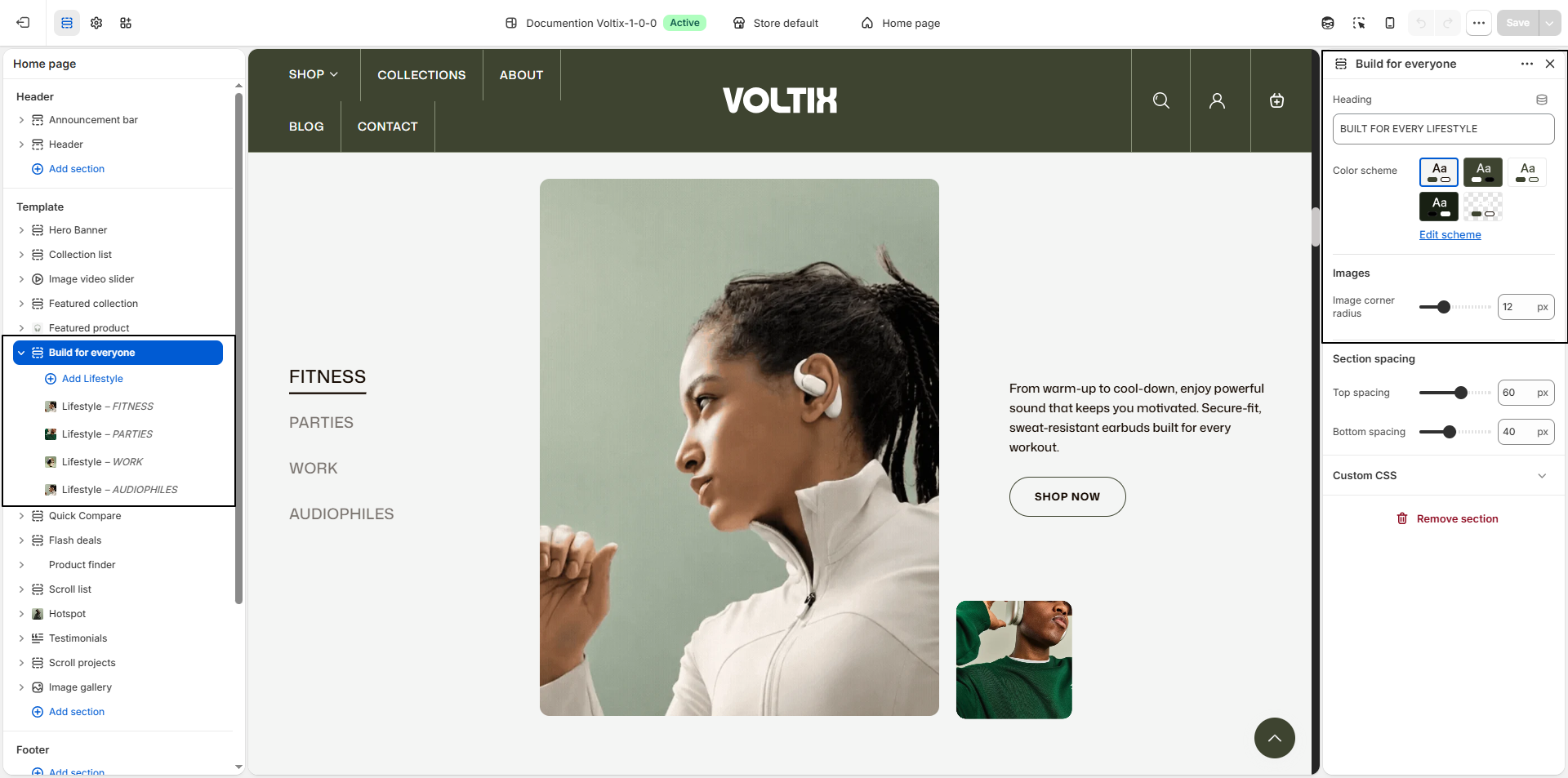
How To Configure The Build for everyone Settings
- Heading: Enter the main heading for the section, such as BUILT FOR EVERY LIFESTYLE. This heading introduces the scroll-animated content and highlights the purpose of the section.
- Color Scheme: Select a color scheme for the section to match your store's overall design and branding. Use Edit scheme to customize the colors associated with the selected scheme.
- Image Corner Radius: Adjust the corner radius of the images displayed in the section. Increase the value for more rounded corners or use a lower value for a sharper, more squared appearance.
-
Scroll Direction:
Choose the direction in which the images move while scrolling:
- Normal Scroll: The previous image moves to the left and the next image moves to the right.
- Opposite Scroll: The previous image moves to the right and the next image moves to the left.
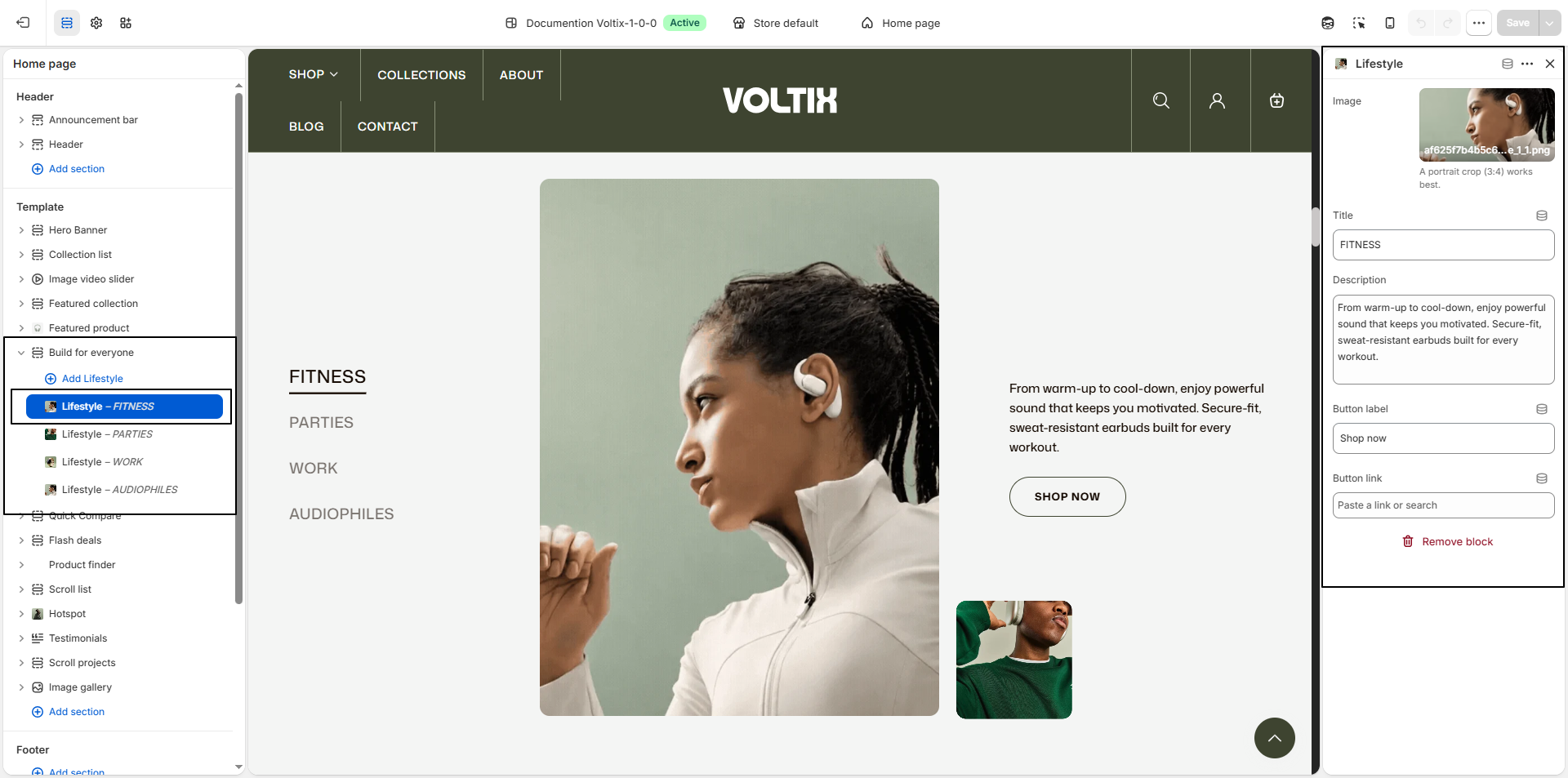
Lifestyle Block Settings
- Image: Upload or select an image for the lifestyle block. A portrait image with a 3:4 aspect ratio is recommended for the best visual appearance.
- Title: Enter the lifestyle category or title displayed on the block, such as FITNESS.
- Description: Add a short description to provide additional information about the lifestyle category or featured content.
- Button label: Enter the text displayed on the button, such as Shop now.
- Button link: Select or enter the destination URL for the button. Customers are redirected to the specified page when they click the button.