
Footer Settings
The Footer section helps you display branding, navigation links, newsletter signup, feature highlights, localization options, social media icons, and payment methods in a professional layout. These settings improve store usability, customer trust, and overall shopping experience.
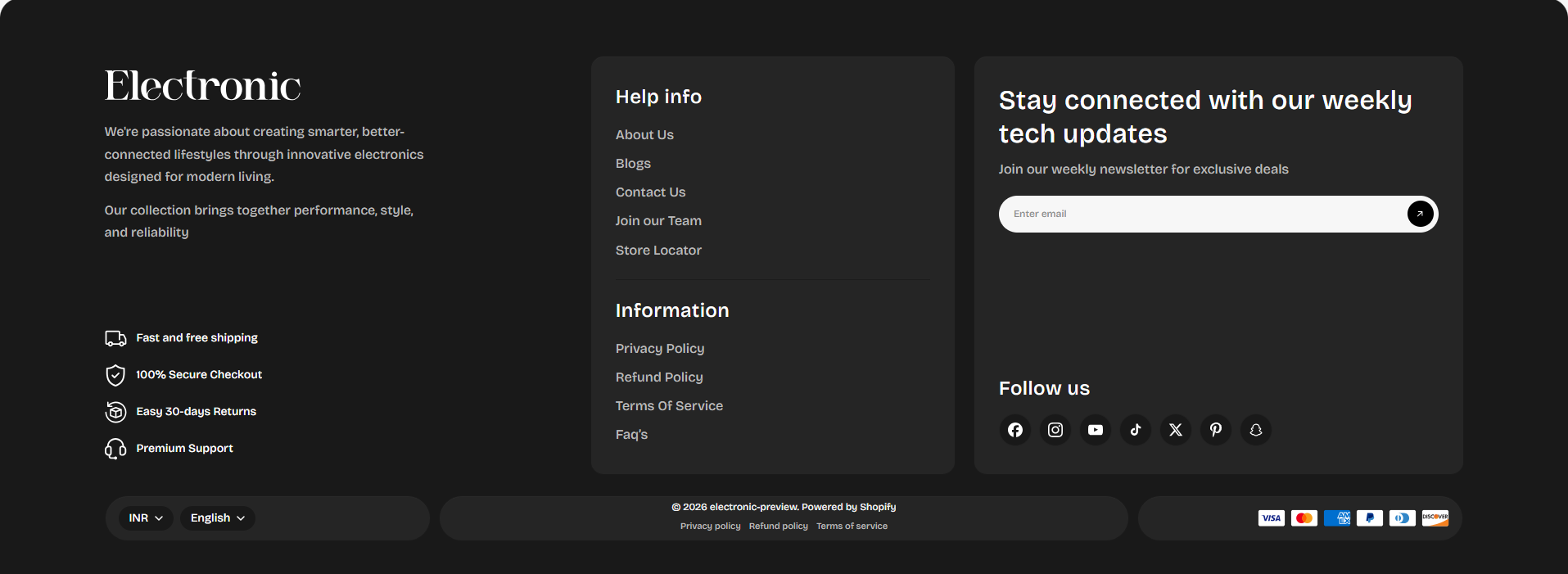
How to Configure the Footer
- From your Shopify admin, go to Online Store > Themes.
- Click Customize on the Voltix theme.
- In the Theme Editor, select the Footer section from the left sidebar.
- Customize the settings as per your store requirements and click Save.
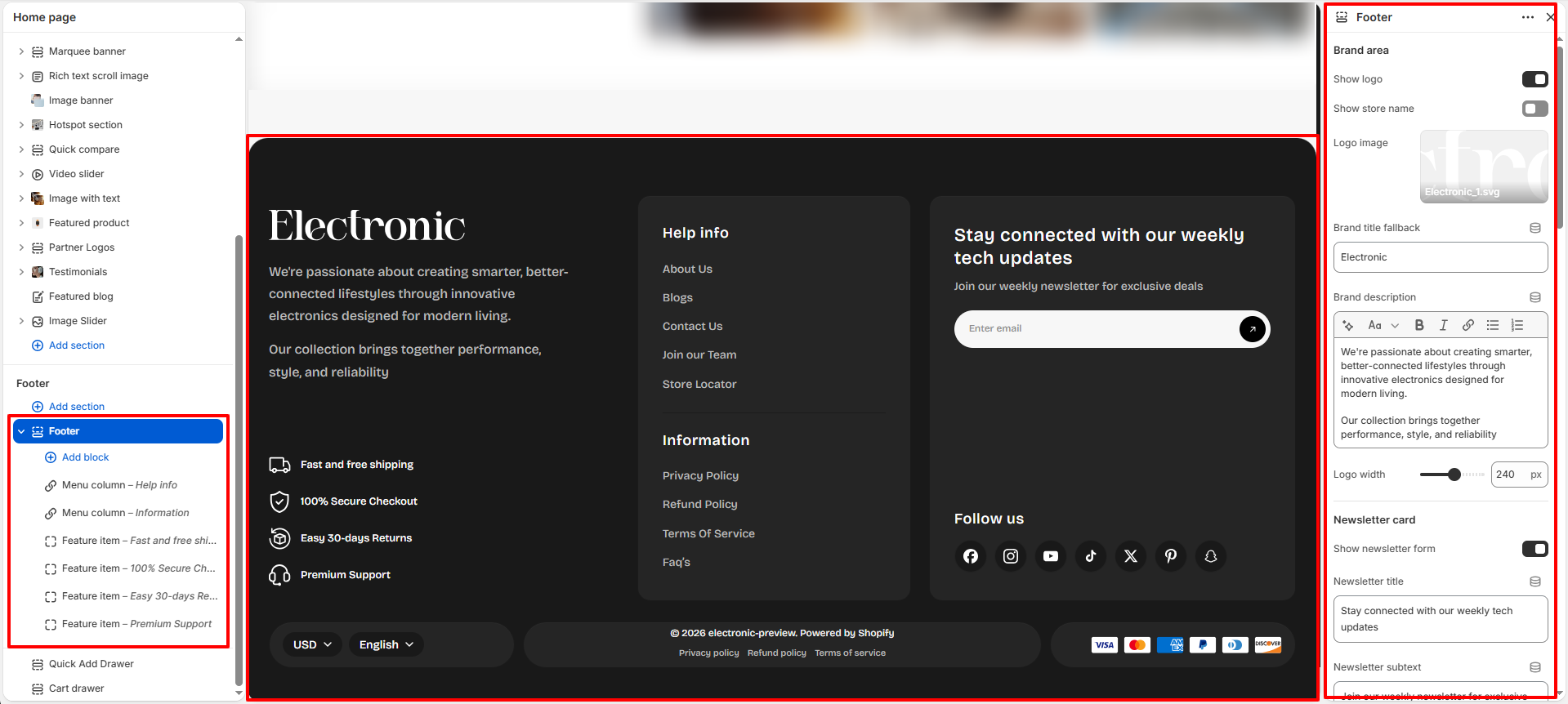
- Color Scheme: Select a color scheme for the footer. Use Edit scheme to customize the colors associated with the selected scheme.
- Logo: Upload a logo to display in the newsletter section. If no logo is selected, the store name will be displayed instead.
- Logo Width: Adjust the width of the newsletter logo on desktop devices.
- Logo Width (Mobile): Adjust the width of the newsletter logo on mobile devices.
- Show Social Media Icons: Enable this option to display social media icons in the footer.
-
Social Icons Position:
Choose where the social media icons are displayed:
- Top: Displays the social icons at the top of the footer.
- Bottom: Displays the social icons at the bottom of the footer.
- Below Newsletter Form: Displays the social icons below the newsletter form.
- Apply Background to Blocks: Enable this option to apply the secondary background color to the footer content blocks.
-
Link Columns Position:
Choose where the footer navigation links are displayed:
- Top - Above the Logo: Displays the link columns above the footer logo.
- Bottom - Above the Copyright: Displays the link columns above the copyright area.
- Enable Newsletter: Enable this option to display the newsletter subscription section in the footer.
-
Newsletter Position:
Choose where the newsletter section appears:
- Top of Footer: Displays the newsletter at the top of the footer.
- Bottom of Footer: Displays the newsletter at the bottom of the footer.
-
Newsletter Layout:
Choose the layout of the newsletter content:
- Column with Logo: Displays the logo on the left and the newsletter heading, text, and form on the right.
- Single Row: Displays the newsletter content in a single horizontal row.
- Two Column: Displays the newsletter heading and text on the left and the subscription form on the right.
- Newsletter Top Padding: Adjust the spacing above the newsletter content.
- Newsletter Bottom Padding: Adjust the spacing below the newsletter content.
- Heading: Enter the main heading displayed in the newsletter section.
- Text: Add supporting text to encourage customers to subscribe to the newsletter.
- Enable Background: Enable this option to add a background to the newsletter section.
- Input Field and Button Border Radius: Adjust the corner radius of the newsletter input field and subscription button.
- Enable Follow on Shop: Enable this option to allow customers to follow your store through the Shop app. Shop Pay must be enabled for this feature to work.
- Enable Copyright Background Color: Enable this option to apply the color scheme's highlight color to the copyright area.
- Copyright Text: Set the text color used in the copyright section.
- Show Policies: Enable this option to display the available store policy links in the footer.
- Enable Fixed Reveal Footer: Enable this option to keep the footer fixed at the bottom of the screen and reveal it as customers scroll upward through the page.
- Enable Fixed Reveal Footer on Mobile: Enable this option to apply the fixed reveal footer effect on mobile devices as well.
Configure a block within a Footer section
To add a new block, select Add block, choose the required block type, and then select the block you added to configure its settings.
Text Block
- Heading: Enter a heading for the text block. This heading appears above the descriptive content in the footer.
- Text: Add a description or introductory content for your store or brand. For example, We’re passionate about creating smarter, better-connected lifestyles through innovative electronics designed for modern living.
- Block width: Adjust the width of the text block within the footer layout.
Menu Block
- Heading: Enter the title displayed above the menu links, such as SHOP.
- Select menu: Select the Shopify navigation menu that you want to display in the footer. The menu items are displayed as links below the heading.
- Block width: Adjust the width of the menu block within the footer layout.