
Quick Compare
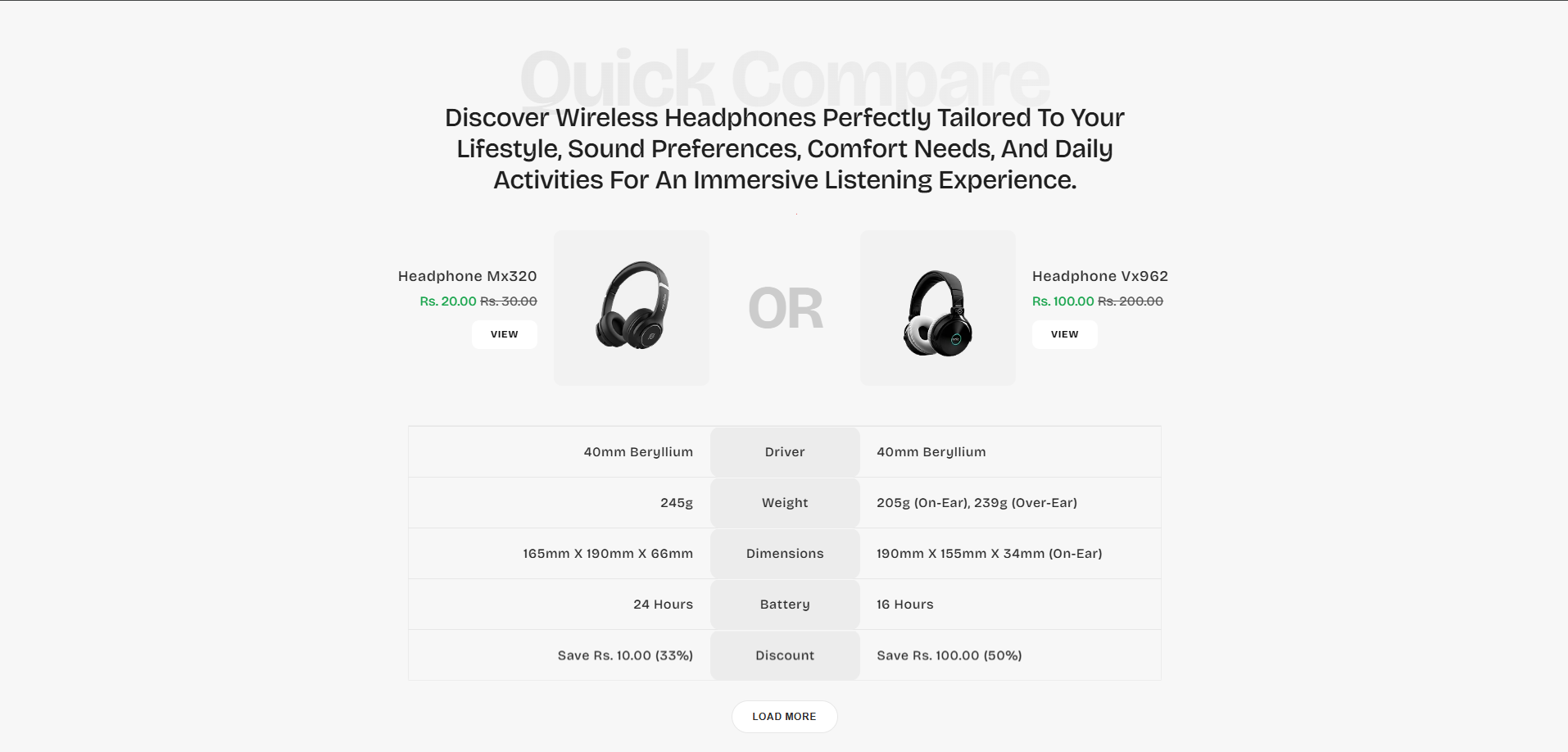
The Quick Compare section allows merchants to showcase two products in a structured comparison layout. This section helps customers quickly understand the differences between products by displaying important information such as pricing, specifications, features, options, and other product details in an easy-to-read format.
The section is useful for highlighting product variations, comparing similar products, showcasing upgrades, or helping customers choose the product that best fits their needs. With customizable layouts, specification rows, product cards, styling controls, responsive settings, and metafield support, the Quick Compare section helps create a modern shopping experience that improves product discovery and supports faster purchasing decisions.
How to Add the Quick Compare Section
- From your Shopify admin, go to Online Store > Themes.
- Click Customize on the Voltix theme.
- In the Theme Editor, select the Quick Compare section from the left sidebar.
- Customize the settings and add and edit block text as per your store requirements.
- Click Save.
How To Configure The Quick Compare Settings
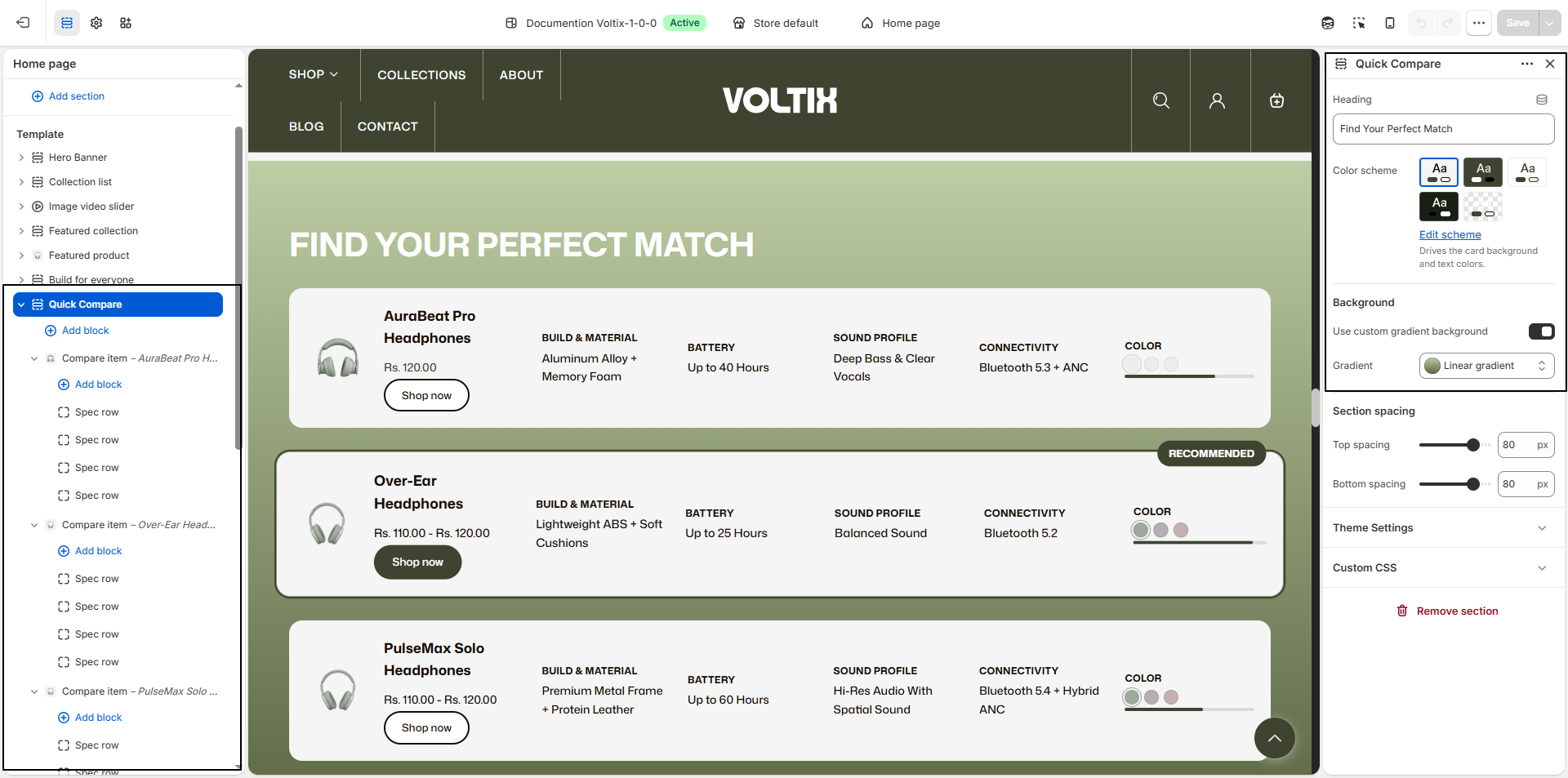
The section settings allow you to control the overall appearance, comparison layout, typography styling, product card behavior, animations, spacing, responsive design, accessibility labels, and color customization for the Quick Compare section.
- Heading: Enter the main heading for the section, such as FIND YOUR PERFECT MATCH.
- Heading Color: Select the color for the main heading text.
- Subheading: Enter supporting text below the main heading, such as Compare Features And Choose The Headphones That Suit Your Lifestyle..
- Subheading Color: Select the color for the subheading text.
- Compare Card Color Scheme: Select a color scheme for the comparison cards. Use Edit scheme to customize the card background and text colors.
- Use Custom Gradient Background: Enable this option to use a custom gradient instead of the standard section background.
- Gradient: Configure the gradient background for the section. Select the gradient type, such as Linear Gradient, to create the desired background effect.
Product Card Block Settings
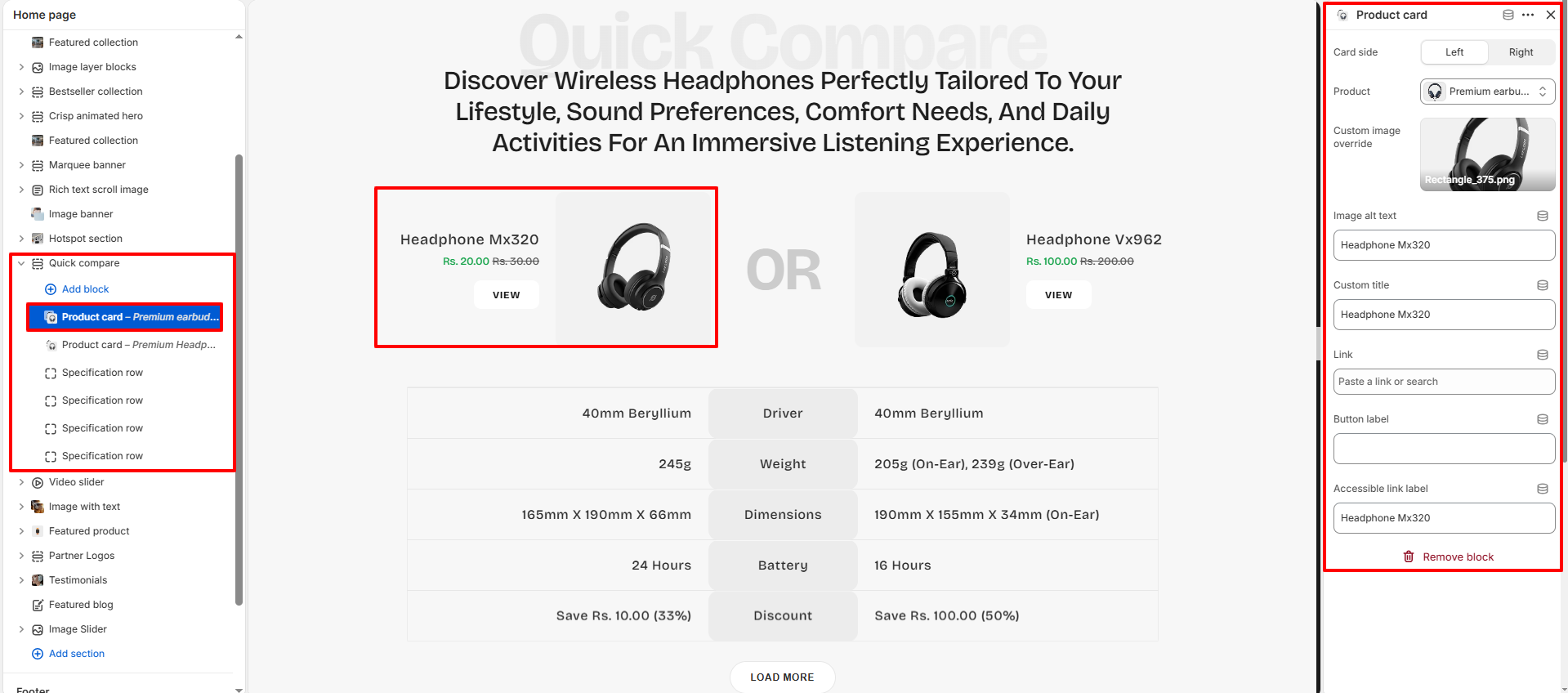
Each Product Card block allows you to configure an individual product used in the comparison layout. You can select a product and customize its image, title, price, button, color information, and recommendation status.
- Product: Select the Shopify product to display in the comparison card. The product's image, title, and price are automatically displayed.
- Image Override: Upload a custom image to display instead of the selected product's default image.
- Show Color Column: Enable this option to display the product's Color or Colour options as swatches in the comparison card. This option is hidden when the selected product does not have a Color or Colour option.
- Mark as Recommended: Enable this option to highlight the product as the recommended choice in the comparison section.