
Mega Menu
The Voltix theme features a flexible and visually rich Mega Menu designed to enhance navigation and improve product discovery across your storefront.
It includes the Mega menu block, which allows you to combine structured navigation lists with up to two promotional images with custom titles and links. This block is perfect for organizing large product catalogs, highlighting seasonal sales, and presenting a clean, modern layout directly inside your header.
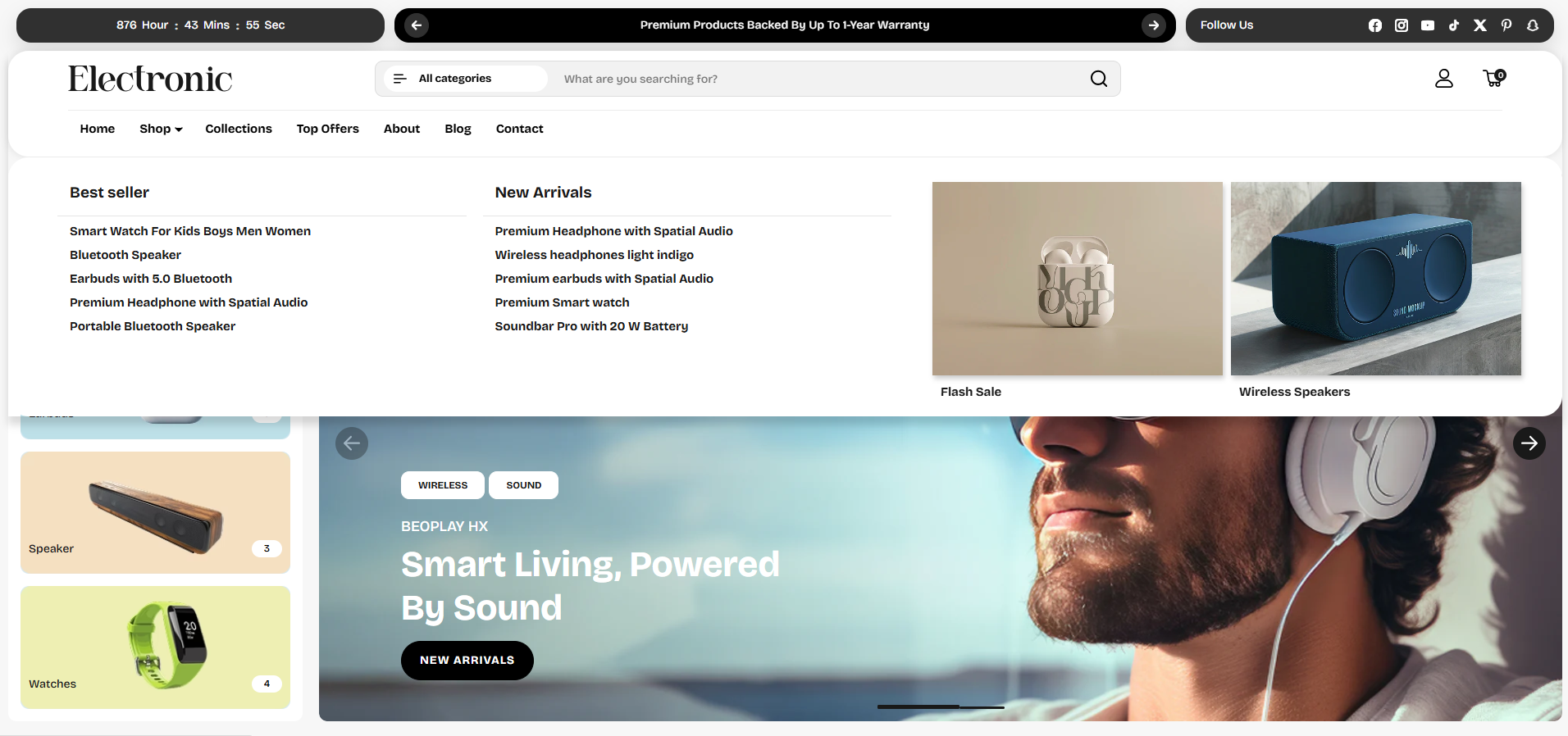
How to Configure the Mega Menu
The Voltix theme provides two Mega Menu styles to help you create flexible and visually engaging navigation:
- Default Mega Menu: Displays selected collections in customizable columns with optional collection images and a featured image.
- Collections Mega Menu: Provides a more advanced collection-based navigation with product listings, collection images, promotional content, and optional extra menu links.
How to Add a Mega Menu
- From your Shopify admin, go to Online Store > Themes.
- Click Customize on the Voltix theme.
- In the Theme Editor, select the Header section.
- Click Add Block.
- Select either Default Mega Menu or Collections Mega Menu.
- Configure the required settings and click Save.
1. Default Mega Menu
The Default Mega Menu allows you to create a multi-column navigation layout using collections. Each column can display a collection, collection image, and optional image override. You can also add a featured image with a title and link to highlight a specific category or promotion.
Default Mega Menu Settings
- Menu Item: Enter the exact name of the parent-level menu item that should open the Mega Menu. For example, enter Collections if the Mega Menu should appear under the "Collections" navigation item.
- Select Image: Upload a featured image to display within the Mega Menu.
- Image Title: Enter a title or label for the featured image.
- Select Image Link: Add the destination link for the featured image. Customers will be redirected to the selected destination when they click the image.
- Column: The Default Mega Menu supports multiple collection columns. Each column can be enabled and configured separately.
- Enable Column: Turn on this option to display the selected collection within the column.
- Collection: Select the collection you want to display in the column. The collection name and products will be linked automatically.
- Show Collection Image: Enable this option to display the collection image within the Mega Menu.
- Image Override (Optional): Upload a custom image to replace the collection's default featured image. Leave this blank to use the collection's featured image.
- Image Aspect Ratio: Choose the aspect ratio for the collection image: Portrait, Tall, Square, or Landscape.
2. Collections Mega Menu
The Collections Mega Menu is designed for stores that want to showcase collections together with their products and promotional content. It provides collection navigation, product listings, a promotional panel, and an optional extra links column.
Collections Settings
- Menu Item: Enter the exact name of the parent-level menu item that should trigger the Collections Mega Menu, such as Shop.
- Collection: Select the collection you want to display in each collection block.
- Menu Heading: Add a custom heading for the collection, such as COLLECTION.
- Menu Icon (Optional): Upload a small icon to display beside the collection name.
- Promo Image (Optional): Upload an image for the promotional panel. If no image is selected, the collection's featured image will be used automatically.
View All Products Link
- Label: Enter the text for the link displayed below the collection list, such as View All Products. Leave blank to hide the link.
- Link: Select the destination for the View All Products link. If no link is selected, it defaults to the All Products collection.
Products Column
- Collection Link Prefix: Add text that appears before the collection name, such as View all.
- Show Product Count: Enable this option to display the number of products available in the collection.
- Products to Show: Set the number of products displayed in the Products column.
- Show Product Vendor: Enable this option to display the vendor name for products.
- Show Color Swatches: Enable this option to display available product color options as swatches.
- Show Second Image on Hover: Enable this option to display the product's second image when customers hover over a product.
Promo Panel
- Show Promo Panel: Enable this option to display a promotional panel within the Mega Menu.
- Heading: Add a heading for the promotional content.
- Text: Add supporting promotional or descriptive content.
- Link: Add the destination link for the promotional panel. If left blank, the link defaults to the active collection.
- Image Ratio: Choose how the promotional image is displayed: Fill Column Height, Landscape, Square, or Portrait.
Extra Links Column (Optional)
- Column Content: Choose whether to display a menu in the extra links column or leave it empty.
- Column Heading: Enter a custom heading for the extra links column. If left blank, the selected menu's name will be used.
- Select Menu: Choose the navigation menu whose links should be displayed in the extra column.
Important
Make sure the Menu Item entered in the Mega Menu settings exactly matches the parent-level navigation item in your Shopify menu. This ensures the correct Mega Menu opens when customers interact with that menu item.
FAQs
Why isn't my mega menu displaying?
Make sure the Menu item value in the theme editor block is in lowercase and exactly matches the parent menu item's title in your Shopify Navigation settings (e.g., if the parent is "Shop", enter "shop").
How do I change the image captions?
You can edit the titles below each image using the Image title input fields inside the block settings in the Theme Editor.