
Image With Logo List
The Image With Logo List section allows you to display a list of images with logos in a visually appealing manner. It is ideal for showcasing brand partners, product images, or any other content that benefits from a logo integration.
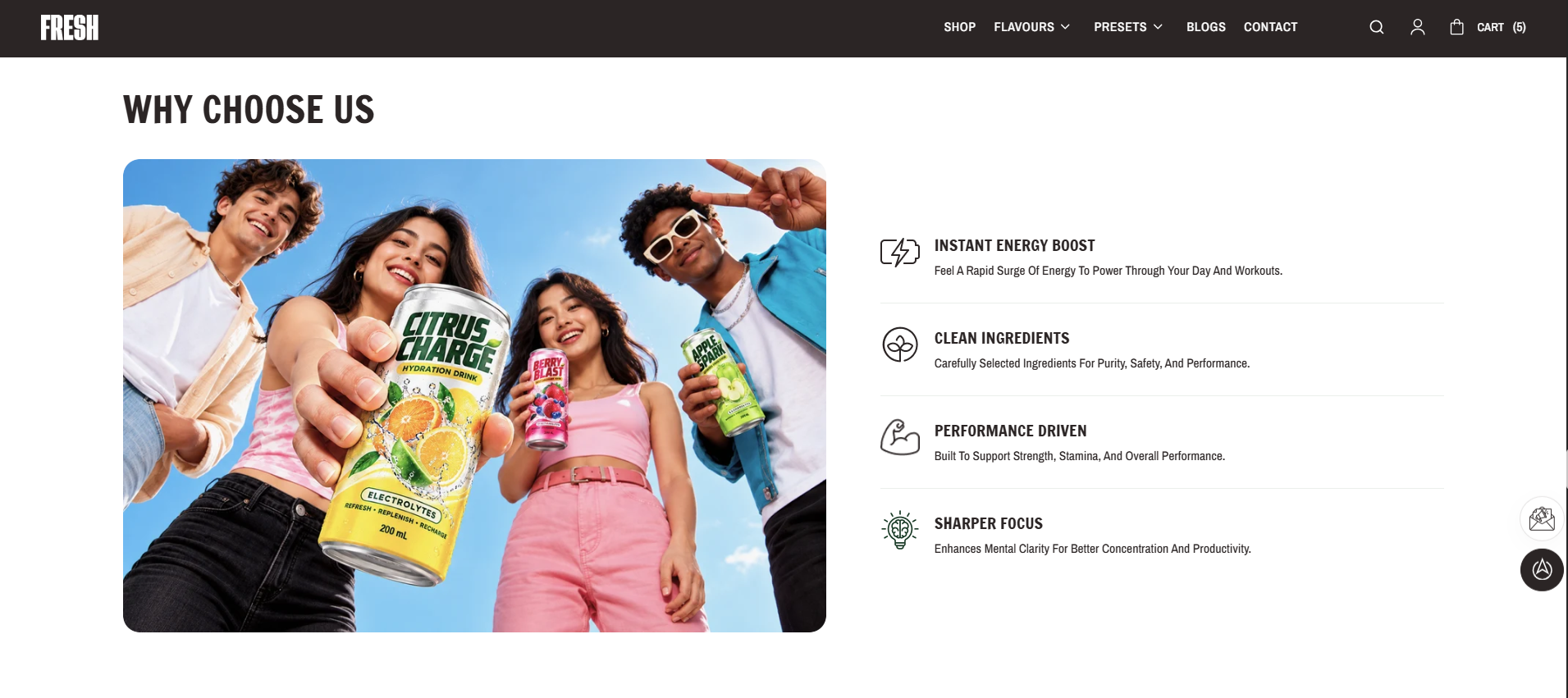
How to Add the Image With Logo List Section
- From your Shopify admin, go to Online Store → Themes.
- Click Customize on the Voltix theme.
- In the Theme Editor, use the drop-down selector to choose the page where you want to add or edit the Image With Logo List section.
- Click Add Section (or select an existing Image With Logo List Section if already added).
- Click Save to apply your changes.
How To Edit the Image With Logo List Section
The Image With Logo List section allows you to display a list of images with logos in a visually appealing manner. You can customize the heading, layout, and card appearance.
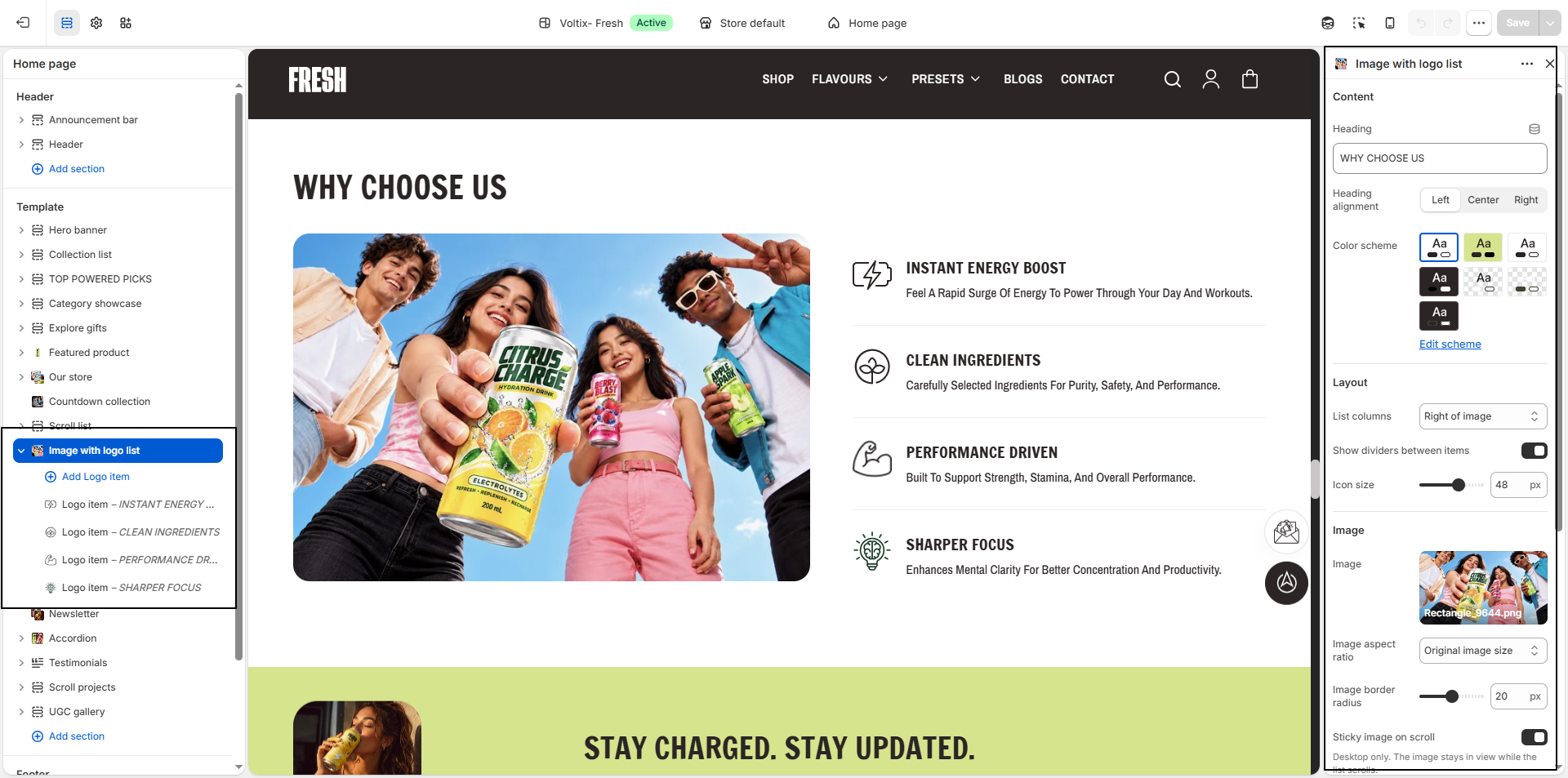
- Heading: Enter the main heading for the Image With Logo List section.
- Heading Alignment: Choose the heading alignment: Left, Center, or Right.
- Color Scheme: Select a color scheme for the section. Click Edit scheme to customize the selected color scheme.
- List Columns: Choose the layout for the list items: Right of Image, Left of Image, or Both Side Image.
- Show Dividers Between Items: Enable this option to display divider lines between the list items.
- Icon Size: Set the size of the icons displayed alongside the list items.
- Image: Upload or select an image to display alongside the list.
- Image Aspect Ratio: Choose how the image is displayed: Original Image Size, Square, Portrait, or Landscape.
- Image Border Radius: Adjust the roundness of the image corners.
- Sticky Image on Scroll: Enable this option to keep the image visible while the list scrolls. This setting applies to desktop only.
How To Edit the Image With Logo Block
The Image With Logo Block allows you to add an image, provide an accessible label, and feature products within the block.
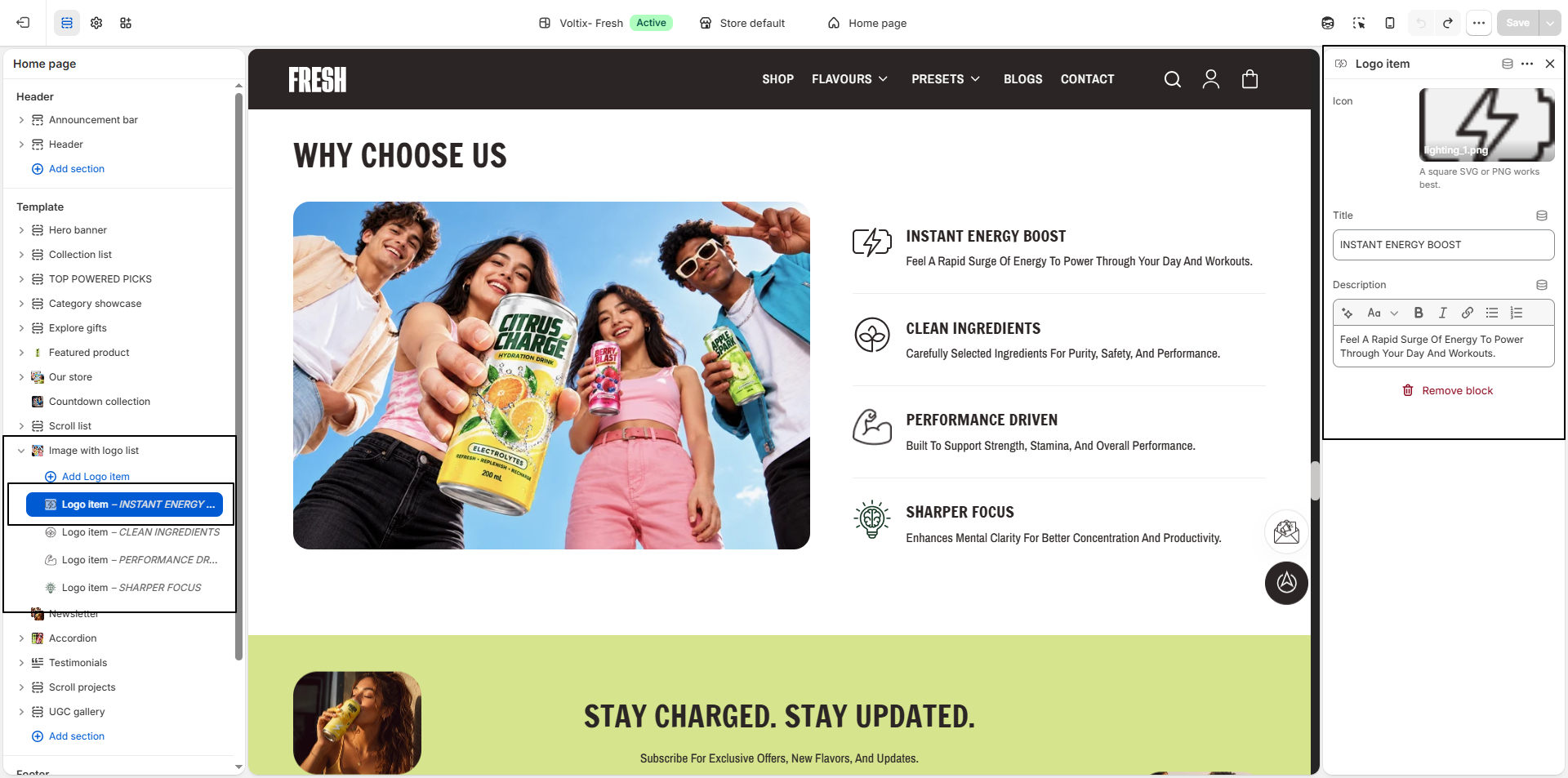
- Icon: Upload an icon to display alongside the list item. A square SVG or PNG image works best.
- Title: Enter the title for the list item.
- Description: Add a description to provide additional information about the list item.
- Remove Block: Use Remove block to delete the selected item from the section.