
Header section
The Header is a prominent section that appears at the top of every page, serving as the main navigation hub of your store. It includes your brand logo, menu links, and key action icons such as search, account, and cart, ensuring customers can easily explore and interact with your store.
In the Renovate theme, the header is thoughtfully designed with a promotional bar at the very top to highlight offers, discounts, or time-sensitive deals, followed by an announcement bar for important updates or messages. This layered approach not only captures attention instantly but also enhances user engagement while maintaining a clean and organized layout for seamless navigation.
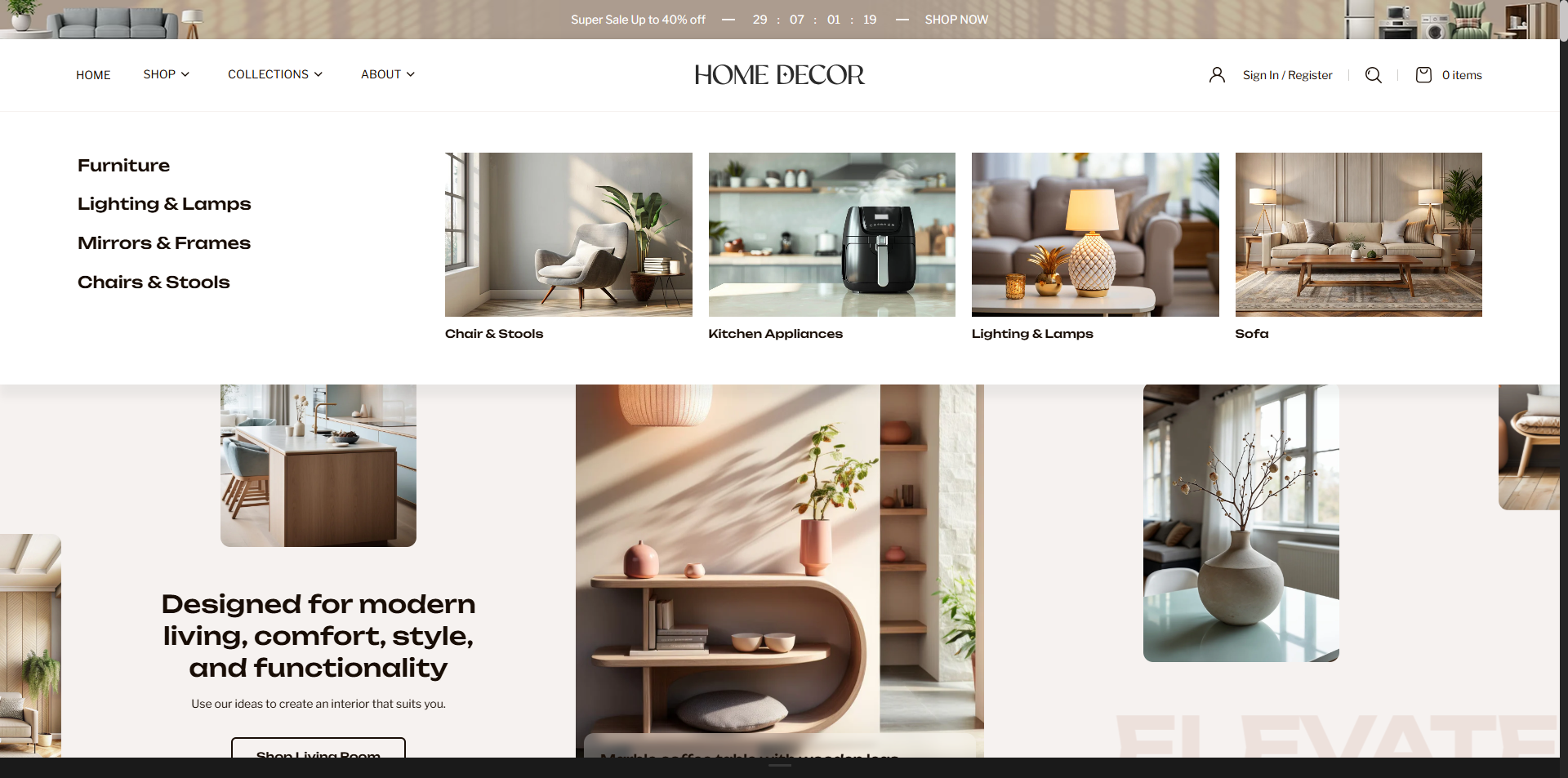
How to Configure the Header
- From your Shopify admin, go to Online Store → Themes.
- Click Customize on the Renovate theme.
- In the Theme Editor, select the Header section from the left sidebar.
- Customize the settings as per your store requirements and click Save.
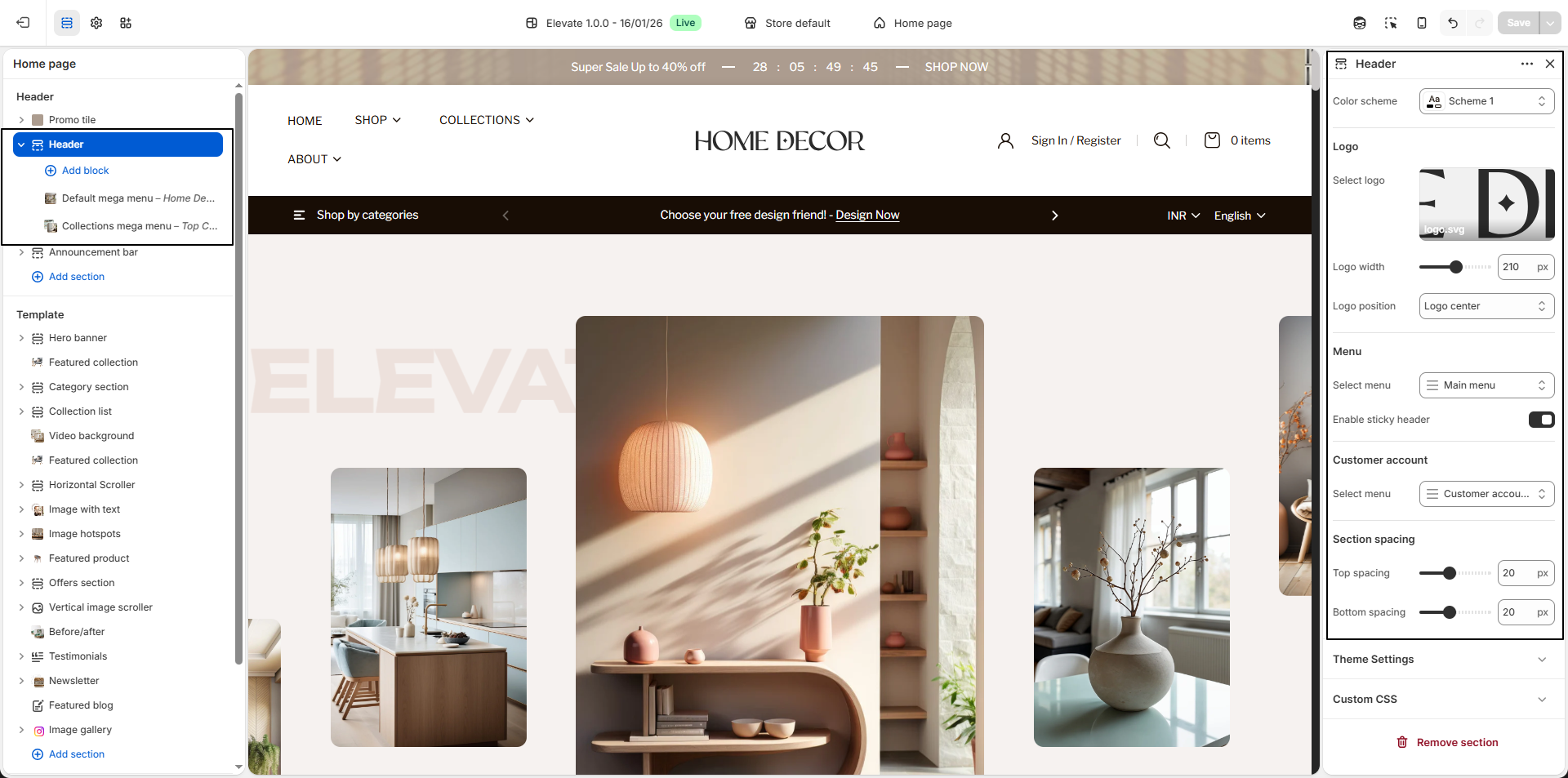
Header Settings
- Color Scheme: Choose a predefined color scheme (e.g., Scheme 1) to control the header's background, text, and icon colors.
- Logo: Upload your store logo by clicking Upload images. This logo will be displayed across all pages in the header.
- Logo Width: Adjust the logo size (e.g., 210px) to ensure it fits perfectly within the header layout without affecting alignment.
-
Logo Position:
Select how the logo is aligned within the header:
- Logo Left: Places the logo on the left side with navigation beside it.
- Logo Center: Centers the logo for a balanced and modern layout.
- Logo Center with Menu Bottom: Displays the logo centered, with the main menu shown below it.
- Menu: Select the primary navigation menu (e.g., Main Menu) that will appear in the header for easy access to store pages.
- Enable Sticky Header: Enable this option to keep the header visible at the top while scrolling, improving navigation accessibility.
- Customer Account Menu: Choose the menu assigned to customer account options (e.g., Customer Account Main Menu), allowing users to access account-related links easily.
FAQs
How can I set up my navigation and mega menu?
Setting up your navigation and mega menu is easy! Check out our comprehensive Mega Menu Guide for detailed, step-by-step instructions to create a visually stunning and functional menu layout.
Why isn't my mega menu displaying an image?
Make sure an image is properly uploaded and added inside the mega menu block.
Why isn't my mega menu showing?
Enter the name of the parent level menu item to apply the mega menu.