
Video Background
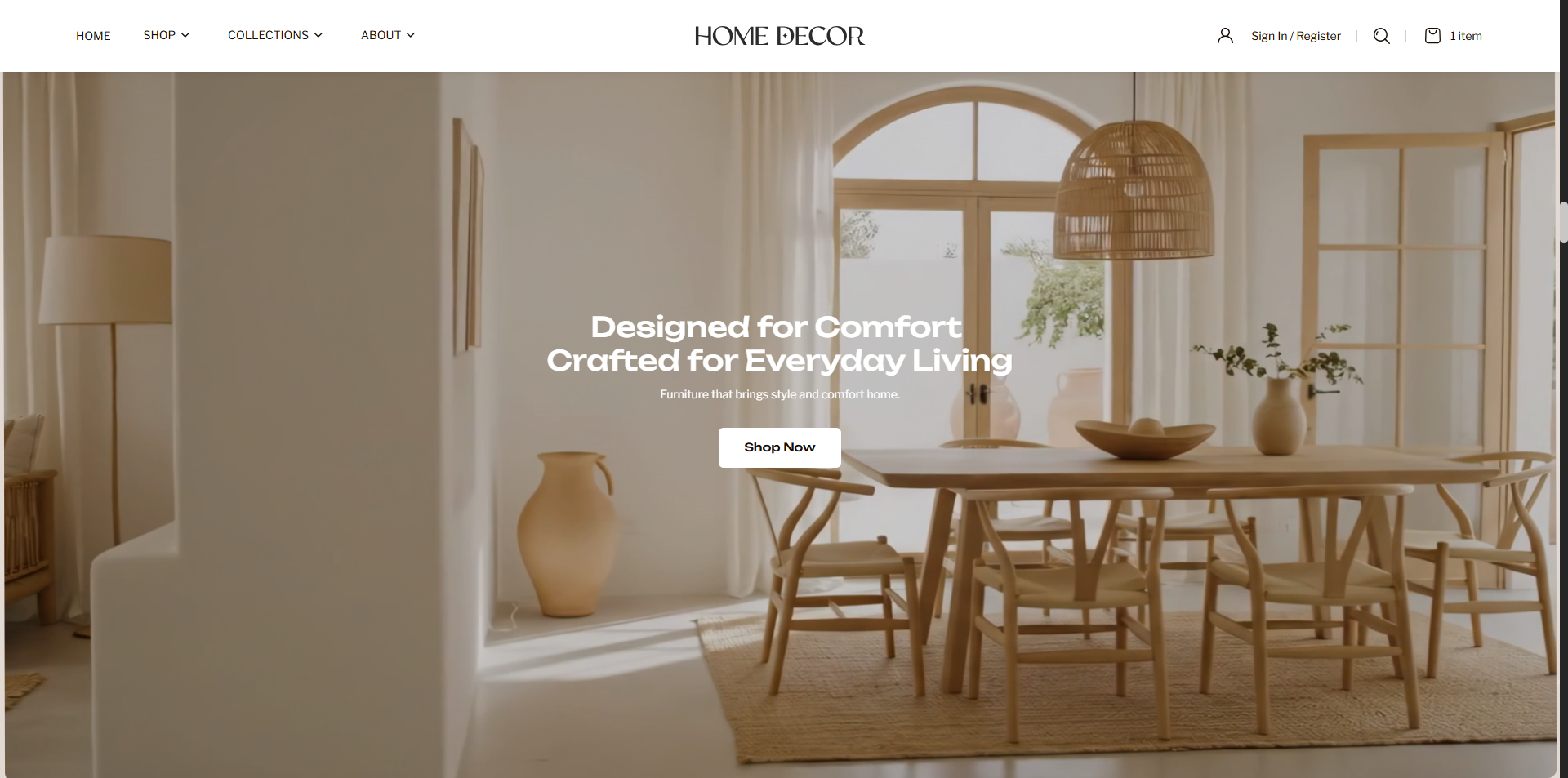
The Video Background section in the Renovate theme is designed to create an immersive visual experience using animated background media. This section supports engaging video or image-based motion effects that respond smoothly to mouse scrolling, creating a dynamic parallax-style reveal as users move through the page. It is ideal for storytelling, brand campaigns, featured collections, or premium product showcases, helping capture customer attention with modern interactive motion design while maintaining a seamless browsing experience.
How to Add the Video Background section
- From your Shopify admin, go to Online Store → Themes.
- Click Customize on the Renovate theme.
- In the Theme Editor, select the Video Background section from the left sidebar.
- Adjust the settings, blocks, and layout options according to your preferences.
- Click Save to apply your changes.
How to Edit the Video Background Section
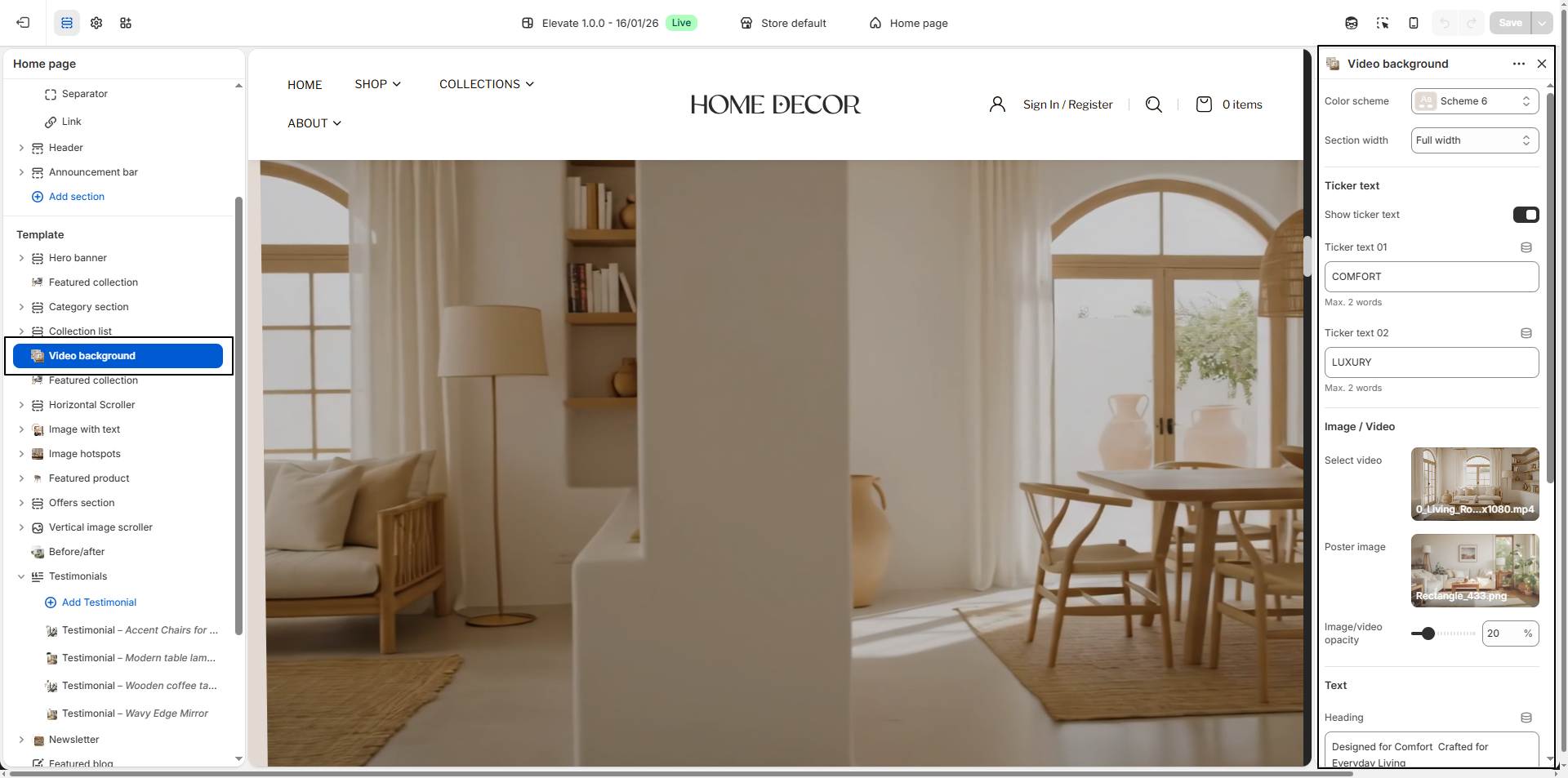
- Color Scheme: Choose a color scheme (for example, Scheme 6) to define the text and overlay styling of the Video Background section.
-
Section Width:
Select the layout width for the section.
- Full Width: Expands the video background edge-to-edge for an immersive visual experience.
- Container Width: Keeps the video background aligned within the theme's standard content width for a clean and structured layout.
-
Ticker Text:
Enable Show ticker text to display animated branding or promotional text
that moves with the section design.
- Ticker Text 01: Add the first short word or phrase
- Ticker Text 02: Add the second short word or phrase.
-
Image / Video:
Upload or select a Shopify-hosted background video for this section.
- Select Video: Choose a high-quality lifestyle or promotional video.
- Poster Image: Upload an image that displays before the video loads.
- Image/Video Opacity: Adjust the overlay opacity level (for example, 20) to improve text readability over the background media.
-
Text Content:
- Heading: Add a strong visual headline such as Designed for Comfort Crafted for Everyday Living.
- Text: Add supporting promotional text or brand messaging below the heading.
-
Button:
- Button Label: Add CTA text such as Shop Now.
- Button Link: Select the destination page, product, or collection customers should visit.
Pro Tips:
Keep your MP4 video files under 20MB to ensure optimal load times and better
performance.
Use short, high-quality videos (10–15 seconds) to maximize visual impact while
maintaining fast page load speeds.
Apply a semi-transparent overlay to the video if text overlays are not clearly
readable.
FAQs
Why isn't my video playing in the Video Background section?
Video autoplay may not function due to mobile device and browser restrictions. Mobile devices often limit autoplay to conserve battery and data usage, and many browsers block autoplay for videos containing audio.
Common reasons your video may not play:
- Your device is in Battery Saver or Low Power Mode.
- You have a weak or unstable internet connection.
- The video file contains audio.
- The video file size exceeds the recommended limits.
- The page has multiple videos or loads slowly.
- The video encoding format is not compatible.
Solution:
Always include a poster image for your video. This image will display when autoplay is not available.
Best practices for video autoplay:
- Upload your video in MP4 format through Shopify's Content > Files section.
- Keep the file size under 3MB and ensure it uses h.264 encoding for maximum compatibility.
What should I do if my video still doesn't play?
Test your video with this placeholder URL to verify your player is functioning
correctly:
https://cdn.shopify.com/s/files/1/0848/3828/files/Placeholder_video_on_Vimeo_540p.mp4
If the placeholder video plays successfully but your video does not, the issue likely stems from improper video encoding. Ensure your video is encoded using the h.264 codec in MP4 format for full compatibility.
Why does my background video play without sound?
Background videos in the Video Background section are designed to autoplay silently to provide a smooth user experience. Most browsers restrict autoplay functionality for videos with audio to prevent unintended sound disruptions.
If audio is essential for your content, consider using an alternative video player or section that gives users explicit control over playback and sound settings.