Mega Menu
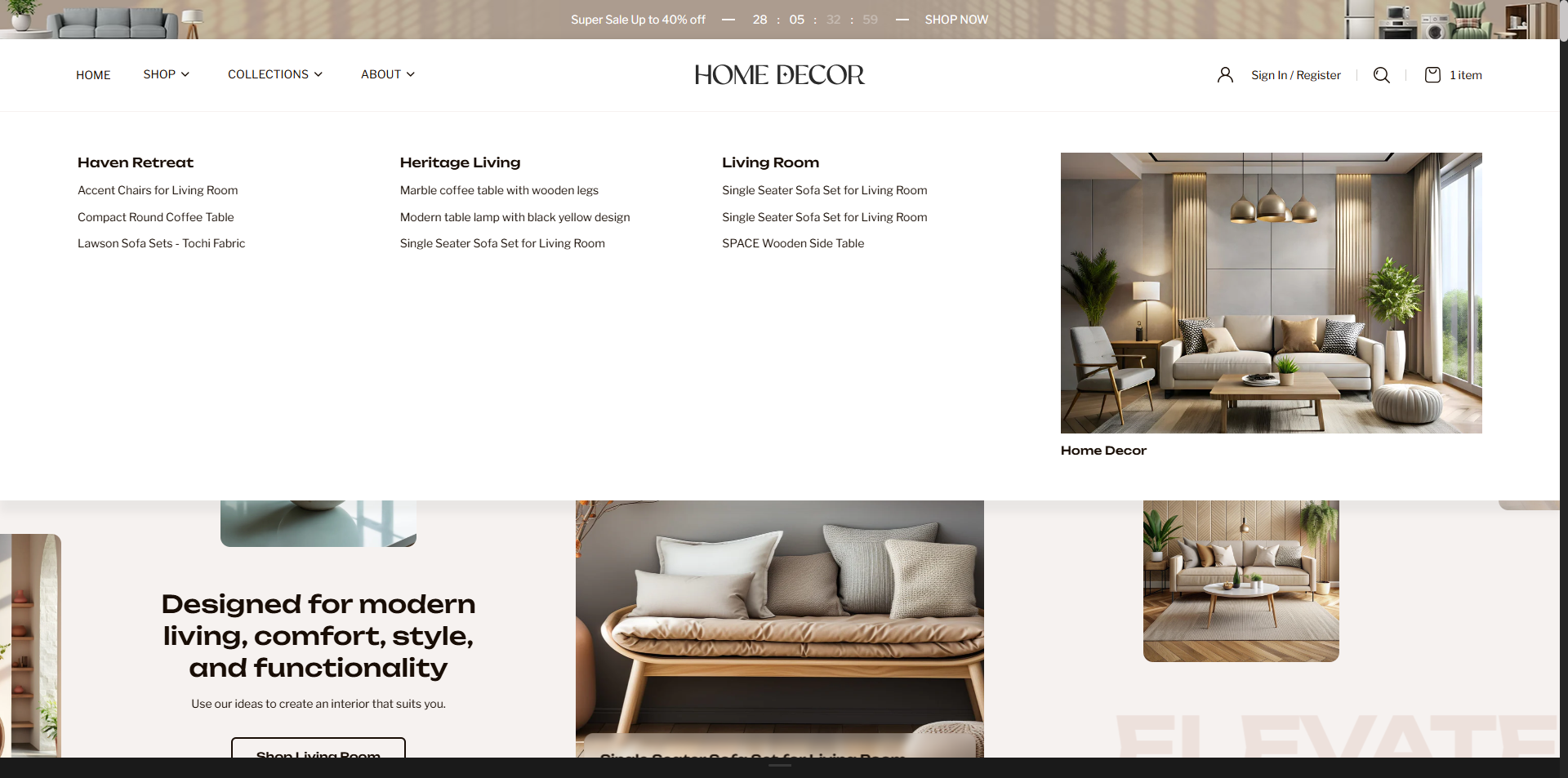
The Renovate theme features a flexible and visually rich Mega Menu designed to enhance navigation and improve product discovery across your storefront. It includes two dedicated block types: a Simple Menu with Image, ideal for combining navigation links with promotional visuals, and a Collection Block, built to showcase featured collections in a clean, well-structured layout. These block options allow you to organize large menus more effectively, highlight key products or categories, and create a more engaging browsing experience for customers. With its intuitive structure and visually appealing presentation, the mega menu helps visitors find what they need faster while maintaining a polished and professional storefront design.
How to Configure the Mega Menu
- From your Shopify admin, go to Online Store → Themes.
- Click Customize on the Renovate theme.
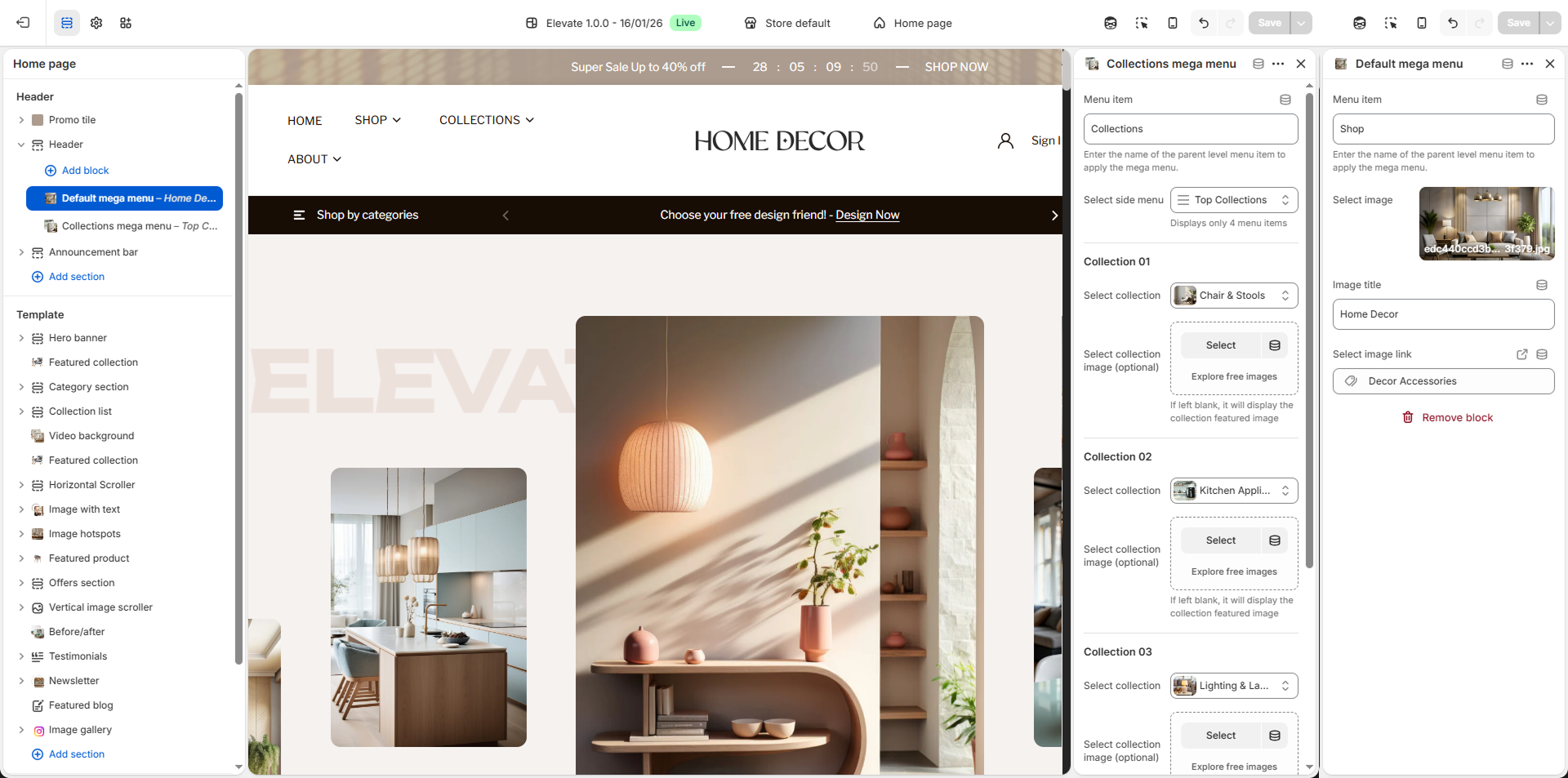
- In the Theme Editor, open the Header section.
- Click Add Block and choose a Mega Menu block type.
- The theme provides 2 types of Mega Menu blocks:
- Default Mega Menu: Best for multi-level navigation links with promotional images.
- Collections Mega Menu: Ideal for showcasing product collections with images and quick links.
- Select the block type that best matches your store's navigation style.
- Click Save after completing the setup.
How to Configure Mega Menu Settings
- Parent Menu Item: Enter the exact name of the top-level menu item (for example, Catalog) where the mega menu should appear. The title must exactly match the parent item used in your main navigation menu.
-
Block Type Selection:
Choose between:
- Default Mega Menu: Displays structured menu columns, nested links, and optional promotional banners.
- Collections Mega Menu: Displays featured collections with collection images, titles, and direct collection links.
- Promotional Image: Upload a custom banner or featured image to highlight a product, collection, sale, or campaign.
- Image Title: Add a heading for the promotional image to make it more engaging and informative.
- Image Link: Add a product, collection, or page URL so customers can click the image and navigate directly.
-
Nested Navigation Structure:
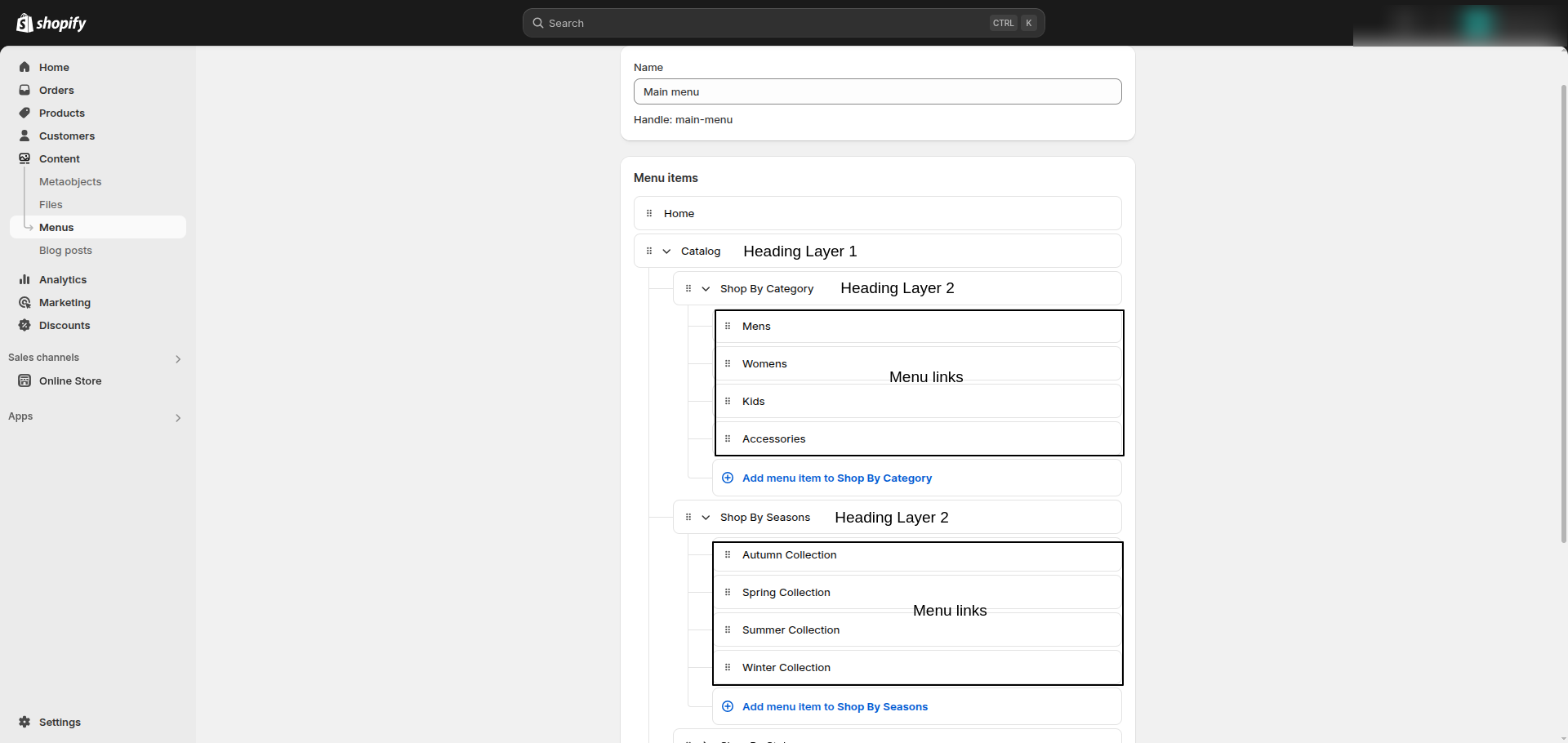
Go to Online Store → Navigation and create a properly layered menu structure.
For the best layout, use at least:
- Layer 1: Main heading
- Layer 2: Sub-heading
- Layer 3: Menu links inside the sub-heading
- Collections Mega Menu Recommendation: Use collection images, clear titles, and featured category links to create a visually rich shopping experience.
Important: Please follow the recommended navigation structure carefully. Adding unnecessary extra menu layers may affect the layout and prevent the mega menu from matching the demo design properly.