
Image Hotspots
The Image Hotspots section lets you create an interactive and visually engaging shopping experience by placing clickable product hotspots directly on an image. Each hotspot can be linked to a specific product, allowing customers to explore items seamlessly from the visual layout. This section is perfect for showcasing styled spaces, curated collections, featured products, or complete room setups in a more engaging way.
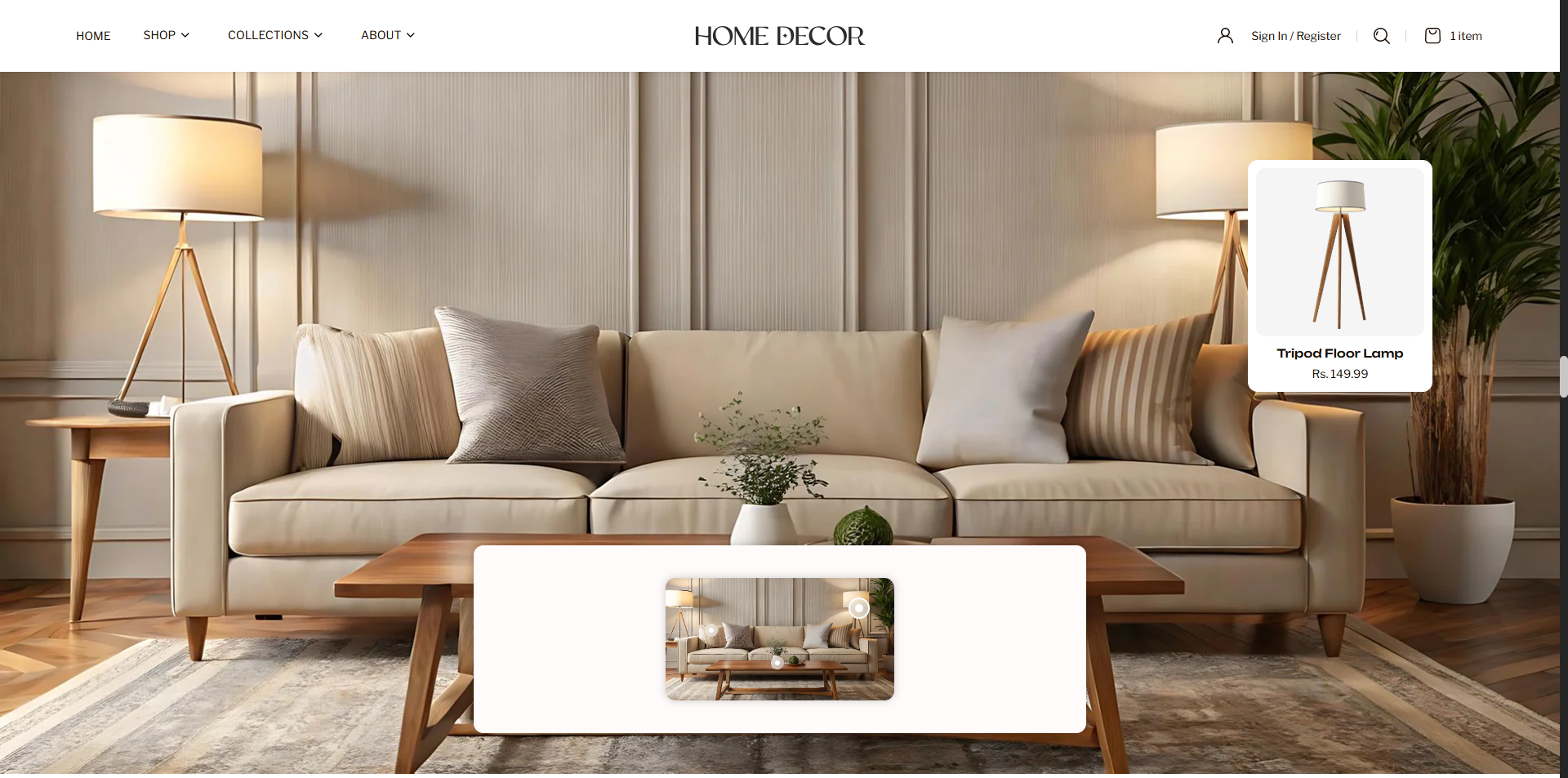
How to Add the Image Hotspots Section
- From your Shopify admin, go to Online Store → Themes.
- Click Customize on the Renovate theme.
- In the Theme Editor, select the Image Hotspots section from the left sidebar.
- Adjust the settings, blocks, and layout options according to your preferences.
- Click Save to apply your changes.
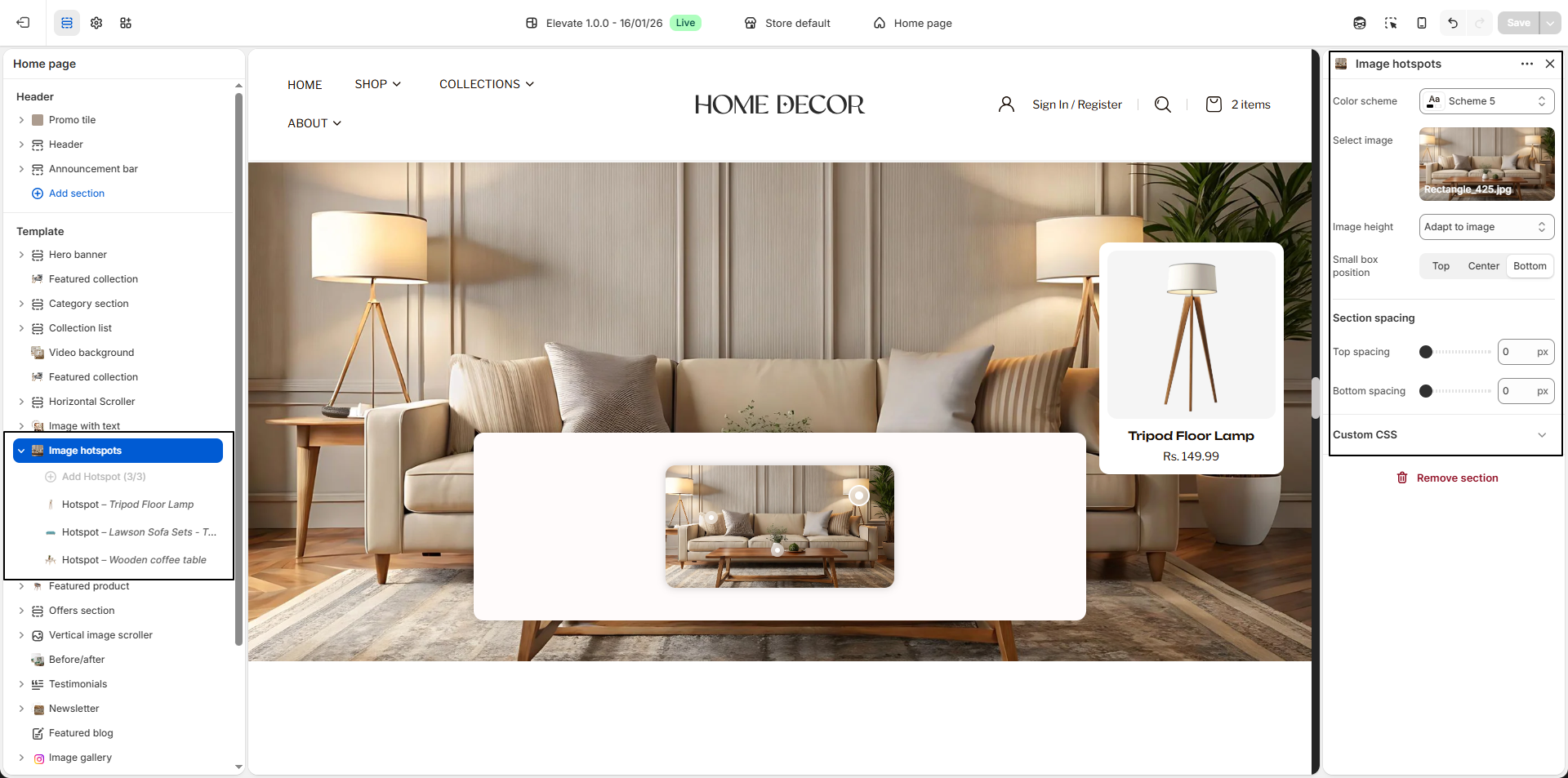
How To Edit the Image Hotspot section
- Color Scheme: Select a color scheme control the background, text, and overall visual style of the section.
- Select Image: Click Upload images to add the main image from your computer. This image will be used as the interactive background where hotspots can be placed.
-
Image Height:
Choose how tall the image should appear in the section.
- Adapt to image: Displays the image in its original proportion.
- Half of the screen: Makes the image occupy approximately half of the screen height.
- One third of the screen: Displays a shorter image height for a more compact layout.
- Full screen: Expands the image to cover the full screen height for a more immersive appearance.
-
Small Box Position:
Choose where the product preview box should appear relative to the image.
- Top: Displays the product info box toward the top area.
- Center: Places the product info box in the middle area.
- Bottom: Shows the product info box toward the bottom area.
-
Hotspot:
Add interactive clickable points on the image to highlight products.
- Horizontal Position: Adjust the hotspot placement from left to right across the image.
- Vertical Position: Adjust the hotspot placement from top to bottom on the image.
- Select Product: Choose the product you want to link with that hotspot. When clicked, customers can view the selected product directly.