
Horizontal Scroller
The Horizontal Scroller section is a dynamic promotional content strip designed to showcase important store messages, featured collections, categories, special offers, or brand highlights in a smooth, continuously scrolling layout. This section helps capture customer attention instantly while improving the visibility of key content across the storefront. With its clean and elegant presentation, it not only enhances user engagement but also adds a modern, interactive, and professionally styled visual element to the page. It is especially useful for drawing focus to announcements or promotional content without interrupting the overall browsing experience.
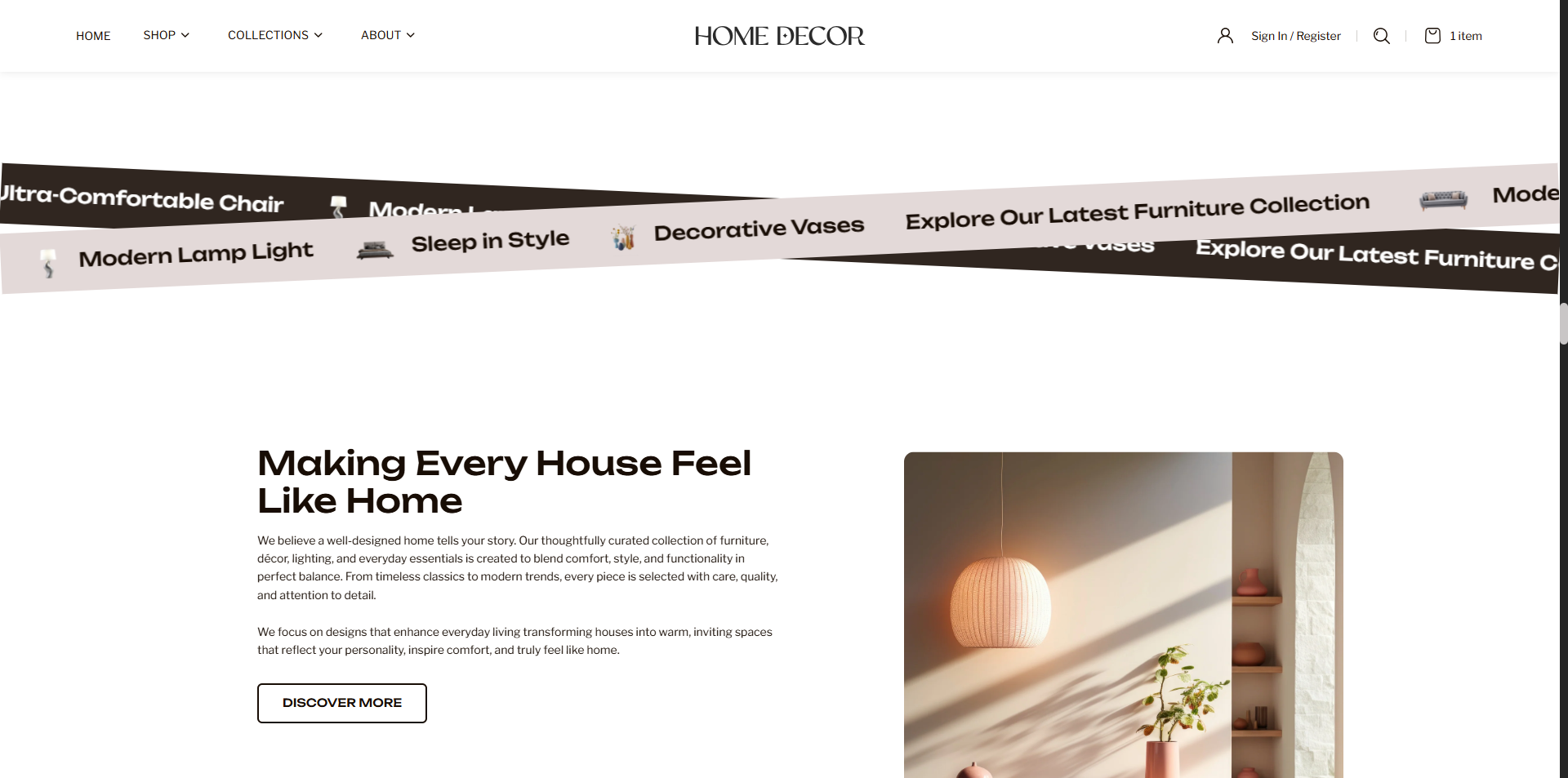
How to Configure the Horizontal Scroller
- From your Shopify admin, go to Online Store → Themes.
- Click Customize on the Renovate theme.
- In the Theme Editor, select the Horizontal Scroller section from the left sidebar.
- Adjust the settings, blocks, and layout options according to your preferences.
- Click Save to apply your changes.
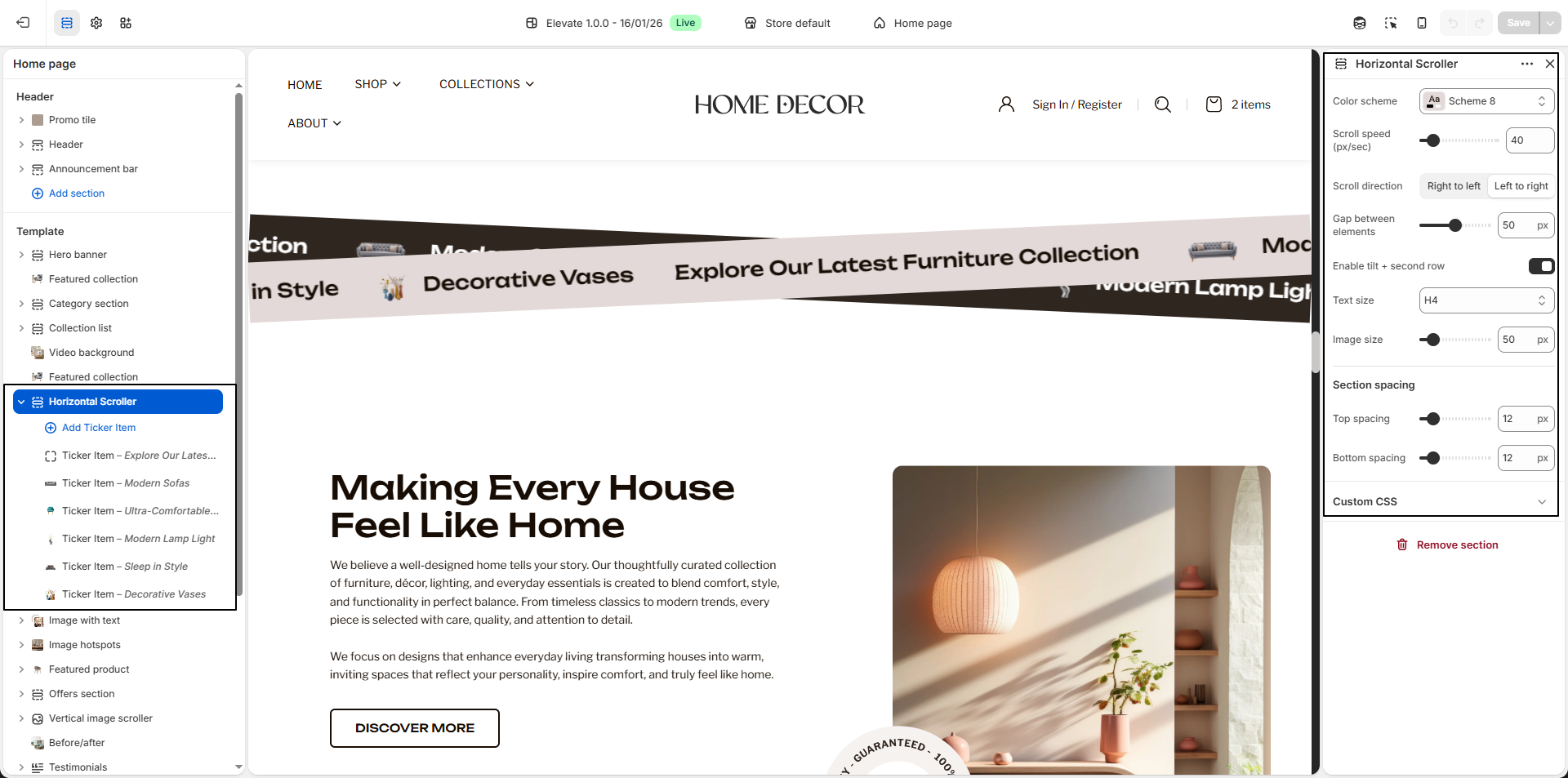
How to Configure the Horizontal Scroller Settings
- Color Scheme: Select a color scheme (for example, Scheme 8) to control the background, text, and overall visual appearance of the horizontal scroller section.
- Scroll Speed (px/sec): Adjust the scrolling speed to control how fast the ticker items move across the screen. Higher values create a faster scrolling effect, while lower values provide a slower and smoother motion.
- Scroll Direction: Choose the scrolling direction for the ticker content. You can set the movement from Right to Left or Left to Right based on your preferred layout style.
- Gap Between Elements: Control the spacing between each ticker item to maintain a clean, balanced, and visually appealing scrolling layout.
- Enable Tilt + Second Row: Enable this option to apply a tilted visual style along with an additional scrolling row, creating a more dynamic and eye-catching design presentation.
- Text Size: Choose the text heading size to define how prominent the ticker text appears within the scrolling section.
- Image Size: Adjust the icon or image size used inside each ticker item to ensure proper visual balance between the text and image elements.
- Section Spacing: Adjust the top and bottom spacing to control the vertical padding of the horizontal scroller section and align it smoothly with surrounding sections.
- Ticker Item Block: Use ticker item blocks to add individual scrolling content entries such as featured categories, collection highlights, promotional messages, or branded statements.
- Icon / Image: Upload an icon or image for each ticker item to make the scrolling content more visually engaging and easier to identify.
- Text: Enter the text content you want to display for each ticker item, such as collection names, promotional headlines, product categories, or short brand messages.