
Vertical image scroller
The Vertical Image Scroller section creates a dynamic and immersive visual experience by displaying images in a smooth vertical scrolling layout. As users scroll, images move seamlessly while the main heading and supporting text remain in focus, allowing you to highlight key messages alongside engaging visuals. This section is perfect for showcasing lifestyle imagery, featured collections, or brand storytelling in a modern and interactive format that captures user attention and enhances the overall browsing experience.
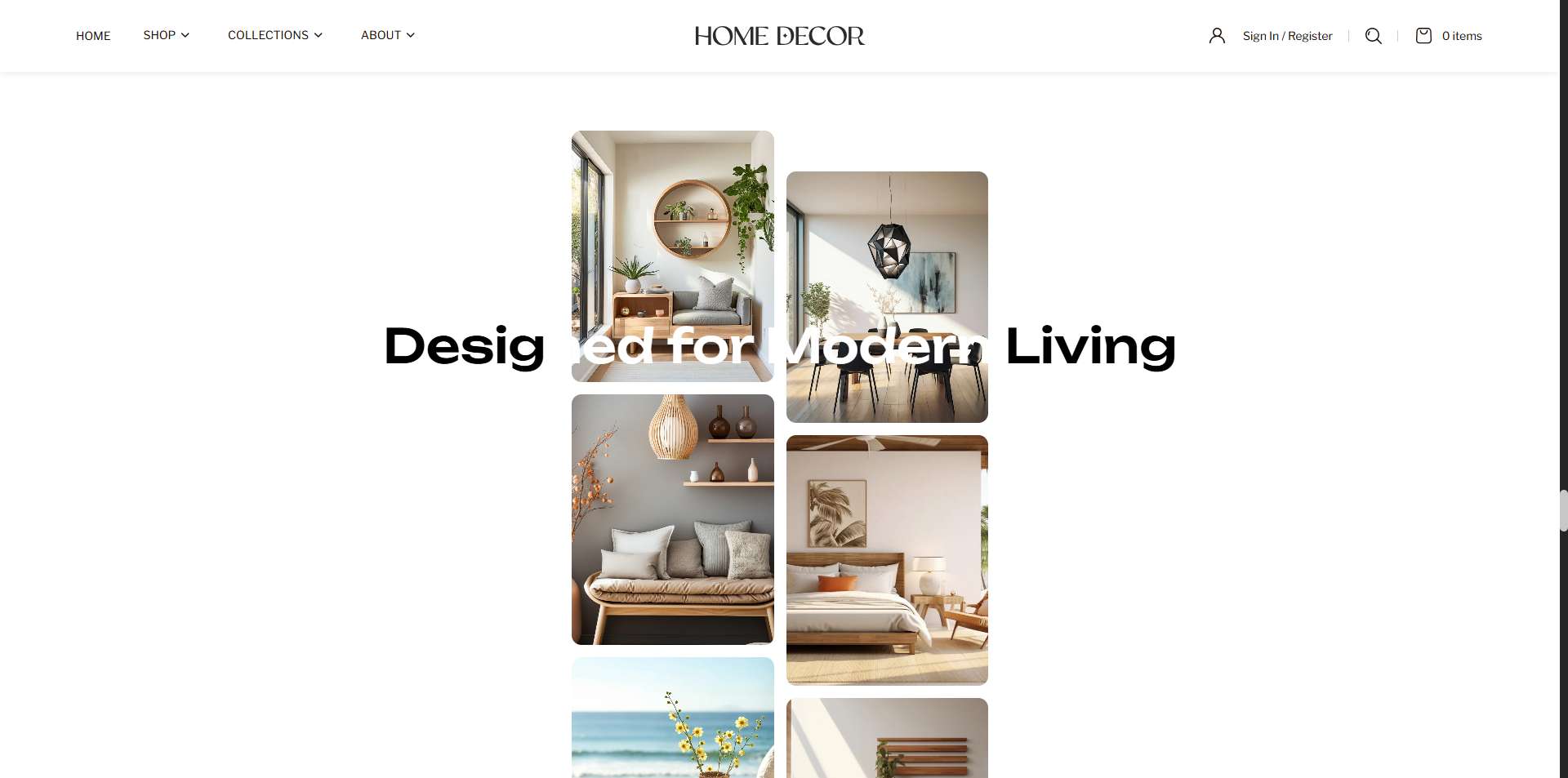
How to Add the Vertical image scroller Section
The Vertical image scroller section allows you to showcase specific collections or highlights on your homepage or other pages, helping customers explore categories quickly and easily. Follow the steps below to edit and customize it:
- From your Shopify admin, go to Online Store → Themes.
- Click Customize on the Renovate theme.
- In the Theme Editor, select the Vertical image scroller section from the left sidebar.
- Adjust the settings, blocks, and layout options according to your preferences.
- Click Save to apply your changes.
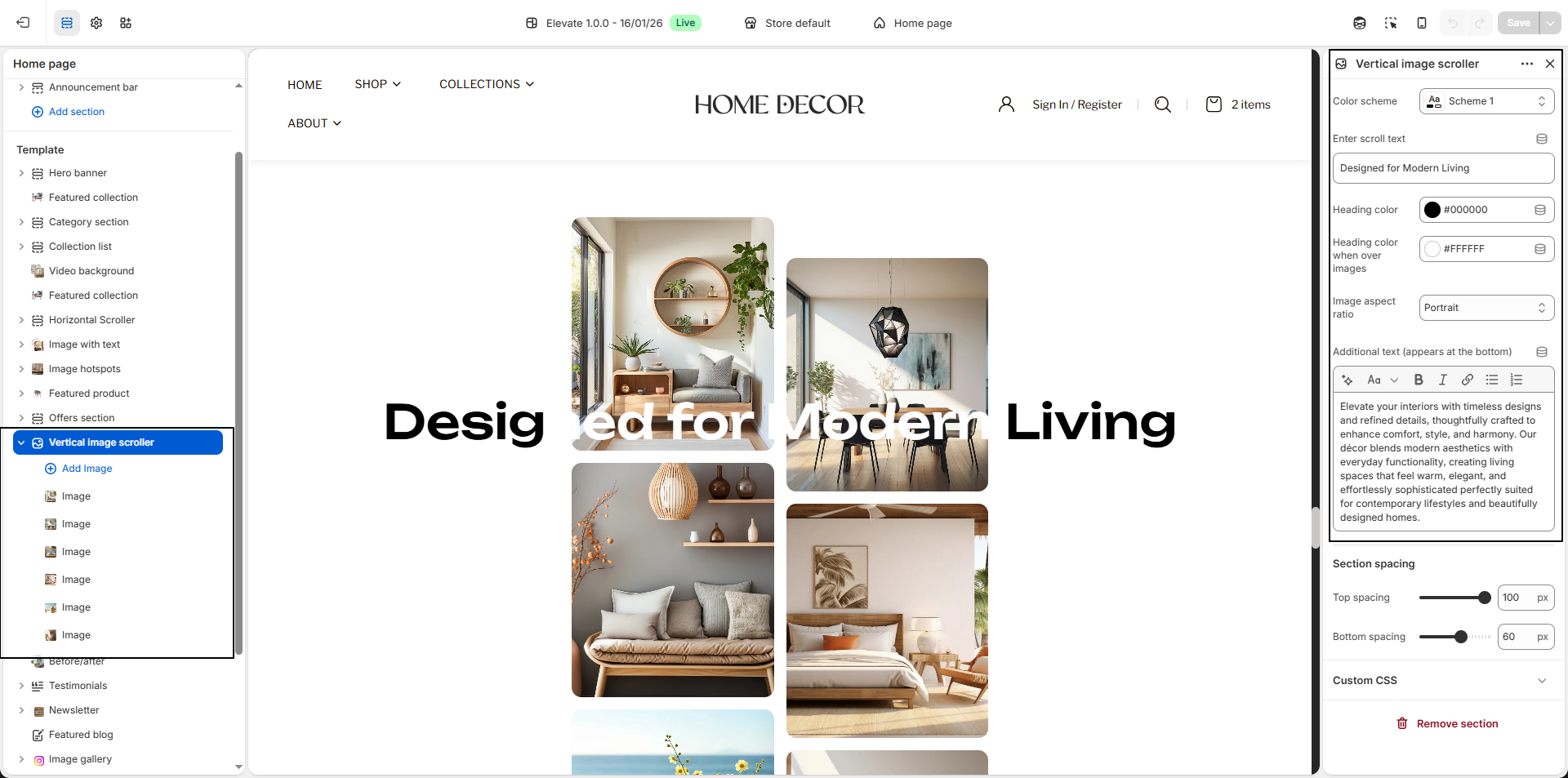
How To Edit the Vertical Image Scroller Section
- Color Scheme: Select a color scheme to control the background, text, and overall visual style of the section.
- Enter Scroll Text: Add the main scrolling heading text you want to display across the image layout, such as Designed for Modern Living.
- Heading Color: Choose the default text color for the scrolling heading when it appears on a plain or light background.
- Heading Color When Over Images: Select the text color that should appear when the scrolling heading overlaps the images, ensuring good visibility and contrast.
-
Image Aspect Ratio:
Choose the shape and proportion of the images displayed in the scroller.
- Portrait: Displays taller vertical-style images.
- Adapt to image: Uses the original image proportions.
- Square: Displays images in an equal-width and height square format.
- Additional Text (Appears at the Bottom): Add supporting content or a descriptive paragraph to appear below the scrolling image layout. This is useful for highlighting your brand message, product story, or collection details.
-
Image Blocks:
Use image blocks to add the visuals that will appear in the vertical scrolling
layout.
- Select Image: Upload the image you want to display in the scroller.
- Multiple Images: You can add multiple image blocks to create a richer and more visually engaging scrolling effect.