
Newsletter Section
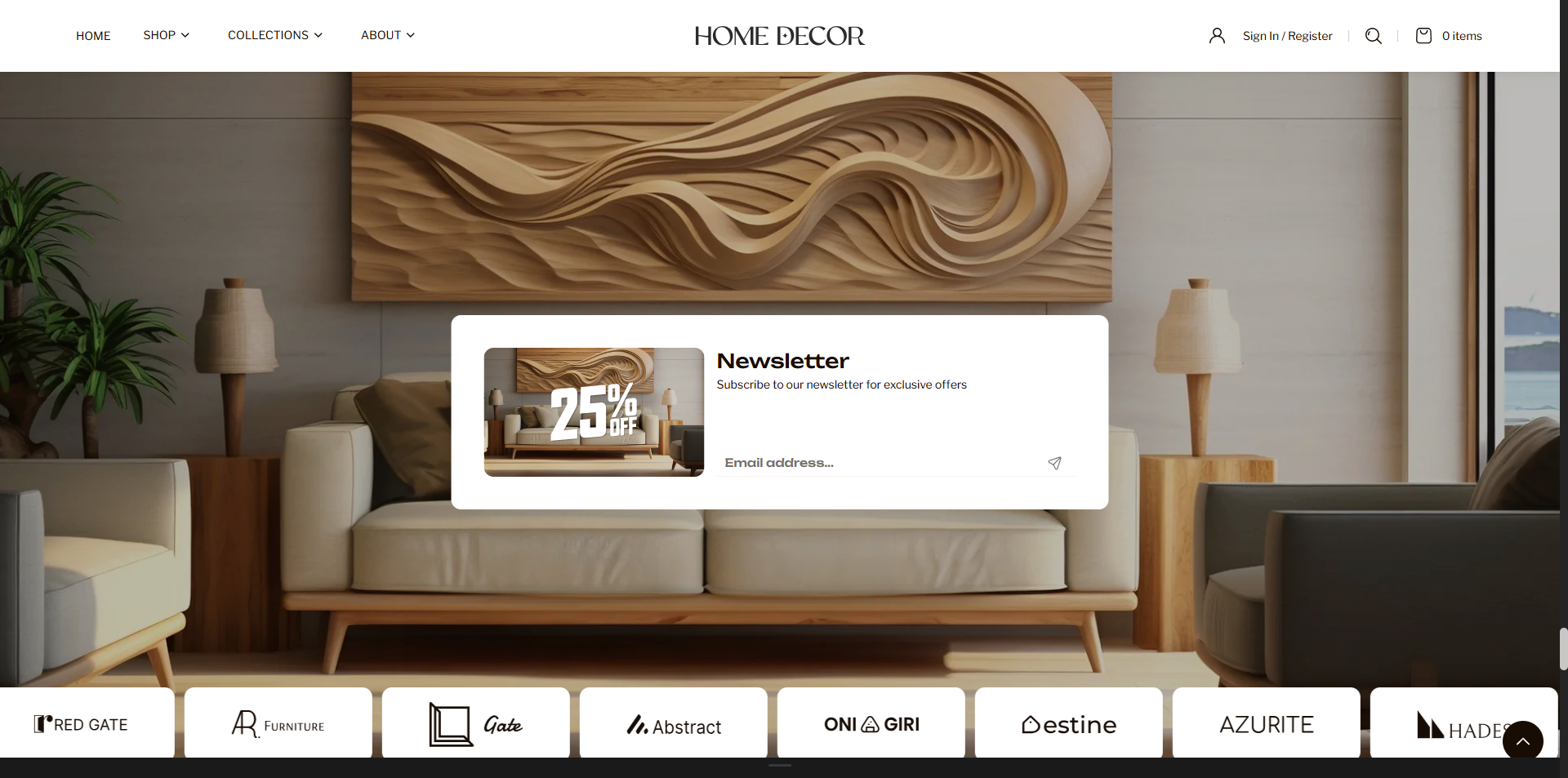
The Newsletter Section is designed to capture customer email subscriptions through an engaging and visually appealing layout. By combining promotional messaging with a clean signup form, this section encourages users to subscribe for exclusive offers, updates, and brand news. You can enhance the section with background images, overlay styling, and a horizontal logo scroller to showcase brand associations or partners, creating a more dynamic and trustworthy experience that helps boost conversions and customer engagement.
How to Add the Newsletter Section
- From your Shopify admin, go to Online Store → Themes.
- Click Customize on the Renovate theme.
- In the Theme Editor, select the Newsletter section from the left sidebar.
- Adjust the settings, blocks, and layout options according to your preferences.
- Click Save to apply your changes.
How To Edit the Newsletter Section
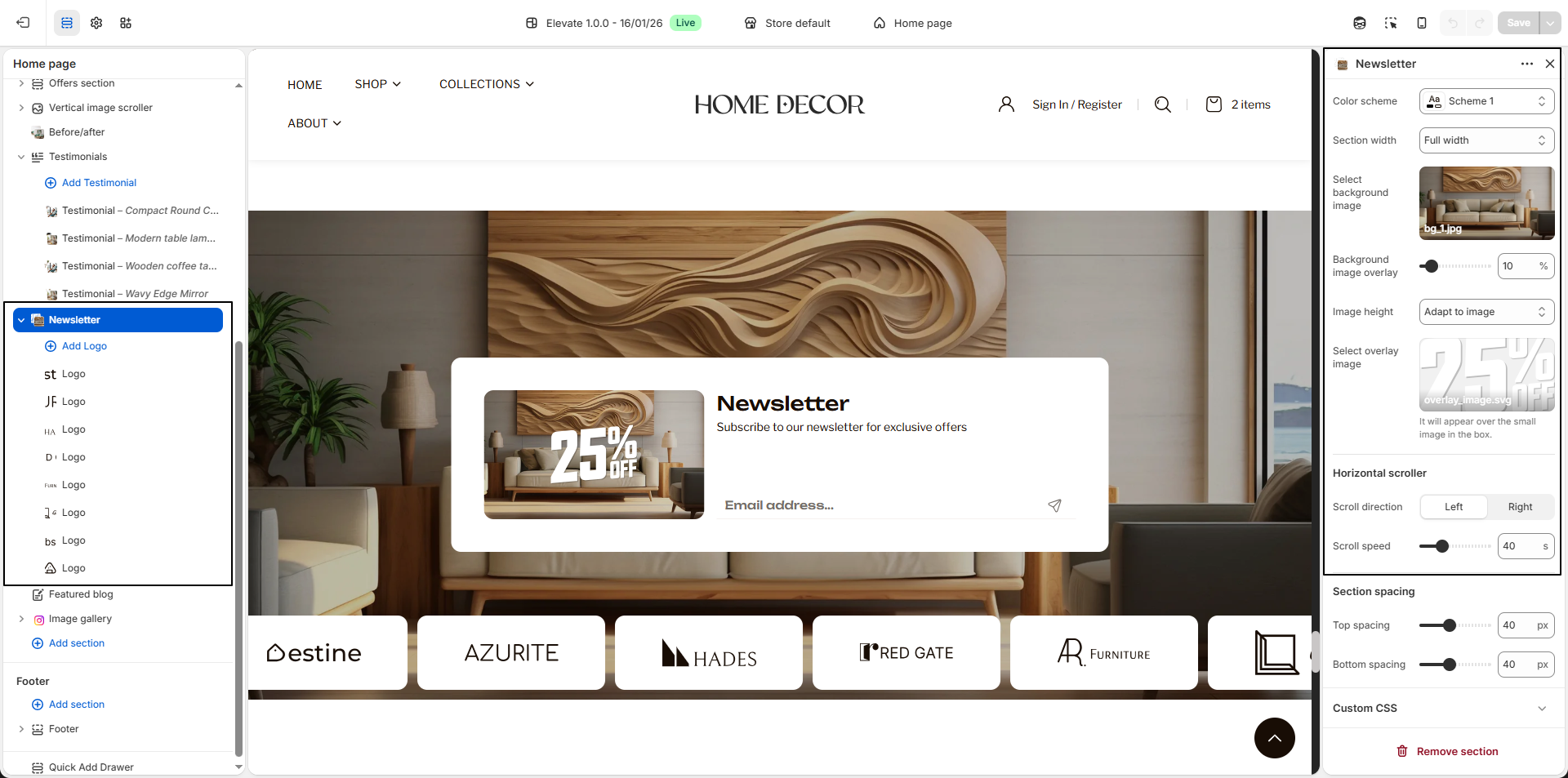
- Color Scheme: Select a color scheme to control the background, text, and overall visual style of the section.
-
Section Width:
Choose how the section should be displayed on the page.
- Container Width: Keeps the content aligned within the theme's standard layout.
- Full Width: Expands the section across the entire screen for a more immersive appearance.
- Select Background Image: Upload the main background image that will appear behind the newsletter content.
- Background Image Overlay: Adjust the overlay intensity to control the darkness or lightness of the background image for better text readability.
-
Image Height:
Choose how the background image should be displayed.
- Adapt to image: Displays the image based on its original proportions.
- Select Overlay Image: Upload an additional overlay graphic that appears on the small image inside the newsletter box for enhanced visual styling.
-
Horizontal Scroller:
Configure the logo scrolling behavior displayed below the newsletter form.
- Scroll Direction: Choose whether logos scroll from Left or Right.
- Scroll Speed: Adjust how fast the logos move across the screen.
-
Logo Blocks:
Add logo blocks to display brand logos or partner images in the scrolling area.
- Select Image: Upload the logo image you want to display.
- Multiple Logos: You can add multiple logo blocks to create a continuous scrolling effect and showcase multiple brands.