
Icons with text
The Icons with Text section allows you to highlight key features, services, or benefits using simple icons paired with short descriptive text. It helps communicate important information quickly and visually, making your content more engaging and easy for customers to understand.
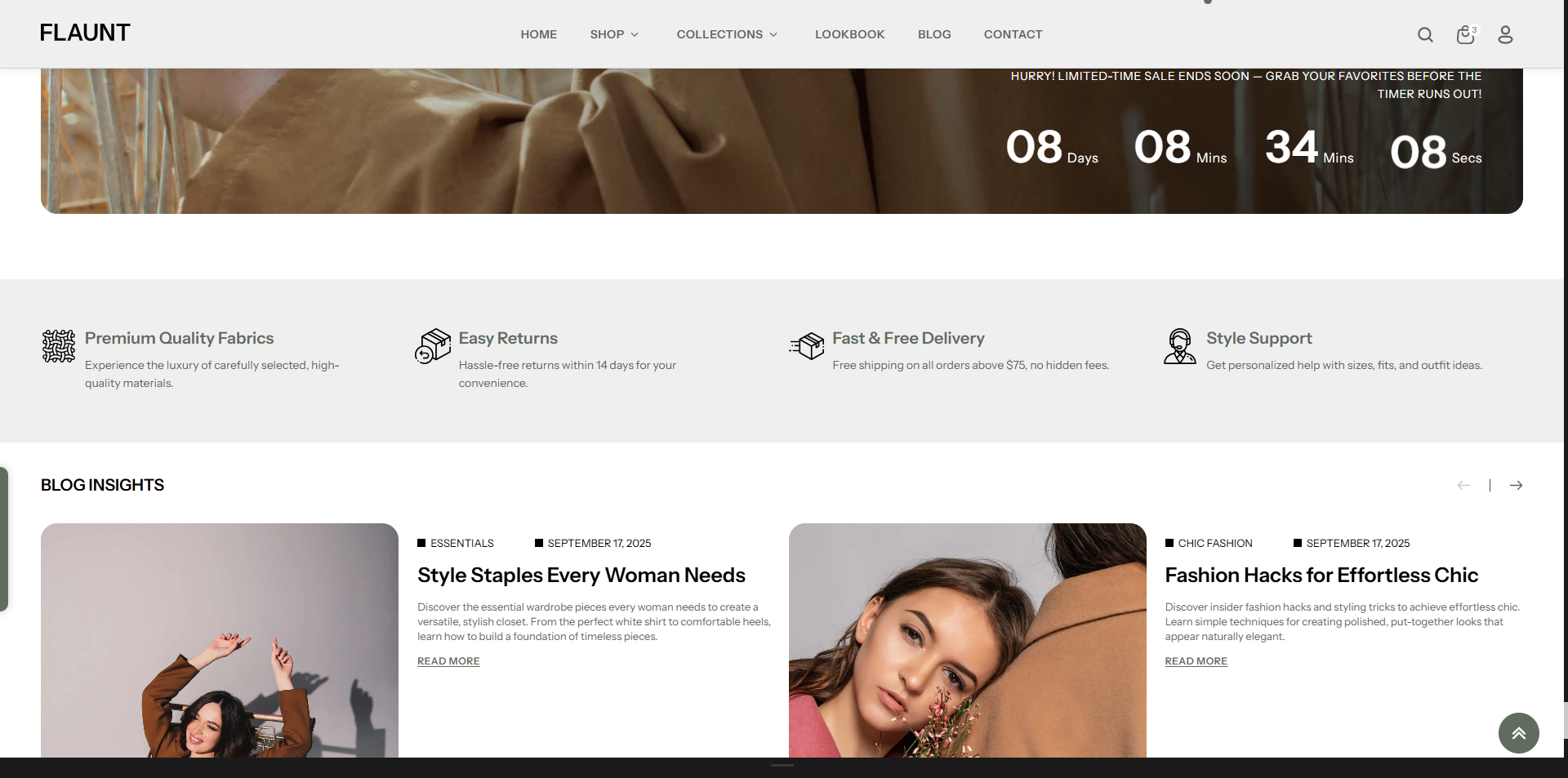
How to Add the Icons with text Section
The Icons with Text section allows you to highlight theme features, helping customers explore categories quickly and easily. Follow the steps below to edit and customize it:
- From your Shopify admin, go to Online Store → Themes.
- Click Customize on the Flaunt theme.
- In the Theme Editor, use the drop-down selector to choose the page where you want to add or edit the Icons with text section.
- Click Add Section (or select an existing Icons with text section if already added).
- Click Save to apply your changes.
How To Edit the Icons with text section
Here are the steps to configure the options mentioned for the Icons with text section in your Flaunt Shopify theme:
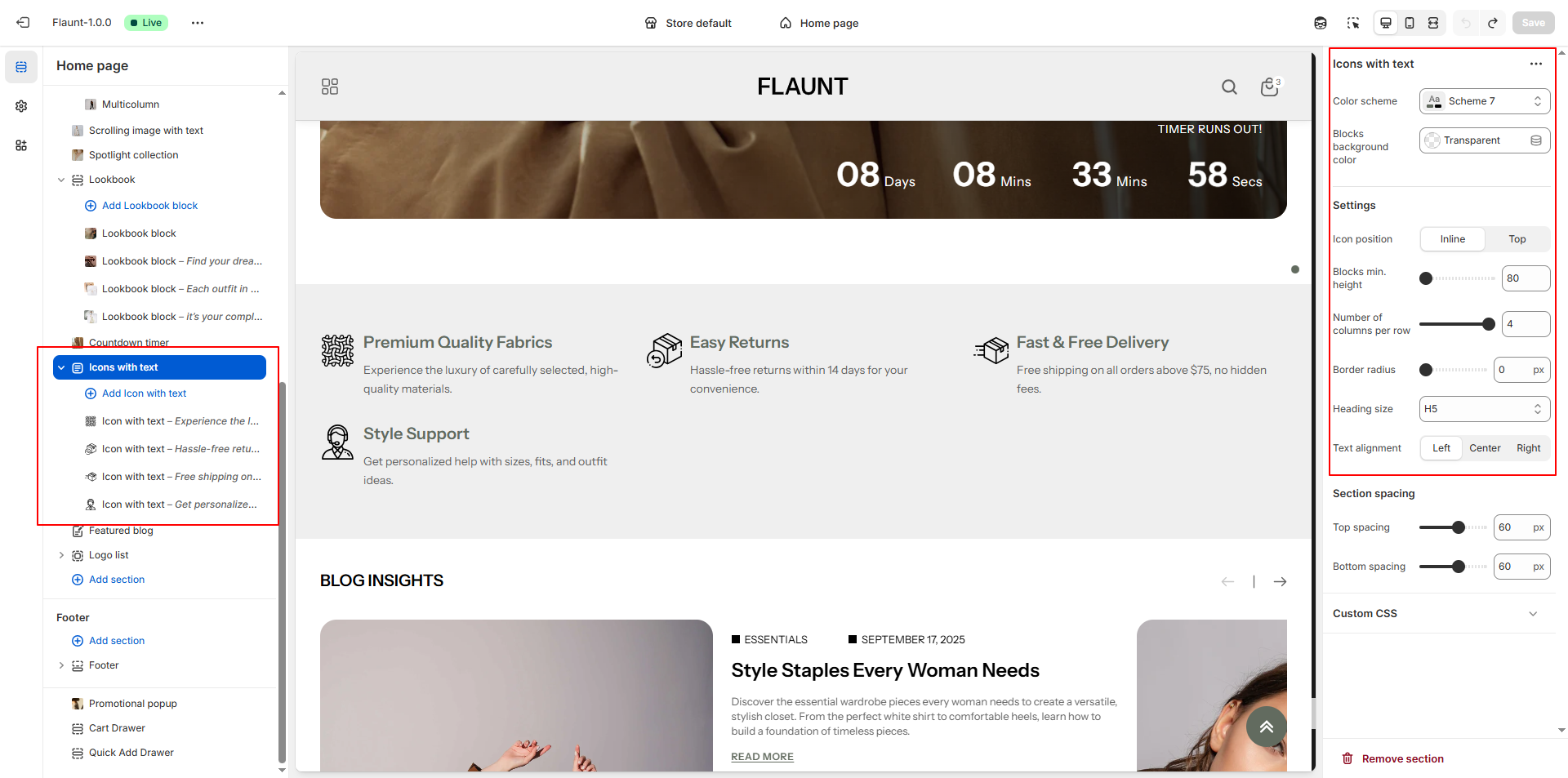
- Color Scheme: Choose a color scheme to define the banner’s background, text color, and overall visual tone.
- Blocks Background Color: Choose whether each icon block has a solid background or remains transparent for a cleaner look.
-
Icon Position: Select how the icon should be placed in each
block.
- Inline: Icon appears beside the text for a compact layout.
- Top: Icon appears above the text for a more visual, stacked design.
- Blocks Minimum Height: Set the minimum height for each block to maintain consistent sizing across all icons.
- Number of Columns per Row: Choose how many icon blocks should appear in a single row (e.g., 4 columns for a wide layout).
- Border Radius: Adjust how rounded the corners of each icon block should be (0 for sharp corners).
- Heading Size: Select the size for block titles (e.g., H5) depending on how prominent you want the text to appear.
-
Text Alignment: Control how the text inside each block is
aligned.
- Left: Aligns content to the left side.
- Center: Centers the content.
- Right: Aligns content to the right.
Configure the Icons with text Block Settings
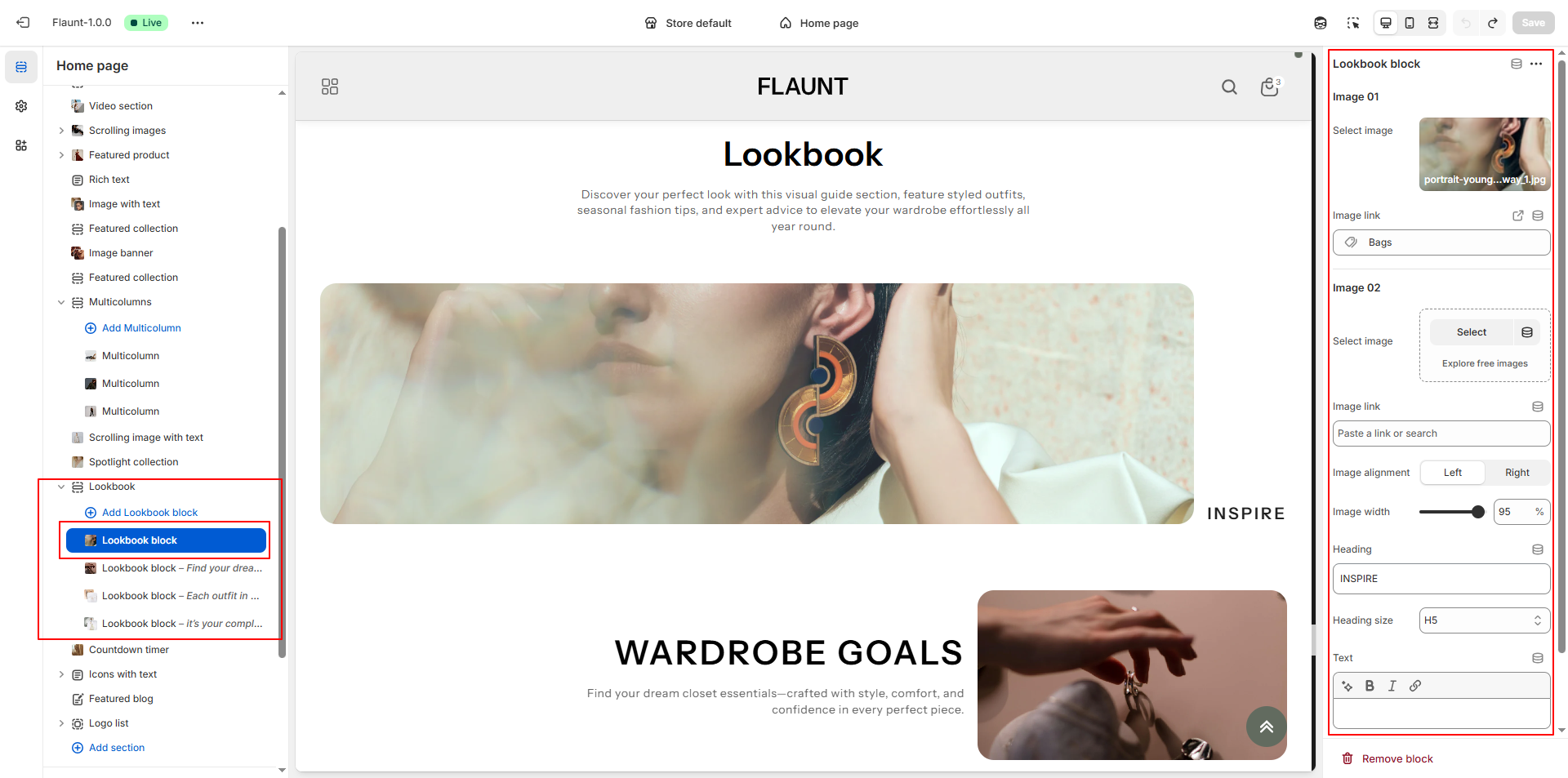
- Adding a New Block: Click the Add Icons with text Block button to create a new block within the Icons with text List section.
-
Select icon
- Click Upload images to add the first Icons with text image from your computer.
- Or choose Explore free images to browse Shopify’s free image library.
- Heading: Add a title for the block to introduce the visual story.
- Content: Add descriptive or storytelling content to accompany the Icon with text images.
- Removing a Block: Select an existing Icon with text block and click the Remove Block button to delete it.