
Scrolling image with text
The Scrolling Image with Text section adds an engaging, animated visual experience to your store. As users scroll, images move smoothly in a stick-scroll effect, while accompanying text highlights products, collections, or brand messages. This section is perfect for showcasing visuals in a dynamic, modern way that captures attention and enhances storytelling.
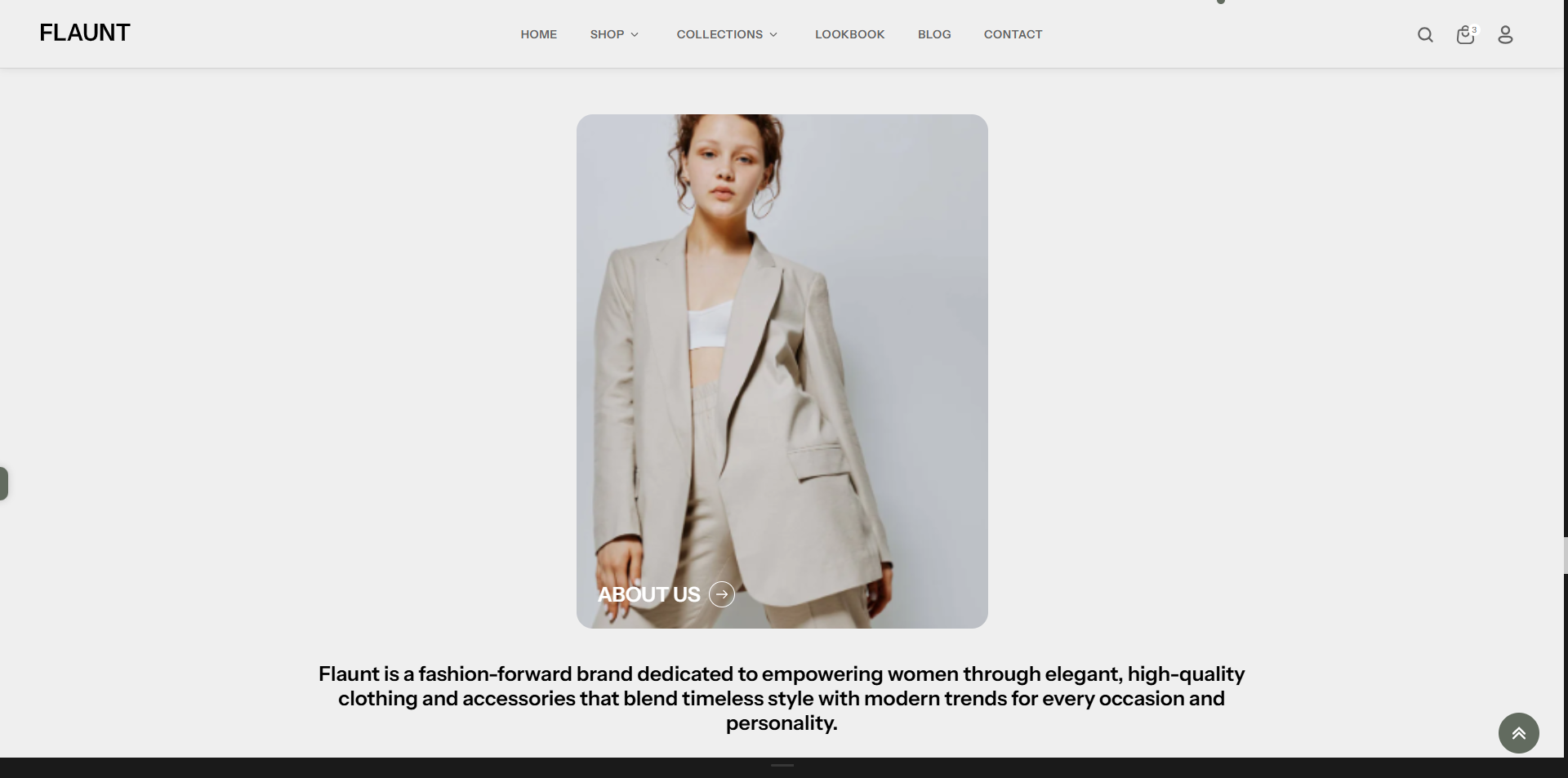
How to Add the Scrolling image with text Section
The Scrolling Image with Text section allows you to showcase specific collections or highlights on your homepage or other pages, helping customers explore categories quickly and easily. Follow the steps below to edit and customize it:
- From your Shopify admin, go to Online Store → Themes.
- Click Customize on the Flaunt theme.
- In the Theme Editor, use the drop-down selector to choose the page where you want to add or edit the Scrolling image with text section.
- Click Add Section (or select an existing Scrolling image with text section if already added).
- Click Save to apply your changes.
How To Edit the Scrolling image with text List section
Here are the steps to configure the options mentioned for the Scrolling image with text List section in your Flaunt Shopify theme:
- Color Scheme: Choose a color scheme to control the background, text, and accent colors for the scrolling image with text section.
- Main Heading: Enter a title for the section (e.g., “MORE ABOUT FLAUNT”) to introduce the content.
-
Heading Alignment: Set how the main heading should be
positioned.
- Left: Aligns the heading to the left side.
- Center: Places the heading in the center for a balanced look.
- Right: Aligns the heading to the right side.
-
Select Image: Upload an image to display within the scrolling
animation.
- Click Upload images to add an image from your device.
- If no image is uploaded, the section will display a placeholder or remain empty.
- Image Title: Add a short title or label that appears with the image (e.g., “ABOUT US”).
- Image Link: Add a link that opens when the image or title is clicked (e.g., About Us page).
- Text: Enter descriptive content to appear alongside the animated scrolling image—use this space to share brand details, product highlights, or storytelling elements.
- Color Scheme: Choose a color scheme to control the background, text, and accent colors for the scrolling image with text section.
- Main Heading: Enter a title for the section (e.g., “MORE ABOUT FLAUNT”) to introduce the content.
-
Heading Alignment: Set how the main heading should be positioned.
- Left: Aligns the heading to the left side.
- Center: Places the heading in the center for a balanced look.
- Right: Aligns the heading to the right side.
-
Select Image: Upload an image to display within the scrolling
animation.
- Click Upload images to add an image from your device.
- If no image is uploaded, the section will display a placeholder or remain empty.
- Image Title: Add a short title or label that appears with the image (e.g., “ABOUT US”).
- Image Link: Add a link that opens when the image or title is clicked (e.g., About Us page).
- Text: Enter descriptive content to appear alongside the animated scrolling image—use this space to share brand details, product highlights, or storytelling elements.