
Hero Slider
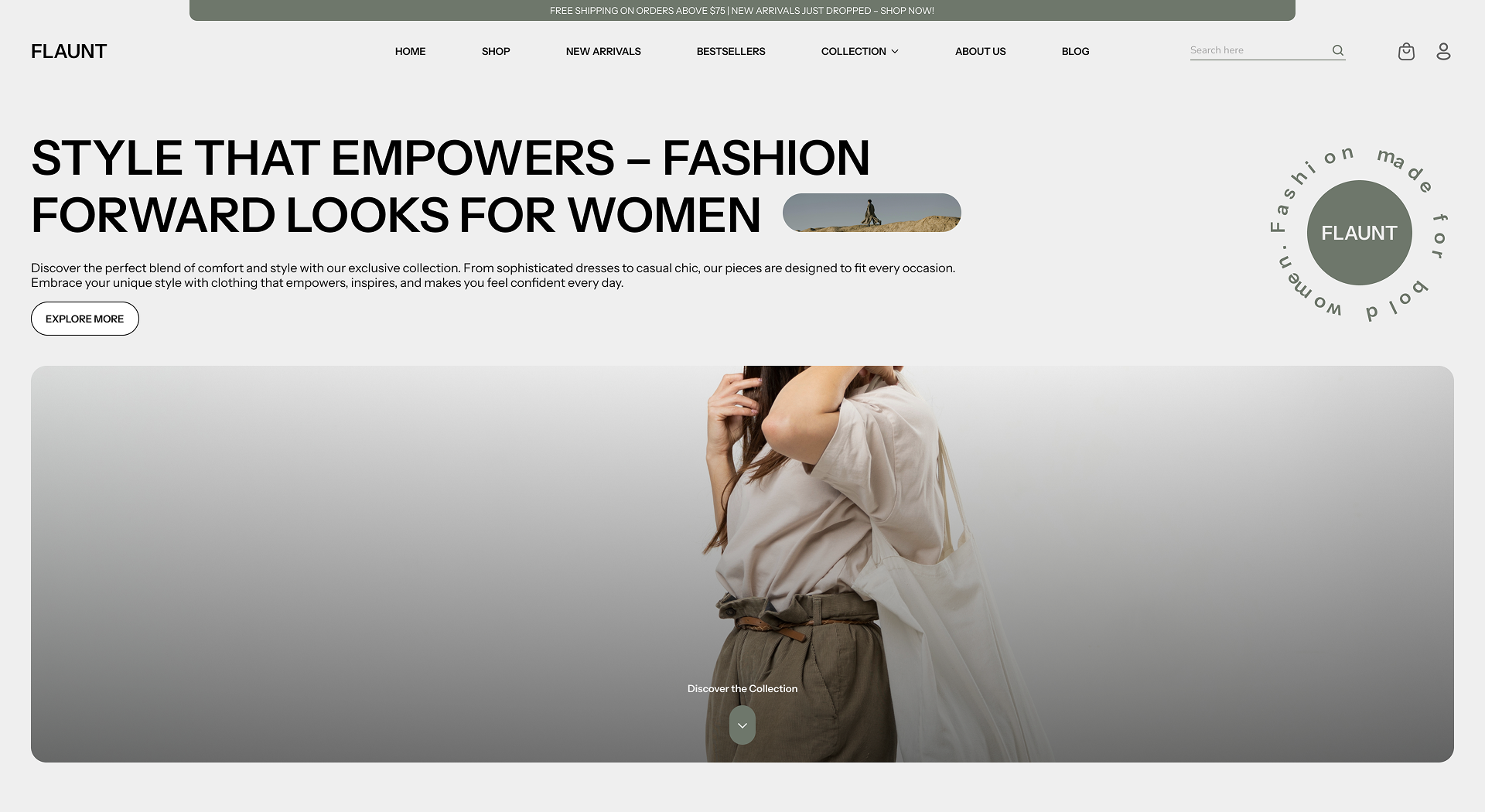
The Hero Slider The Hero Text section is designed to create a strong first impression. It allows you to showcase your message with a bold heading and supporting text, enhanced by a background image and an optional thumbnail image for added visual impact.
How to Add the Hero Text Section
- From your Shopify admin, go to Online Store → Themes.
- Click Customize on the Flaunt theme.
- In the Theme Editor, select the Hero Text section from the left sidebar.
How to Configure the Hero Text Section
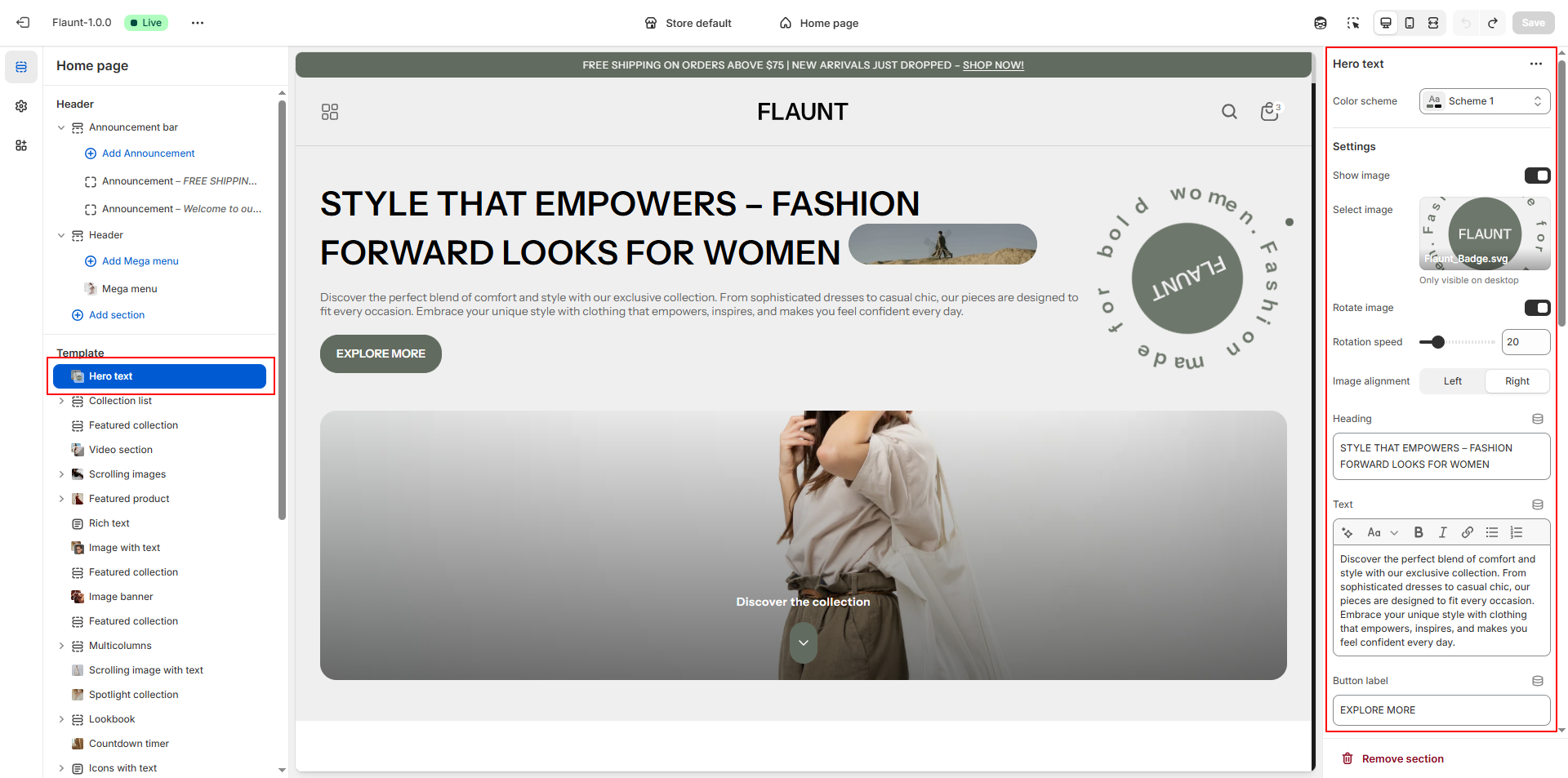
- Color Scheme: Select a scheme to control background and text colors.
-
Main Image:
- Show image: Toggle to display the image in the Hero Text section.
- Select image: Click Upload images to add from your computer, or Explore free images to browse Shopify’s library.
- Enable rotation: Toggle to activate image rotation.
- Rotation speed: Adjust the speed of the rotating image.
- Image alignment: Choose the alignment of the rotating image: Left or Right.
-
Heading & Text:
- Heading → Add a bold, attention-grabbing title.
- Text → Include a detailed description of the feature or offer.
-
Button:
- Button label: Enter the text you want displayed on the button.
- Button link: Paste the URL you want the button to redirect to, or use the search feature to select the desired page.
-
Text Image:
- Upload image: Click Upload images to add from your computer, or select Explore free images to browse Shopify’s library.
- Text Image Link: Add a link for the text image.
- Note:This image will appear at the end of the heading - Recommended size: 231px x 50px
-
Bottom Image:
- Show bottom image: Toggle to display the image in the Hero Text section.
- Upload image: Click Upload images to add from your computer, or select Explore free images to browse Shopify’s library.
- Enable image overlay: Optional – add a semi-transparent overlay on the image.
- Bottom content: Add supporting text or visuals below the bottom image.
FAQs
Why is my image being cropped?
Hero Slider are designed to display multiple images within the same-sized space. If your images have varying dimensions, some parts may get cropped. For example, while your first image might fit perfectly, subsequent images with different sizes might not.
How to prevent cropping:
- Set the Image Height to Height of the first image in your slideshow settings.
- Ensure all slideshow images share the same dimensions for a seamless look.
Want to learn more about maintaining perfect image proportions? Check out Shopify’s guide on Understanding image aspect ratios.
Focal points and cropping:
Focal points let you highlight the most important part of your image, ensuring it stays in view regardless of screen size. However, this can result in other parts of the image being cropped to maintain focus on the focal point. For more details, explore Shopify’s Focal Points Guide.