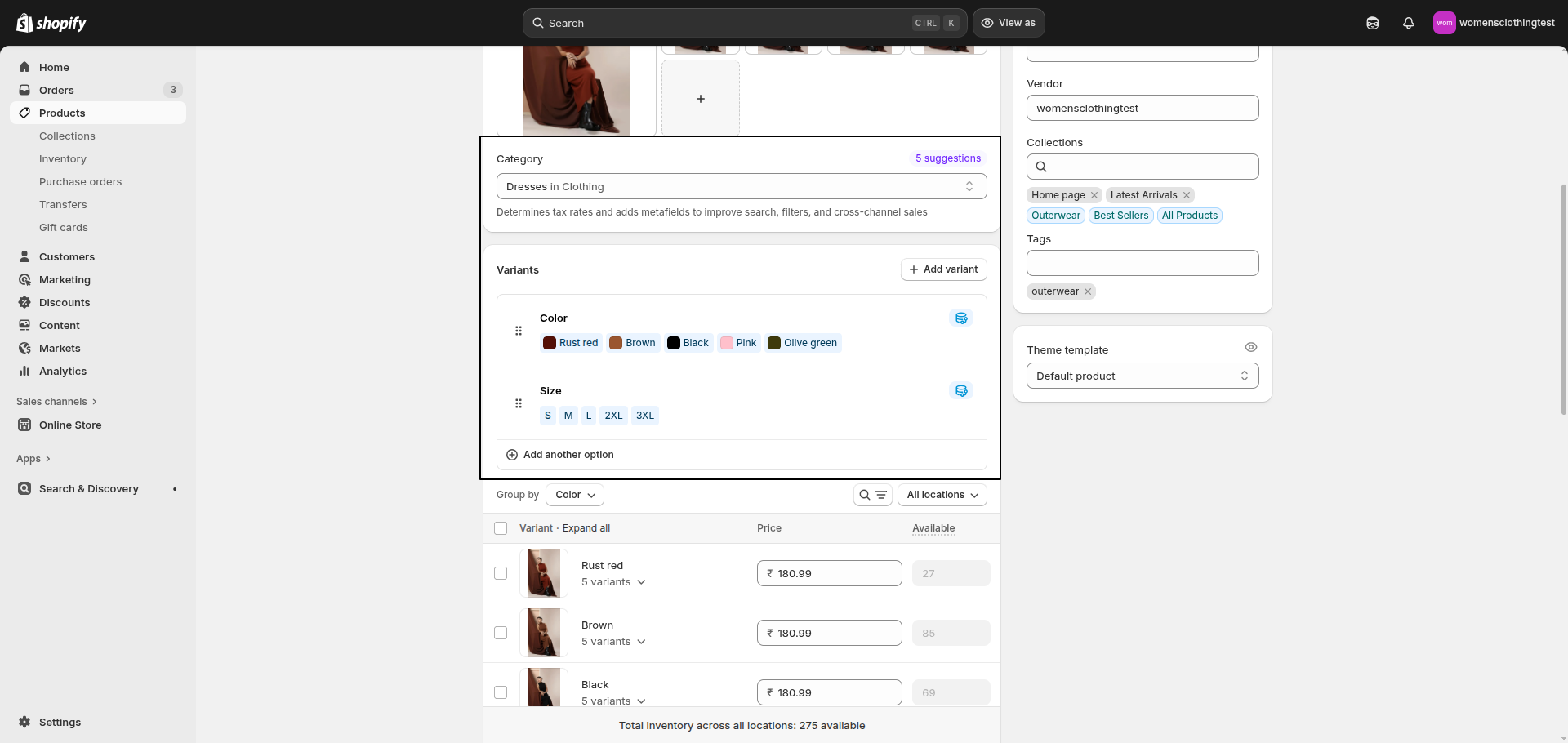
Product Badges
Badges in the Flaunt theme help draw attention to key product highlights, such as sales, discounts, or special offers. They make products stand out, guiding customers toward promotions and boosting engagement.
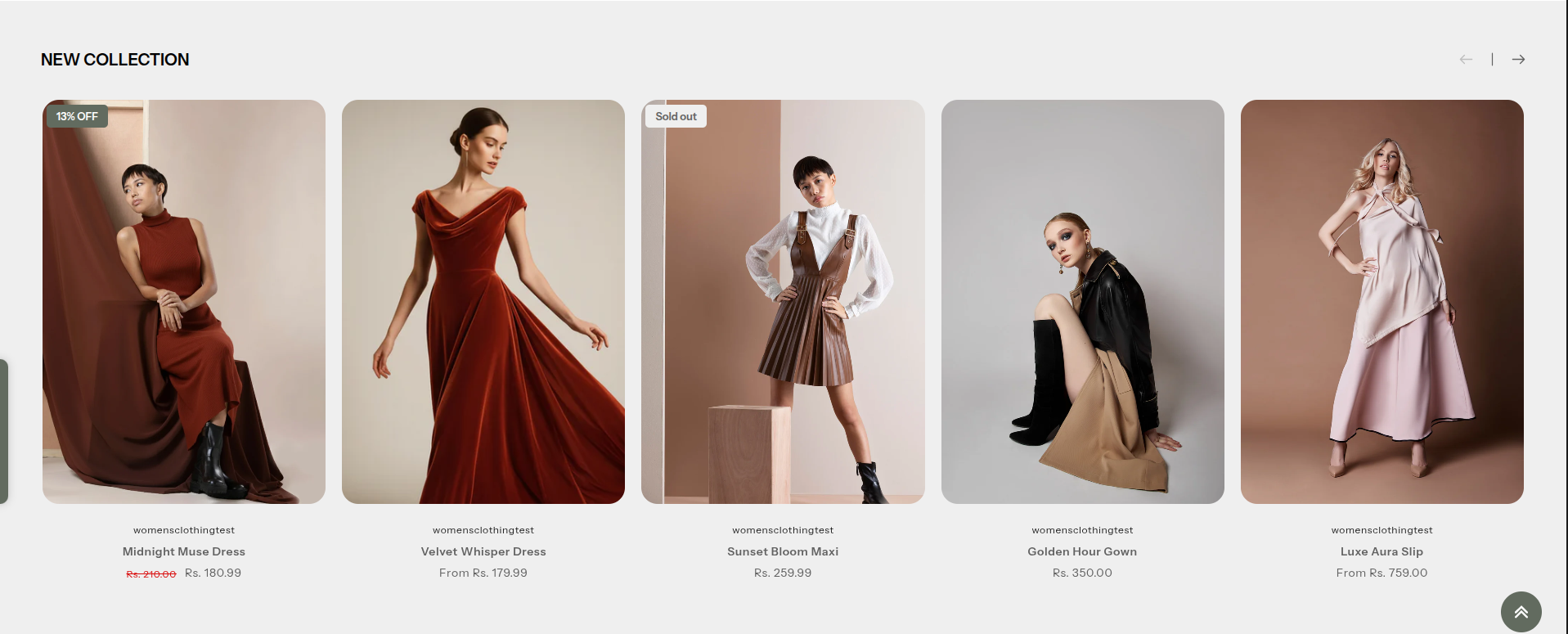
How to Enable Badges
- From your Shopify admin, go to Online Store → Themes.
- Click Customize on the Flaunt theme.
- In the Theme Editor, open Theme Settings (bottom-left corner).
- Select the Badges option.
- Checked the Show badges option.
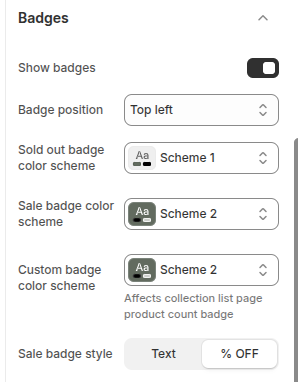
Configure Badges Settings
- Badge Position: Choose where badges appear on product images (e.g., Top Left, Top Right).
- Sold Out Badge Color Scheme: Select a predefined color scheme for the “Sold Out” badge.
- Sale Badge Color Scheme: Apply a color scheme for sale badges.
- Custom Badge Color Scheme: Define a color scheme for custom badges.
Note: Also affects the product count badge on collection list pages. - Sale Badge Style: Choose how sale badges are displayed — either as plain Text (e.g., “Sale”) or with % OFF discount.
Products Swatches
Color swatches in the Flaunt theme visually display product color options as clickable samples instead of text. This helps customers easily identify and select their preferred color, enhancing the shopping experience and product presentation.
.png)
Step 1: Assign a Product Category
Shopify enables category metafields (e.g., Color, Size) only after a product has an assigned category.
- From your Shopify admin, go to Products.
- Click the product you want to edit.
- In the Category section, click Browse categories.
- Select a relevant category (e.g., Apparel & Accessories → Clothing → Shirts).
- Click Save.
Note: Only products with assigned categories can use category metafields.
Step 2: Configure the Color Metafield
Once a category is assigned, you can configure available values for the Color metafield.
- From your Shopify admin, go to Settings → Custom data → Categories.
- Click the category you previously assigned.
- Locate the Color metafield and click Manage entries.
- Add new color entries:
- Enter a color name (e.g., Red, Blue).
- Optionally upload a swatch image or enter a color hex (e.g., #FF0000).
- Click Save.
Step 3: Connect the Color Metafield to Variant Options
Link your product’s Color option to the metafield you just configured.
- Open your product in the Products section.
- Under Variants, click Add options like size or color.
- In Option name, type Color.
- Click the dynamic source icon (🔗) next to it.
- Select the Color category metafield.
- Assign each variant the appropriate metafield entry (e.g., Red, Blue).
- Click Done and then Save the product.
Step 4: Set Up Swatch Shape
You can configure the global swatch shape for product swatches across your store.
- From your Shopify admin, go to Online Store → Themes.
- Click Customize on the Flaunt theme.
- In the Theme Editor, navigate to Theme Settings → Color Swatches Selectors.
- Select your desired swatch shape from the available options:
- Circle — Circular swatch (default if none is selected).
- Square — Perfect square swatch.
- Pill — Rounded pill-shaped swatch.
- Default — Uses the theme’s default swatch styling.
- Click Save to apply your changes.