Collection List
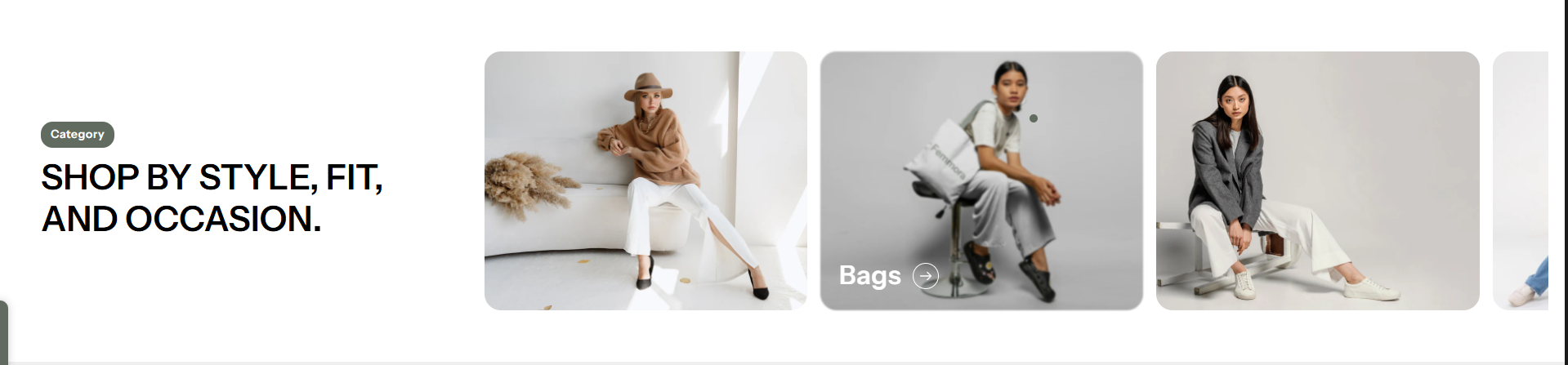
The Collection List section lets you feature selected collections directly on your homepage or other pages. It’s a simple way to highlight new, popular, or seasonal categories, making it easier for customers to browse by product groups and discover items without navigating through menus.
How to Add the Collection List Section
The Collection List section allows you to feature specific collections on your homepage or other pages, helping customers explore categories quickly and easily. Follow the steps below to edit and customize it:
- From your Shopify admin, go to Online Store → Themes.
- Click Customize on the Flaunt theme.
- In the Theme Editor, use the drop-down selector to choose the page where you want to add or edit the Collection List section.
- Click Add Section (or select an existing Collection List section if already added).
- Click Save to apply your changes.
How To Edit the Collection List section
Here are the steps to configure the options mentioned for the Collection List section in your Flaunt Shopify theme:
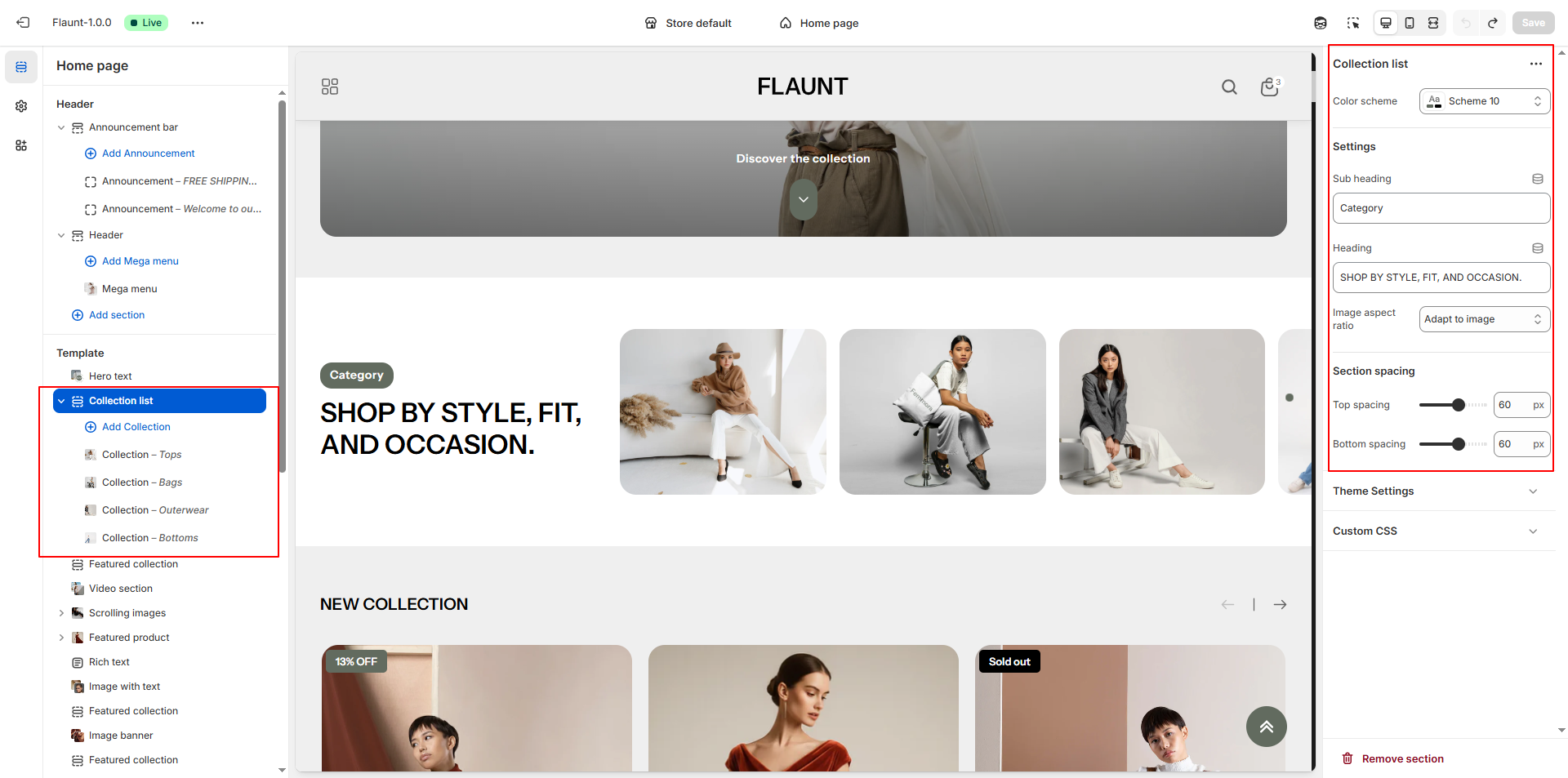
- Subheading: Add a short line of text above the main heading (e.g., “Category”) to provide context for the section.
- Heading: Enter a bold, attention-grabbing title for the section (e.g., “SHOP BY STYLE, FIT, AND OCCASION.”).
-
Image Aspect Ratio: Choose how collection images are displayed.
- Square: Creates a balanced, uniform grid of collections.
- Portrait: Displays taller images, suitable for vertical-style photography.
- Landscape: Displays wider images, great for banners or wide visuals.
Configure the Collection Block Settings
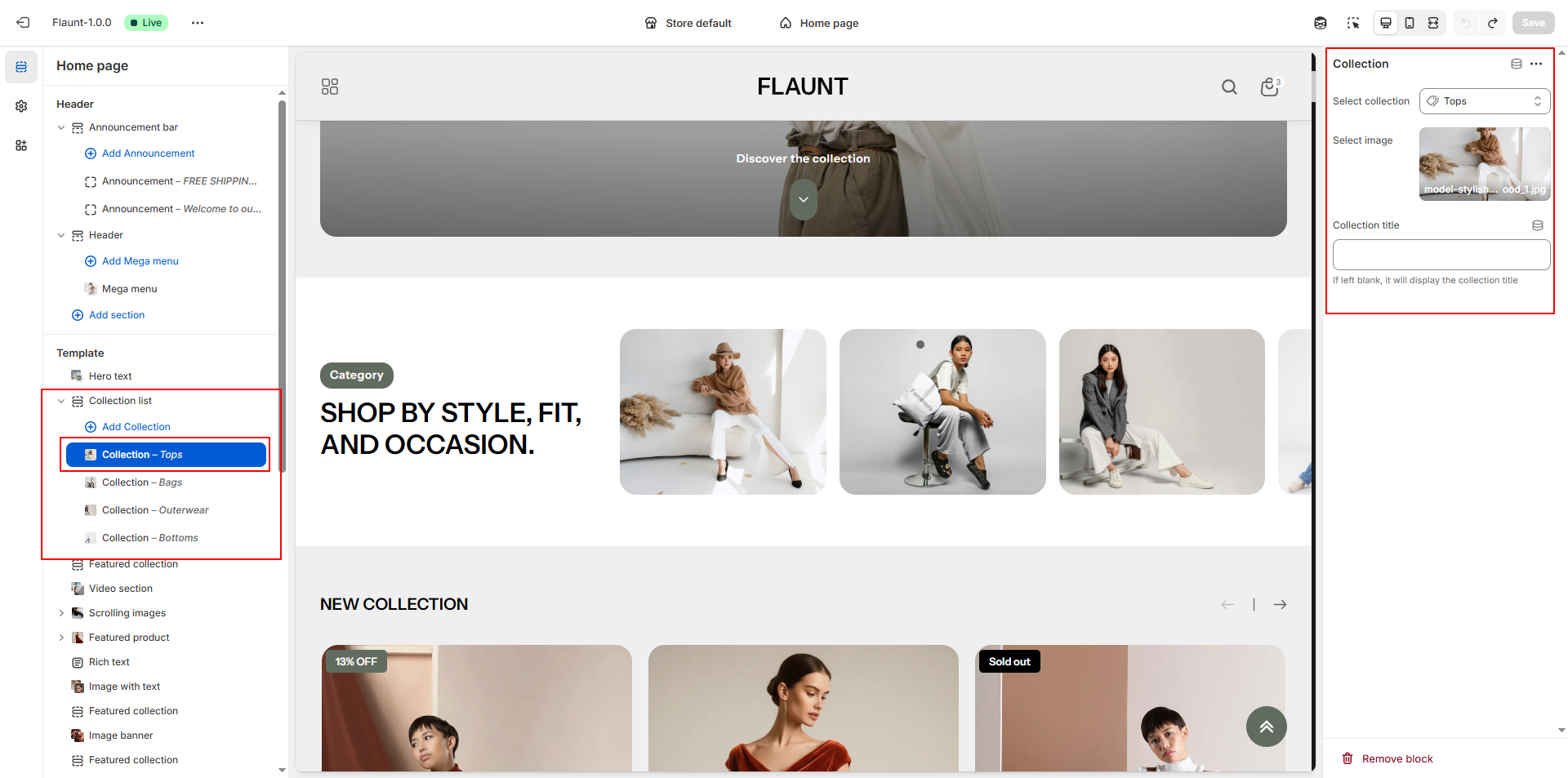
- Adding a New Block: Click the Add Collection Block button to create a new block within the Collection List section.
- Select Collection: Choose the desired collection from the Select Collection dropdown (e.g., Tops).
- Select Image:
- Click Upload images to add from your computer.
- Or select Explore free images to browse Shopify’s free library.
- If no image is uploaded, the default collection image will be displayed.
- Collection Title: Enter a custom title for the collection. If left blank, the default collection title will be used automatically.
- Removing a Block: Select an existing collection block and click the Remove Block button to delete it.