
Video Reviews
The Video Reviews section allows you to showcase authentic customer experiences through video testimonials. By featuring real product reviews in video format, you can build trust, demonstrate product value, and create a more engaging shopping experience that helps customers make confident purchase decisions.
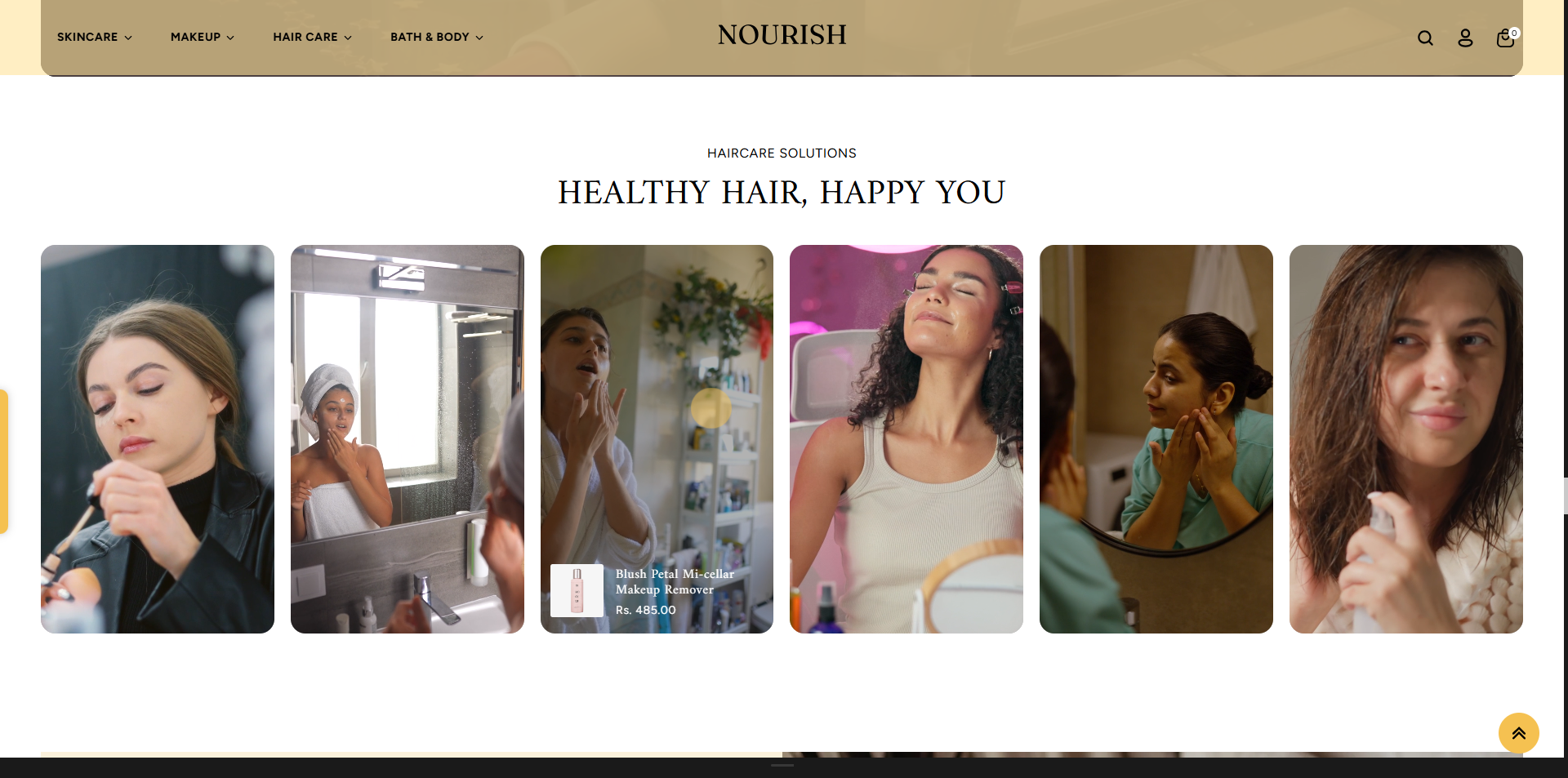
How to Add the Video Reviews Section
- From your Shopify admin, go to Online Store → Themes.
- Click Customize on the Flaunt theme.
- In the Theme Editor, use the drop-down selector to choose the page where you want to add or edit the Video Reviews section.
- Click Add Section
- Click Save to apply your changes.
How To Edit the Video Reviews section
Here are the steps to configure the options mentioned for the Video Reviews section in your Flaunt Shopify theme:
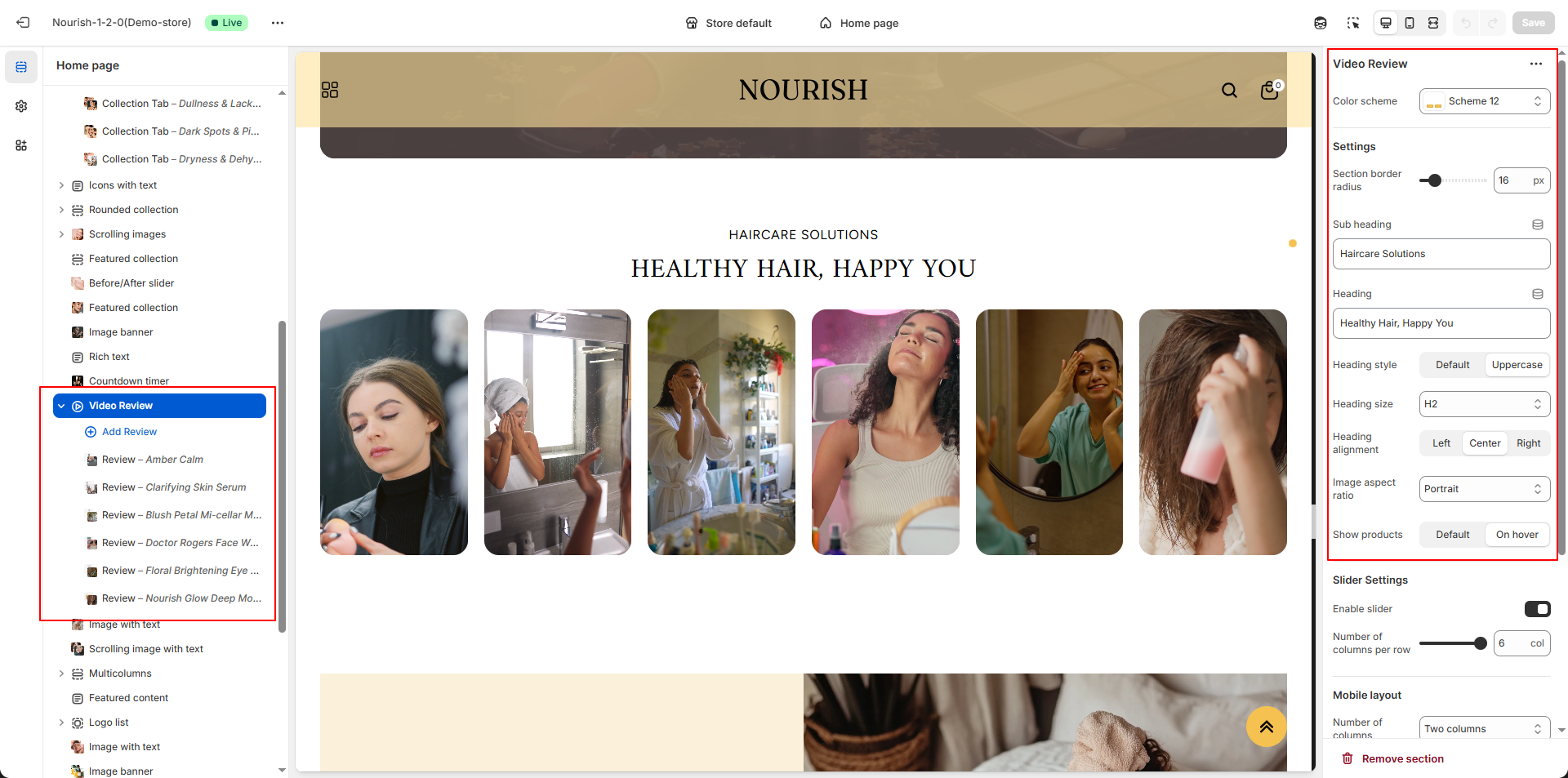
- Color Scheme: Select a predefined color palette to control the background, text, and other visual elements of the section.
- Section Border Radius: Adjust the rounded corners of the section. Increasing the value results in more curved edges.
- Sub Heading: Enter a short introductory line that appears above the main heading.
- Heading: Add the primary title that describes the section’s content.
- Heading Style: Choose how the heading text is displayed:
- Default: Uses the standard text case.
- Uppercase: Converts the heading text to all capital letters.
- Heading Size: Select the heading level (e.g., H1, H2) to control text size and visual hierarchy.
- Heading Alignment: Adjust the alignment of heading text:
- Left: Align text to the left.
- Center: Center-align the heading.
- Right: Align text to the right.
- Image Aspect Ratio: Choose how images are cropped or displayed:
- Adapt to image: Uses the original image aspect ratio.
- Square: Crops images into a square format.
- Portrait: Displays taller image ratios.
- Landscape: Displays wider image ratios.
- Show Products: Control when product information appears:
- Default: Always visible.
- On hover: Product details appear only when hovered.
- Slider Settings: Enable or adjust slider functionality:
- Enable Slider: Turn on sliding functionality when showcasing multiple items.
- Number of Columns per Row: Set how many items appear in a single row.
- Mobile Layout: Configure product display on smaller screens:
- Number of Columns: Choose how many columns to show on mobile devices.
Configure the Review Block Settings
- Adding a New Block: Click the Add Review Block button to create a new block inside the Video Review section.
- Select Media: Choose whether you want to display a video or an
image:
- Click Select video to upload or choose an existing video.
- Or click Select image to upload or choose a free image from the library.
- Select Product: Use the Select product field to link a product to the review block for added context or promotion.
- Removing a Block: Select an existing review block and click the Remove Block button to delete it.