
Complete your look
The Complete your look with the perfect finishing touches. From trendy accessories to daily essentials, explore pieces that elevate your style effortlessly. Add that final flair to make every outfit stand out!
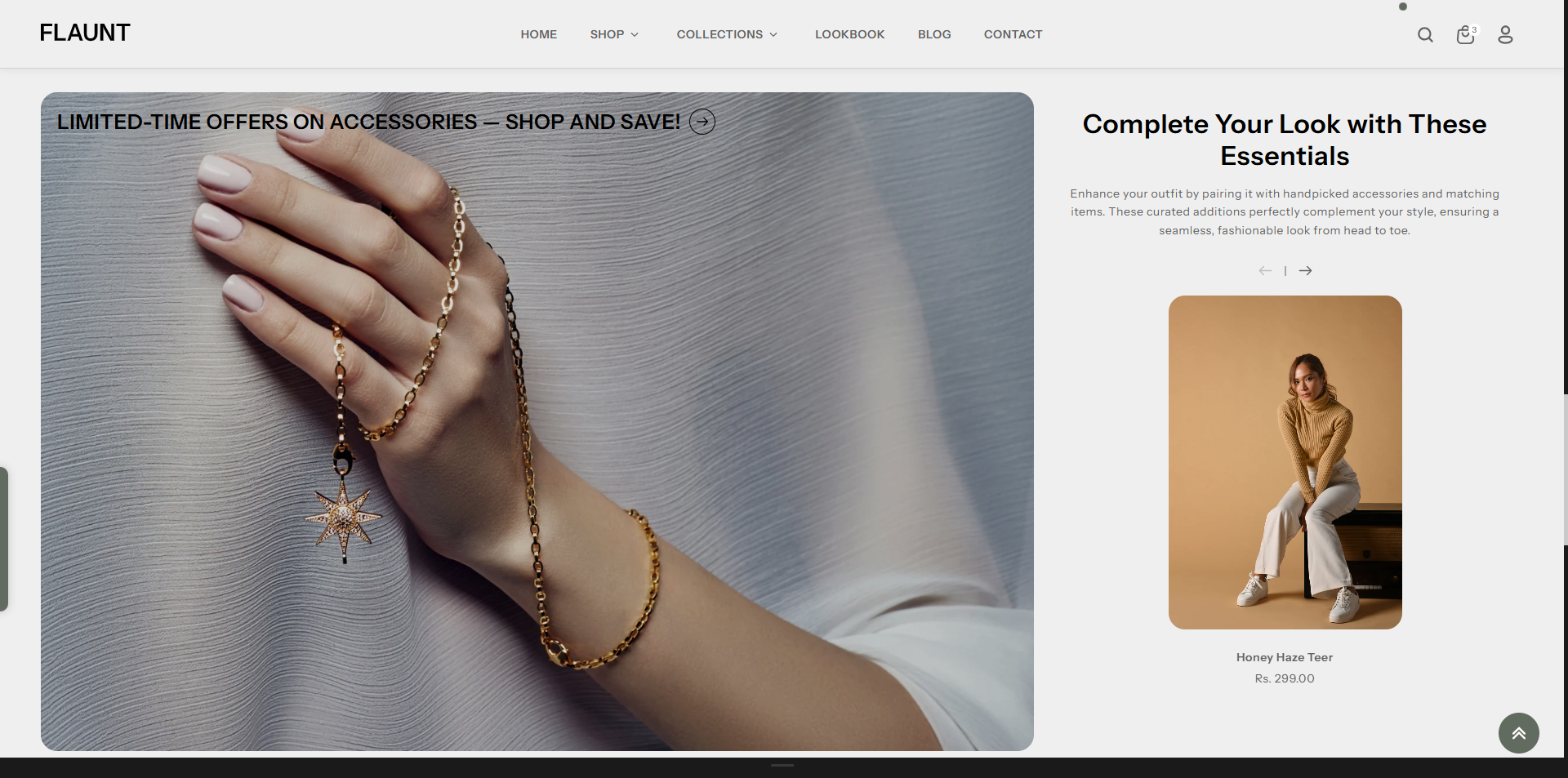
How to Add the Complete Your Look Section
- From your Shopify admin, go to Online Store → Themes.
- Click Customize on the Flaunt theme.
- In the Theme Editor, use the drop-down selector to choose the page where you want to add or edit the Complete Your Look section.
- Click Add Section (or select an existing Complete Your Looksection if already added).
- Click Save to apply your changes.
How To Edit the Complete Your Look section
Here are the steps to configure the options mentioned for theComplete Your Look section in your Flaunt Shopify theme:
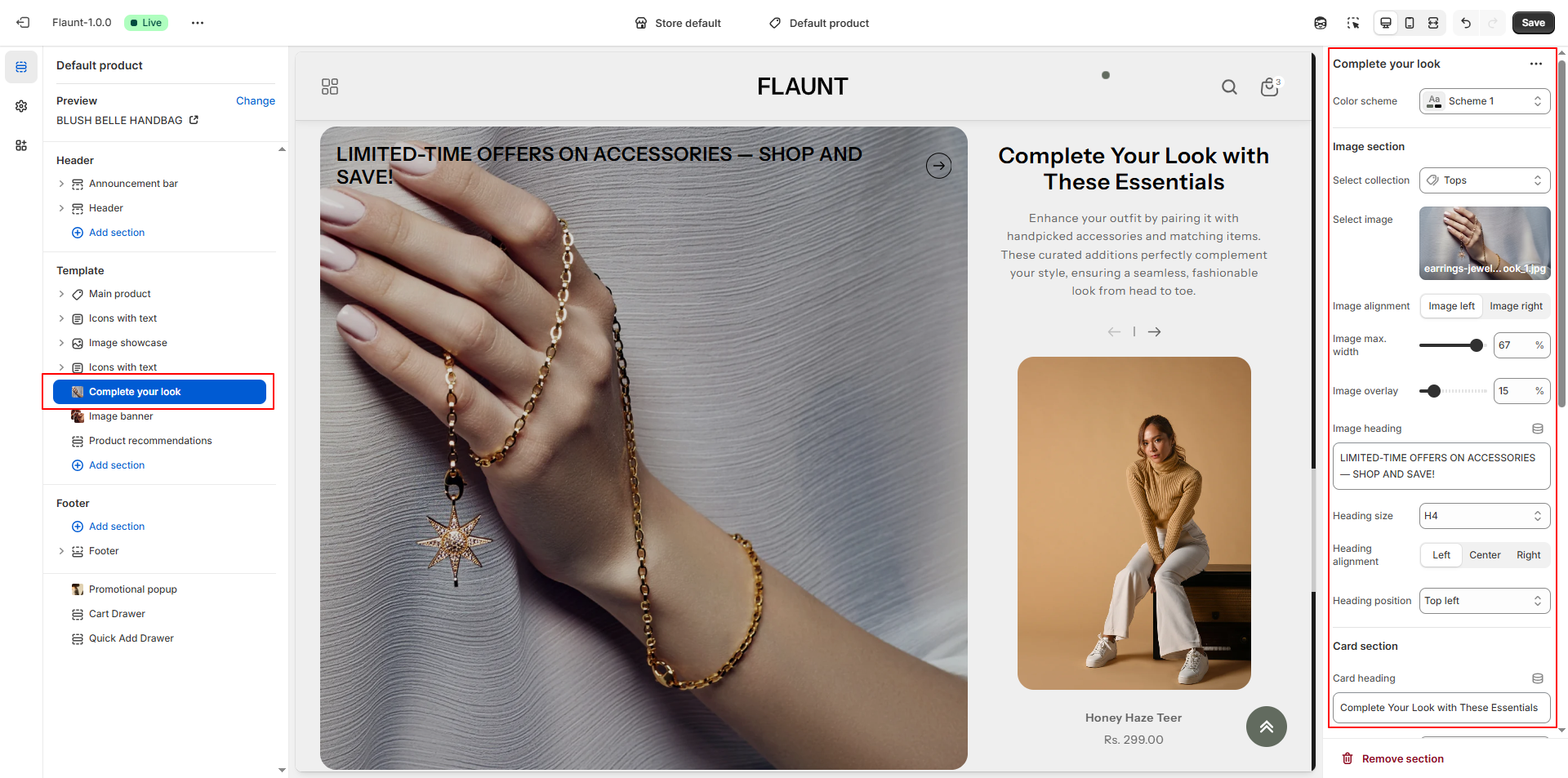
- Select Collection: Choose the collection whose products will appear alongside the featured image.
-
Select Image:
- Upload a custom image from your computer.
- If no image is uploaded, the default collection image will not display — you must add an image manually.
- Image Alignment: Decide whether the image should appear on the left or right side of the layout.
- Image Max Width: Adjust how wide the image appears within the section for better balance between image and product cards.
- Image Overlay: Control the overlay intensity to improve visibility of text placed over the image.
- Image Heading: Add a promotional or descriptive title that appears on top of the image.
- Heading Size & Alignment: Choose the heading size (e.g., H4) and set its alignment (left, center, or right) based on your layout preferences.
- Heading Position: Set where the heading should be placed on the image (e.g., Top left).
- Card Heading: Add a title for the product card section (e.g., “Complete Your Look with These Essentials”).
- Card Text: Add descriptive text to explain the curated product selection and how it complements the main image.
-
Product Cards – Image Aspect Ratio: Choose how product images
should appear, such as:
- Adapt to Image: Keeps the original proportions of the uploaded image.
- Square: Displays images in a uniform 1:1 layout for a clean, consistent grid.
- Portrait: Shows taller images, ideal for vertical photography.
- Show Vendor: Enable if you want the brand/vendor name to be visible on product cards.
- Show Product Options: Display variant options like size or color directly on the product cards.
- Enable Quick View: Allow customers to preview product details without leaving the page.