
Featured Collection
The Featured Collection section lets you showcase products from a chosen collection directly on your homepage or other key pages. It’s a powerful way to highlight new arrivals, best sellers, or seasonal picks, making it easier for customers to discover and shop your most important products.
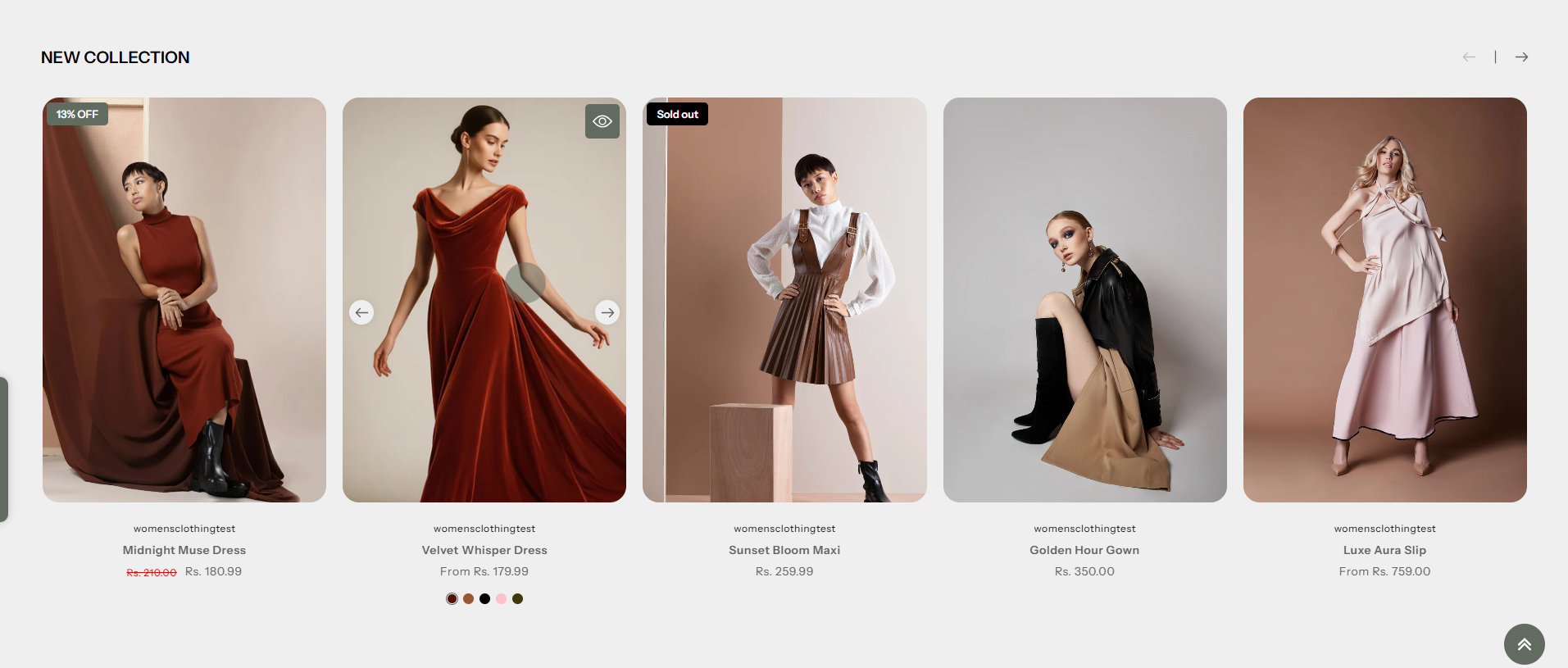
How to Add the Featured Collection Section
The Featured Collection section highlights products from a selected collection, making it easier for customers to discover new, popular, or seasonal items. Follow the steps below to edit and customize it:
- From your Shopify admin, go to Online Store → Themes.
- Click Customize on the Flaunt theme.
- In the Theme Editor, use the drop-down selector to choose the page where you want to add or edit the Featured Collection section (commonly the homepage).
- Click Add Section (or select an existing Featured Collection section if already added).
- Click Save to apply your changes.
- Color Scheme: Select a predefined color scheme (e.g., Scheme 1) to control background and text colors for the section.
- Heading: Add a title for the section (e.g., “NEW COLLECTION”) to introduce the featured products.
- Heading Size: Choose the size for the section heading (e.g., H5) to match your store’s style.
- Select Collection: Choose the collection you want to showcase (e.g., Latest Arrivals, Best Sellers).
- Number of Products to Load: Set how many products from the collection will display in the section (e.g., 10).
- Number of Columns per Row: Select how many products appear per row (e.g., 5).
- Enable Slider: Toggle this option to display products in a sliding carousel format instead of a grid.
- Product Cards: Configure the appearance of product cards.
- Image Aspect Ratio: Choose how product images are displayed (e.g., Portrait, Square, or Landscape).
- Show Vendor: Toggle to display the product vendor/brand name.
- Show Product Options: Display available product options such as color or size on the product card.
- Enable Quick View: Allow customers to preview product details in a popup without leaving the page.
- Show Variant Image Instead of Color: When enabled, displays variant images instead of color swatches.
- Mobile Layout: Configure how the section appears on smaller screens.
- Number of Columns: Choose how many product cards appear per row on mobile devices.
Pro Tips:
Use high-quality collection images for a professional look.
Highlight best-selling or seasonal products to drive
conversions.
For sliders, limit the number of items for smoother
scrolling and faster load times.