
Header section
The Header is a fixed section displayed at the top of every page. It includes your store’s logo, main navigation, and optional promotional content within dropdown or mega menus. The header plays a key role in brand visibility and smooth navigation.
As the first thing customers see, the header helps establish a strong, memorable brand presence. TheFlaunt theme offers multiple header layouts and well-designed icons for the cart, account, and search.
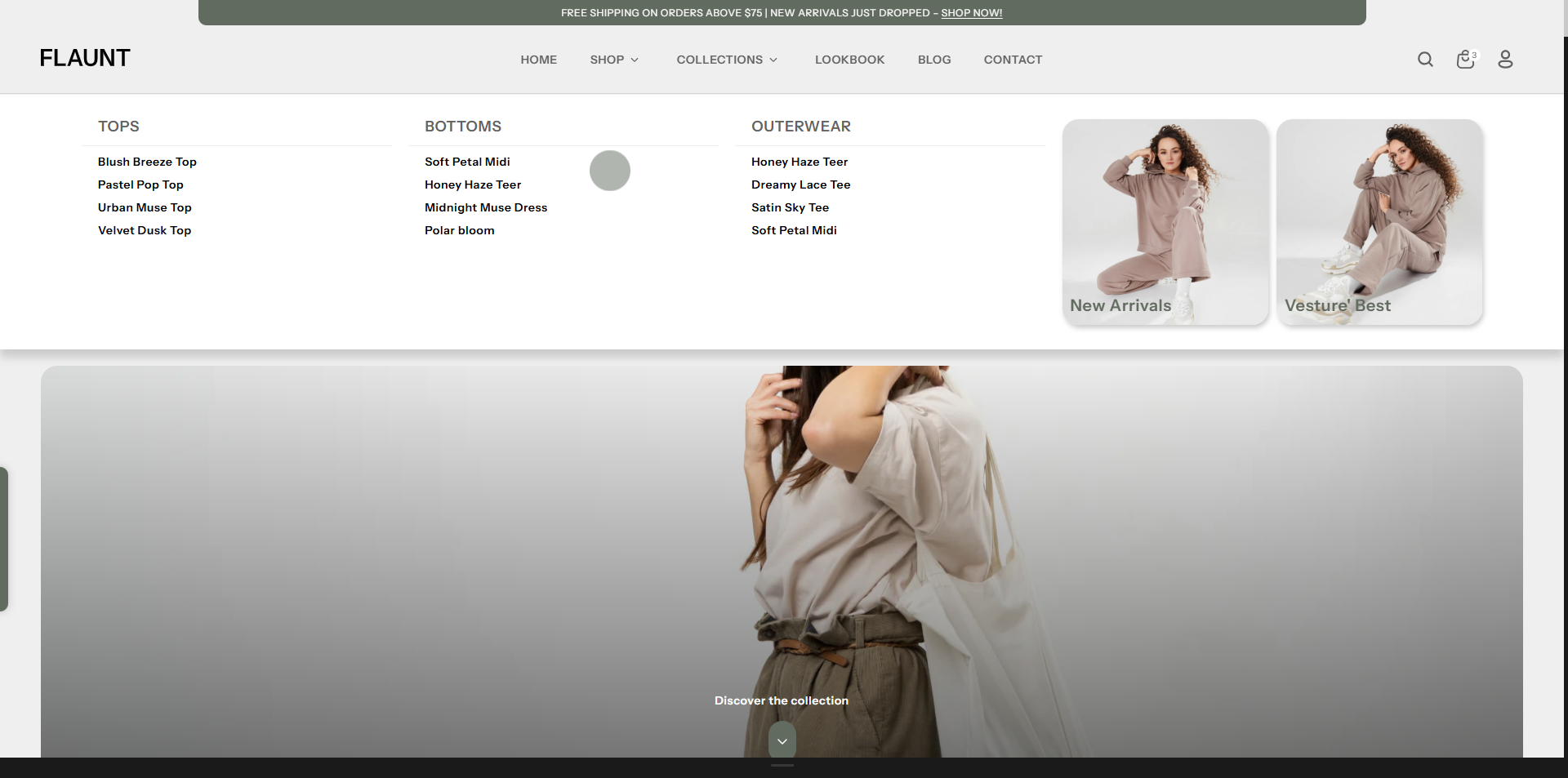
How to Configure the Header
- From your Shopify admin, go to Online Store → Themes.
- Click Customize on the Flaunt theme.
- In the Theme Editor, select the Header section from the left sidebar.
- Adjust the settings, blocks, and layout options according to your preferences.
- Click Save to apply your changes.
- Color Scheme: Select a predefined scheme to style the header consistently.
- Show Border: Toggle to display a border under the header.
- Enable Sticky Header: Keep the header visible as customers scroll.
- Select Logo: Upload your store logo by clicking Upload images. This logo will appear in the header across your store.
- Logo Width: Adjust the logo size using the width slider to ensure it fits well within the header layout.
- Logo Position: Choose how the logo is placed in the header:
- Logo Center with Menu Bottom: Displays the logo centered, with the main menu shown below it.
- Drawer: Uses a compact menu style, ideal for minimal or mobile-focused layouts.
-
Show Border Below Logo: Enable this option to add a divider line below
the logo for visual separation.
Note: This works only when the logo position is set to Logo Left, Logo Center, or Logo Center with Menu Bottom. - Select Menu: Choose the primary navigation menu (e.g., Main menu) that will appear in the header.
-
Select Secondary Menu: Optionally add a secondary menu.
Note: This option works only when the logo position is Logo Center with Menu Bottom and supports a maximum of 3 top-level menu items. - Text Display: Control how menu text appears:
- Default: Uses normal text styling.
- Uppercase: Displays all menu text in uppercase for a bold, modern look.
FAQs
How can I set up my navigation and mega menu?
Setting up your navigation and mega menu is a breeze! Check out our comprehensive Mega Menu Guide for detailed, step-by-step instructions to create a visually stunning and functional menu layout.
Why isn’t my mega menu displaying an image?
You need to make sure an image is properly added inside the mega menu block.