
Mega Menu
The Flaunt theme includes a versatile Mega Menu that helps organize large numbers of links and categories, making navigation simple and intuitive for customers. You can create full-width menus with text, images, and featured promotions, allowing you to highlight products, collections, or special offers. A well-structured mega menu improves user experience, helps customers find what they’re looking for faster, and can boost conversions.
The Flaunt theme supports a versatile mega menu, offering both simple dropdowns and full-width menus with text and images, providing effective, quick navigation across your storefront.
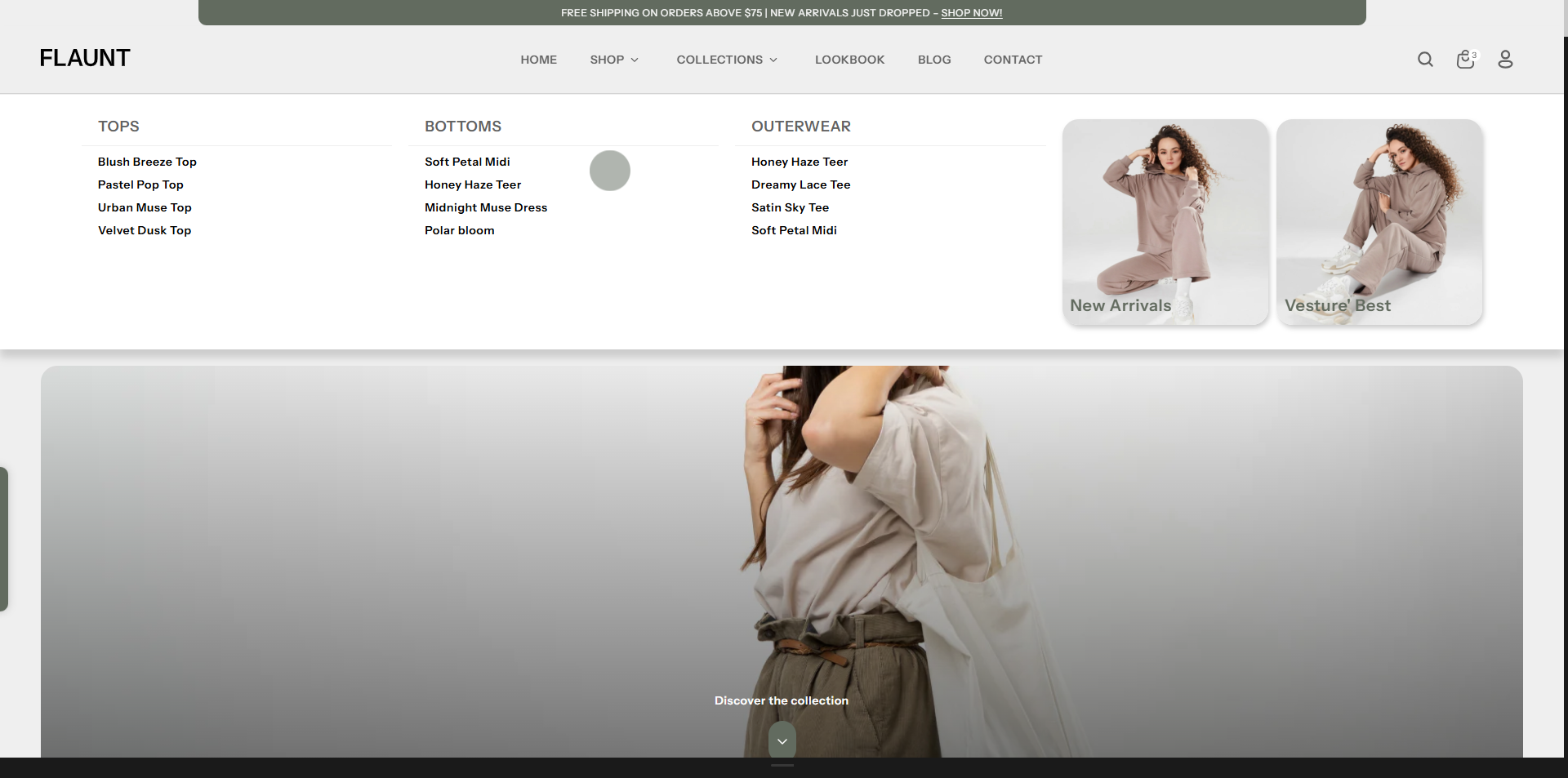
How to set up a mega menu
1. Add a Mega Menu Block
- From Shopify admin, go to Online Store → Themes → Customize.
- In the customizer, navigate to the Header section where you can add a Mega Menu block.
- Click Add Mega Menu to create a new block.
2. Set the Menu Trigger
- Set the Parent Menu Item: Enter the exact name of the parent-level menu item (e.g., Catalog) where the mega menu should appear. Ensure this matches the title used in your main navigation menu.
- Upload an Image to Highlight a Collection or Product: Click Select image and upload your custom banner or promotional image. You can also use Explore free images to select stock photos provided by Shopify.
- Add Image Title and Link: Enter a descriptive heading in Image Title and paste the URL to a product, collection, or page in Image Link to make the image clickable.
- Create a Nested Menu: In Shopify admin, go to Online Store → Navigation to create a multi-layer menu. Ensure you have at least two layers (Heading Layer 1, Heading Layer 2, and menu links inside Layer 2) for the mega menu to display correctly.
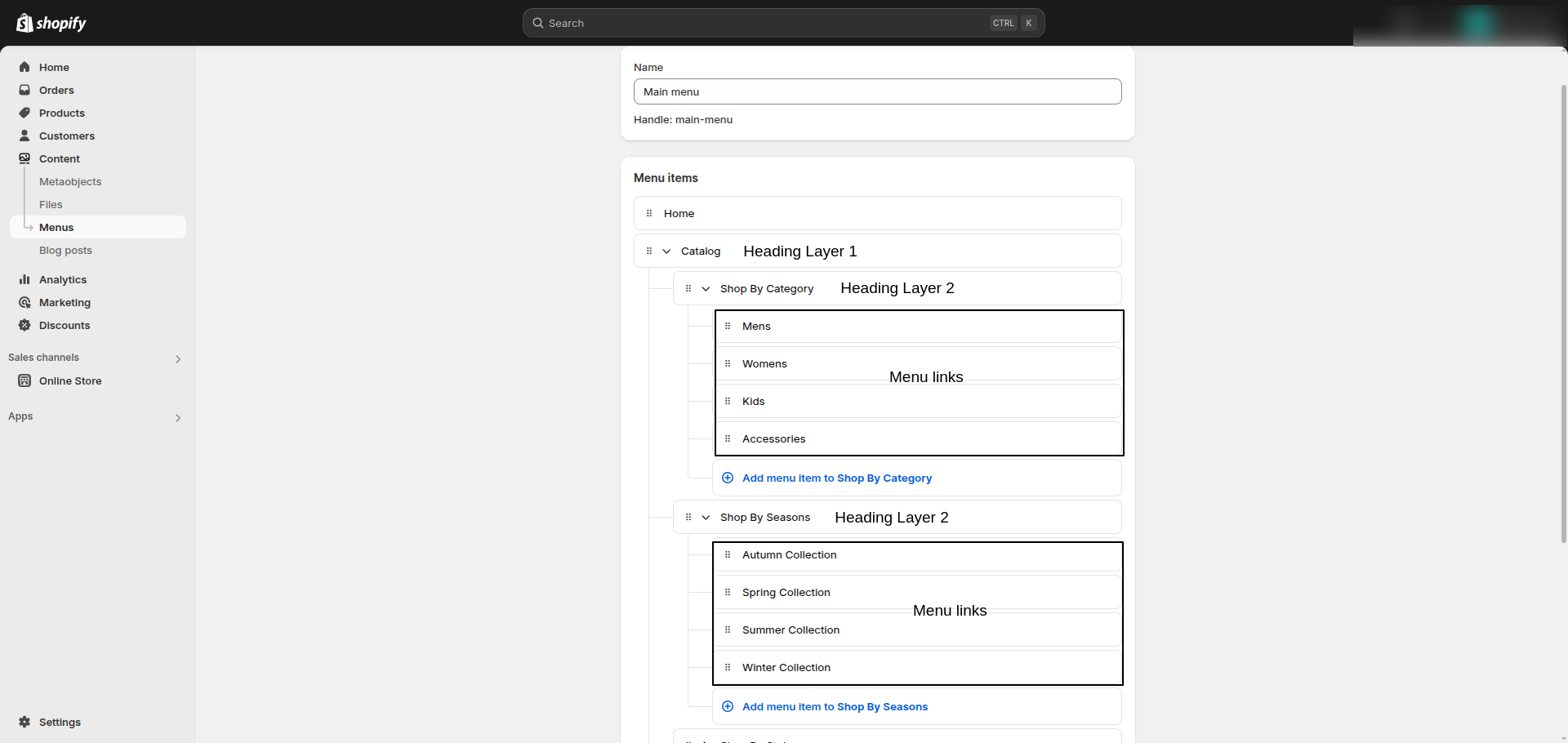
Important: Follow the structure above carefully. Avoid adding extra layers, as this may break the layout and prevent your mega menu from appearing like the demo.