
Rich Text
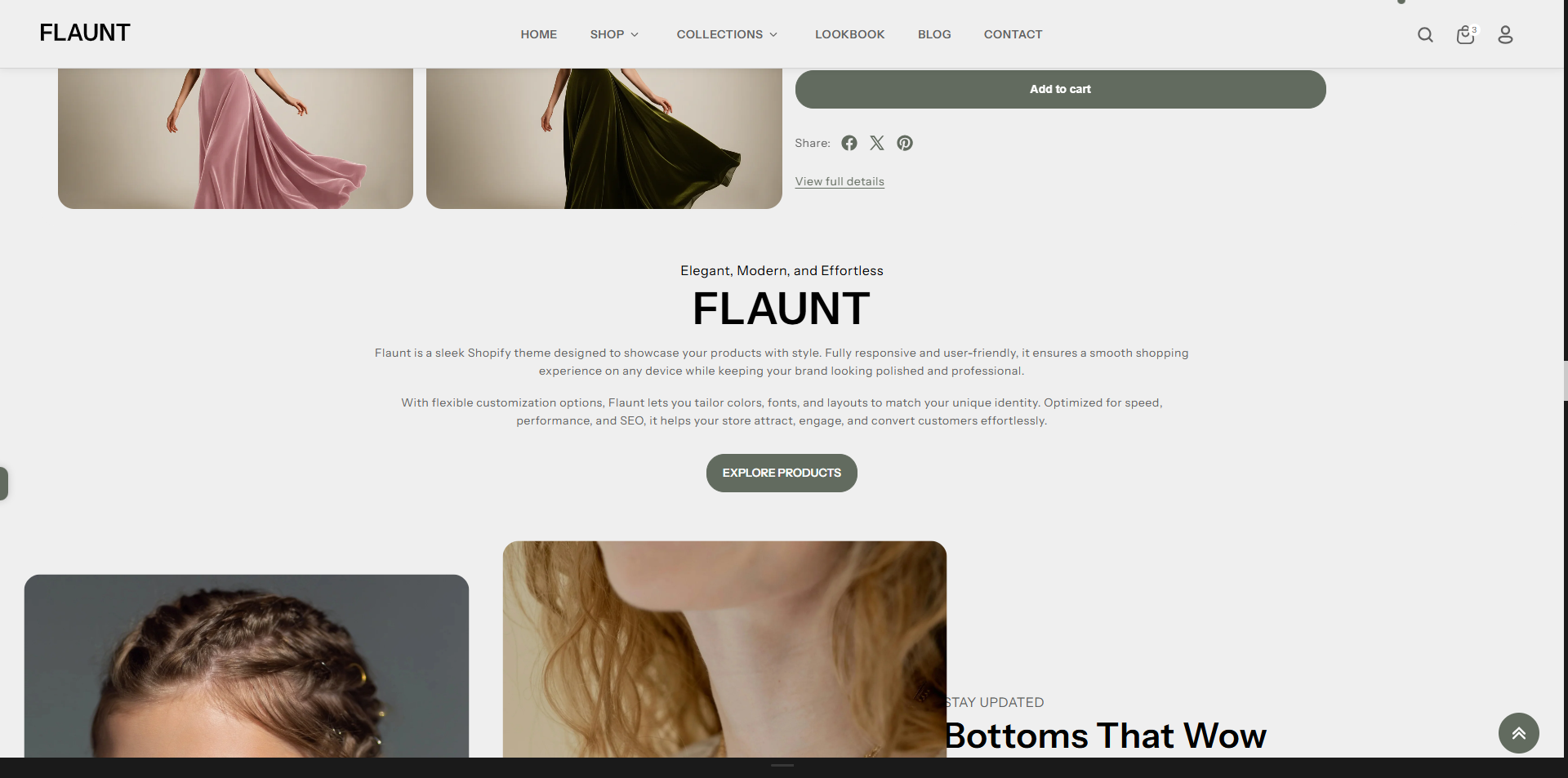
The Rich Text allows you to add customizable text content anywhere in your store. It’s perfect for highlighting messages, sharing brand stories, adding announcements, or providing important information in a clean and readable format. With flexible formatting options, you can easily adjust headings, paragraphs, and links to match your design and communicate clearly with customers.
How to Add the Rich Text
- From your Shopify admin, go to Online Store → Themes.
- Click Customize on the Flaunt theme.
- In the Theme Editor, use the drop-down selector to choose the page where you want to add or edit the Rich Text section.
- Click Add Section (or select an existing Rich Text if already added).
- Click Save to apply your changes.
How to Edit the Rich Text
Here are the steps to configure the available settings for the Rich Text in your Flaunt Shopify theme:
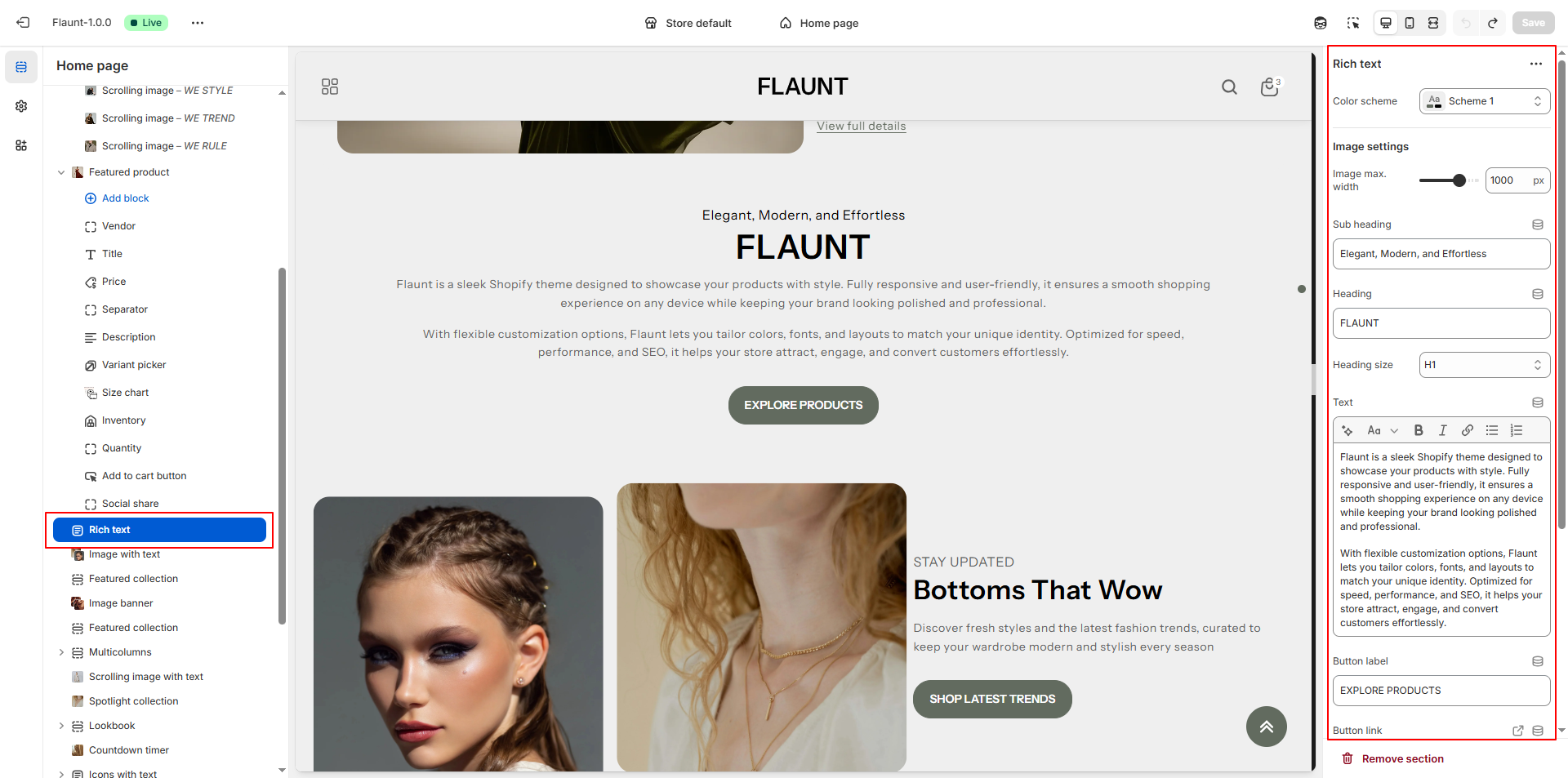
- Color Scheme: Select a color scheme to control the background and text colors used in the scrolling image section.
- Image Max Width: Adjust the maximum width of the image displayed in the section. Increasing the value makes the image appear larger for greater visual impact.
- Subheading: Add a short descriptive line above the main heading to introduce or highlight the theme of the content.
- Heading: Enter the main title for the section to draw attention to your message or featured content.
-
Heading Size: Choose the size of the main heading.
- H1: Largest and most prominent heading, ideal for hero-style sections.
- H2/H3: (If available) Smaller but still impactful headings for compact layouts.
- Text: Add descriptive content, brand information, product highlights, or any text you want to display under the heading.
- Button Label: Enter the text for the button (e.g., “Explore Products”).
- Button Link: Select the page, product, or collection that opens when the button is clicked. You can also enable the option to open the link in a new tab.
-
Text Alignment: Choose how the text content should be
aligned within the section.
- Left: Aligns the text to the left for a traditional layout.
- Center: Centers the content for a clean, balanced look.
- Right: Aligns the text to the right for a modern layout style.