
Multicolumns
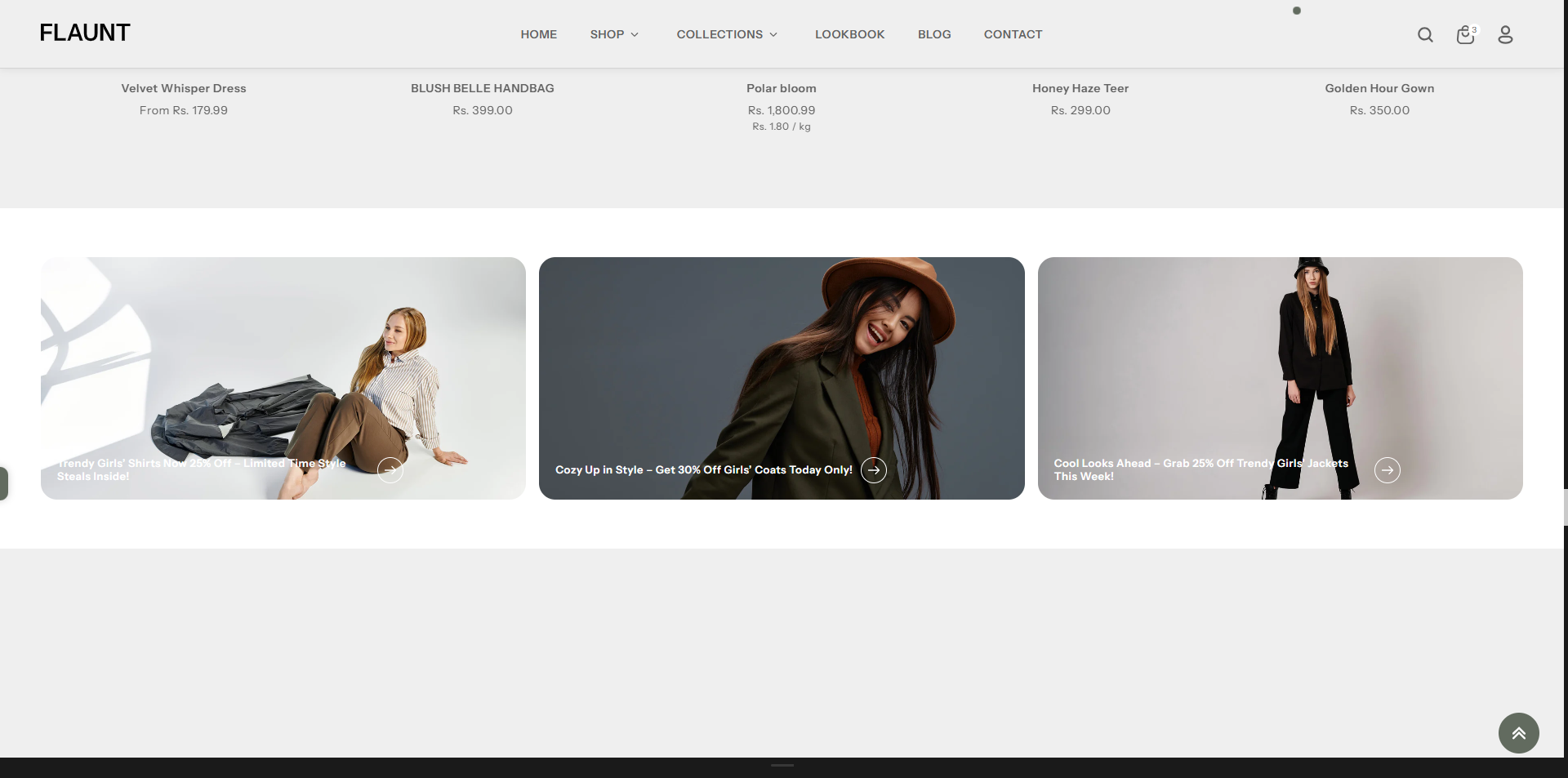
The Multicolumns section allows you to display content in multiple columns, making it easy to highlight features, categories, services, or products in a clean and organized layout. With flexible customization options, you can add images, icons, text, and buttons to create visually appealing and informative content blocks.
How to Add the Multicolumns Section
The Multicolumns section allows you to showcase related theme features on your homepage or other pages, helping customers explore categories quickly and easily. Follow the steps below to edit and customize it:/p>
- From your Shopify admin, go to Online Store → Themes.
- Click Customize on the Flaunt theme.
- In the Theme Editor, use the drop-down selector to choose the page where you want to add or edit the Multicolumns section.
- Click Add Section (or select an existing Multicolumns section if already added).
- Click Save to apply your changes.
How To Edit the Multicolumns List section
Here are the steps to configure the options mentioned for the Multicolumns List section in your Flaunt Shopify theme:
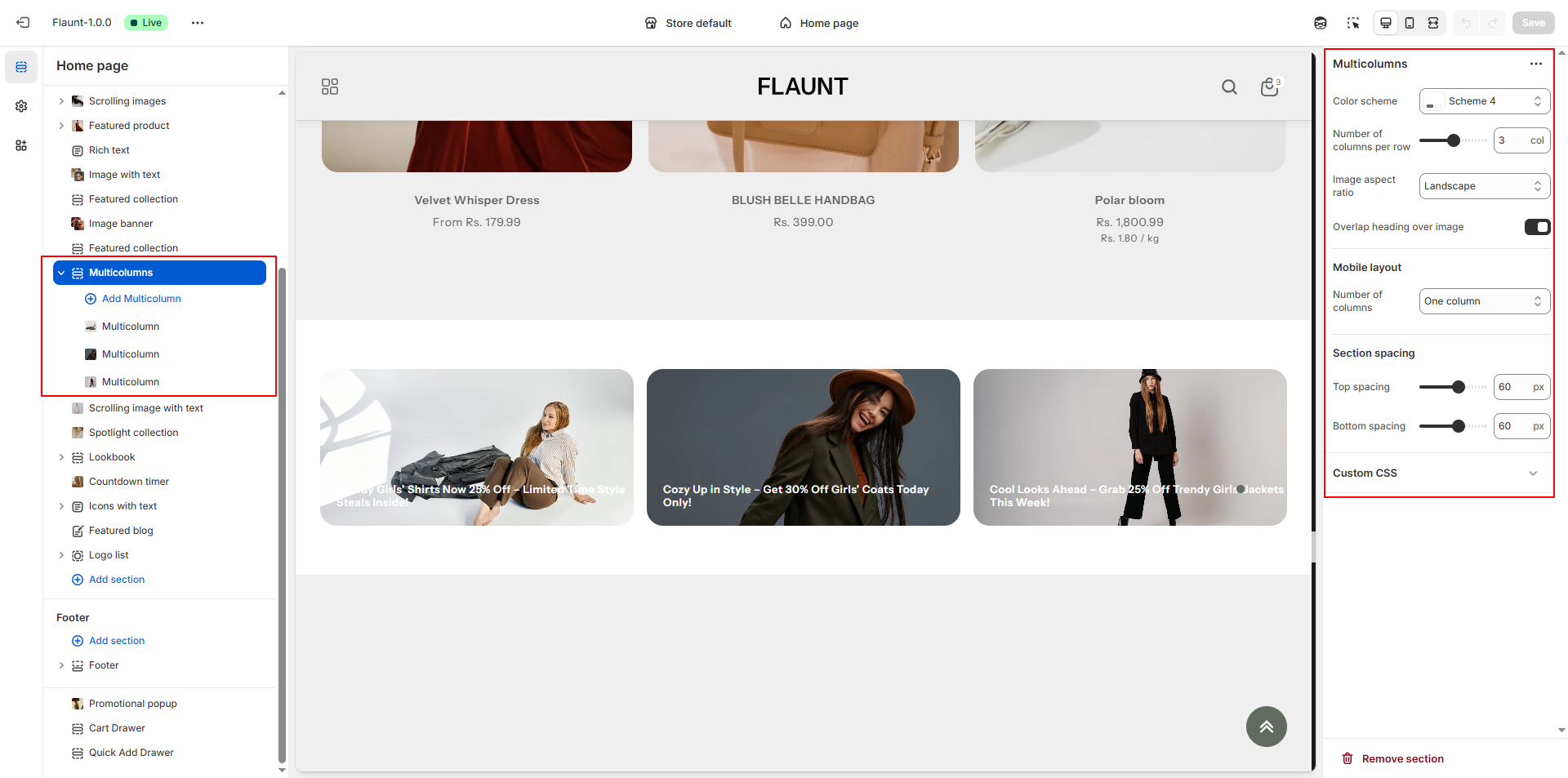
- Color Scheme: Select a color scheme to control the background and text colors used in the multi-column section.
- Number of Columns per Row: Choose how many columns should appear in each row (e.g., 2, 3, or more) to define the layout structure.
-
Image Aspect Ratio: Set how the images inside each column should be
displayed.
- Landscape: Wide horizontal images for a banner-style look.
- Square: Equal width and height to keep a clean, uniform grid.
- Portrait: Taller images ideal for vertical visuals.
- Adapt to Image: Retains the original proportions of the uploaded image.
- Overlap Heading Over Image: Enable this option to place the column title or heading directly on top of the image for a bold design effect.
-
Mobile Layout: Decide how columns should display on smaller
screens.
- One Column: Stacks each block vertically for easy mobile viewing.
- Two Columns: Displays content in a two-column layout for a compact mobile view.
Configure the Multicolumns Block Settings
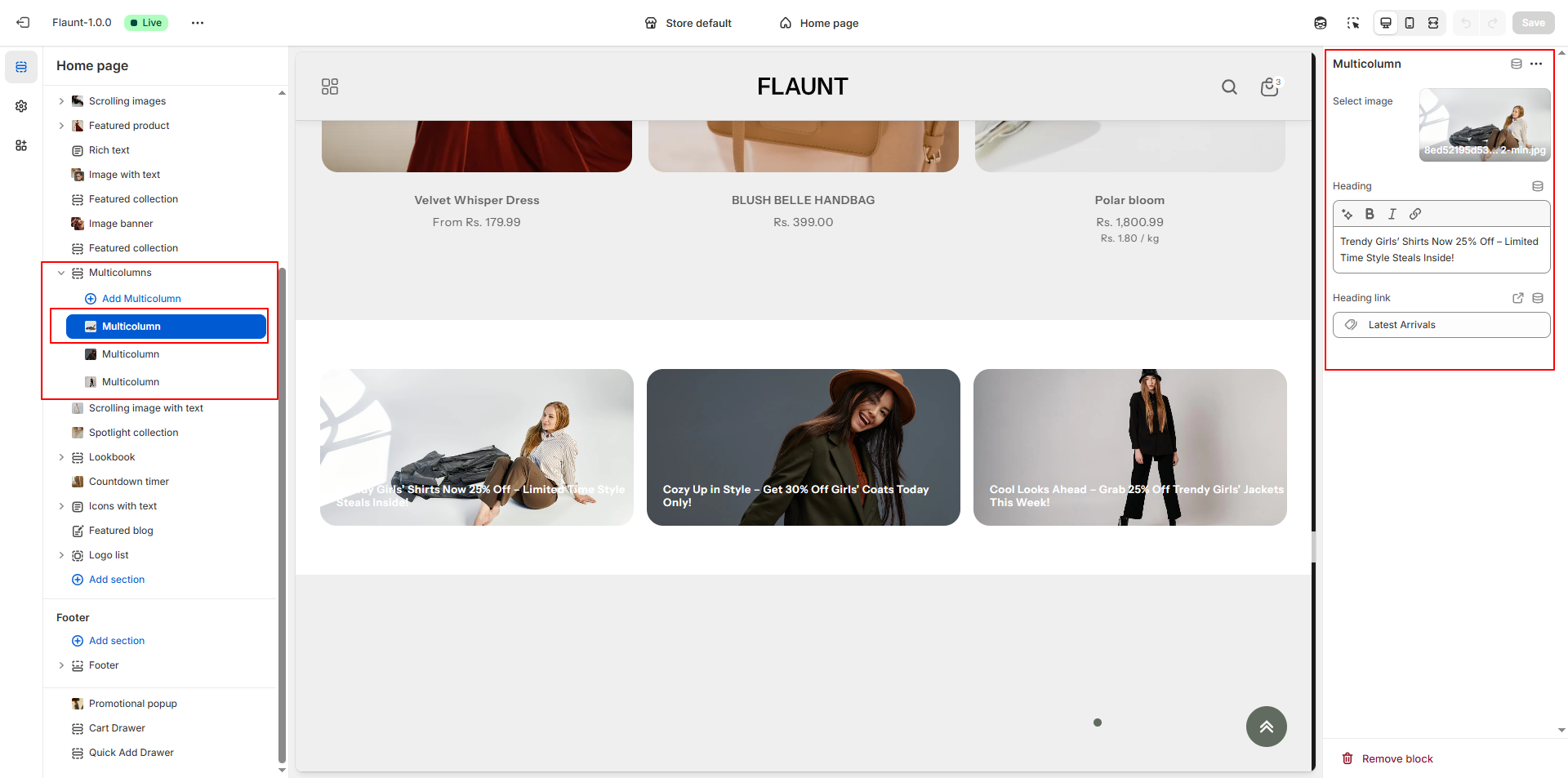
- Adding a New Block: Click the Add Multicolumn Block button to create a new content block inside the Multicolumn section.
- Select Image:
- Click Upload images to upload an image from your device.
- Or choose Explore free images to access Shopify’s free image library.
- If no image is uploaded, the block may appear without an image or use a placeholder depending on the theme.
- Heading: Enter the title or short text you want displayed below or above the image (e.g., “Trendy Girls’ Shirts Now 25% Off”).
- Heading Link: Select a page, collection, or product that should open when the heading is clicked (e.g., Latest Arrivals).
- Removing a Block: Select the block you want to delete and click the Remove Block button to remove it from the section.