
Build a Bundle
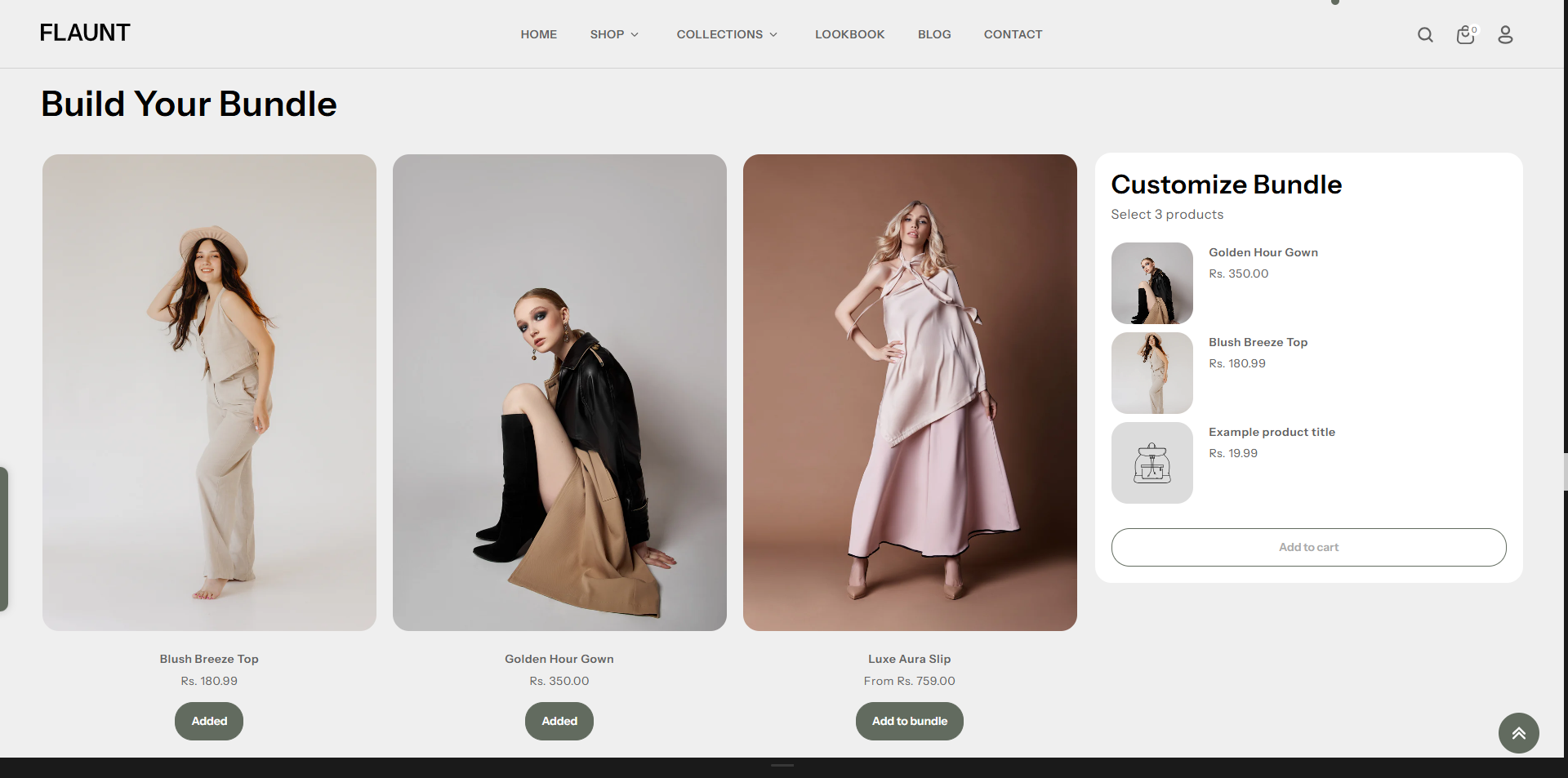
The Build a Bundle section allows customers to create their own customized product set by selecting multiple items in one place. Shoppers can easily add products to their bundle, view selected items in real time, and complete the purchase seamlessly—all from a single interactive layout.
This feature enhances the shopping experience by encouraging mix-and-match combinations, increasing engagement, and boosting average order value through personalized product selections.
How To Add the Build a Bundle section
- Login to your Customizer and navigate to the page you would like to display this section.
- You'll see a list of available sections on the left-hand side. Locate the Add section button and click on it.
- From the list of available sections, find and select Build a Bundle.
How To Edit the Build a Bundle section
Here are the steps to configure the options mentioned for the Build a Bundle section in your Flaunt Shopify theme:
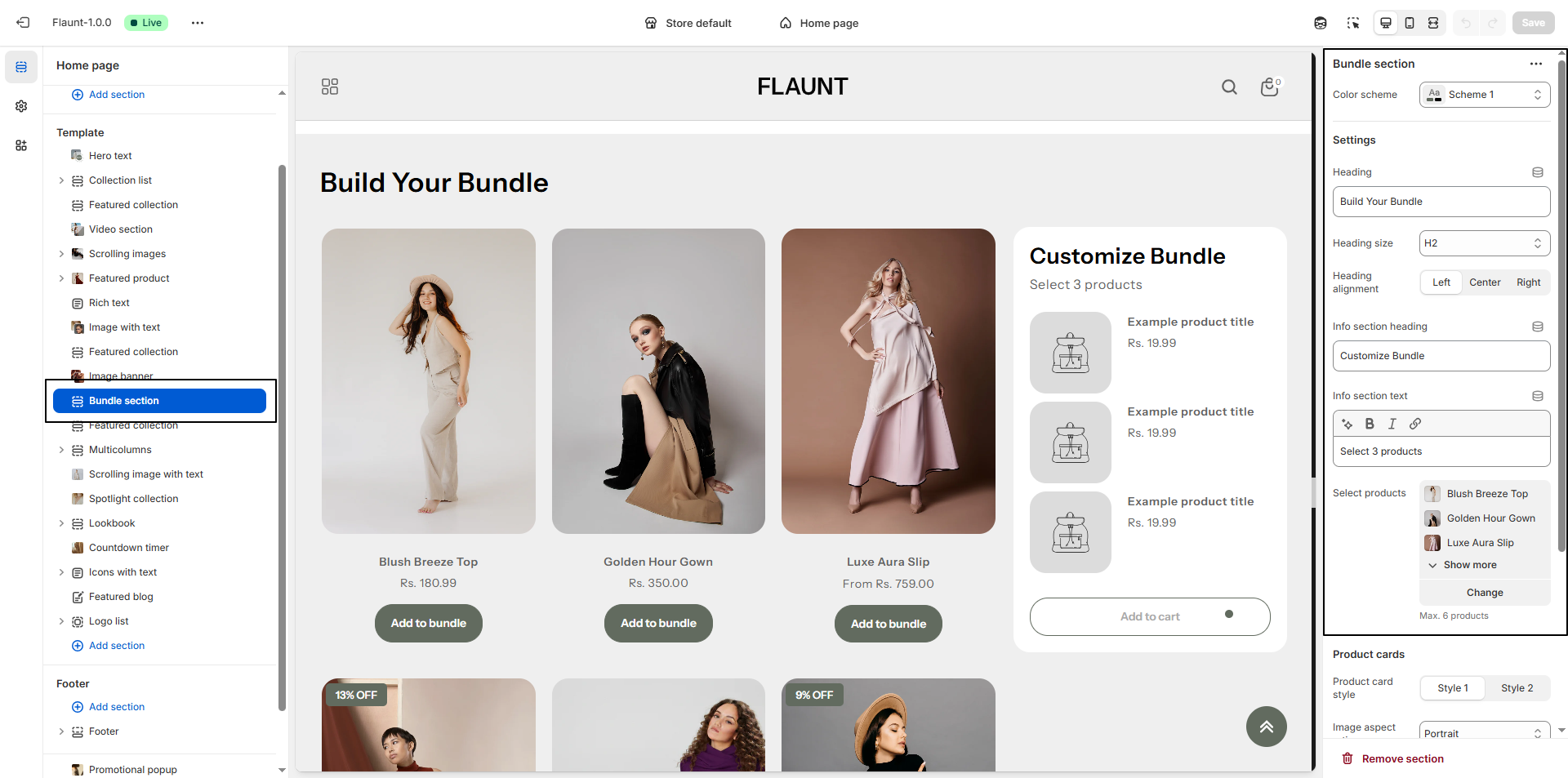
1. Set Section Color Scheme
- Set Section Background Color: Use this option to set the background color of the entire Build a Bundle section.
2. Configure Section Heading
- Heading: Enter the main section title (e.g., “Build Your Bundle”).
- Heading Size: Choose the heading tag size (H1, H2, H3, etc.) based on your layout preference.
- Heading Alignment: Select how the heading should align: Left, Center, or Right.
3. Configure Info Section
- Info Section Heading: Add a title for the bundle summary area (e.g., “Customize Bundle”).
- Info Section Text: Enter supporting text such as “Select 3 products” to guide customers.
- Select Products: Choose the products that customers can include in the bundle.
- Maximum Products: Set the maximum number of products allowed in the bundle (e.g., Max. 6 products).
4. Configure Product Cards
- Product Card Style: Choose between available styles:
- Style 1: Default structured layout.
- Style 2: Alternative visual layout design.
5. Configure Image Aspect Ratio
Under Image Aspect Ratio, select one of the following options:
- Adapt to image: Maintains the original uploaded image ratio.
- Portrait: Displays images in a vertical portrait format.
- Landscape: Displays images in a horizontal layout.
- Square: Crops images into a uniform square format.