
Video
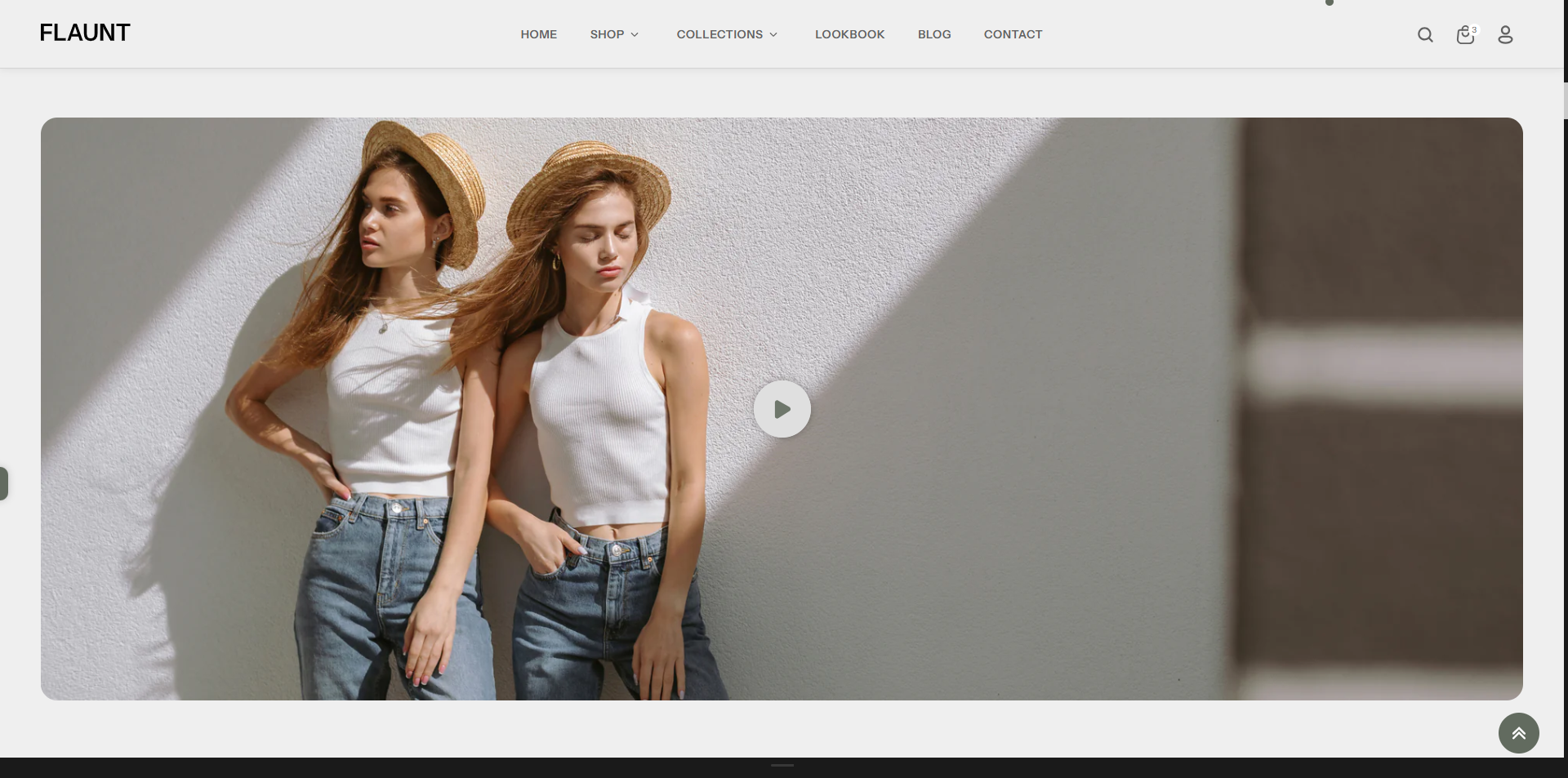
The Video Section in the Flaunt theme allows you to easily add engaging video content to your store using YouTube or Vimeo links. This section is perfect for showcasing product demos, tutorials, or promotional videos that help customers better understand your offerings. Videos include standard playback controls and do not autoplay, ensuring a smooth and distraction-free browsing experience.
How to Add the Video Section
- From your Shopify admin, go to Online Store → Themes.
- Click Customize on the Flaunt theme.
- In the Theme Editor, use the drop-down selector to choose the page where you want to add or edit the Video Section section.
- Click Add Section (or select an existing Video section if already added).
- Click Save to apply your changes.
How to Edit the Video Section
Here are the steps to configure the available settings for the Video Section in your Flaunt Shopify theme:
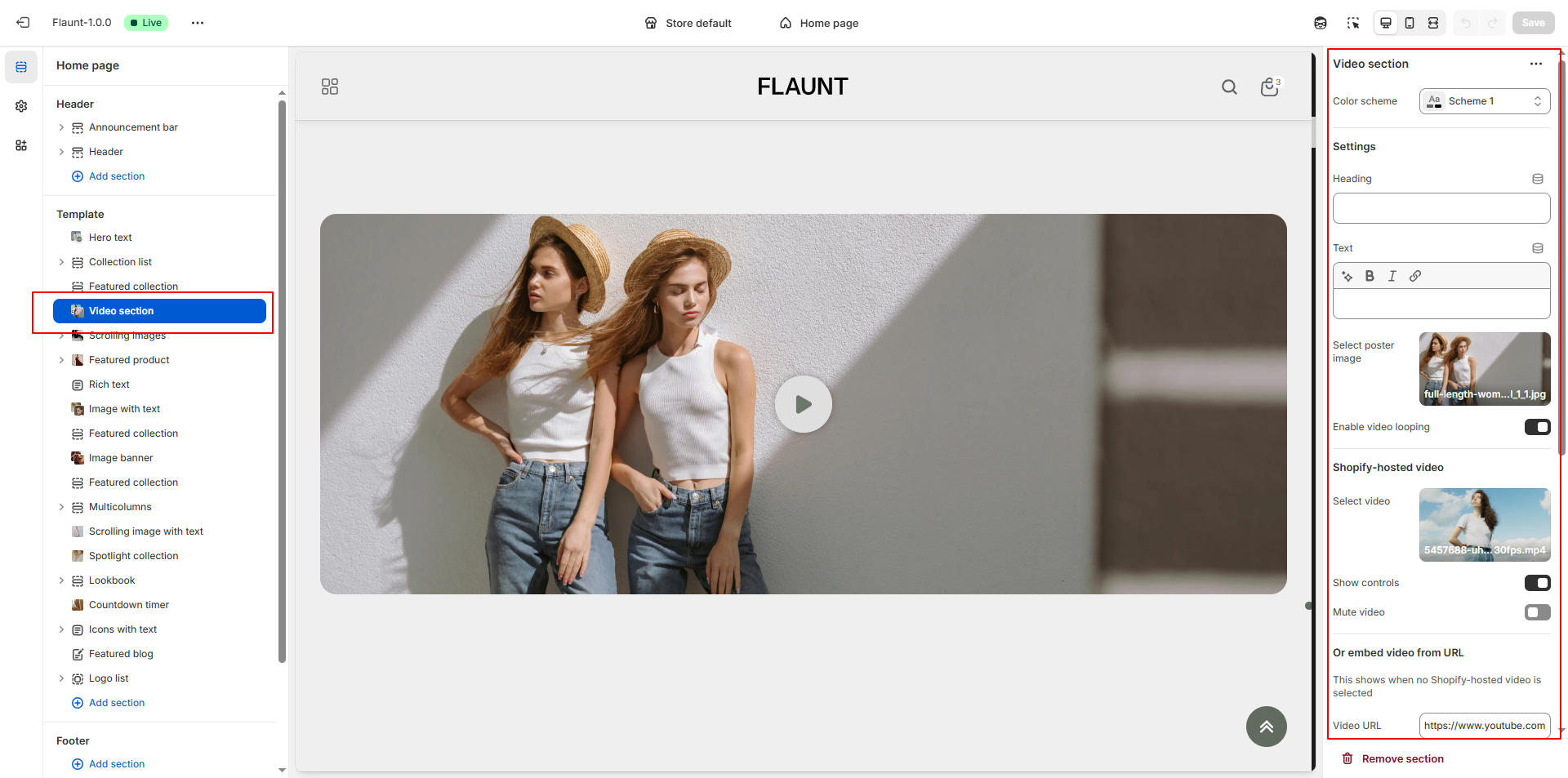
- Color Scheme: Choose a color scheme (e.g., Scheme 1) to define the text and background colors used in the video section.
- Heading: Add a bold title for the video section to introduce your content or message.
- Text: Add a short description or supporting message below the heading to explain the purpose of the video.
-
Select Poster Image: Upload a poster image that will be displayed before
the video loads or when the video is not playing.
- Click Upload images to add a new poster image.
- This image helps maintain a clean visual when the video is paused or loading.
- Enable Video Looping: Toggle this option to repeat the video continuously.
-
Shopify-Hosted Video:
- Click Select video to upload or choose a video hosted on Shopify.
- Ideal for high-quality background or promotional videos.
- Show Controls: Enable this to display play, pause, volume, and timeline controls on the video.
- Mute Video: Toggle to remove audio. Recommended for background videos.
-
Embed Video from URL: Use this option when no Shopify-hosted video is
selected.
- Paste a YouTube or Vimeo link in the Video URL field.
- This option is perfect for product demos, tutorials, and marketing videos.
- Show Button: Enable this to display a button below the video.
- Button Label: Enter the button text (e.g., “Shop All”).
- Button Link: Choose the page or collection to open when customers click the button.
Pro Tips:
Keep your MP4 video file under 20MB for faster load times.
Use short, high-quality videos (10–15 seconds) to create
impact without slowing down your site.
Apply a semi-transparent overlay if your text isn’t
readable.
FAQs
Why isn’t my video playing in the video section?
Video autoplay may not work due to mobile or browser restrictions. Mobile devices often disable autoplay to save battery or data, and some browsers block autoplay for videos with sound.
Here are some common reasons your video might not play:
- Your phone is in Battery Saver Mode.
- You’re on a weak or unstable data connection.
- The video includes sound.
- The video file size is too large.
- The page contains multiple videos or loads slowly.
- The video isn’t encoded in the correct format.
Pro Tip:
Always include a cover image for your video. This will be displayed whenever the video cannot autoplay.
For the best chance of autoplay:
- Upload your video in MP4 format via Shopify’s Content > Files section.
- Keep the file size under 3MB and ensure it’s encoded in the h.264 format for better compatibility.
Still not working?
Try replacing your video URL with this placeholder: https://cdn.shopify.com/s/files/1/0848/3828/files/Placeholder_video_on_Vimeo_540p.mp4 If the placeholder plays but your video doesn’t, the encoding format might be the issue. Use an h.264 MP4 encoder to fix it.
Why doesn’t my video have sound?
Background videos in the video section autoplay silently for a smoother user experience. Browsers typically block autoplay with sound.
If you need sound, use a default video section instead. This will give users control over playback and sound.