Collection Page
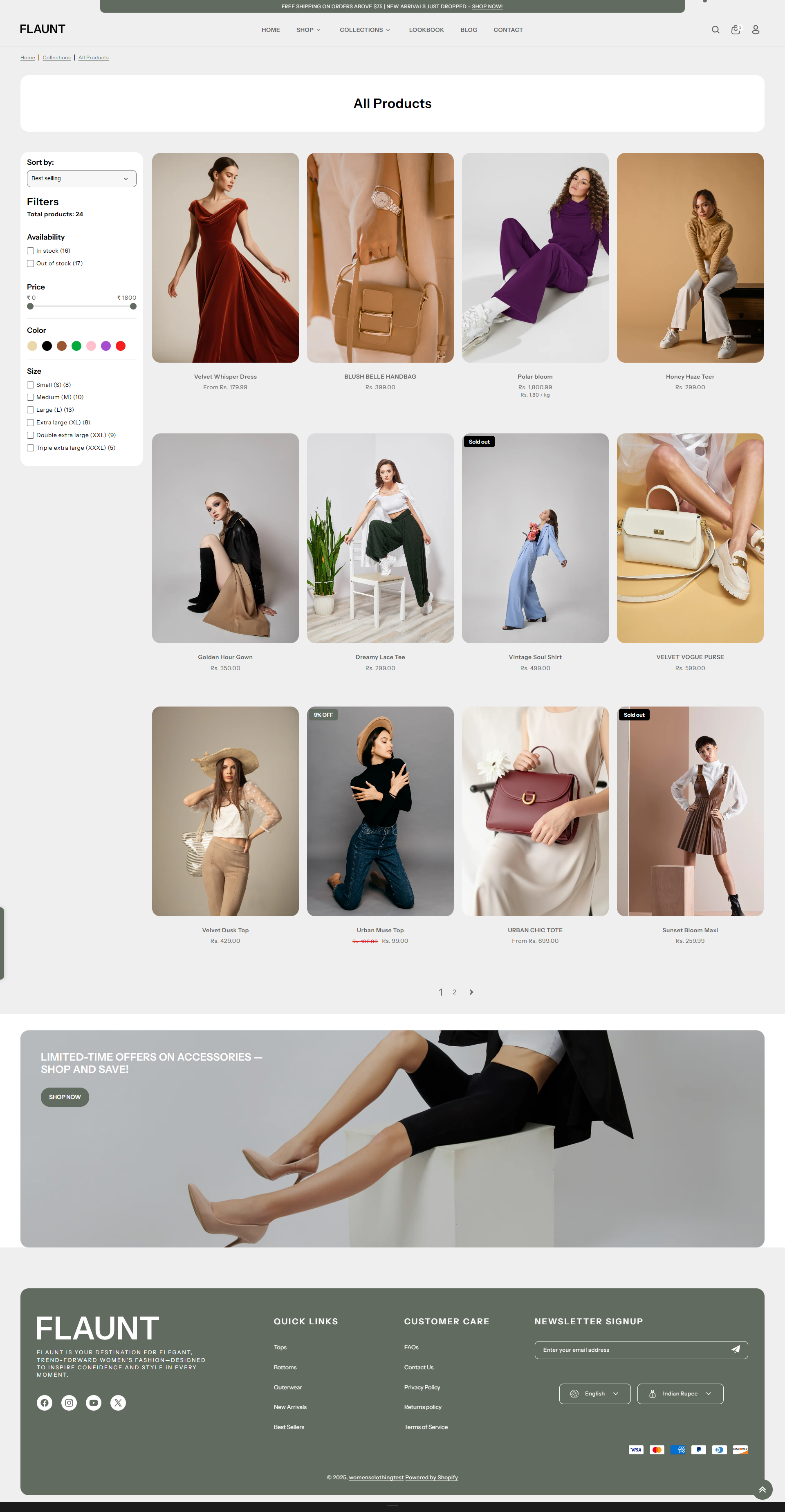
The Collection Page in the Flaunt theme displays products grouped by category, helping customers easily browse, filter, and explore items. It provides an organized shopping experience that makes product discovery simple and engaging.
How to Create a Collection
The Collection Page in the Flaunt theme consists of two main elements: the set of products and the collection page template. You can customize the template to create unique layouts for different collections, making browsing more engaging and organized.
To create product collections:
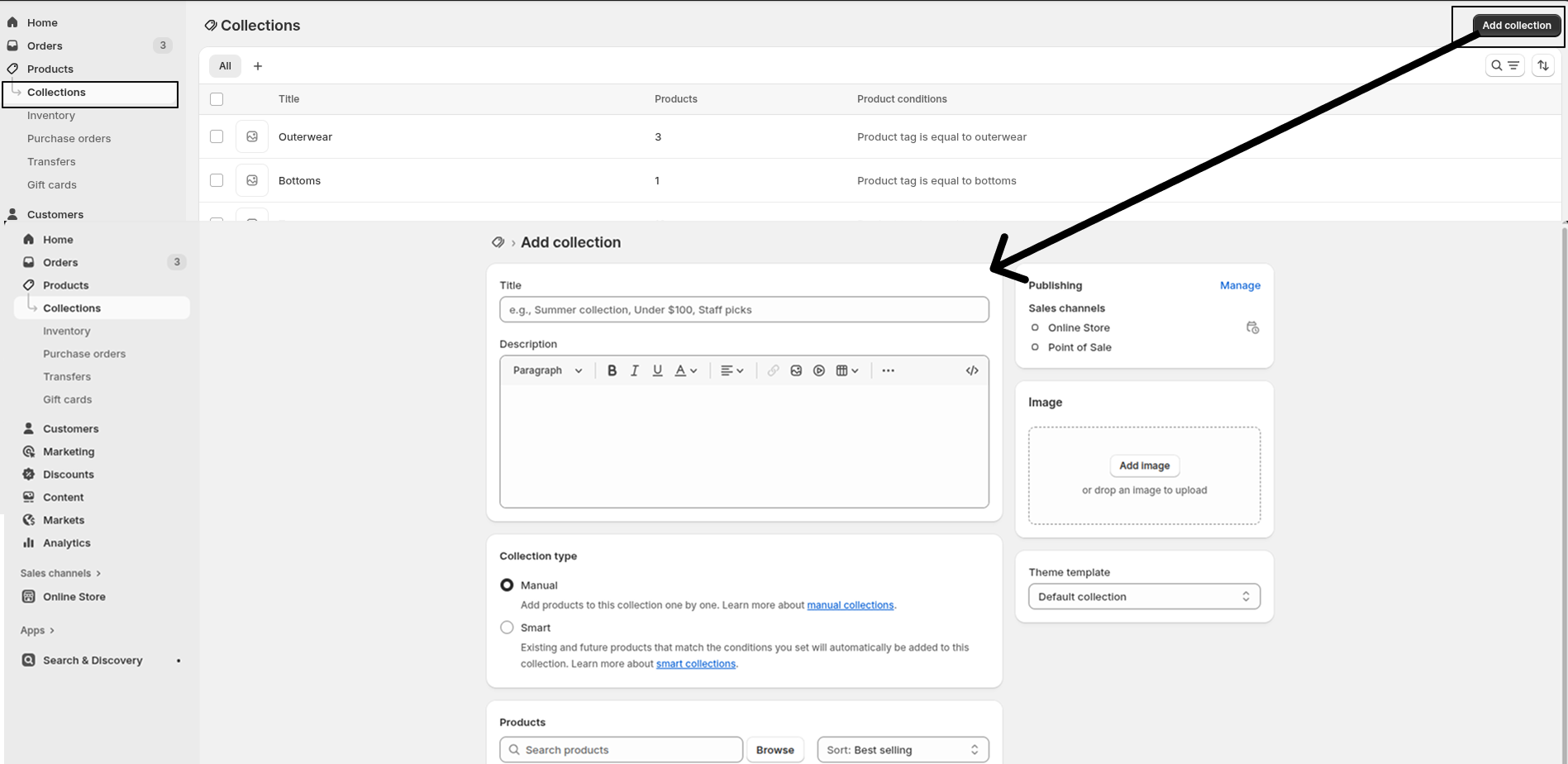
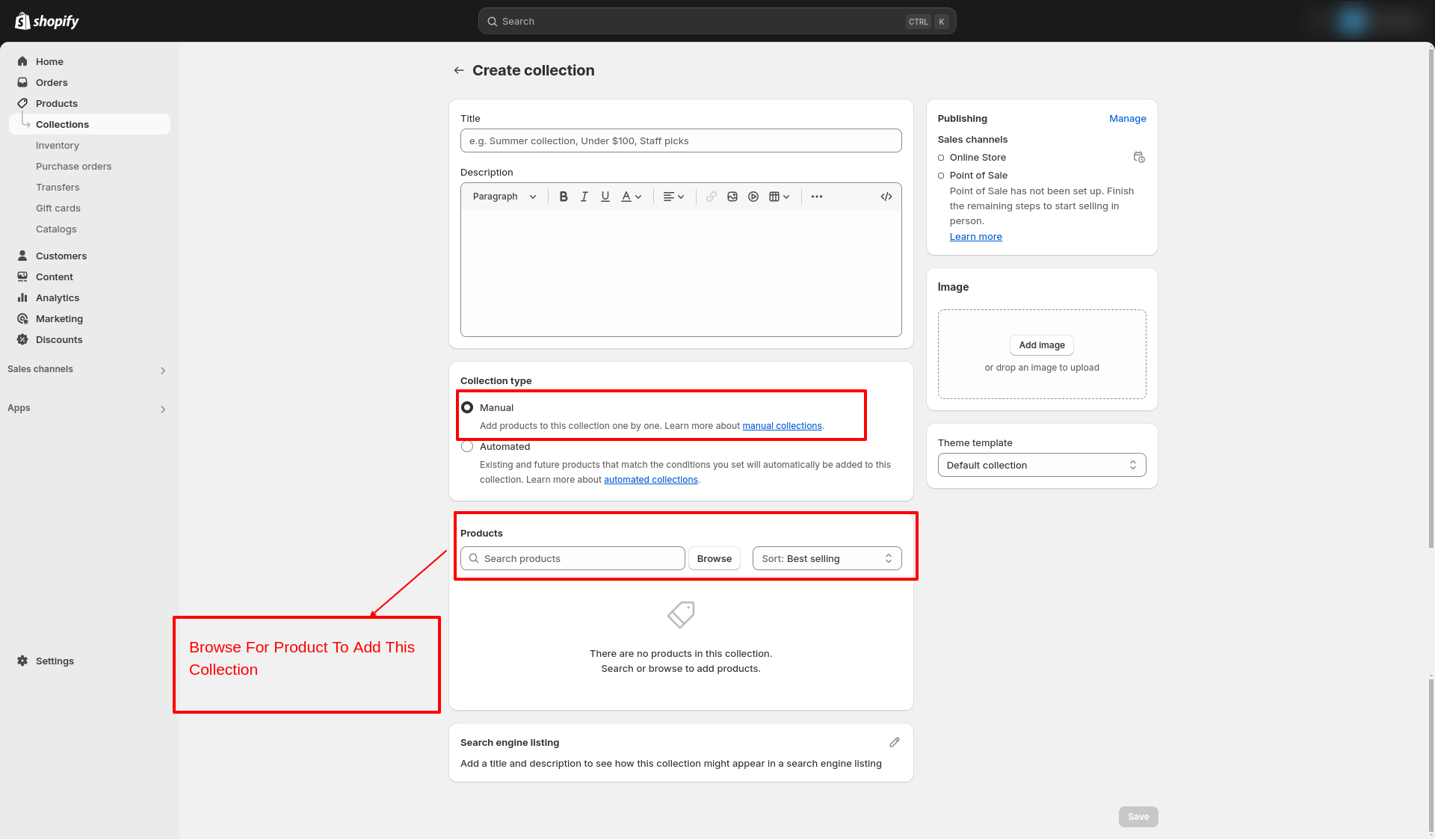
- From your Shopify admin, go to Products → Collections → Create collection.
- Collections help customers easily find products by category, type, or other attributes.
- For more detailed guidance, refer to Shopify’s Collections documentation.
Types of Collections
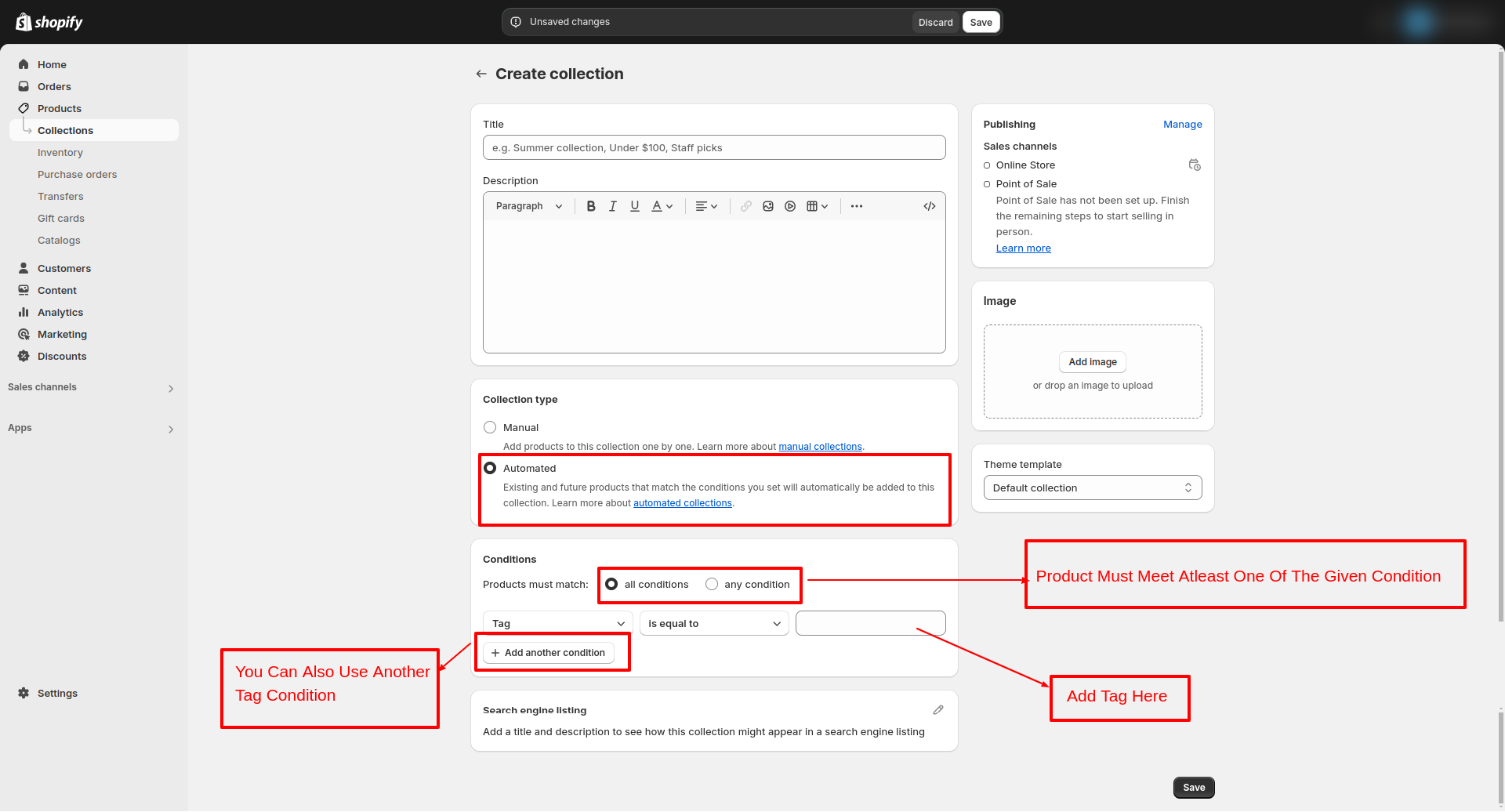
You can create two types of collections in the Flaunt theme:
- Automated Collection: Products are added automatically based on defined conditions. When you add a product to your store that meets the collection’s criteria, it’s automatically included in the collection.
- Manual Collection: Products are added individually by hand. This allows you to curate the collection with specific items of your choice.
Customize Your Collection Page
On the Collection Page, you can configure how your products are displayed, helping customers easily browse and discover items. Make sure the collection is published on your online store before adjusting these settings.
- From your Shopify admin, go to Online Store → Themes.
- Click Customize on the Flaunt theme.
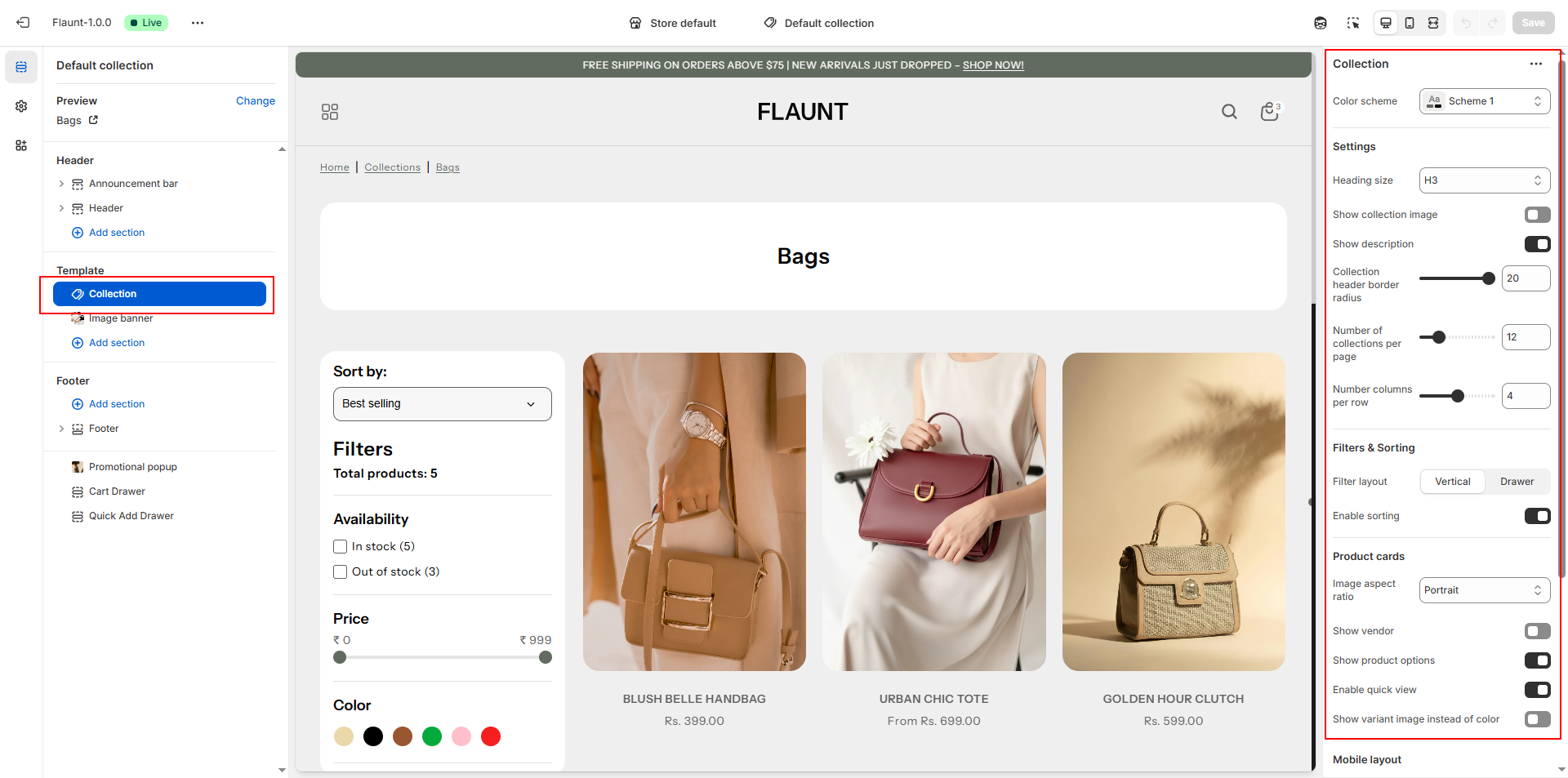
- In the Theme Editor, use the drop-down page selector and choose Collections → Default collection.
- Adjust layout, product display, filters, and other collection settings as desired.
- Click Save to apply your changes.
Collection Page Settings
- Heading Size: Choose the size of the collection title (e.g., H3).
- Show Description: Toggle to display the collection description below the heading.
- Collection Header Border Radius: Set the border radius for the collection header (e.g., 20px).
- Number of Collections per Page: Define how many collections appear on each page (e.g., 12).
- Number of Columns per Row: Set the number of product columns in the grid (e.g., 4).
- Filters & Sorting:
- Filter Layout: Choose between Vertical or Drawer layout for filters.
- Enable Sorting: Allow customers to sort products by options like price or newest.
- Product Cards:
- Image Aspect Ratio: Set the product image ratio (e.g., Portrait).
- Show Vendor: Toggle to display the product vendor/brand.
- Show Product Options: Enable to display options like size or color on cards.
- Enable Quick View: Allow customers to preview products without leaving the page.
- Show Variant Image Instead of Color: Display the product variant image when selected.
- Mobile Layout:
- Number of Columns: Choose how many product columns appear on mobile (e.g., Two columns).
How to Customize Filters
Filters help customers narrow down products on Collection Pages for a better shopping experience. Follow these steps to set up and customize filters in your store:
- From your Shopify admin, go to Online Store → Navigation.
- Click Add and install the Shopify Search & Discovery app if it isn’t already installed.
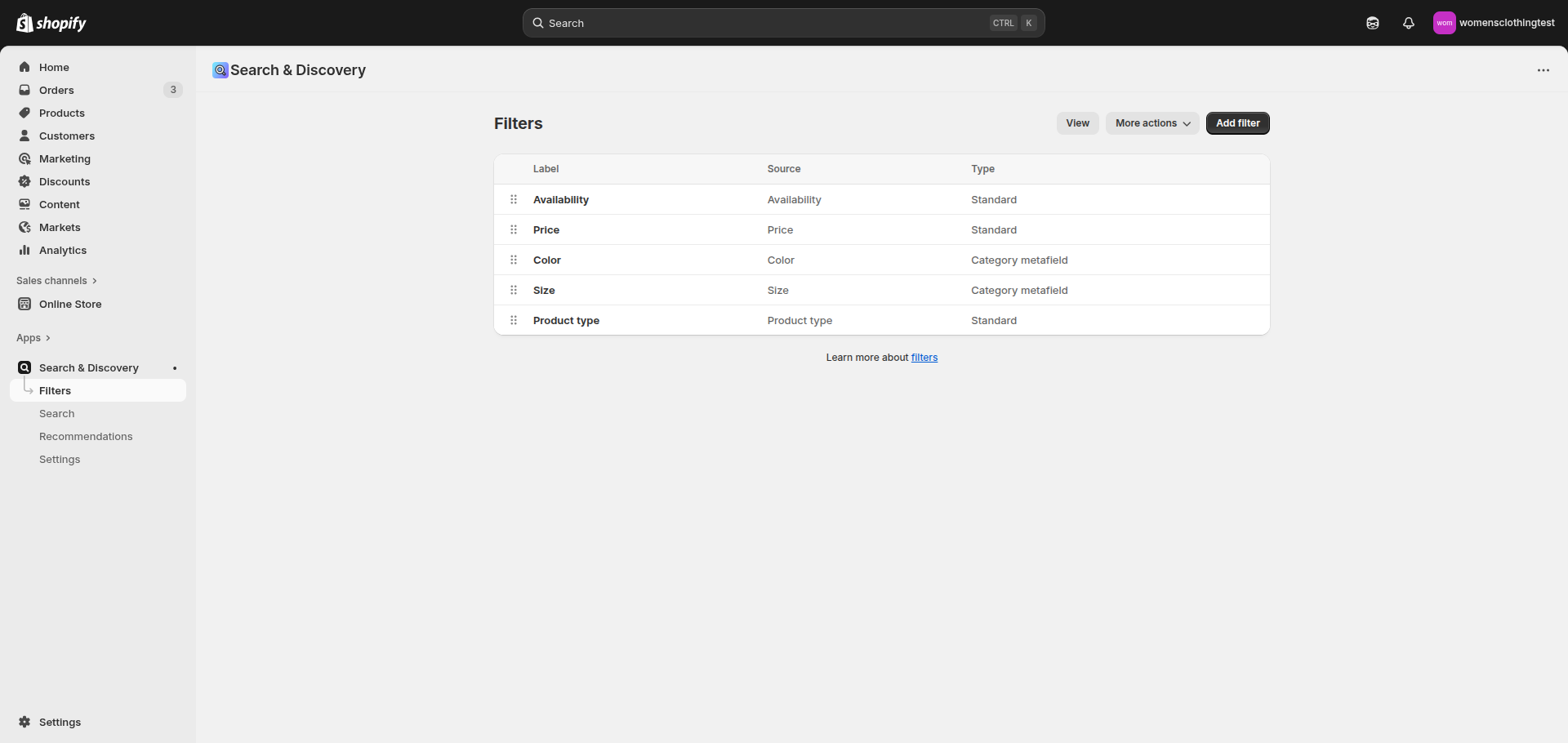
- Within the app, add or remove filters to control which options appear in your storefront filters.
- Save your settings after making changes.
- For more detailed guidance, refer to Shopify’s Filter documentation.
- To further fine-tune filters for your Collection Pages, consult the Storefront Filters Customization Guide.