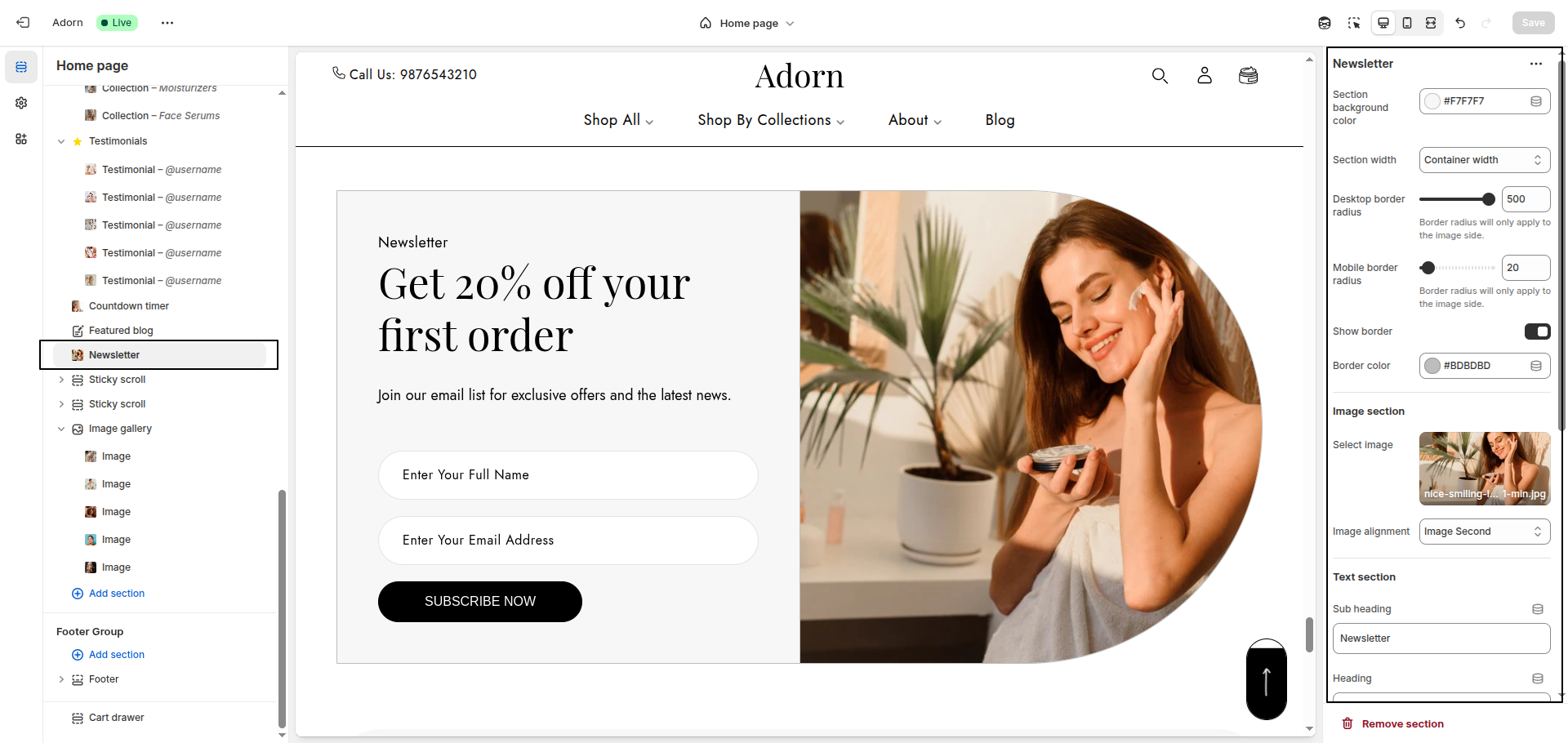
Newsletter
The Newsletter section in Adorn is designed to help you grow your email list and engage with customers. Featuring a compelling headline, customizable text, and input fields for names and email addresses, this section encourages visitors to subscribe for exclusive offers and updates. It includes a visually appealing layout with a split design that pairs promotional text with an image, creating a modern and professional look.
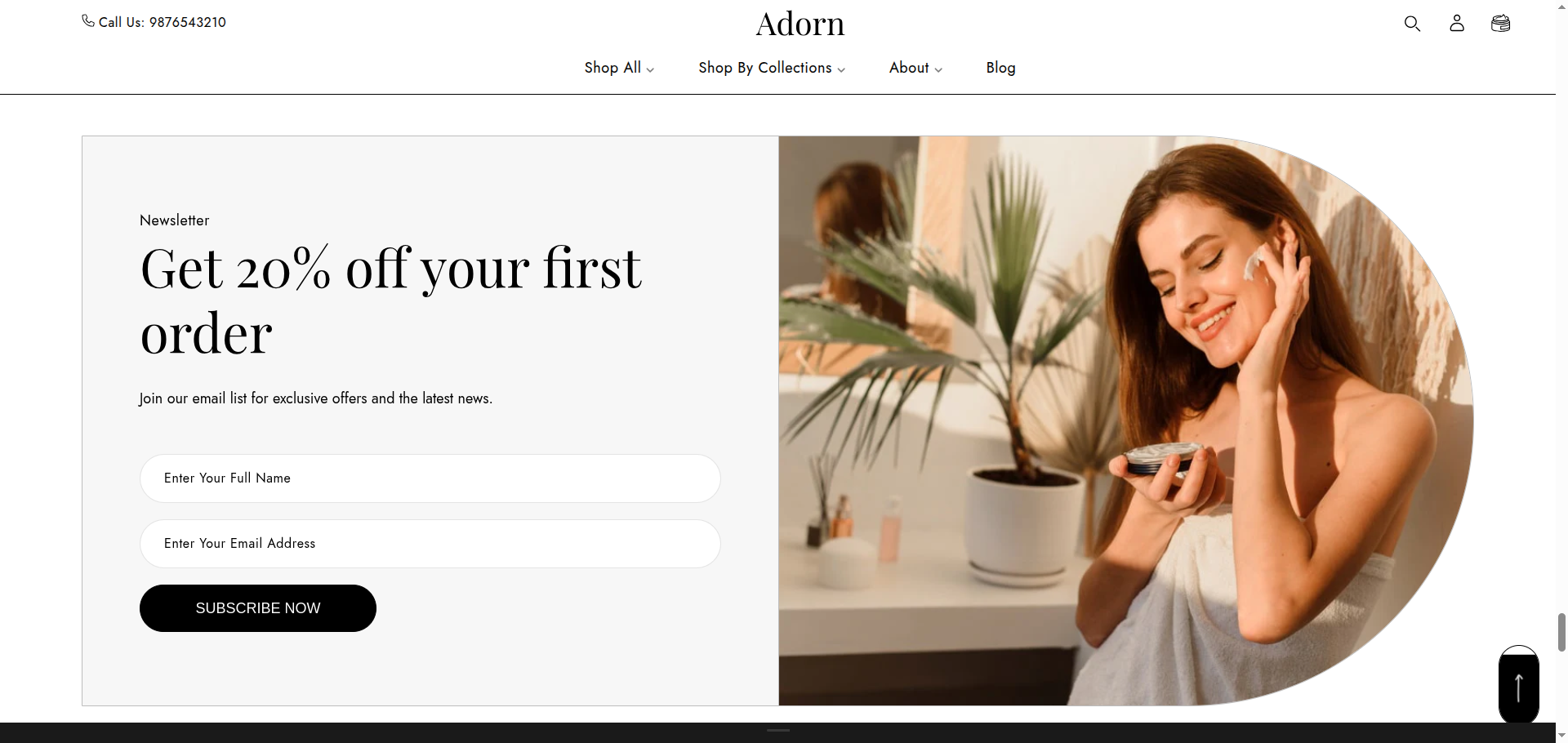
Adding the Newsletter section
- Open the Customizer and go to the page where you want to add the "Newsletter" section.
- On the left-hand side, you'll find a list of available sections. Click the "Add section" button.
- From the available options, choose "Newsletter"to add it to your page.
How to edit the Newsletter section
1. Set Section Background Color
- Use the Section Background Color setting to pick a color.
2. Set Section Width
- Full Width: Extends the slider across the entire screen.
- Container Width: Limits the slider within a fixed-width container
3. Set Border Radius
- Desktop Border Radius: Specify the border radius for desktop displays.
- Mobile Border Radius: Specify the border radius for mobile displays.
4. Show Border
- Toggle Show Border to enable or disable borders around the section.
- Set the Border Color.
5. Image Section
- Click on "Upload images" to choose an image from your computer or select "Explore free images" to find a suitable image from Shopify’s library
- Image Alignment: Choose Image First or Image Second from the Image Alignment dropdown.
6. Text Section
- Sub Heading: Enter a short introductory phrase.
- Heading: Include a bold and captivating headline.
- Text: Provide additional text if needed.
- In the Button Label field, enter the text you want for the button
- In the Button Link field, paste the URL you want the button to redirect to or use the search feature to find the desired page.