
Product Video Slider
The Product Video Slider section is a dynamic and engaging feature designed to showcase product-related videos alongside product highlights. This section allows you to display multiple videos in a sleek, interactive slider format, giving customers a closer look at product usage, features, or demonstrations. Each slide can include a video that plays directly within the slider, paired with product details or call-to-action elements. By combining video storytelling with product display, this section helps build trust, improve customer understanding, and drive conversions through an immersive shopping experience.
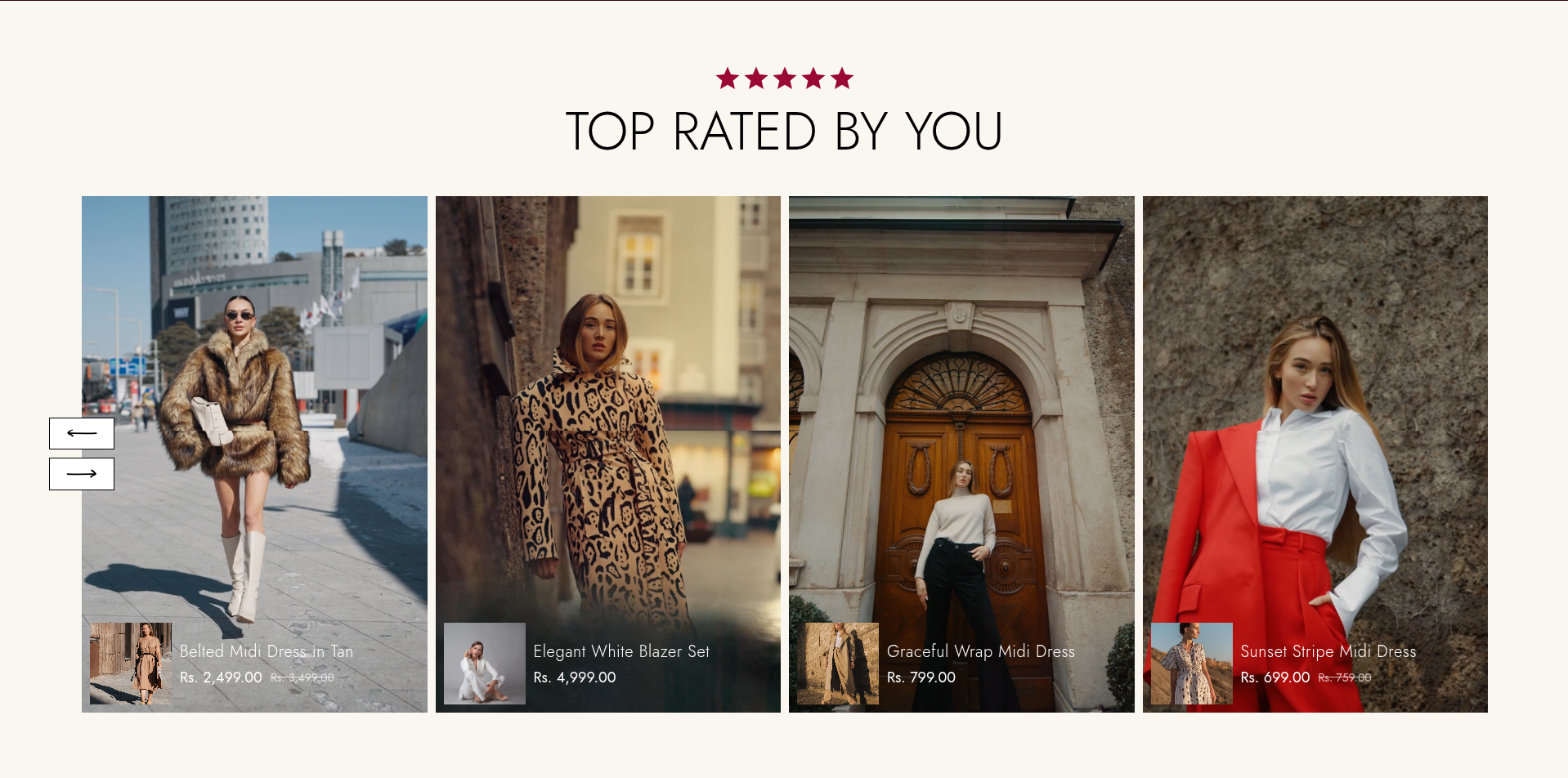
Adding the Product Video Slider section
- Login to your Customizer and navigate to the page you would like to display this section.
- You'll see a list of available sections on the left-hand side. Locate the Add section button and click on it.
- From the list of available sections, find and select Product Video Slider.
How to Edit Product Video Slider
Here’s a step-by-step guide to configure these settings in your Adorn Shopify theme:
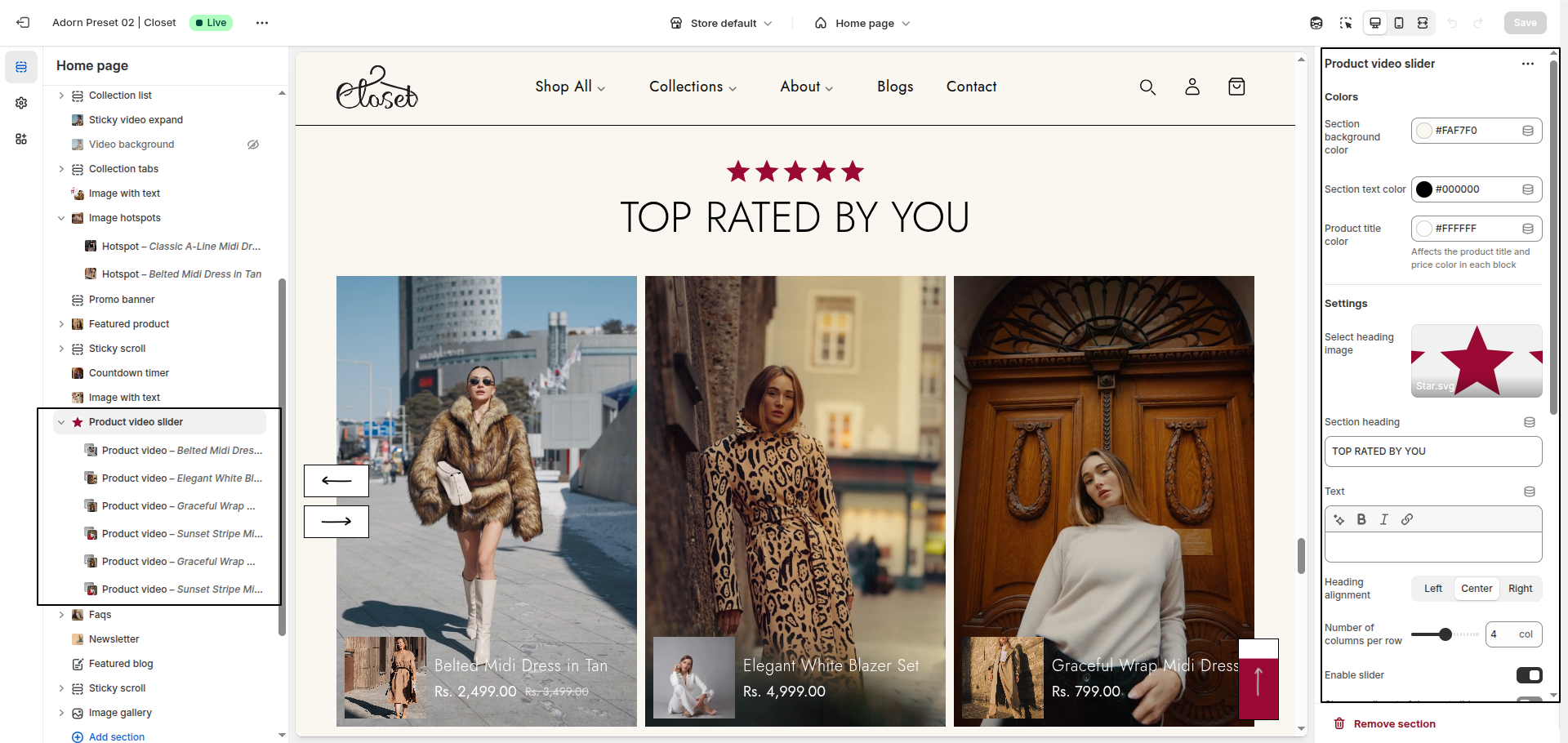
1. Set Section Color Scheme
- Section background color: Define the background color of the section. This sets the overall tone and feel of the block
- Section text color: Adjust the main text color used across the section. This applies to headings, descriptions, and general text content.
- Product title color: Customize the text color specifically for product titles and prices within each product block. This ensures better visibility and contrast against your chosen background
2. Set the Section Heading
- Select heading image: Upload an image to display above the section heading
- Section heading: Enter a heading for the section in the Section Heading field.
- Heading alignment: Choose the alignment option for the heading: Left, Center, Right
3. Number of columns per row/h5>
- Select how many products/videos to show in each row.
4. Enable Slider
- Toggle Enable Slider to On if you want products displayed in a slider
format.
- Show small part of the next slide: Option to preview a portion of the next
slide for a smooth carousel effect.
- Enable arrowsToggle to display navigation arrows for sliding between items.
5. Set Border Radius
- Desktop Border Radius: Specify the border radius for desktop displays.
- Mobile Border Radius: Specify the border radius for mobile displays.
6. Configure Image Ratio
Under Image Ratio, select one of the following options:
- Adapt to image: Keeps the original image ratio.
- Portrait: Displays images in a portrait ratio.
- Square: Crops images into a square format.
7. Configure the Block Settings
- Select video: Upload or choose a Shopify-hosted video to display.
- Select image: Add a poster/thumbnail image for the video. This will show before the video plays.
- Select product: Link the video to a specific product so users can directly view or purchase it.