
Testimonials
The Testimonials section in Adorn allows you to prominently display customer feedback, reviews, and testimonials, making it simple to showcase the experiences of your satisfied customers. This feature is essential for fostering trust and credibility with potential buyers.
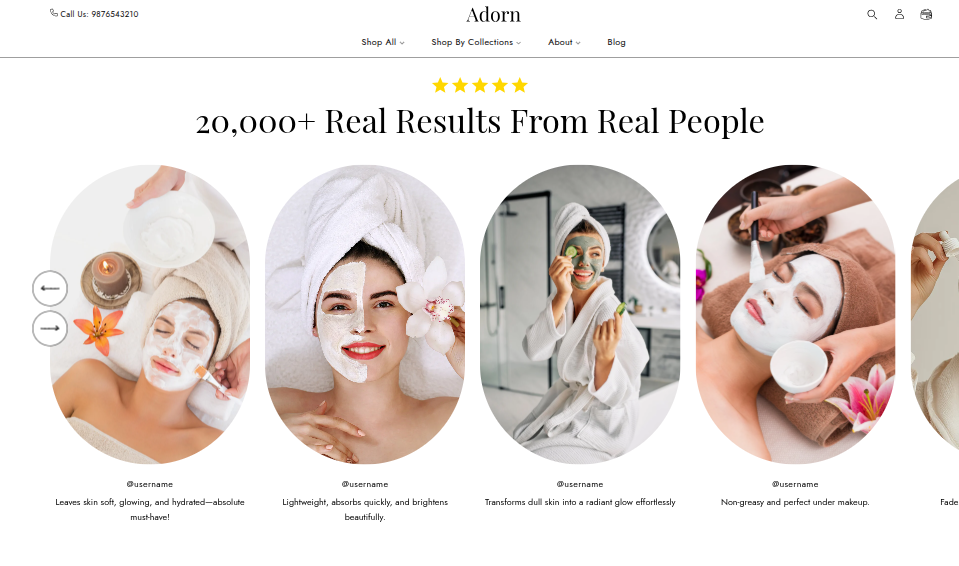
Adding the Testimonials Section
- Open the Customizer and go to the page where you want to add the "Testimonials Section" section.
- On the left-hand side, you'll find a list of available sections. Click the "Add section" button.
- From the available options, choose "Testimonials Section"to add it to your page.
How to edit the Testimonials Section
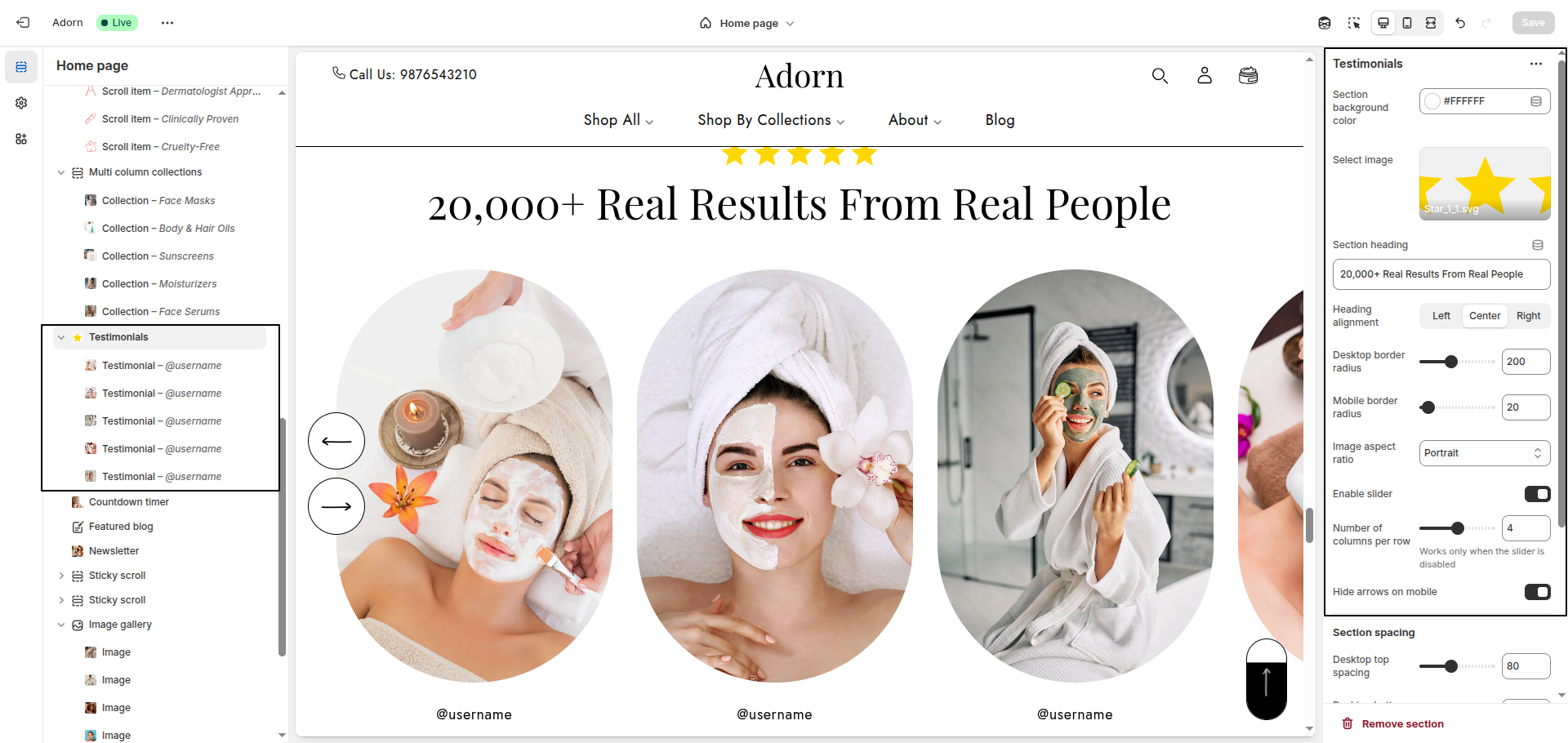
1. Set Section Background Color
- Set the background color for the section.
2. Set the Section Heading
- Click Upload images to add a heading image or decorative image.
- Section Heading: Add a heading for the section.
- Adjust Heading Alignment:Choose the alignment option for the heading: Left, Center, Right
3. Set Border Radius
- Desktop Border Radius: Specify the border radius for the image side on desktop.
- Mobile Border Radius: Specify the border radius for the image side on mobile.
4. Image Aspect Ratio
Choose how the testimonial images should be displayed:
- Portrait: Displays images in a vertical rectangular format.
- Square: Displays images in a square format.
- Adapt to Image: Uses the natural aspect ratio of the uploaded image.
5. Slider Settings
- Toggle the Enable Slider option to activate the testimonial slider feature.
- Number of Columns Per Row: Define the number of columns displayed per row.(Note: This setting applies only when the slider is disabled.)
- Hide Arrows on Mobile: Enable this option to hide navigation arrows for the slider on mobile devices.
Configure the Testimonial Block Settings
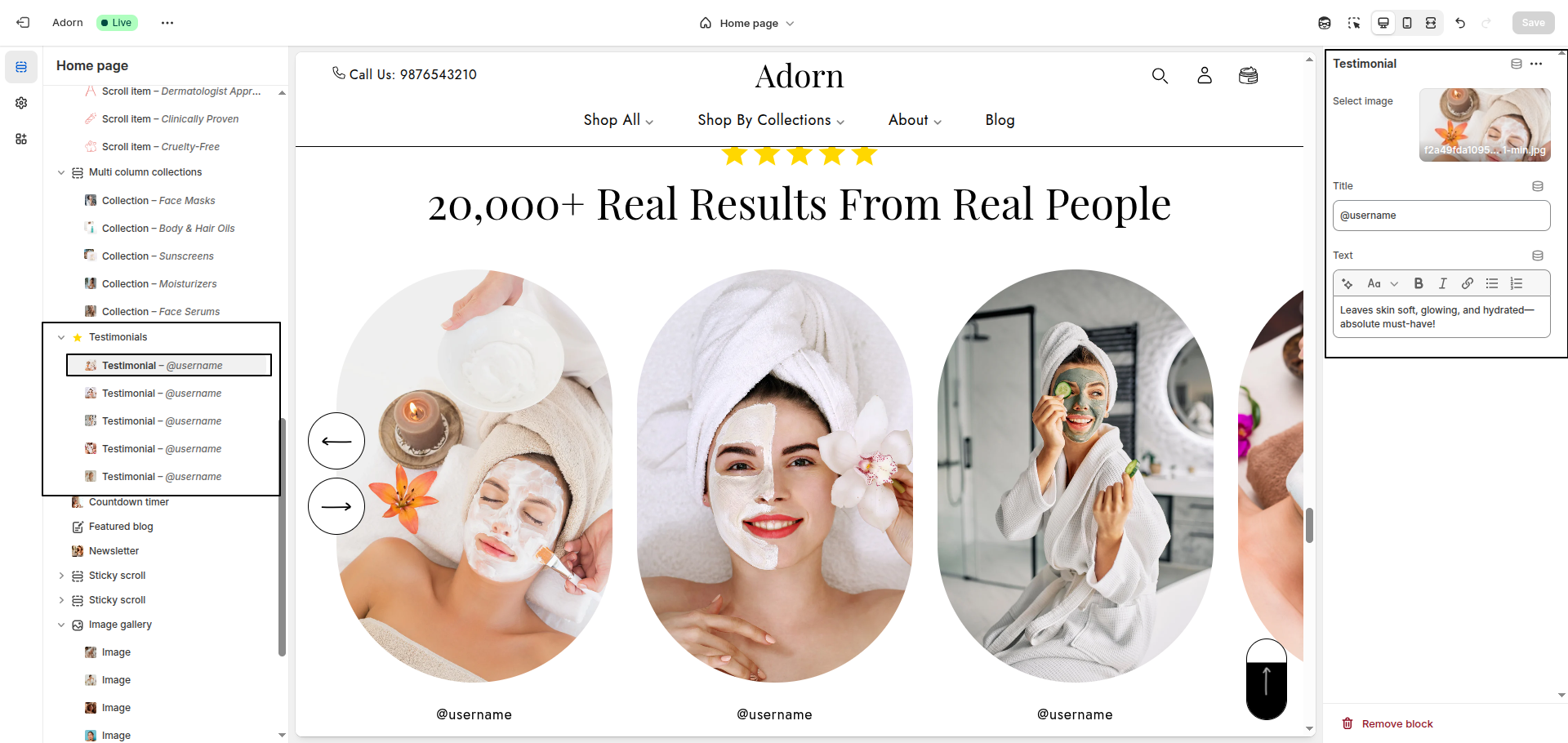
- Select Image: Click "Upload images" to add your own image, or choose "Select image" or "Explore free images" to pick one from the library.
- Title : Enter a Title for the block.
- Text: Provide additional text if needed.