
Image Hotspots
The Image Hotspots section lets you create an interactive shopping experience by tagging products directly on an image. Each hotspot is clickable, guiding customers straight to the product page for quick and seamless shopping. This feature is perfect for showcasing outfits, styled looks, or collections in a more engaging way.

How To Add the Image Hotspots section
- Go to your Customizer and navigate to the page you would like to display this section.
- You'll see a list of available sections on the left-hand side. Locate the Add section button and click on it.
- From the list of available sections, find and select Image Hotspots.
How To Edit the Image Hotspots section
Here are the steps to configure the options mentioned for the Image Hotspots section in your Adorn Shopify theme:
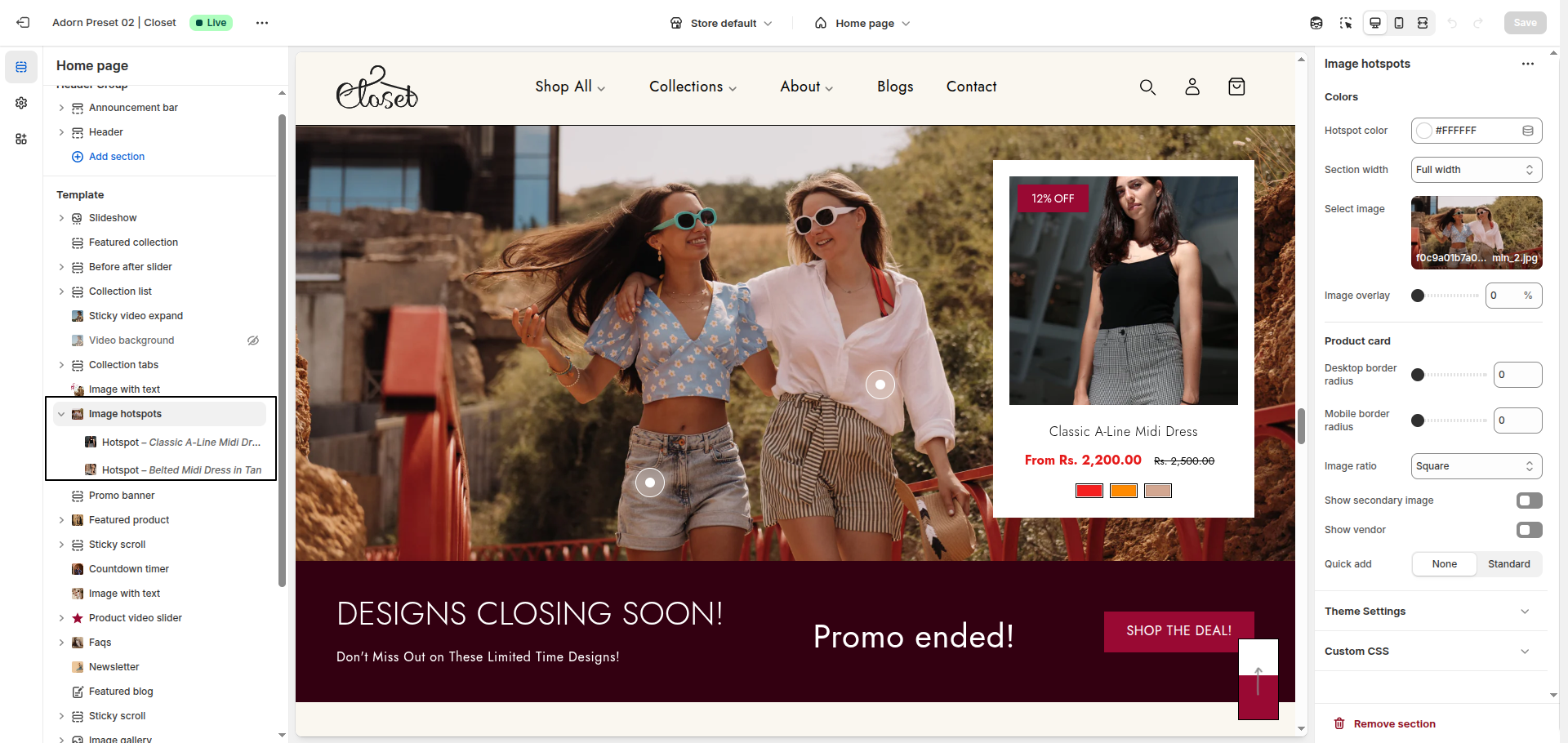
1. Configure Section Secttings
- Hotspot Color: Sets the color of the hotspot marker displayed on the image.
- Section Width: Choose between Full width or contained layout for the image display.
- Select Image: Click Upload images to add from your computer, or select Explore free images to browse Shopify’s library.
- Image Overlay: Use this setting to adjust the opacity of the background image. A lower value keeps the image clear, while a higher value adds a darker overlay.
- Button Hover Text Color: Changes the text color of buttons when hovered.
2. Product Card
Configure how product cards appear when linked to hotspots
- Desktop Border Radius: Sets the corner roundness of product cards on desktop view.
- Mobile Border Radius: Sets the corner roundness of product cards on mobile view
- Image Ratio: Choose how the image is displayed: Square, Portrait, or Adapt to image.
- Show Secondary Image: Enable to display the secondary product image on hover.
- Show Vendor: Display or hide the product vendor name on product cards.
- Quick Add: Allows customers to quickly add products to the cart directly from the hotspot.
5. Configure The Hotspots Block Settings
- Select Product: Choose the product you want to assign to the hotspot.
- Hotspot Position:
Desktop – Set the X (Horizontal) and Y (Vertical) axis position of the hotspot on desktop view.
Mobile – Set the X (Horizontal) and Y (Vertical) axis position of the hotspot on mobile view.