
Featured Product
The Featured Product section spotlights standout items in your store, usually on the homepage but also available elsewhere. This section enhances product visibility, encouraging discovery and boosting sales. It's an effective way to promote new arrivals, best-sellers, or clearance items, leveraging their popularity to engage customers and drive revenue
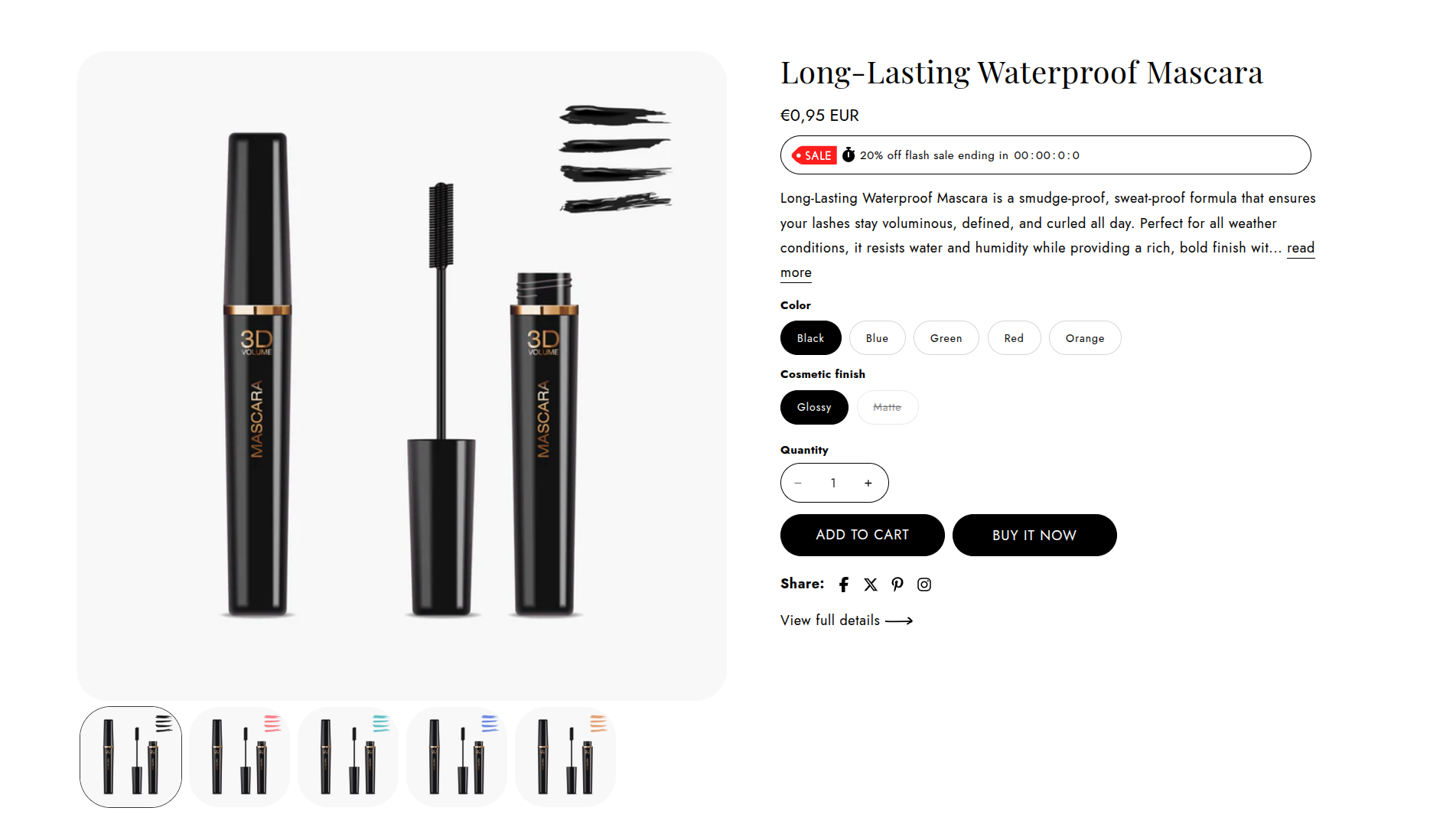
How to add a Featured product section
- Login to your Customizer and navigate to the page you would like to display this section.
- You'll see a list of available sections on the left-hand side. Locate the Add section button and click on it
- Locate Featured product
How to edit the Featured product section
Steps for Configuring the Featured Product Section
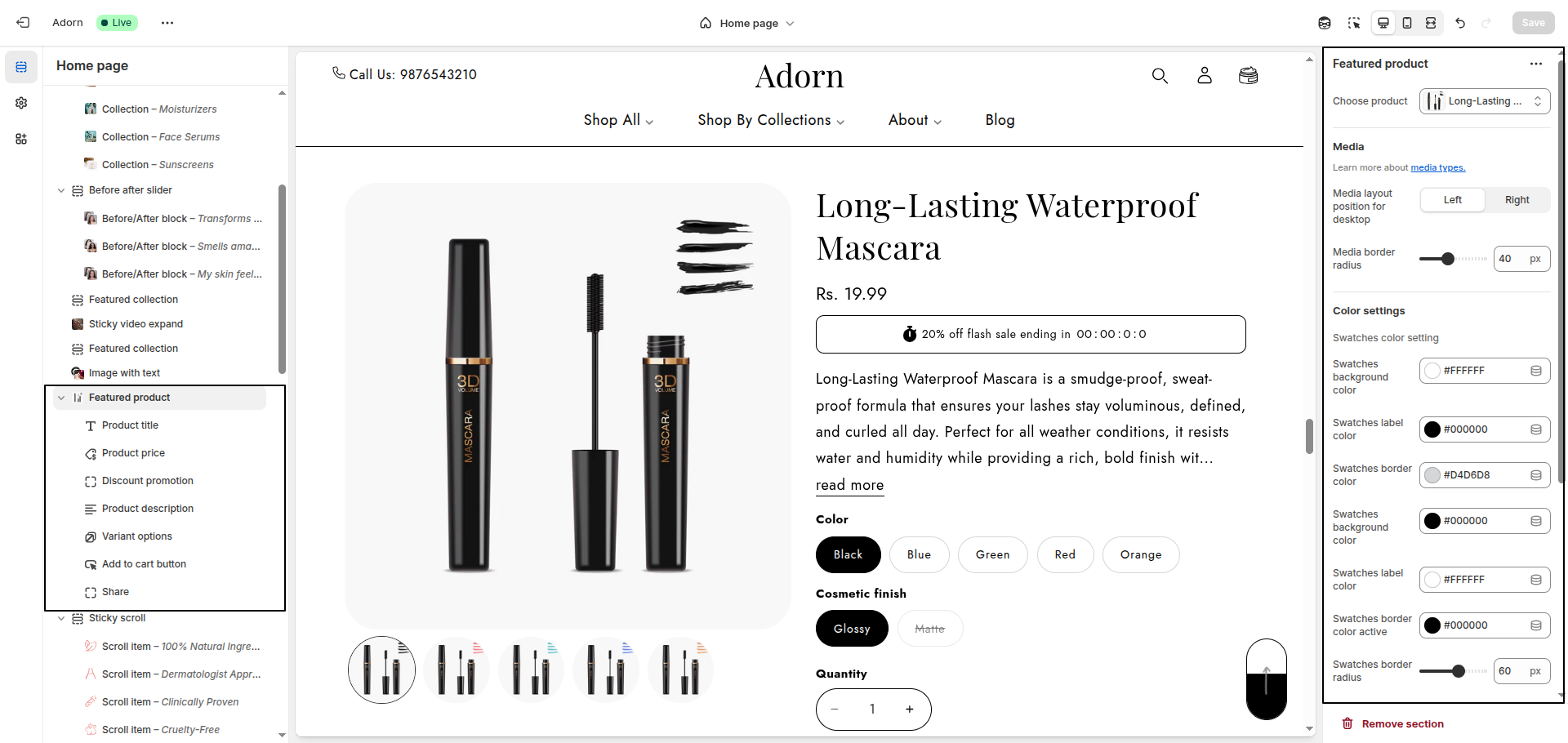
1. Select Product
- Under Product, choose the product you want to feature.
2. Media Settings
- Desktop Media Position: Set media to display on the Left or Right on desktop.
- Media Border Radius: This setting adds a rounded effect to the media, enhancing the design aesthetics.
3. Block settings
The product information blocks:Text, Title, Price, will be pulled from the product page to display in this section. You do not need to modify these blocks.
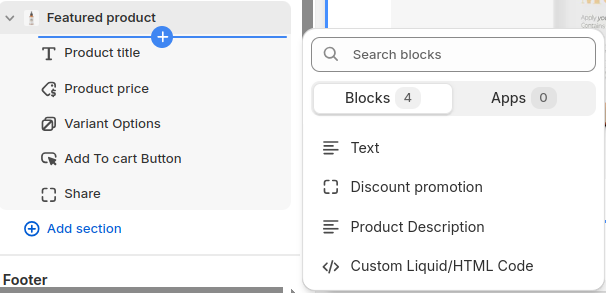
- Text: In the Text box, enter text to display inside the block. Format the text and add links using the Text editor pane.
- Title: Use the Title size setting to specify a size for the product title.
1. Variant picker
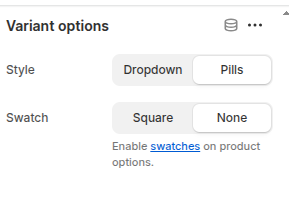
Select your preferred style for displaying variants
- Dropdown: Shows options in a dropdown menu.
- Pills: Displays options as pill-shaped buttons.
- Swatch: Shows color or pattern swatches for options.
- Square: Displays variants as square buttons.
- None: Disables the variant picker style, displaying options without special formatting.
2. Add to Cart Button Settings
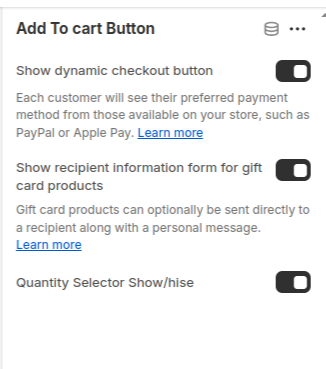
- Show Dynamic Checkout Button: Select the checkbox Show dynamic checkout button to show/hide a button with the customer's preferred payment method, beside the Add to cart button, inside the block. Refer to Shopify help: Dynamic checkout buttons .
- Show Recipient Information Form for Gift Card Products:
- Quantity Selector: Displays a quantity selector, allowing customers to adjust the number of products they want to purchase.
Enable this option to allow customers to provide recipient details for gift card purchases.
Customers can include a recipient's email address and a personal message when sending the gift card directly Learn more Shopify Gift Card Settings.
3. Discount promotion
Steps to Configure Discount Promotion in the Shopify Adorn Theme
1. Using Metafields for Dynamic Discounts
This method allows different discounts for each product.
- Enable Metafield Option in the Theme:
-
- Online store > Themes > Customize
- Locate the Discount Promotion section in product page.
- Enable the Discount Code Metafield Option.
- Create a Metafield for Discounts:
-
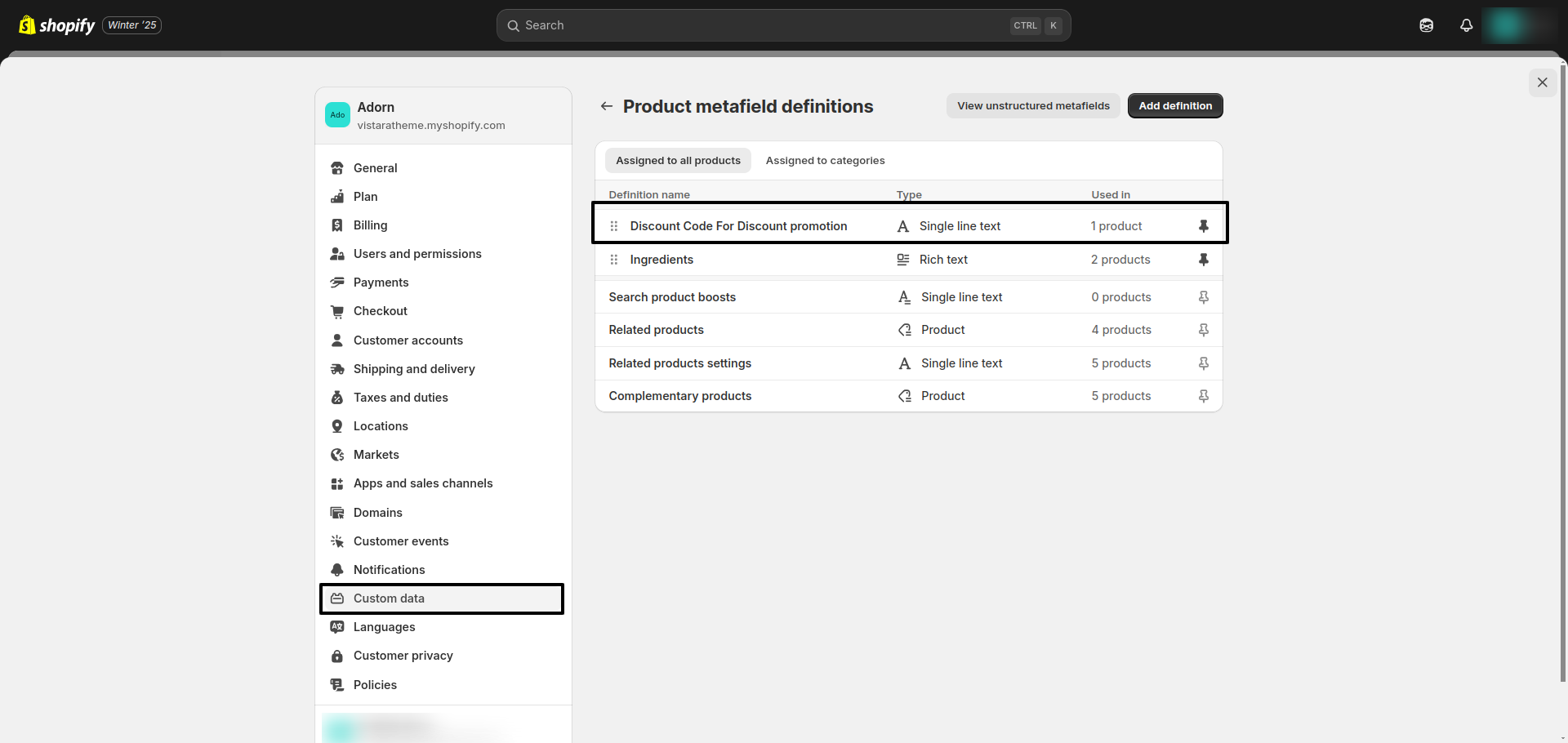
- Go to Settings > Custom Data > Product in Shopify admin.
- Create a new metafield named discount_code set Namespace and Key: discount_code or use type Text
- Assign Values to the Metafield:
-
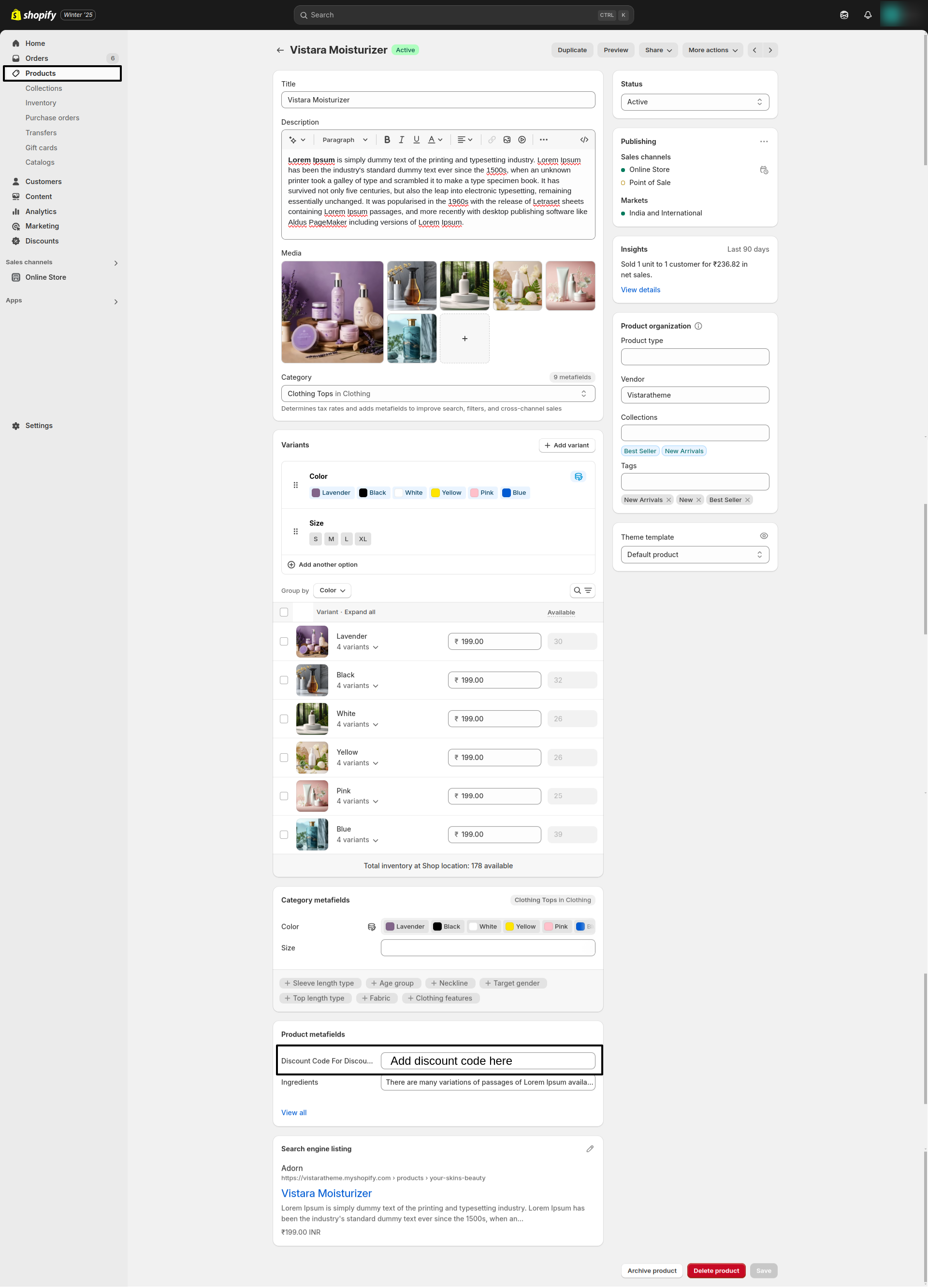
- Go to Products in your Shopify Admin.
- Open a product and scroll down to the Metafields section.
- Add the discount text or code (e.g., "20% off sale", "10OFFONE").
2. Using Default Settings for Global Discounts
This method applies the same discount across all products.
- Configure Global Discount Settings:
- Add the following details:
-
- Discount Code: Enter a universal code.
- Text: Enter the promotional text.
- Countdown Date: Set the end date for the promotion (e.g., 2025-02-14 00:00:00).
- Text/Icon Color: Choose the desired color for text and icons.
- Sale Tag Color: Customize the color for the sale tag.
4. Custom Liquid
In the Custom Liquid box, enter Liquid template language code. Refer to Learning Liquid: A guide to Shopify theme development.