
Contact
In your Adorn theme, the Contact page enables customers to reach out directly, allowing you to engage with them and respond to their questions or concerns effectively.
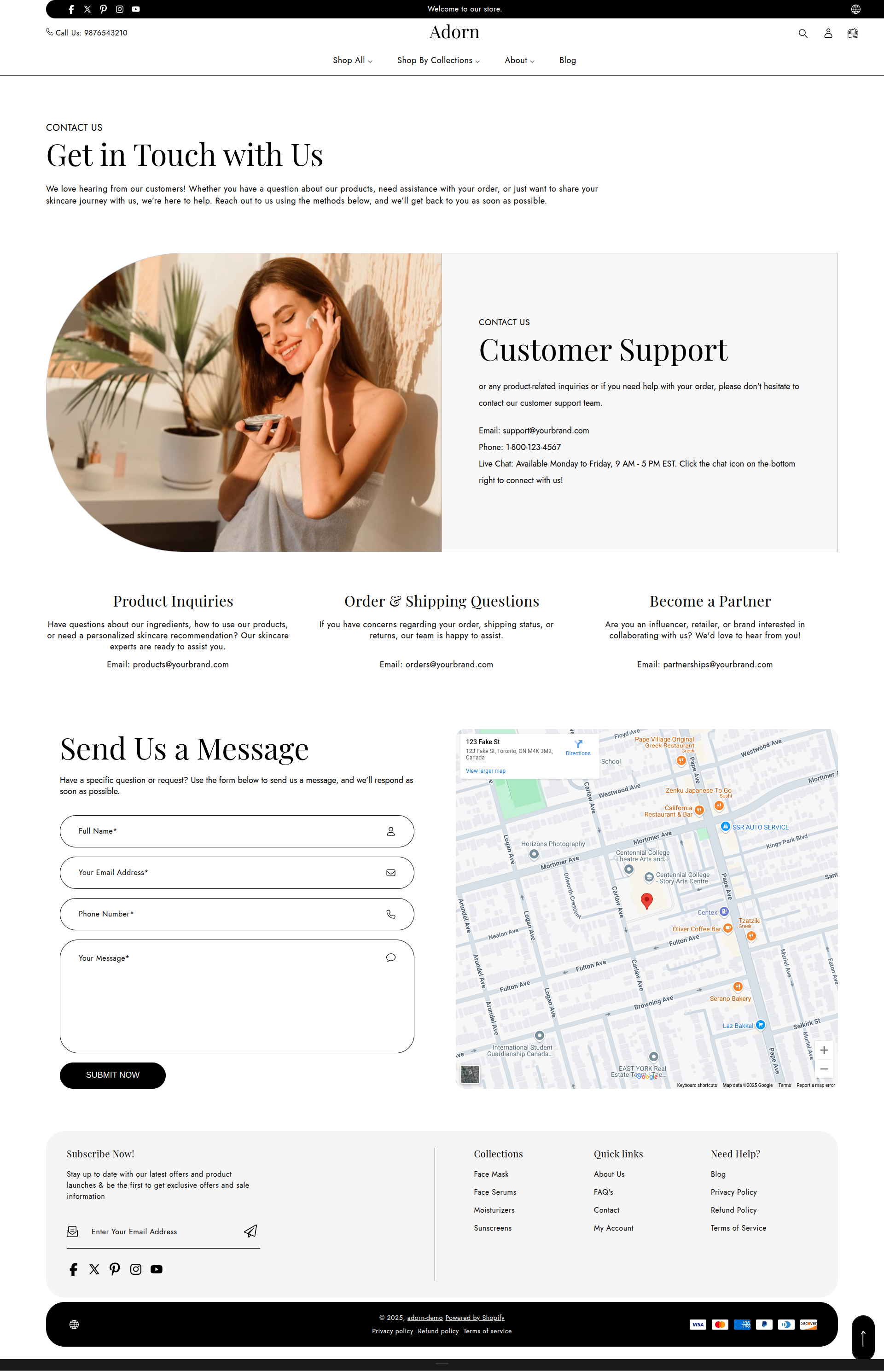
How to set up the contact page:
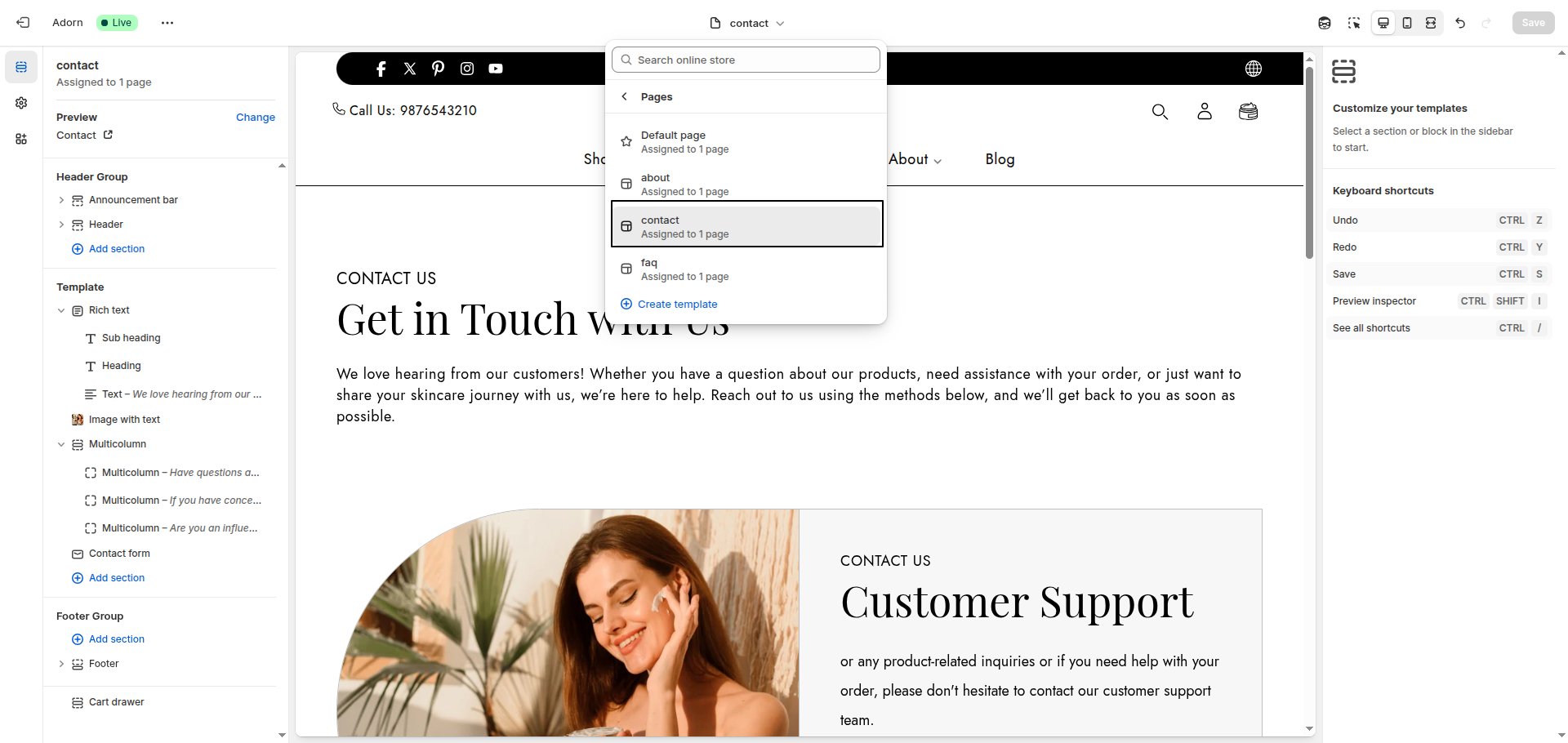
- Open the Customizer.
- Select Pages > Contact from the dropdown at the top.
- This page comes prebuilt with several blocks, listed in the Template section of the left-hand side of the screen. Select Add block or use the existing blocks available.
Static pages
Static pages are the unchanging parts of your website that provide essential information, such as policies, about us, FAQs, and contact details. In your Adorn Shopify theme, pages hold essential information that rarely changes but is frequently referenced by customers. Learn more about utilizing pages effectively in Shopify.
Types of static pages
This user guide will cover some of the common types of static pages you can create for your website
- About Us page: This is where you can tell your brand's unique story.
- FAQ Page: Answer common customer questions in a clear and organized way.
- Contact Page: Make it easy for customers to reach you.
- Policy page: These detail your shipping, return, and privacy policies.
How to customize the Policy page layout?
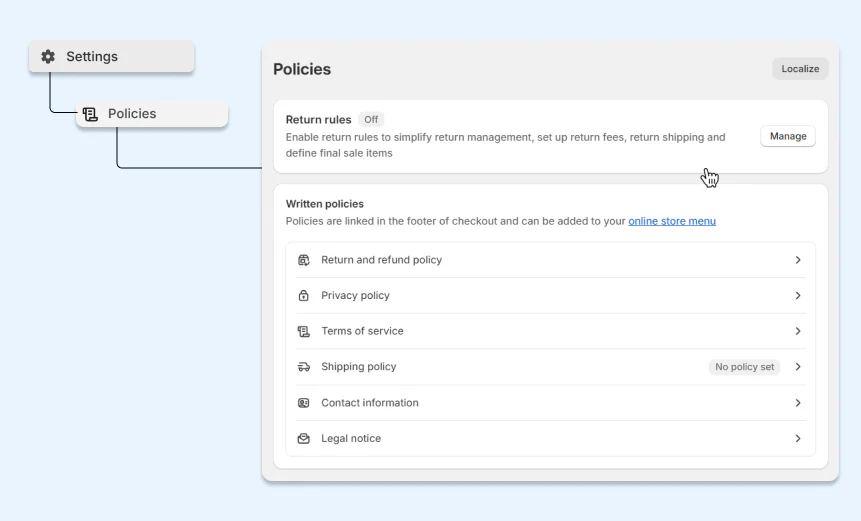
Your Shopify store automatically comes with a few pre-made policy pages (like your refund policy or privacy policy). These policy pages:
- Can’t change the layout: Their layout is fixed and cannot be adjusted in Theme Editor.
- Can only change the content: Head to Settings > Policies to update the content.
How to create a new page
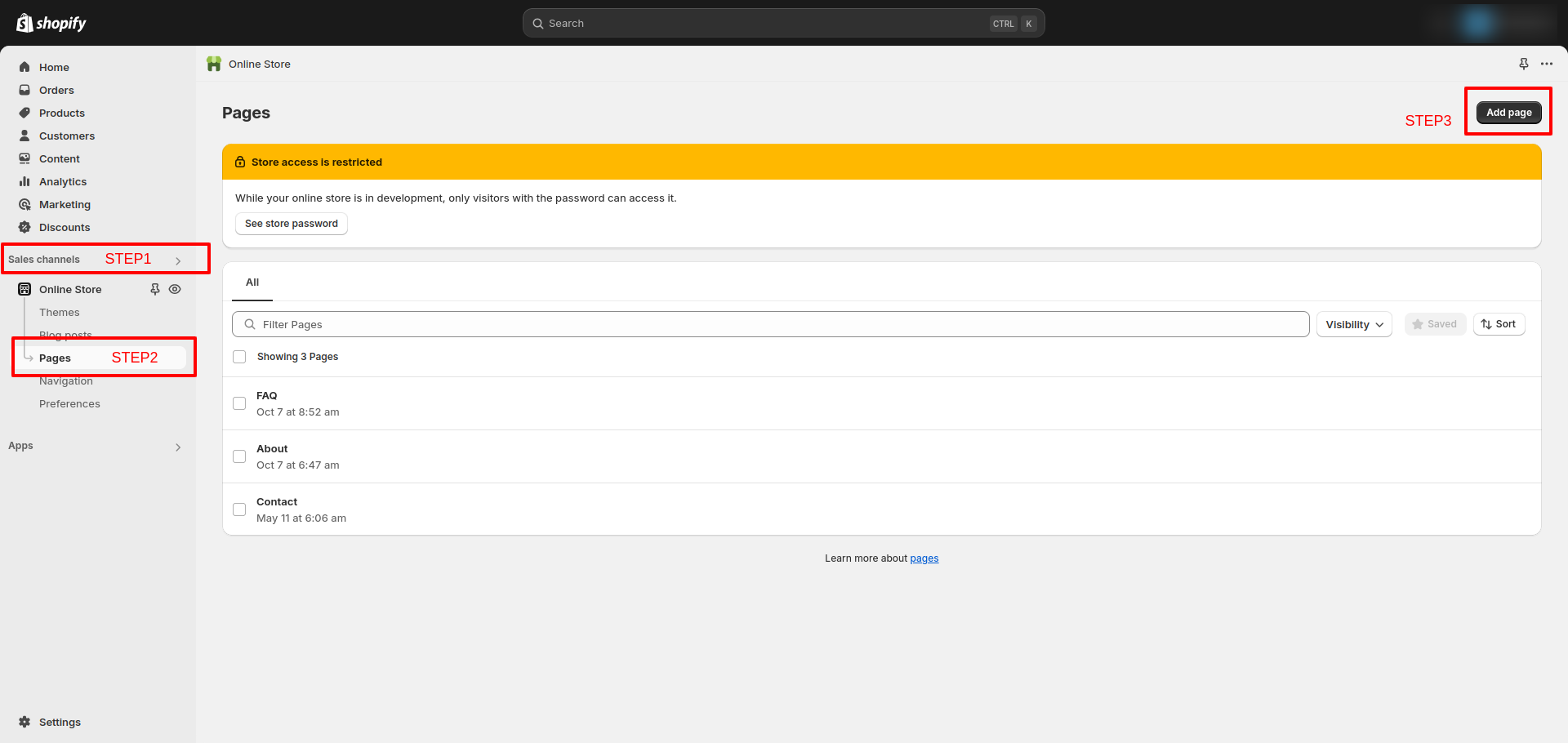
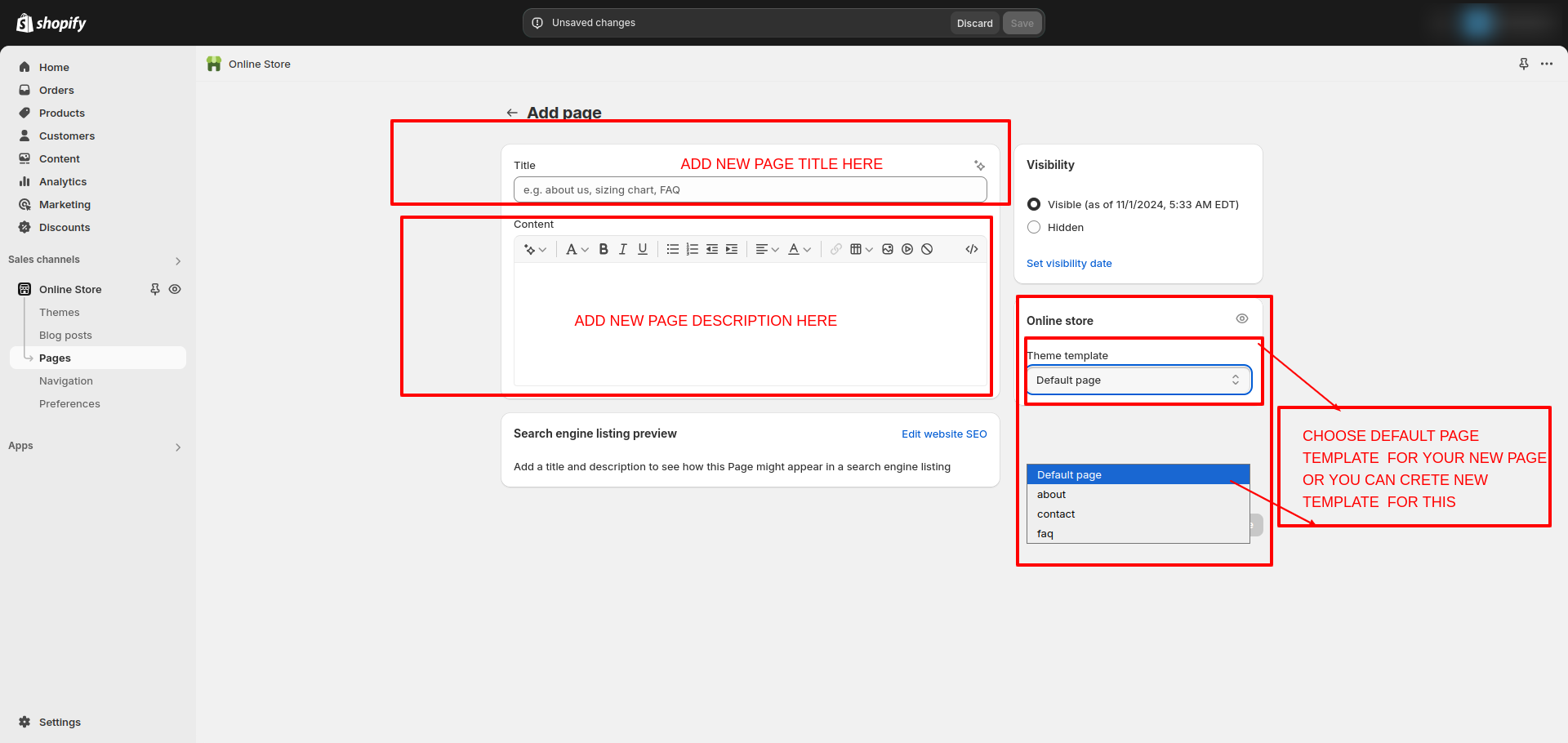
To create a new page in your Adorn theme, go to the Pages section in your Shopify admin. Add a title (required), optional content, and adjust the link in the Search Engine Listing Preview.
Next, select a theme template from the dropdown
- Default template for simple, rich-text content.
- Custom templates with preset sections and options.
When pages are added as blocks or sections in your store, only the title and rich text content will be displayed.
In the theme editor, you can create different templates for pages and add various sections, or you can use the following ready-made templates of the theme:
FAQs
Why isn’t my contact page displaying in the theme?
Ensure the page is assigned to the correct template in your Shopify admin under Pages. For further guidance, refer to Shopify's Template Guide.
Where are my contact form emails sent?
Emails are delivered to the address set in your Shopify admin under Settings > Notifications > Sender email.
Why am I not receiving emails from my contact form?
Email delivery is managed by Shopify, not the theme. To check if the issue is theme-related, temporarily install Shopify’s default Dawn theme as a draft and test the contact form.
- If emails work with the Dawn theme, an app or developer modification may have impacted your current theme.
- If emails still don’t send, reach out to Shopify Support for assistance.
How can I add additional content to my contact form?
Assign specific page content to the contact template in your Shopify admin. This content will appear above the form, but only if Adorn is the published theme. Learn more by exploring Shopify's Pages Guide.