
Mega Menu
A Mega Menu is an organized, full-width navigation menu that structures multiple links and categories, making it easier for customers to find the products or collections they’re looking for. A clear and accessible menu layout can enhance the shopping experience and improve conversions.
The Adorn theme supports a versatile mega menu, offering both simple dropdowns and full-width menus with text and images, providing effective, quick navigation across your storefront.
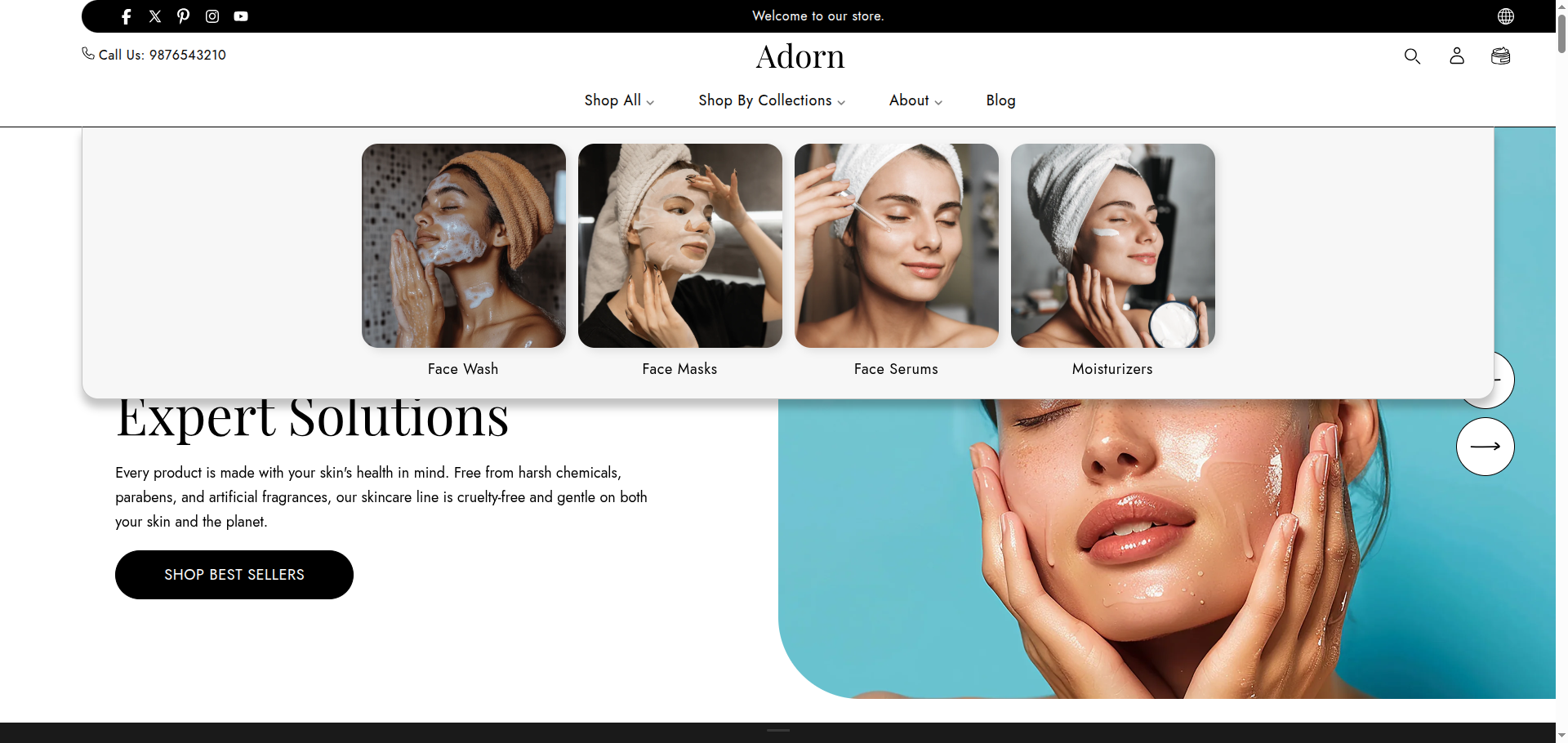
How to set up a mega menu
1. Enable the Mega Menu
- Go to Online Store > Themes > Customize.
- In the customizer, navigate to the Header section where you can add menus.
- Choose Menu Type: You will see options for the menu type. choose type Mega Menu
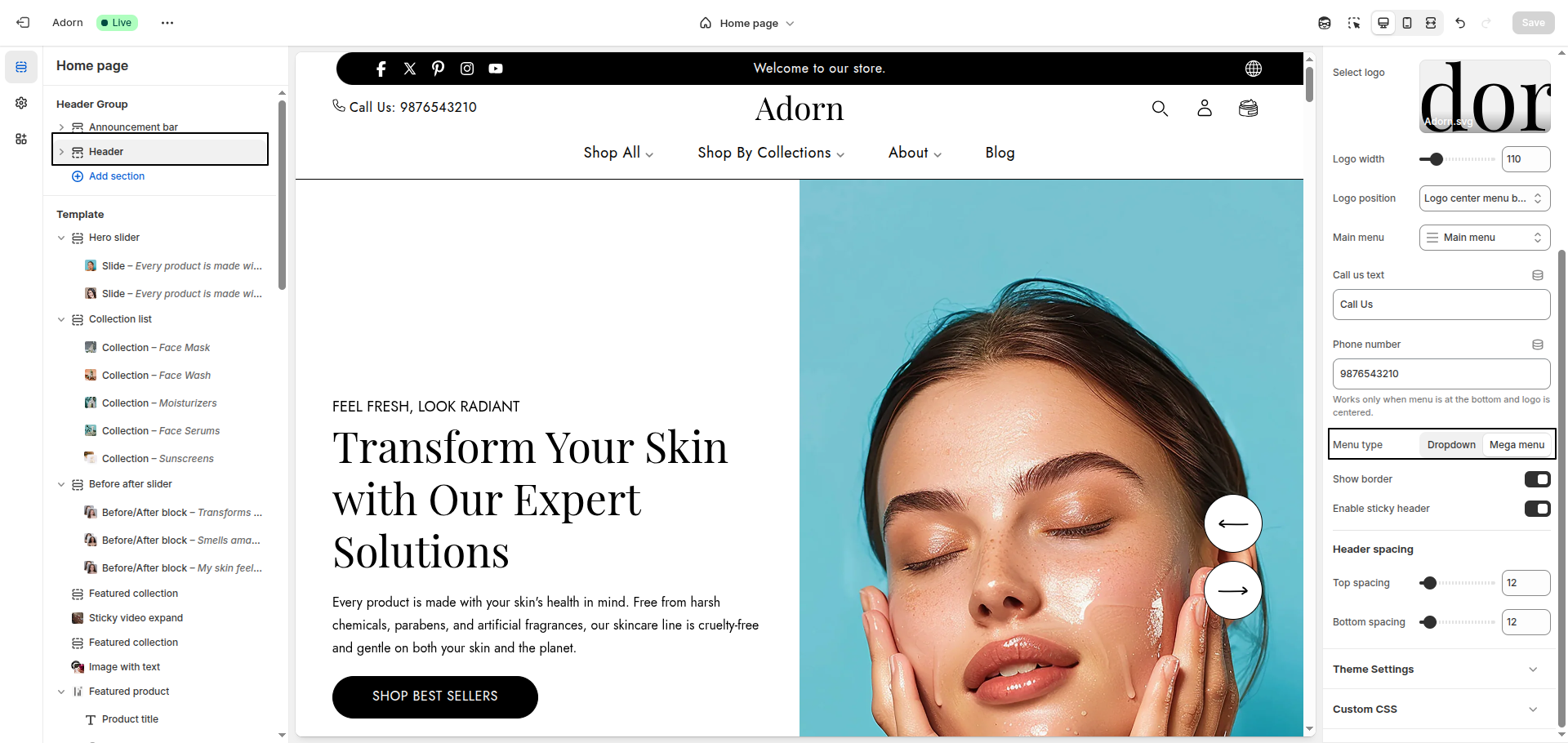
2.Steps to Configure the Mega Menu Image
1. Default Collection Image
- If the collection has a default image set, the mega menu will automatically fetch and display that image.
2. Using a Custom Image
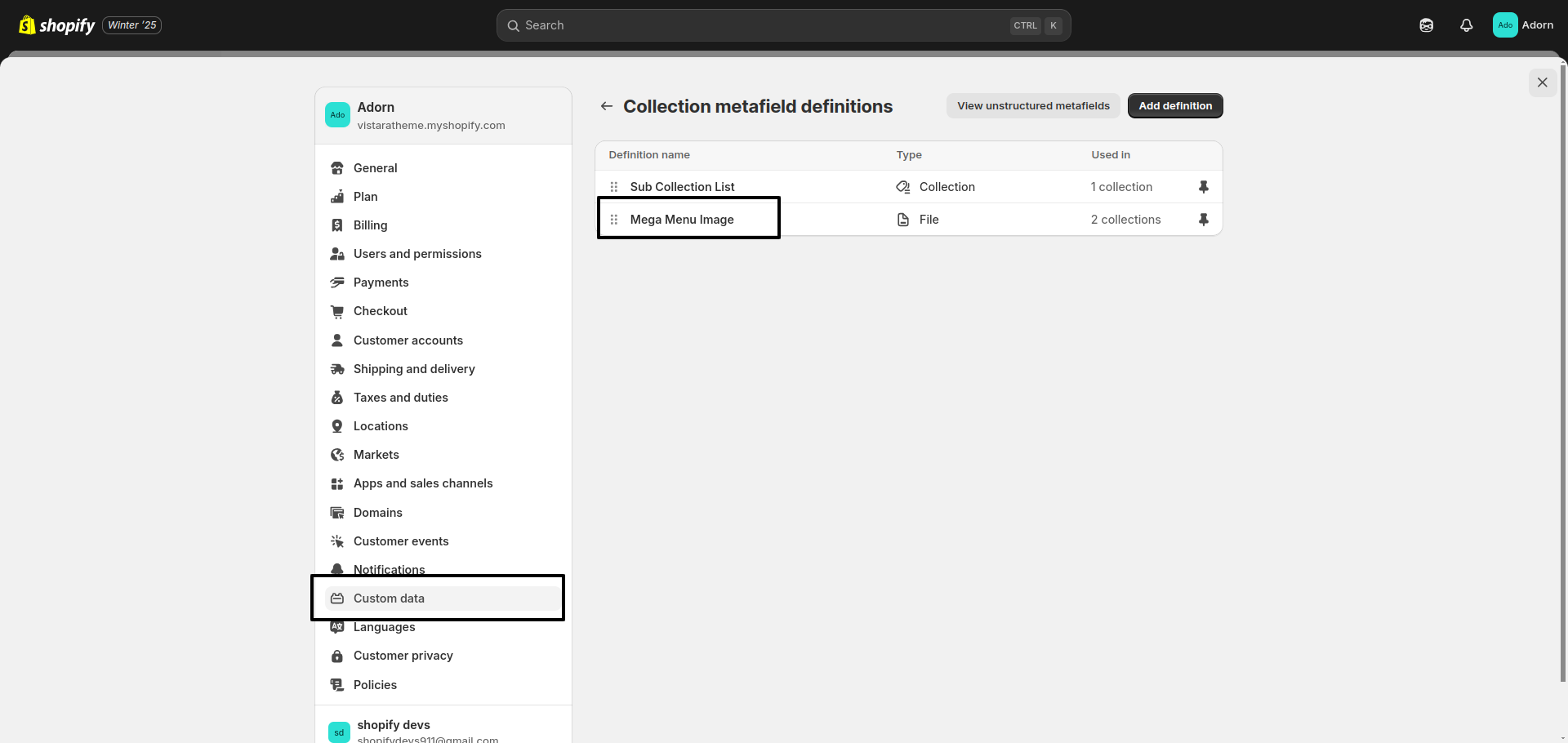
To display a different image, you need to create a metafield named "Mega Menu Image" for your collections. Follow these steps:
1. Create the Metafield
- Go to Shopify Admin > Settings > Custom Data > Collections.
- Click Add definition
- Enter "Mega Menu Image" as the metafield name.
- Choose File as the type and save the metafield definition.
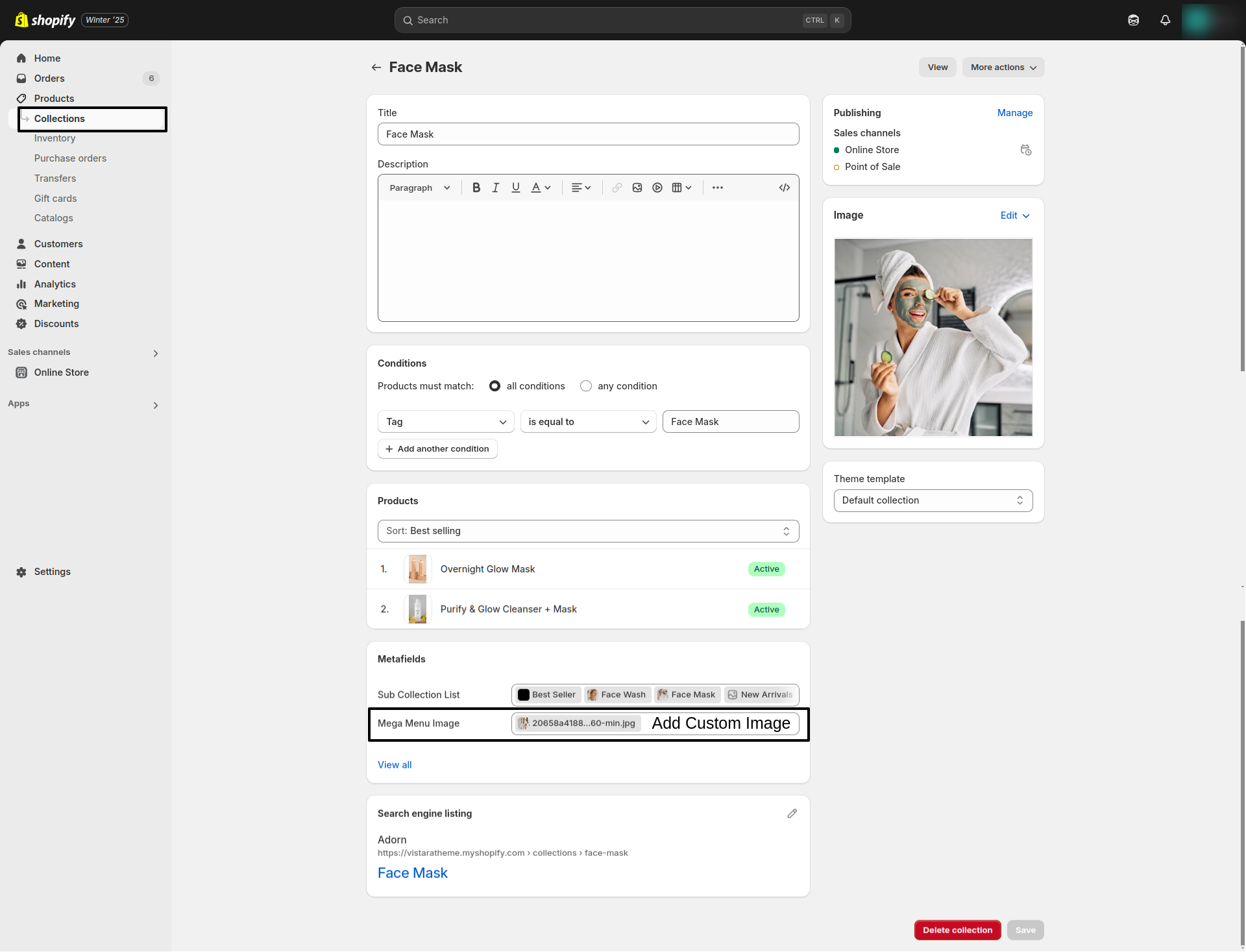
2. Add an Image to the Metafield
- Navigate to Products > Collections in your Shopify admin.
- Select the collection you want to customize.
- Scroll to the metafield section labeled "Mega Menu Image".
- Upload the desired image and save the collection.
If you have not already done so, create a nested menu in the Shopify admin area: Online Store > Navigation. To create a mega menu like the screenshot above, ensure you have a multi-layer structure, meaning you have Heading Layer 1, Heading Layer 2, and menu links inside Layer 2
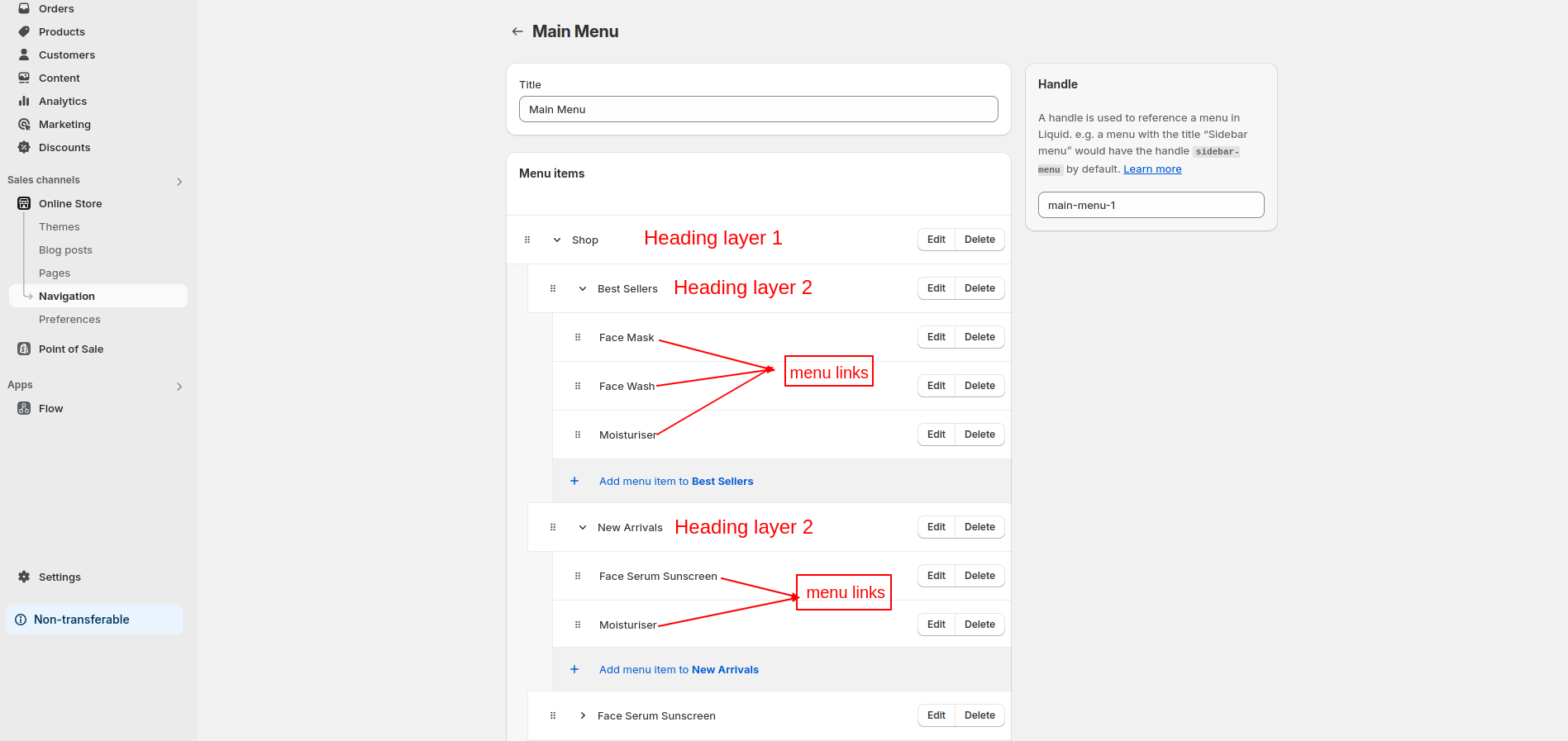
Make sure you follow the system outlined above. Do not add two layers, or your menu won't look like the one in our demos..